How to Remove Objects from Video: Match Your Tool to Your Footage
Simple inpainting or physically complex counterfactual editing your footage determines the path. Here's how to tell which you have, and what each approach actually delivers.
If you're trying to figure out how to remove objects from video, the first decision isn't which tool to open. It's diagnosing what kind of removal you actually need. Almost every case falls into one of two categories: appearance-level inpainting, which consumer tools handle adequately, or interaction-aware counterfactual editing, which they don't. Getting that wrong costs time you won't get back.
The technology shifted in early 2026, though not in the way most marketing copy suggests. Most AI video tools still treat removal as patching a hole: mask the object, fill the background, export. That works for simple cases. A new generation of research systems, including Netflix's open-source VOID framework and a parallel effort called EffectErase, goes further by editing the physical consequences of an object's presence rather than just its pixels. Remove a ball bouncing off a table and the table stops vibrating. Remove a lamp and the light it cast on the wall disappears (ResearchTrend, early April 2026). That capability matters because it changes which problems are actually solvable, and it sets a realistic ceiling on what current consumer tools can do.
VOID is open-source under Apache 2.0, but requires A100-class hardware with 40GB or more of VRAM and a multi-stage pipeline. Studio-scale, not a browser plugin (NovaKnown, early April 2026). This guide covers both tracks.
Choose your path in 30 seconds
Answer these questions about your clip:
- Does the object physically touch, push, or collide with anything else in the frame?
- Does it cast a significant shadow or appear in a reflection?
- Does its presence cause visible motion in adjacent objects?
- Is it large, center-frame, and present for more than a few seconds?
Zero "yes" answers: start with a consumer inpainting tool (Section 2). One or more "yes" answers: read Section 1 first to understand what you're dealing with, then decide whether to proceed with consumer tools, a research-grade pipeline (Section 3), or a different editorial approach altogether.
How to remove objects from video: first decide what kind of removal you need
Video of the Day
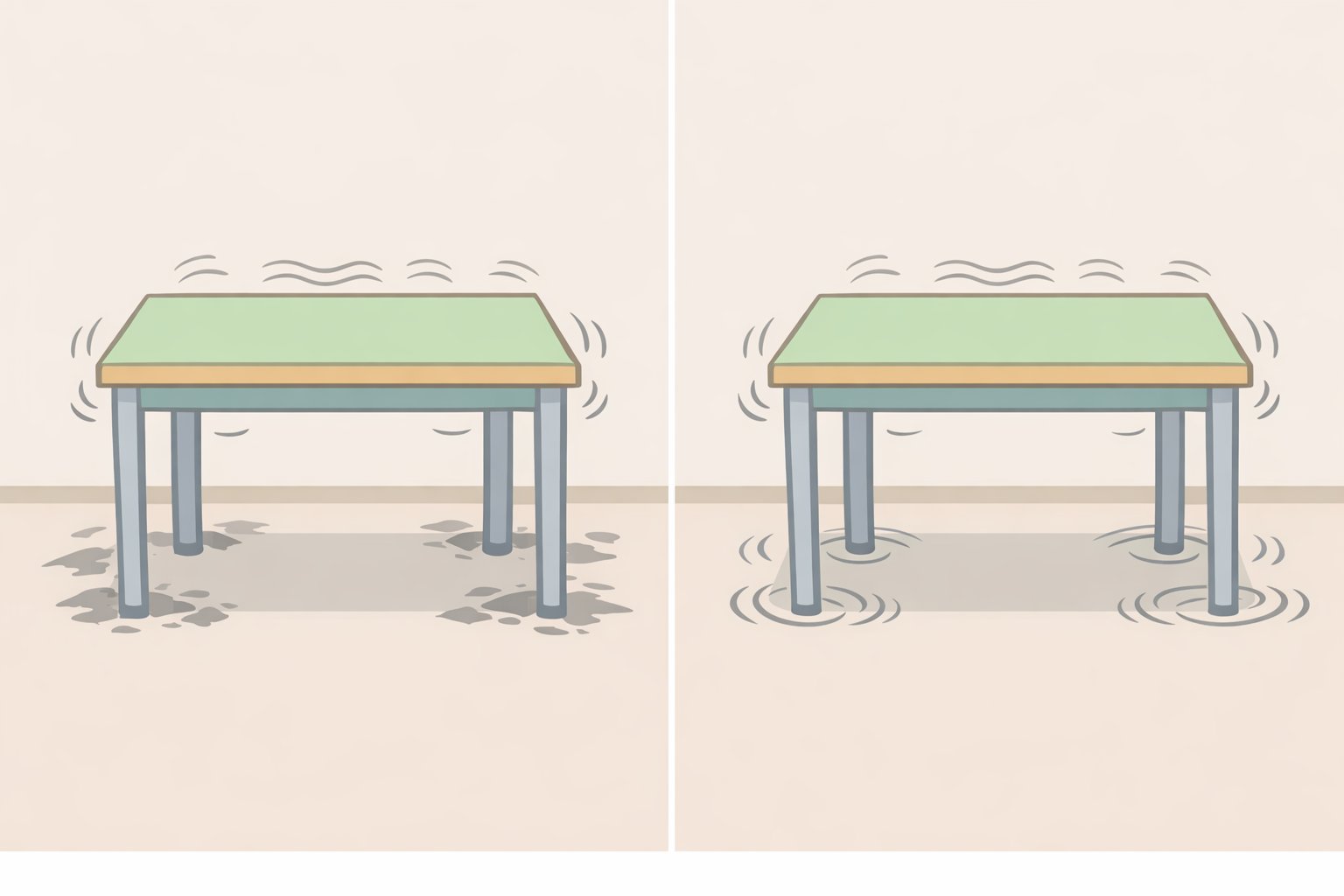
The single most useful thing to do before opening any tool is watch your footage and answer the four questions above. Each "yes" adds a layer of complexity that consumer tools struggle to handle cleanly, for reasons the research makes concrete.
Existing AI video object removal tools handle appearance-level cleanup reasonably well. Shadows, reflections, and background fill are all addressable. The breakdown happens when the removed object had physical interactions, such as collisions with other elements or causing motion elsewhere in the frame. At that point, current consumer models produce implausible results (ResearchTrend, early April 2026). The failure mode isn't subtle: a table still vibrates after the ball that was hitting it disappears.
EffectErase, a separate research system published in late March 2026, identifies five distinct effect categories that standard video inpainting misses entirely: occlusion, shadow, lighting change, reflection, and surface deformation. Its framing is apt most current tools treat removal as "fill in the black hole defined by the mask," which leaves all five of those problems unaddressed (WisPaper, late March 2026). A common limitation across commercial tools is that they tend to regenerate entire scenes rather than editing targeted regions precisely, which becomes visible on anything other than simple, static footage (Magic Hour, early April 2026).
Easy removal consumer tools sufficient:
- Small or peripheral objects with simple backgrounds
- Objects with no shadow, reflection, or physical contact with surrounding elements
- Short clips with static or slow camera movement
- Examples: a logo watermark, a microphone stand against a plain wall, a person at the far edge of a wide shot
Hard removal consumer tools will leave artifacts:
- Objects that touch, push, compress, or otherwise physically interact with other elements
- Objects that cast significant shadows or produce visible reflections
- Objects whose presence causes motion in adjacent elements (a ball vibrating a table, a person pushing a door)
- Large objects occupying significant screen real estate across multiple seconds
What results are realistic?
| Scenario | Consumer tool | Advanced pipeline (VOID-style) |
|---|---|---|
| Small static object, plain background | Convincing | Overkill |
| Object with cast shadow | Workable with care | Better, still imperfect |
| Physical interaction / caused motion | Visible artifacts likely | Plausible if hardware available |
| High-resolution output (1080p+) | Generally supported | Limited VOID defaults to ~384×672 |
| Setup complexity | Browser or NLE plugin | A100-class GPU, multi-stage pipeline |
One more thing worth stating plainly: if the object drives motion in surrounding elements, occupies most of the frame, or runs through a long clip, AI removal at any tier may leave work for manual VFX cleanup. At that point, weigh AI removal against cropping, a cutaway edit, or reshooting. That's not failure; it's the right call.
Video of the Day
Step-by-step: remove unwanted objects from video with consumer and cloud tools
Most creators should start here. Magic Hour's early April 2026 vendor roundup names Runway as its pick for video inpainting, though that reflects one vendor's assessment rather than independent benchmarking (Magic Hour, early April 2026). Browser and NLE-based tools broadly offer interfaces that handle straightforward removals without hardware requirements. Use this path unless your footage clearly belongs in the hard-removal category from the section above.
Before starting, evaluate your clip for shot length, camera motion, and background complexity. AI video inpainting on a 3-second static shot is a fundamentally different problem from a 20-second pan with a moving subject. The longer and more dynamic the footage, the more likely you'll need a refinement pass or some manual cleanup.
Step 1: Draw a tight mask.
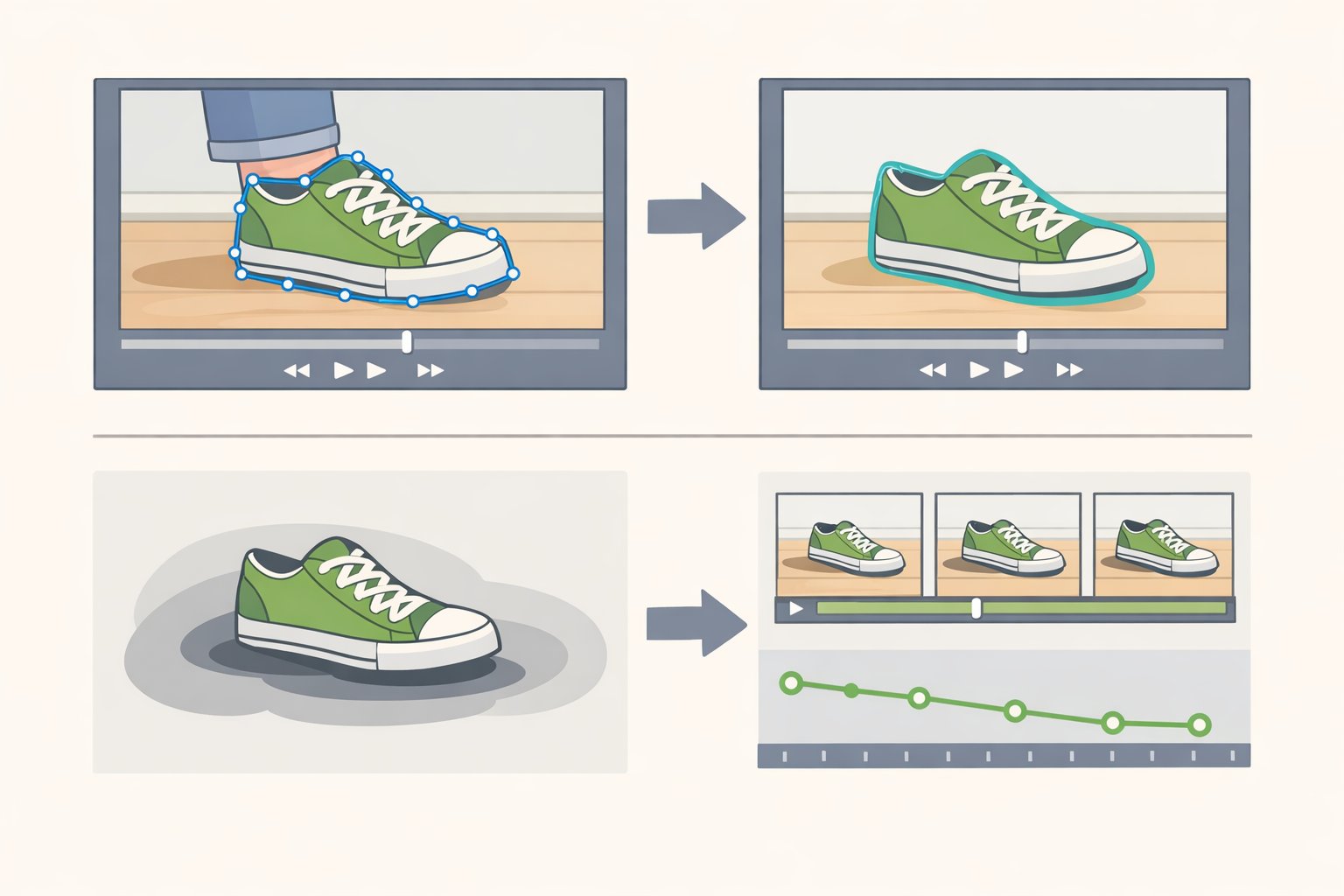
Mask exactly what needs to go, then extend the boundary slightly to catch edge artifacts and partial shadows. Oversized masks invite the model to invent background texture, and that invention is usually visibly wrong. For shadows and reflections, mask those separately they're distinct regions, not automatically included when you mask the object itself.
If the tool offers automatic tracking across frames, use it. But scrub through the tracked mask before running inference. Tracking drifts on fast motion and at frame cuts. Fix those sections manually before you commit.
Step 2: Write a prompt that describes the result, not the edit.
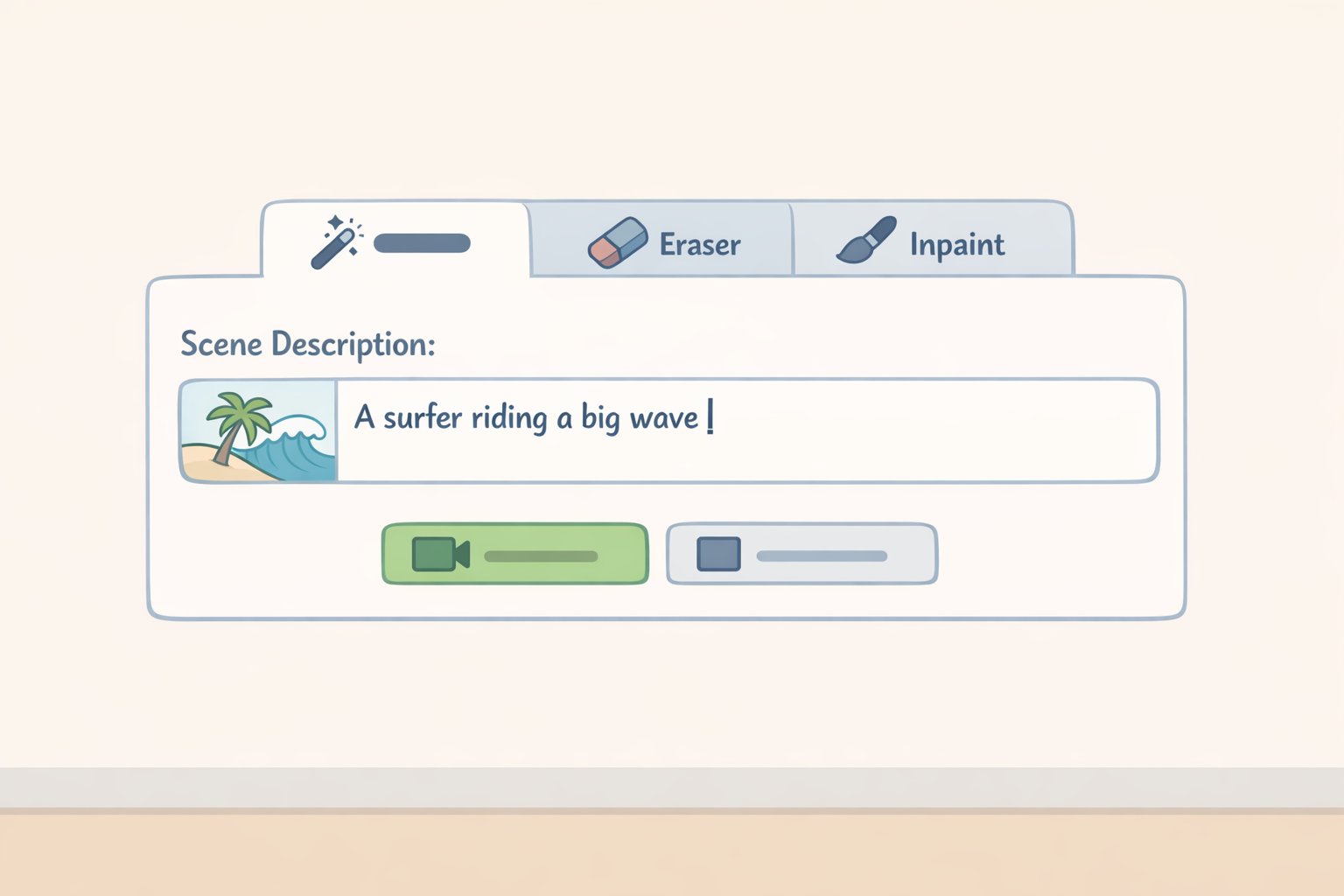
This is the technique most people skip, and it makes a real difference. Describe what the final scene should look like, not what you're removing. VOID's prompting approach, formalized in early April 2026, explicitly instructs users to avoid describing deletion instead, write one short, concrete, physically plausible sentence about the post-edit scene (MarkTechPost, early April 2026). "A quiet kitchen with an empty countertop" consistently outperforms "remove the blender." The model generates forward from a scene description, not backward from a deletion command.
This principle transfers directly to consumer tools that accept text prompts. Frame the desired end state; let the model get there.
Step 3: Run inference and enable the refinement pass for complex clips.
For clips longer than a few seconds, or footage with camera movement, enable any consistency or refinement pass the tool offers. Expect longer processing time. Skip it for quick tests or short, static shots where temporal consistency isn't the concern.
Step 4: Review output at actual playback speed, then scrub frame-by-frame.
Artifacts in AI video object removal are often invisible at a glance and obvious on scrub. Look specifically for: lingering shadows, reflections without a source, flickering edges, and motion in adjacent objects that no longer makes sense. These are the tells that the tool ran a simple inpainting pass and missed the secondary effects.
If you see them, the choices are: accept the result and plan light manual cleanup, or move to the advanced pipeline in the next section.
When results aren't good enough:
If you've refined the mask, improved the prompt, and run a refinement pass, and the output still shows obvious artifacts, the footage likely requires interaction-aware removal. At that point: run an advanced pipeline (Section 3), plan manual VFX work on top of the AI result, or make a different editorial decision about the clip.
For context on where research-grade tools stand: EffectErase outperforms prior state-of-the-art methods including ROSE on background coherence, and specifically handles secondary light splashes and reflections that other models miss entirely. It still requires a manual mask in its current form, with instruction-based erasing via natural language as the stated next step (WisPaper, late March 2026).
Running a research-grade pipeline: what VOID actually requires
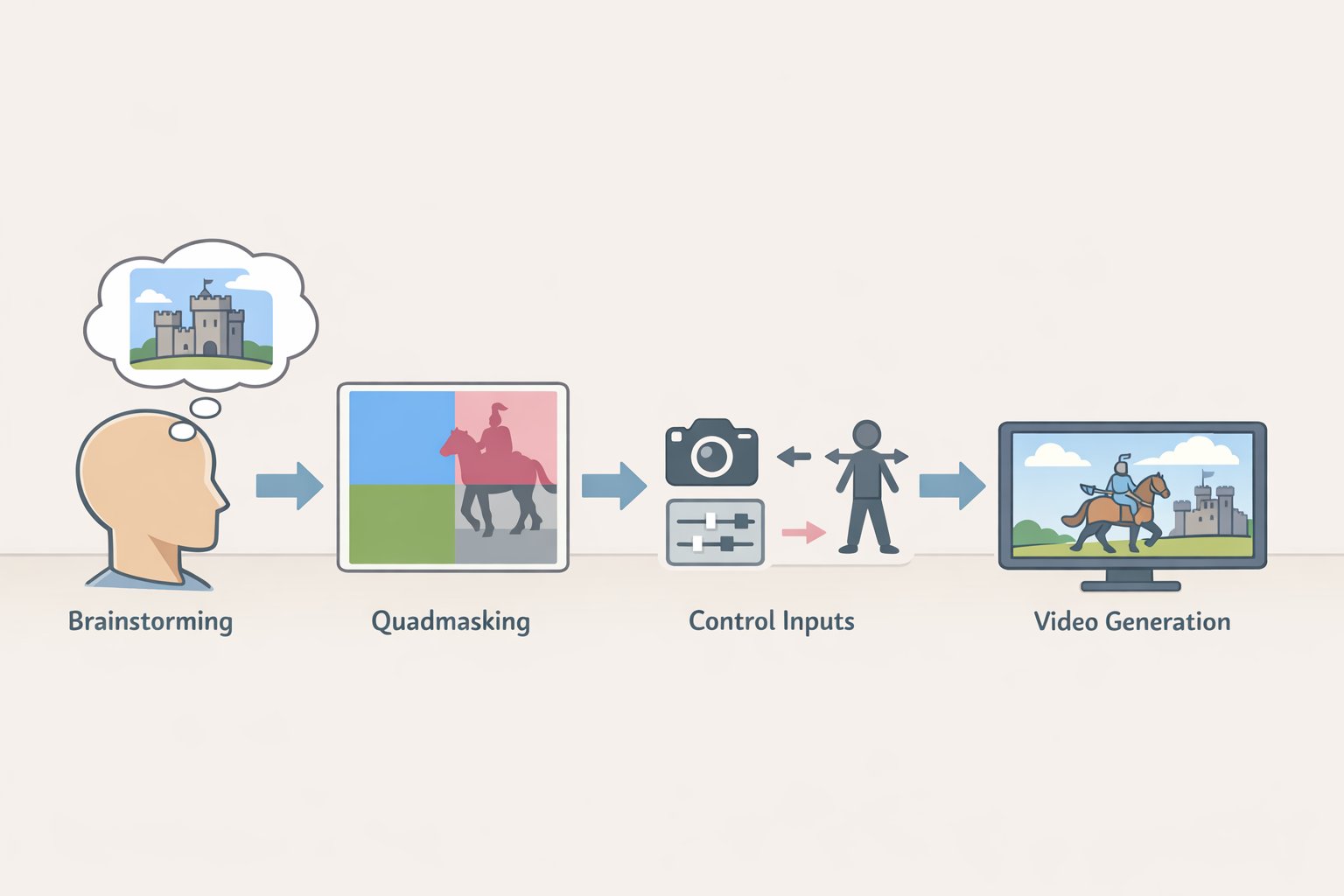
VOID is the clearest current example of interaction-aware AI video object removal. The architecture produces physically plausible results on complex scenes by approaching the problem differently from any consumer tool. It is open-source under Apache 2.0. It is not a consumer tool.
What VOID does differently:
Most inpainting models approximate "fill here, no object." VOID tries to generate a video consistent with a world where the object never existed, which requires understanding what that object was doing to its surroundings. A vision-language model Gemini in the reference implementation identifies which regions of the scene are affected by the removed object. Those regions feed into a four-class quadmask: remove this, overlapping zone, physically affected (can be rewritten), preserve exactly. A video diffusion model then generates output consistent with all four constraints (NovaKnown, early April 2026).
The reasoning stage isn't optional overhead. It's what separates interaction-aware results from sophisticated hole-filling. You can swap in a different diffusion model; skipping the reasoning stage eliminates the physically plausible output.
VOID's training used paired counterfactual scenes the same scenario with and without the target object drawn from the Kubric and HUMOTO datasets. That pairing is how the model learns altered downstream physics rather than texture infilling: if you delete the box, the ball continues straight; the table stops vibrating (ResearchTrend, early April 2026).
Prerequisites check these before starting:
- GPU: A100-class, 40GB+ VRAM. A T4 or L4 may fail outright or run so slowly as to be impractical even with CPU offload enabled (MarkTechPost, early April 2026).
- Clip parameters: Default resolution is 384×672 not 1080p. Maximum clip length is 197 frames, temporal window of 85 frames. Longer or higher-resolution input requires more VRAM and longer inference time.
- Time budget: The optional second refinement pass improves temporal consistency but doubles inference time (NovaKnown, early April 2026). Plan accordingly.
If you don't have A100-class hardware, stop here and return to Section 2. The pipeline as currently configured will not run meaningfully on consumer-grade GPUs.
Condensed workflow:
- Clone Netflix's VOID repo and install dependencies in a GPU-enabled runtime.
- Select or prepare input video within the resolution and frame-count limits above.
- Write your background prompt one concrete, plausible sentence describing the post-edit scene and save it as
{"bg": "your description"}in the sample'sprompt.json. Describe the result, not the removal. - Run Pass 1 inference (50 steps, default settings). Output saves as a result clip and a side-by-side comparison.
- Review. Enable Pass 2 only if temporal consistency artifacts are visible and the inference time is acceptable.
Limitations worth knowing before you commit hardware time:
VOID's ~384×672 default output resolution is a real constraint. The model produces physically plausible results on complex interactions, but the output may not meet production standards without upscaling. That tradeoff better physics, lower resolution is the honest summary of where this pipeline sits right now (NovaKnown, early April 2026). VOID is best positioned as a reference architecture, a proof-of-concept, or a specialist tool for specific complex shots. It is not a wholesale replacement for the commercial inpainting workflow.
What to do next
For most removals: use a commercial inpainting tool, draw a tight mask, prompt for the final scene state, and run a refinement pass on longer clips. That handles the majority of practical cases.
For interaction-heavy scenes: either accept that consumer tools will leave artifacts and plan manual cleanup, or run VOID on A100-class hardware and accept the resolution tradeoff.
When neither works cleanly: make a different editorial call. Cropping, cutaways, and reshoots exist for a reason.
The architectural shift visible in both VOID and EffectErase separating scene reasoning from pixel synthesis is the direction this field is moving. Both are available to anyone building on top of them. EffectErase's 60,000-pair training dataset covers all five effect categories and represents a meaningful push on residual effects like reflections and deformations (WisPaper, late March 2026). The hardware barrier, currently A100-class for the VOID reference pipeline, will compress over time, and the reasoning-first pattern will likely appear in consumer tools in some form (NovaKnown, early April 2026). For now, the split between what consumer tools can and can't handle is real and consequential and knowing which side of it your footage sits on is what this guide was built to help you determine.