How to use a TV RS-232 port for home automation
If your TV has an RS-232 port, you have access to a control interface that predates HDMI by decades one that reaches picture and audio settings that HDMI-CEC simply cannot touch. This guide covers how to use a TV RS-232 port for home automation: confirming your TV actually supports it, wiring the hardware correctly, opening a serial session, and sending real commands to the set.
The catch, stated plainly: RS-232 is rare on modern consumer TVs. Sony's mainstream port documentation covers HDMI, Ethernet, USB, optical, coax, AV, and headphone RS-232 doesn't appear, which is representative of most consumer brands (Sony Support). The hardware setup has real failure points. And "your TV" in this guide mostly means certain LG consumer sets and Samsung commercial displays where the command set is vendor-documented. Know that going in.
Before you start, have these ready: your TV's full model number, the owner's manual (find it on ManualsLib if needed), a USB-to-serial adapter, a terminal application, and about 30 minutes.
TV RS-232 control: check support before you buy anything
Video of the Day
Two questions determine whether to continue: does your TV actually have RS-232 support, and does what it offers justify the setup cost over CEC?
Search your TV's owner's manual PDF for "RS-232," "RS232," or "serial control." If you find a command table with entries like k a (power) or x b (input select), you have RS-232 support. No command table means no RS-232 skip to the fallback section at the end of this guide.
The port is far more common on commercial displays than consumer TVs. Samsung's PM43H commercial display exposes it prominently as part of its MDC (Multiple Display Control) ecosystem (Samsung PM43H Manual via ManualsLib). On LG consumer sets that do support it, the port may not be a standard DB9 connector it may use a phone-jack form factor labeled "RS-232C IN," requiring a purpose-built adapter cable rather than any generic serial cable (LG 43SK79 Owner's Manual via ManualsLib). LG's documentation also notes that commands may behave differently depending on model and signal, so confirm the command table in your specific model's manual before planning automation around it.
CEC vs. RS-232 a quick decision framework:
| Use CEC if… | Use RS-232 if… |
|---|---|
| You need power, source, and volume control | You need picture mode or audio tuning changes |
| Your automation controller is already connected by HDMI | CEC commands are dropped or causing conflicts |
| Setup simplicity is the priority | Command acknowledgment matters (multi-display installs) |
| Your TV lacks RS-232 | Your TV's CEC implementation is unreliable |
CEC runs over a single wire on HDMI pin 13. On a Raspberry Pi 4 or 5 running Home Assistant, the built-in HDMI port works as a CEC adapter with no extra hardware required. On any other platform NUC, VM, x86 server you need a separate Pulse-Eight USB-CEC adapter (Botmonster Tech).
CEC is also a shared bus. If a streaming stick, the TV's own CEC handler, and a Home Assistant automation all send commands simultaneously, you get dropped commands or devices toggling unexpectedly. The fix disabling CEC on everything except your designated controller requires accessing the settings menu on each device (Botmonster Tech). RS-232 is point-to-point, so bus contention isn't a factor.
Where RS-232 pulls ahead: switching to gaming mode automatically when a console is detected, setting a picture profile on a schedule, adjusting equalizer settings per input source. CEC cannot change picture settings like brightness, contrast, or picture mode, and cannot launch specific smart TV apps (Botmonster Tech). These are documented use cases on LG sets none of them reachable through CEC.
Video of the Day
Step 1: Identify the port type and buy the right hardware
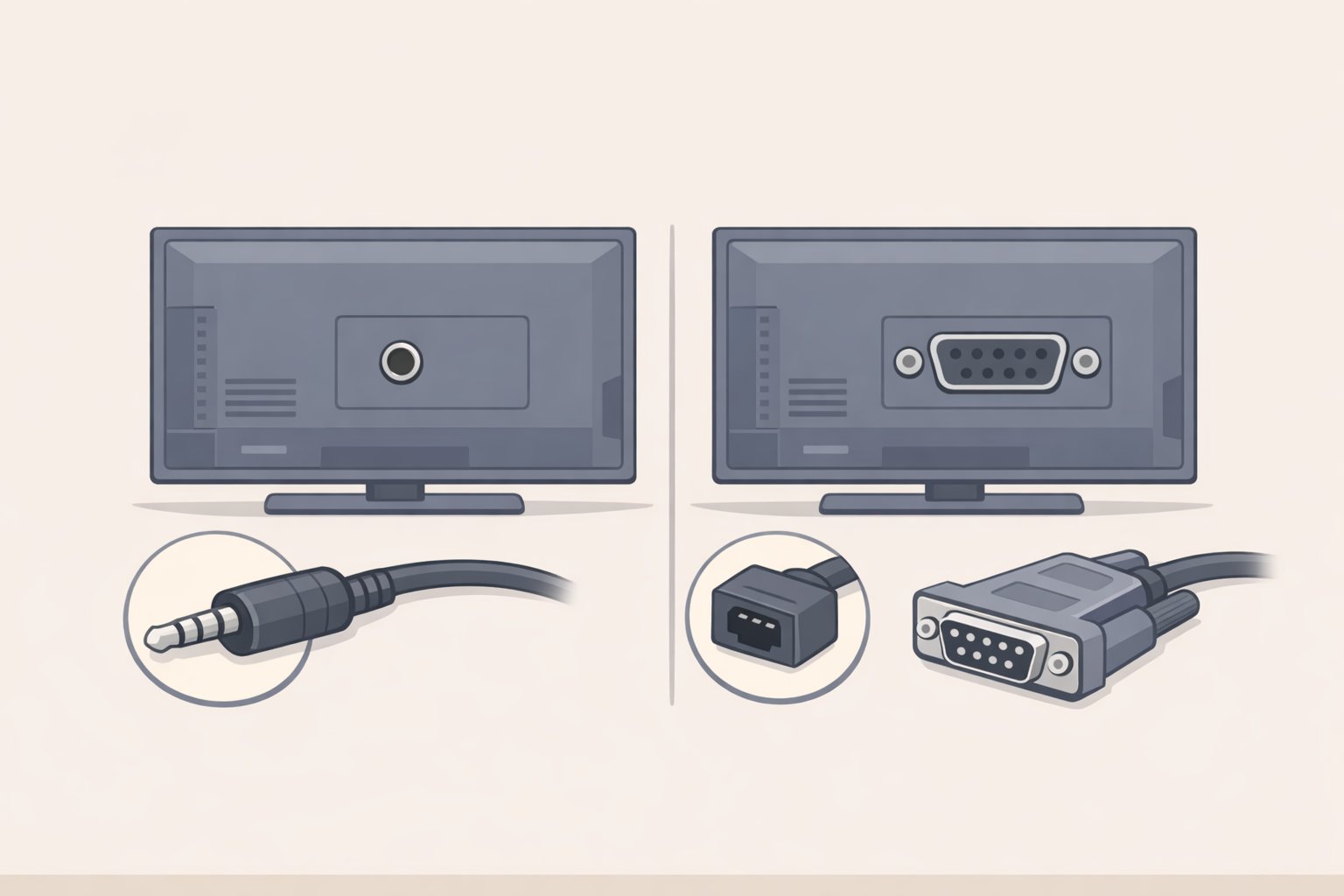
The hardware gap between a modern laptop and a TV's RS-232 port is wider than it looks. Confirm the physical connector type before buying anything.
Check your manual for connector type first. On LG sets with RS-232 support, the port may be a phone-jack RS-232C IN rather than a standard DB9 female. If that's the case, you need a phone-jack-to-RS-232 cable specific to that TV's pinout a standard USB-to-DB9 adapter will not fit physically (LG 43SK79 Owner's Manual via ManualsLib). Getting this wrong is the most common early failure.
Choose your USB-to-serial adapter chipset carefully. The four common options are FTDI (FT232RL), Prolific (PL2303), Silicon Labs (CP210x), and WCH (CH340). FTDI-based adapters are the most plug-and-play across Windows 10+, recent macOS, and Linux, typically requiring no manual driver installation. Cheap no-name adapters sometimes use counterfeit FTDI or CH340 chips that behave unpredictably (Romtronic). For an LG TV specifically, the manual documents support for PL2303-based adapters (Vendor ID: 0x0557, Product ID: 0x2008), so a genuine Prolific adapter is a known-good choice (LG 43SK79 Owner's Manual via ManualsLib).
Cable wiring is where most setups actually fail. RS-232 requires the transmit pin (TX, pin 3) on one end to connect to the receive pin (RX, pin 2) on the other, with a shared signal ground on pin 5. A straight-through cable connects like pins to like pins used for DTE-to-DCE links (computer to modem). A null-modem or crossover cable swaps pins 2 and 3, used when both devices are DTE. LG explicitly requires a crossed (reverse) cable for RS-232C TV control, meaning the TV behaves as DTE rather than as a passive serial device (LG 43SK79 Owner's Manual via ManualsLib; Romtronic). Always follow your TV's manual on this generic RS-232 assumptions will lead you wrong.
After this step: you have a USB-to-serial adapter with a confirmed chipset, the correct cable for your TV's physical connector type and wiring configuration, and both are connected.
Step 2: Open a serial session at the right parameters
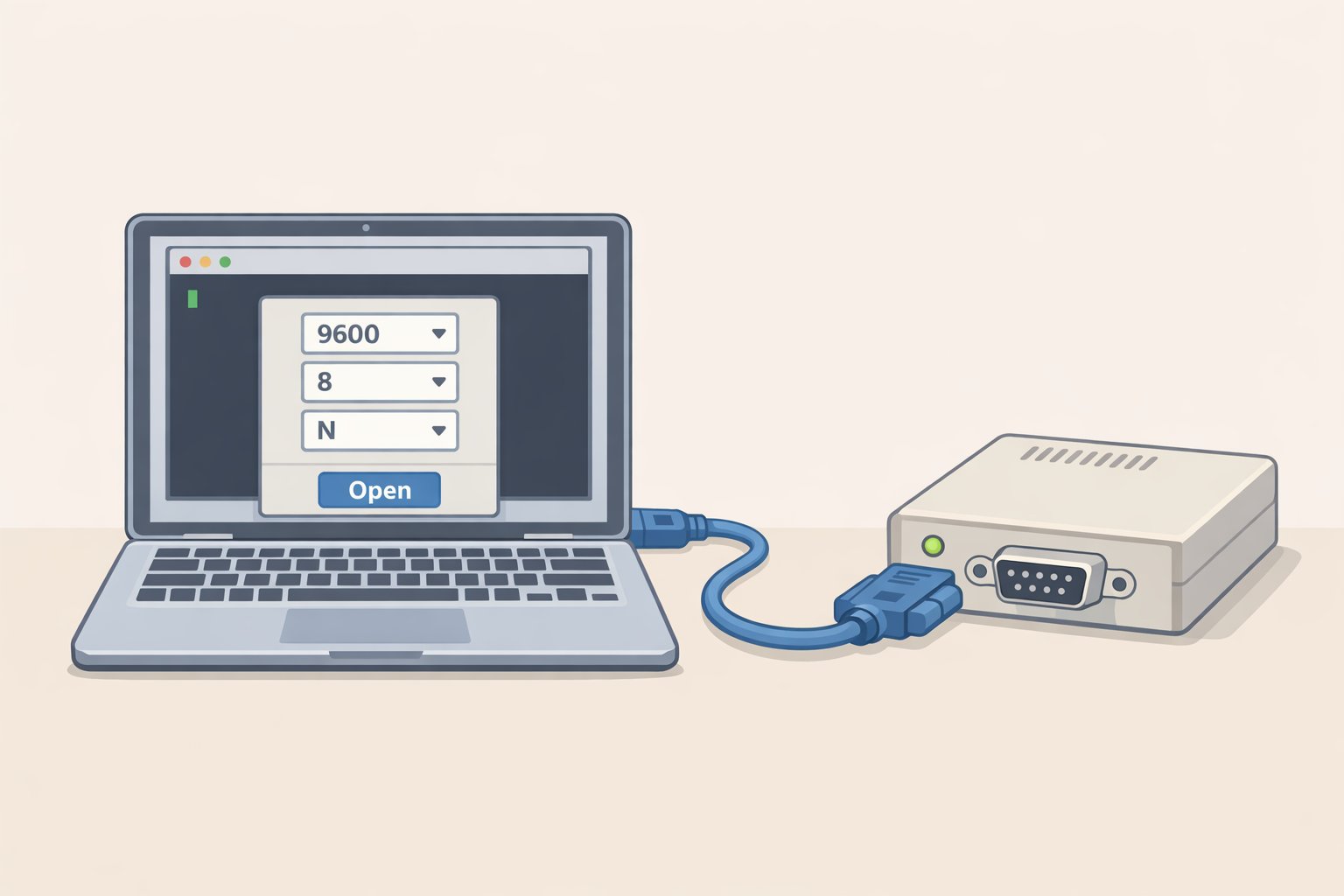
With the hardware connected, open a terminal session at the TV's required serial settings. The wrong baud rate produces garbage characters or silence neither tells you whether the TV is actually responding.
The required settings for LG RS-232C control are fixed: 9600 baud, 8 data bits, no parity, 1 stop bit, ASCII encoding standard 9600 8N1 (LG 43SK79 Owner's Manual via ManualsLib). These won't appear in any TV menu. They're defined in the manual and must be set on the software side.
On macOS: Run ls /dev/cu.* in Terminal before and after plugging in the adapter to identify the device name it will be something like /dev/cu.usbserial-A9H4CHBR. Connect with screen /dev/cu.usbserial-A9H4CHBR 9600. The screen utility ships with macOS and needs no installation. Exit cleanly with Ctrl+A then \ and confirm with y closing the Terminal window without exiting properly leaves the port locked (CliDeck).
On Windows: The adapter appears as a COM port in Device Manager. Use PuTTY set Connection Type to Serial, enter the COM port number, Speed 9600, Data bits 8, Parity None, Stop bits 1, Flow control None.
On Linux: The device typically appears as /dev/ttyUSB0. Connect with screen /dev/ttyUSB0 9600.
Troubleshooting work through in this order if something isn't right:
- No device in
/dev/cu.*run thelscommand before and after plugging in the adapter to confirm it registers at all - Device appears but connection fails check for a missing or blocked driver (macOS: System Settings, Privacy & Security; Windows: Device Manager)
- Connection opens but garbage characters wrong baud rate; exit the session entirely and reconnect at the correct speed (you cannot change baud rate inside an active
screensession) - Correct characters but no TV response wrong cable type (straight-through vs. crossover), or a USB cable that carries power only rather than data (CliDeck; Romtronic)
After this step: the port is open and the session is connected. Move to Step 3 to send your first command.
Step 3: Send your first RS-232 command and confirm the link works
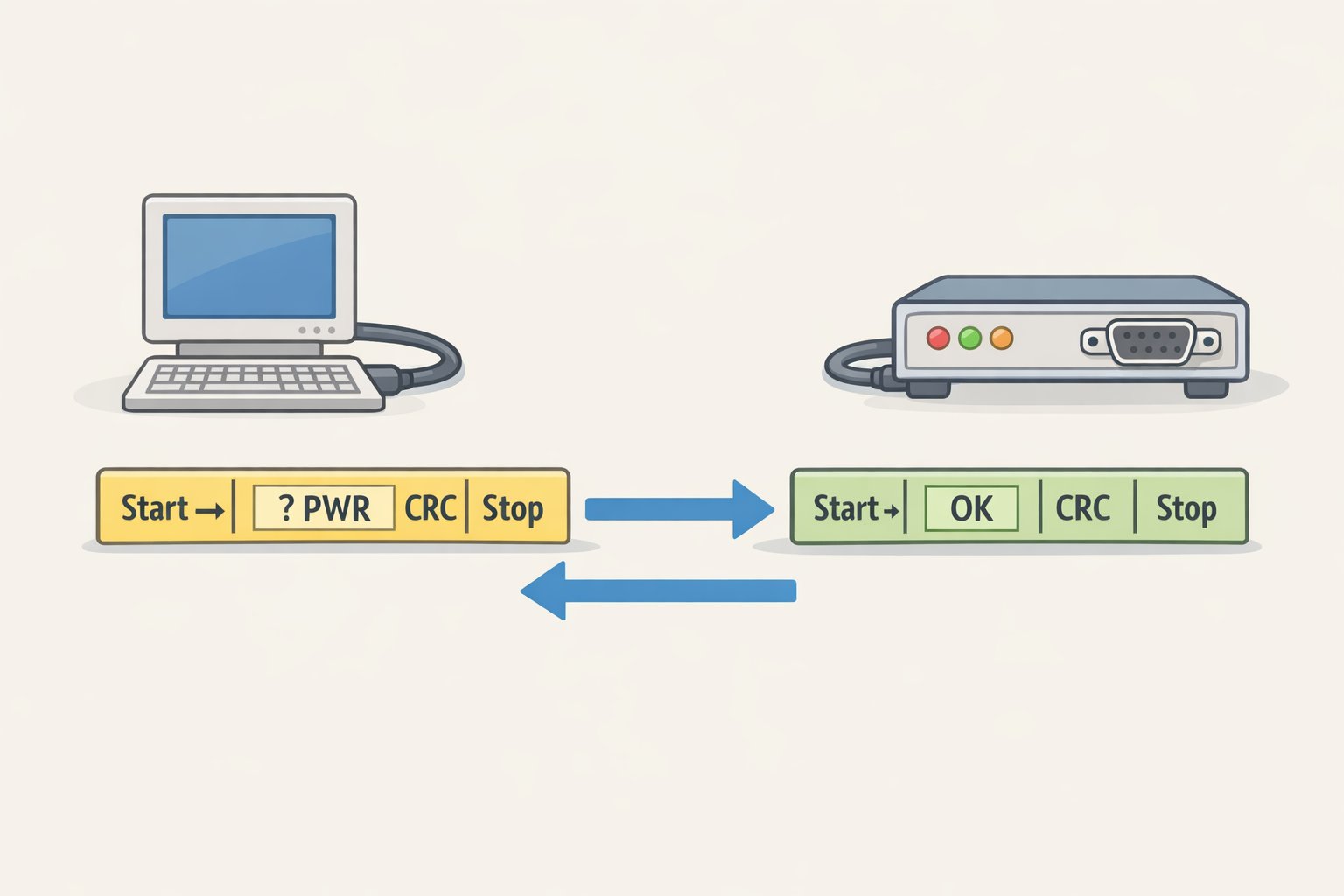
LG's command frame format is: [Command1][Command2][space][Set ID][space][Data][CR]. To query power status on a TV with Set ID 1, type k a 01 ff and press Enter.
A working connection returns an acknowledgment frame in the format [Command2][ ][Set ID][ ][OK][Data][x] for example, a 01 OK01x confirms the TV is on. If the TV returns NG instead of OK, the command was received but rejected. Nothing coming back at all means the link itself still isn't working return to the troubleshooting list in Step 2.
Once you have a confirmed acknowledgment, the serial link is validated and you're ready to build out the full command set.
Step 4: What the RS-232 command set actually unlocks on supported LG sets
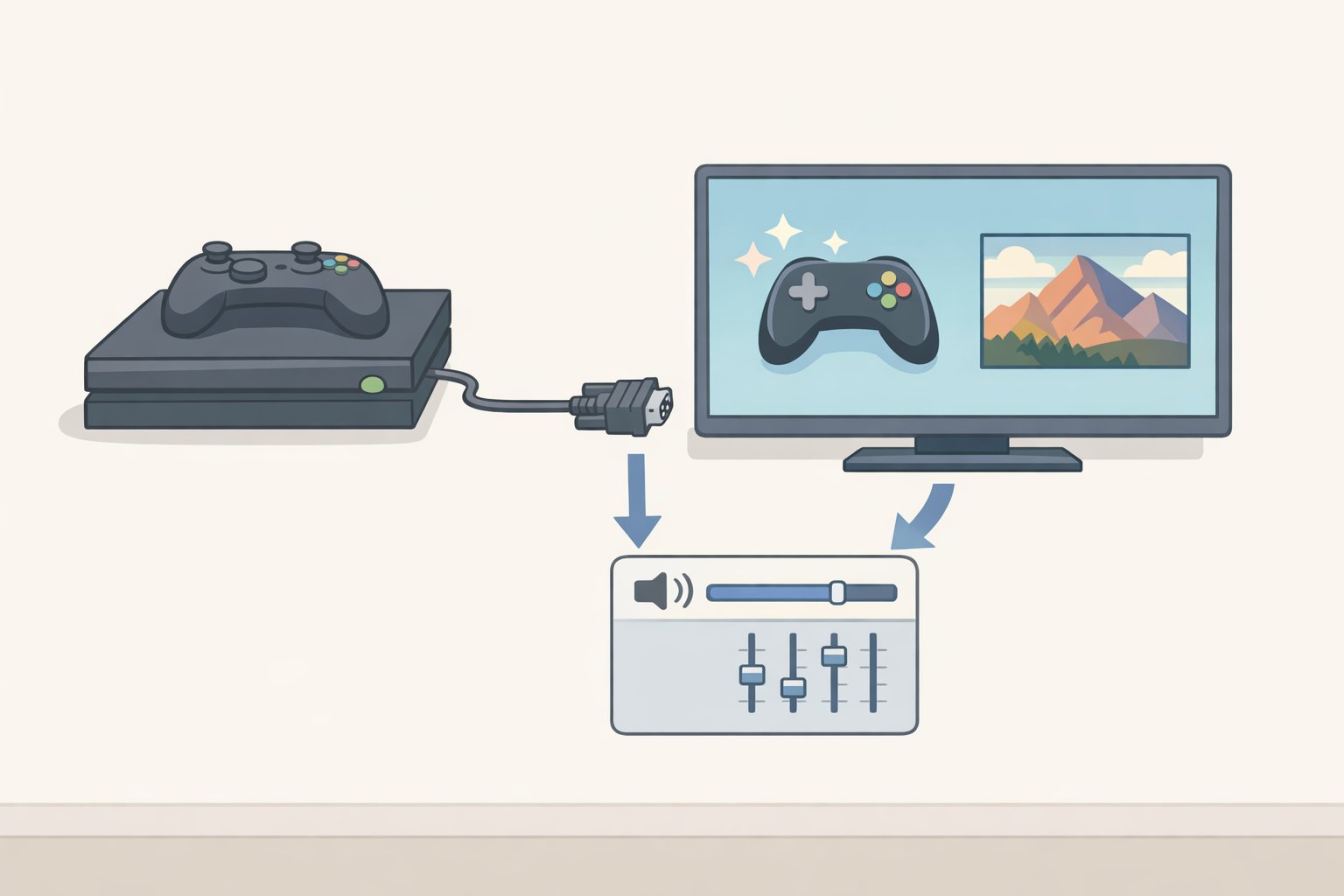
With a working connection, the command set opens three categories of control. Two of them have no CEC equivalent.
Power and input control (overlap with CEC, but with acknowledgment):
Power on/off (k a) and input select by source (x b) cover the same ground as CEC, but each command returns an acknowledgment frame so automations can confirm execution rather than fire-and-forget (LG 43SK79 Owner's Manual via ManualsLib). Set ID 00 broadcasts to all connected displays simultaneously useful for multi-screen installs where per-device confirmation matters.
Picture settings (no CEC equivalent):
The LG command table documents color saturation control (k i) with data values ranging from 00 to 64 in hex, mapping to 0–100 in percentage terms (LG 43SK79 Owner's Manual via ManualsLib). Available picture parameters vary by model and signal check your specific model's manual before building automations around them. A practical example: trigger a picture mode change the moment a gaming console's smart plug reports active power draw, with no menu navigation and no CEC negotiation required.
Audio settings (no CEC equivalent):
Treble adjustment (k r) and equalizer band control (j v) are documented in the LG command table with the same 00–64 hex data range (LG 43SK79 Owner's Manual via ManualsLib). This makes per-input audio profiles possible a flat EQ when the source switches to music, a different setting when it switches back. None of that exists anywhere in the CEC opcode set.
Three scenarios where these commands do real work:
-
Auto gaming mode. A smart plug detects the PS5 drawing active power. An RS-232 command adjusts the picture setting and switches input to the correct HDMI port in one step, without the TV's CEC implementation needing to cooperate.
-
Cinema preset on schedule. After 8pm, an automation fires RS-232 commands to adjust picture and lower treble settings that don't exist in any CEC opcode.
-
Multi-display synchronization. In a commercial or semi-pro install with multiple RS-232-connected panels, a single broadcast command (Set ID
00) syncs power state and input across all displays simultaneously, with acknowledgment confirmation from each one.
Next steps and fallback options for unsupported TVs
The serial link is confirmed, the commands are working. The main barrier throughout was hardware, not software: port type, adapter chipset, and cable wiring. Get those three right and the command interface is straightforward LG's documented parameters (9600 8N1, crossed cable) are fixed and non-negotiable (LG 43SK79 Owner's Manual via ManualsLib; Romtronic).
Moving to full automation: A network serial server exposes the RS-232 port over TCP, letting Home Assistant send commands from automations without a laptop physically connected to the TV. Python's pyserial library handles the same job in scripts. Either path uses the identical command strings validated in terminal testing no new protocol to learn.
If your TV doesn't have RS-232, three options together cover most of the same ground. CEC handles power, source, and volume via a Raspberry Pi's built-in HDMI or a Pulse-Eight USB-CEC adapter. For picture modes and app launches that CEC can't reach, an IR blaster such as the Broadlink RM4 Pro can replay learned remote codes from automations the Broadlink integration in Home Assistant supports learning IR codes from existing remotes and triggering them in automations (Botmonster Tech). For deep-sleeping devices, Wake-on-LAN handles the wake step before CEC commands can reach them (Botmonster Tech). Combined, those three replace most of what RS-232 provides on TVs that don't have it.
RS-232 earns its setup cost in three specific situations: you need model-specific picture or audio control that CEC can't reach, your CEC implementation is too unreliable to trust, or you're coordinating multiple displays and need confirmed acknowledgment from each one. Outside those cases, CEC is faster to configure and easier to maintain.