How to Clear Browser Cache Without Losing Your Logins
Start with the least disruptive fix. Most broken-site problems don't require clearing cookies here's how to tell the difference.
This guide walks you through how to clear browser cache in every major browser, on desktop and mobile, using the least disruptive fix that will actually solve the problem. You won't need to log back into everything unless you absolutely have to.
Three scenarios cover most situations. Find yours and go straight to that section:
| The problem | The fix | Where to go |
|---|---|---|
| One site looks broken or won't load | Clear that site's data only | Step 2 |
| Multiple sites look stale or broken | Clear full cache, keep cookies | Step 3 |
| Stuck in login loops even after clearing cache | Clear cookies too | Step 4 |
Before any of those: try a hard refresh first. It takes two seconds and fixes stale content without clearing or deleting anything.
The browser cache stores copies of website files images, CSS, JavaScript, fonts so they don't need to be downloaded on every visit. Those files typically don't contain personal identifiers and aren't used for tracking (ExpressVPN). Cookies are different: they hold login tokens, preferences, and session data, and can be used for cross-site tracking (ExpressVPN). Clearing cache won't log you out. Clearing cookies will.
Most browser clearing panels pre-select both by default. Always check what's ticked before you confirm that's the step most people miss (ExpressVPN).
Safari warning read before you start: Safari does not separate cache from cookies and browsing history. Clearing website data in Safari removes all three together. A "cache only" clear is not available; you will be logged out. This is noted again in the Safari sections below.
Symptom quick-reference
Video of the Day
Not sure which step applies? Match your symptom:
| Symptom | Likely cause | Least disruptive fix |
|---|---|---|
| One site looks broken or outdated | Stale cached files for that domain | Hard refresh, then Step 2 |
| Multiple sites look wrong | Broad cache issue | Step 3 (cache only) |
| Login keeps failing on one site | Bad session cookie | Step 2 (site-specific clear) |
| Login loops persist after cache clear | Corrupted session data | Step 4 (cookies) |
| Page looks fine after hard refresh | Cached file was stale | Nothing further needed |
Video of the Day
Step 1 Hard refresh: try this before clearing anything
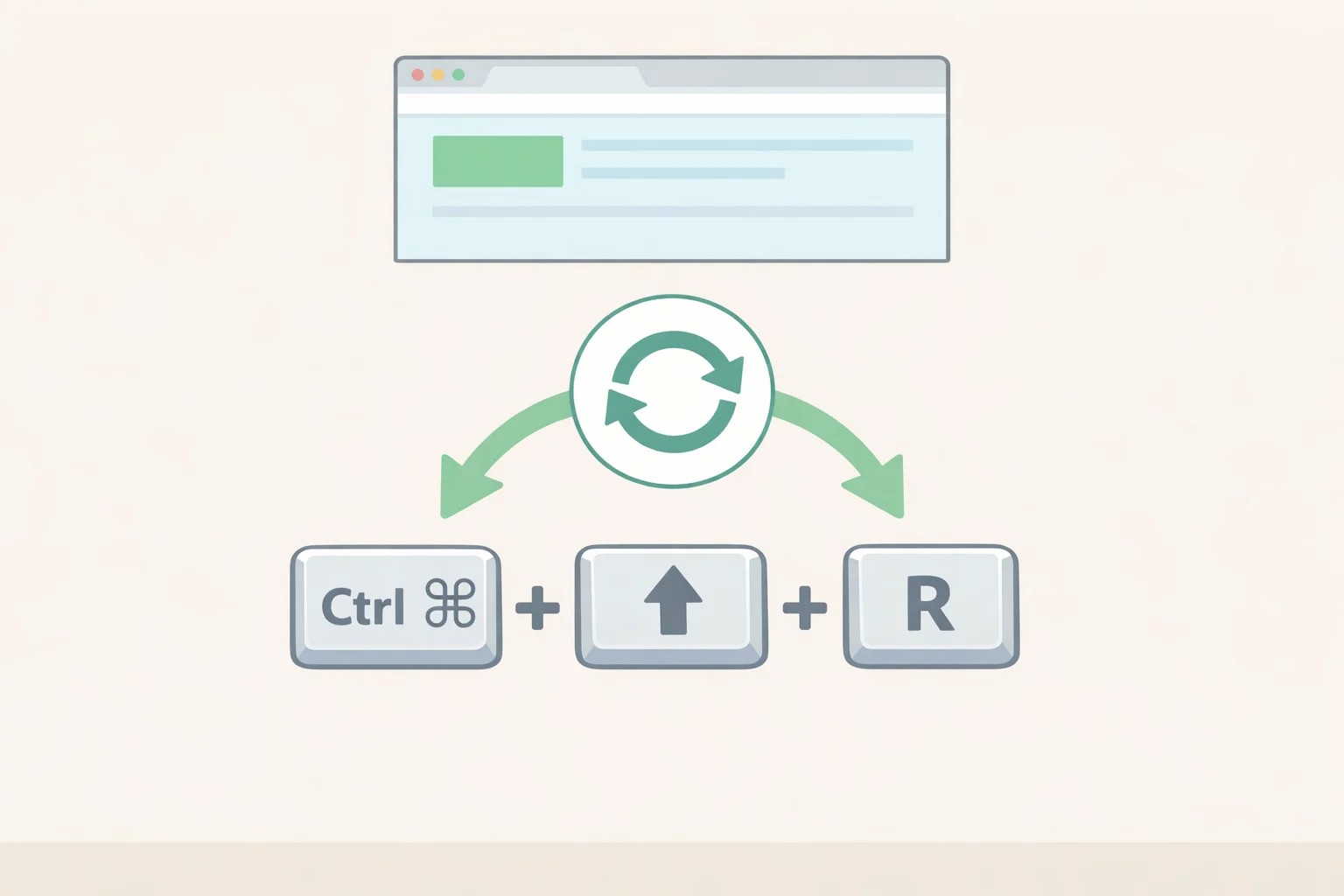
A hard refresh forces the browser to reload the current page directly from the server, bypassing whatever's stored locally. Nothing gets deleted.
Do this first whenever a page looks wrong or outdated.
- Windows/Linux (Chrome, Edge, Firefox, Opera): Press
Ctrl + Shift + R - Mac (Chrome, Edge, Firefox, Opera): Press
Cmd + Shift + R - Safari (Mac): Press
Cmd + Option + R, or holdShiftand click the reload button
If the page loads correctly after a hard refresh, nothing further is needed. The cache updates naturally as you browse. If the problem persists, or it's happening across multiple sites, move to Step 2 or Step 3.
One shortcut worth knowing for later steps: Ctrl + Shift + Delete on Windows or Cmd + Shift + Delete on Mac opens the clearing panel directly in Chrome, Edge, and Firefox, faster than digging through menus (Norton; University of Iowa ITS). That's for Steps 3 and 4 not this one.
Step 2 One site is broken: clear that site's data only
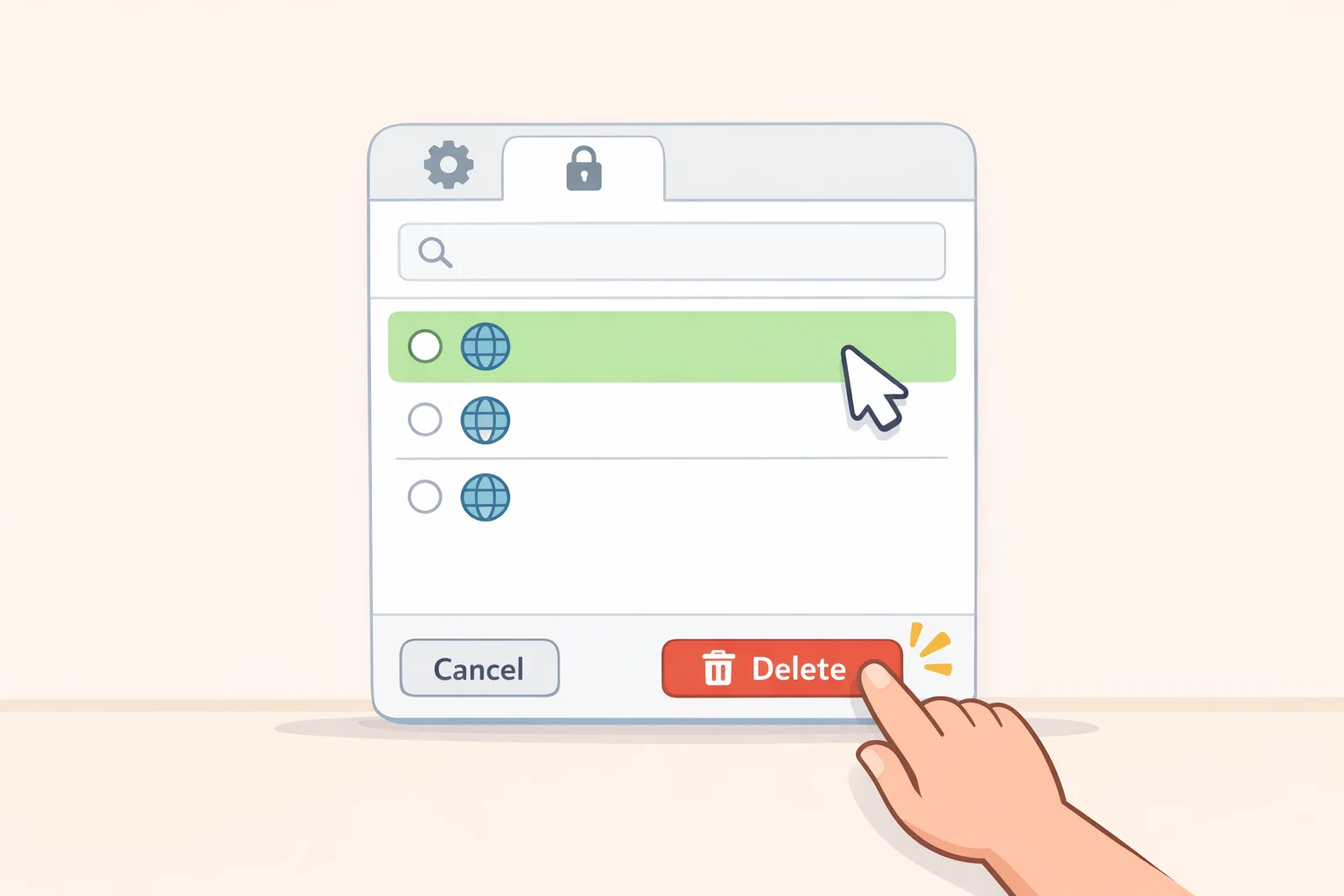
If a single site is the problem broken layout, outdated content, a login that keeps failing clear data for that domain only. Every other site stays intact, and you remain logged in everywhere else.
Heads up: In most browsers, this removes the site's cookies and stored data too, so expect to be logged out of that site. That's expected and usually necessary to resolve session-related errors.
Chrome (desktop): Go to Settings → Privacy and security → Site settings → View permissions and data stored across sites, find the domain, and click Delete. (Norton)
Firefox (desktop) fastest method: While on the broken page, click the padlock or shield icon to the left of the address bar, then select Clear Cookies and Site Data. This removes cache and cookies for that domain immediately, without opening settings. (Mozilla Support)
Alternate settings path: Settings → Privacy & Security → Manage Data → select the site → Remove Selected → Save Changes. (Norton)
Edge (desktop): Go to Settings → Cookies and site permissions → Manage and delete cookies and site data, find the domain, and remove it. Menu labels may vary slightly by version.
Opera (desktop): Opera shares Chrome's Chromium engine. Follow the Chrome desktop path above. (ExpressVPN)
Safari (Mac): Go to Safari → Settings → Privacy → Manage Website Data, select the site from the list, and click Remove. This removes cached files, cookies, and stored data for that domain only, without clearing your browsing history. (Norton; Temple University Help)
Safari on iPhone/iPad: Site-specific clearing isn't available. If one site is broken, your options are a hard refresh or a full clear (Step 3), which will also remove cookies and history.
Firefox's padlock-icon method is the quickest site-specific path of any browser covered here. When the problem is clearly isolated to one domain, start there (Mozilla Support).
Step 3 How to clear browser cache in Chrome, Edge, Firefox, Safari, and Opera
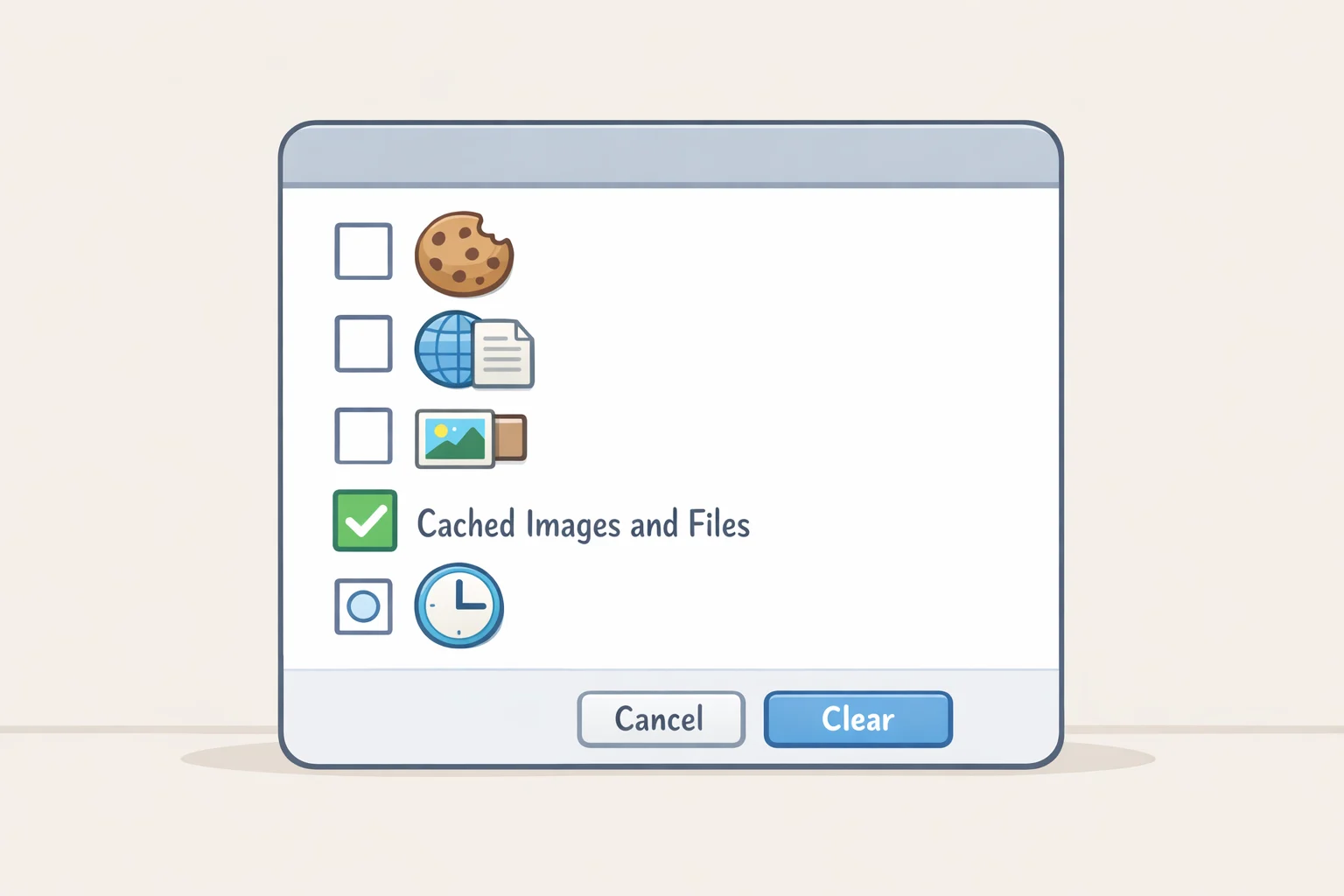
If site-specific clearing didn't resolve the issue, or multiple sites are loading incorrectly, clear the full cache. Done correctly, this leaves your cookies intact you stay logged in everywhere.
Before confirming in any browser, check two things:
- What's checked: The panel typically pre-selects cookies, browsing history, and cached files together. For a cache-only clear, check Cached images and files (or "Temporary cached files and pages" in Firefox) and uncheck everything else. This is the step most people skip. (ExpressVPN)
- Time range: For a recent issue, "Last 7 days" is usually enough. "All time" makes sense only if the problem has persisted for weeks, or you want a full reset. (ExpressVPN)
After clearing in any browser, close it completely and reopen it. Some browsers only apply the change on full restart. (Temple University Help; University of Iowa ITS)
Chrome
Desktop (Windows, Mac, Linux):
- Press
Ctrl + Shift + Delete(Windows) orCmd + Shift + Delete(Mac), or click the three-dot menu → Delete browsing data. You can also typechrome://settings/clearBrowserDatainto the address bar. (Temple University Help) - Set the time range.
- Check Cached images and files only. Uncheck cookies and browsing history.
- Click Delete data.
Android: Tap the three-dot menu → Delete browsing data → set time range → select Cached images and files → tap Delete data. (Norton)
iPhone/iPad: Tap the three-dot menu (bottom-right) → Settings → Privacy → Clear Browsing Data → select the data you want to clear → tap Clear Browsing Data to confirm. (Temple University Help)
Microsoft Edge
Desktop (Windows, Mac):
- Press
Ctrl + Shift + Delete(Windows) orCmd + Shift + Delete(Mac), or click the three-dot menu → Delete Browsing Data. - Set the time range.
- Check Cached images and files only. Uncheck cookies to stay logged in.
- Click Clear now. (Norton; ExpressVPN)
Mobile (iOS and Android): Tap the three-dot menu → Settings → Privacy and security → Clear browsing data → select Cached images and files → confirm. Edge mobile has no automated deletion option; manual clearing is the only method available. (Norton)
Firefox
Desktop (Windows and Mac):
The Settings path gives the most control and works reliably across versions:
- Click the three-line menu (top-right) → Settings → Privacy & Security.
- Scroll to Cookies and Site Data → Clear Data.
- Check Temporary cached files and pages only. Leave Cookies and site data unchecked.
- Click Clear. (ExpressVPN; Mozilla Support)
For a time-range-specific clear, use the History menu path instead: History → Clear Recent History → set the time range → select Cache under Details → Clear Now. (Temple University Help)
Firefox Private Browsing note: In permanent Private Browsing mode, the "Clear Data" button only removes cookies stored on disk. In-memory cookies aren't affected they clear automatically when Firefox closes. (Mozilla Support Forum)
Android: Tap the three-dot menu it appears at the top-right or bottom-right depending on your app version then go to Settings → Delete browsing data → select Cached images and files → tap Delete browsing data. (Norton)
iPhone/iPad: Tap the three-dot menu → Settings → Privacy → Data Management → toggle on Cache → tap Clear Private Data → confirm. (Norton)
Opera
Opera runs on the same Chromium engine as Chrome, so the desktop process is identical: three-dot menu → Delete browsing data → set time range → check Cached images and files → Delete data. The Ctrl + Shift + Delete / Cmd + Shift + Delete shortcut works here too. (ExpressVPN)
For Opera on mobile, sourced step-by-step instructions aren't available here. Use Opera's built-in Help for the most current path on your device.
Safari
Safari bundles cache, cookies, and browsing history into one action. There is no cache-only option; clearing website data logs you out of sites. Safari's built-in Intelligent Tracking Prevention (ITP) automatically restricts third-party tracking cookies in the background, so the need to clear manually may come up less often than on other browsers. (Norton)
Mac:
- Safari menu → Settings (labeled "Preferences" on older macOS versions).
- Click the Privacy tab → Manage Website Data.
- Click Remove All → confirm with Remove Now. (Norton; University of Iowa ITS)
iPhone/iPad: Safari on iOS is managed through the device Settings app, not the browser itself unlike every other browser in this guide.
- Open the Settings app.
- On iOS 18 and later: tap Apps, then scroll to Safari. On earlier iOS versions: scroll directly to Safari in the main Settings list.
- Two paths reach the same result use whichever appears on your screen:
- Tap Advanced → Website Data → Remove All Website Data → confirm. (Norton)
- Tap Clear History and Website Data → confirm. (Temple University Help; University of Iowa ITS)
The button turns gray after successful clearing a reliable confirmation signal on older iOS versions. (University of Iowa ITS)
Step 4 If cache clearing didn't fix it: when to clear cache and cookies too
If clearing the cache didn't resolve the problem, the issue is likely session-related rather than stale files. The symptoms: login loops, persistent authentication errors, or a site that "knows" you in a way that keeps breaking. Clearing cookies can fix these but you'll be logged out of affected sites.
Before doing a full cookie clear, consider going back to Step 2. Clearing site-specific data removes cookies for the broken site only, leaving every other session untouched. (ExpressVPN)
How to clear browser cookies without clearing cache:
In Chrome, Edge, and Firefox (desktop), return to the same clearing panel (Ctrl + Shift + Delete / Cmd + Shift + Delete). This time, check Cookies and other site data and uncheck Cached images and files. The files are already fresh; now you're clearing the session data.
In Safari, there's no separation. Clearing website data (as in Step 3) removes both cache and cookies at once.
For ongoing privacy housekeeping rather than troubleshooting: Firefox on desktop and Android can be set to delete cookies automatically when the browser closes tick Delete cookies and site data when Firefox is closed under Settings → Privacy & Security → Cookies and Site Data. (Norton) Chrome can also be configured to clear cookies on window close. (Norton) Edge mobile has no equivalent automated option. (Norton)
What to expect after clearing

The browser re-downloads whatever it needs the next time you visit, so nothing is permanently lost. Expect slightly slower first loads on recently cleared sites while the cache rebuilds normal and temporary. (ExpressVPN)
Two practical notes: browser menus shift between versions, so if a path described here looks slightly different on your screen, the label is close enough to find. On mobile, cached data can accumulate meaningfully over time, particularly from media-heavy sites clearing it can recover usable storage even when nothing is visibly broken. (ExpressVPN)