How to Speed Up Firefox: 7 Steps, Easiest to Last Resort
Firefox slowness isn't random. It almost always has a specific cause, and that cause determines the fix. Working through the wrong solutions in the wrong order wastes time. This guide doesn't.
"Firefox is slow" can mean four different things: startup freezes before you open a tab; page-load lag while browsing; scroll jank and rendering stutter; or creeping memory drain during long sessions. Each has a different culprit. The seven steps below target each in turn, ordered from the simplest fix to the most drastic intervention.
Quick triage: find your starting point
- Slow startup or freezing on launch → Step 1
- Specific pages load slowly or stall → Steps 2, 5, 6
- Firefox dragging after you installed something new → Step 3
- Choppy scrolling or flickering video → Step 4
- Everything slow and getting worse over a long session → Steps 6, 7
- Nothing else explains it → Step 7
Two context notes before starting. First: Firefox 152.0.3, released last month, patched a bug causing extreme memory consumption and startup freezing for users with language packs installed. If automatic updates have been off, the fix may already be in the latest version. Second: OS-level issues, specifically pending system updates, can produce slowdowns that look like browser problems but aren't, per Mozilla Support. A separate network configuration issue affecting some Windows 11 users is covered in Step 6, where the source is a community forum thread rather than official Mozilla guidance.
Work through these steps in order. Most readers will find their fix before reaching Step 7.
Step 1: Update Firefox, then restart your computer
Video of the Day
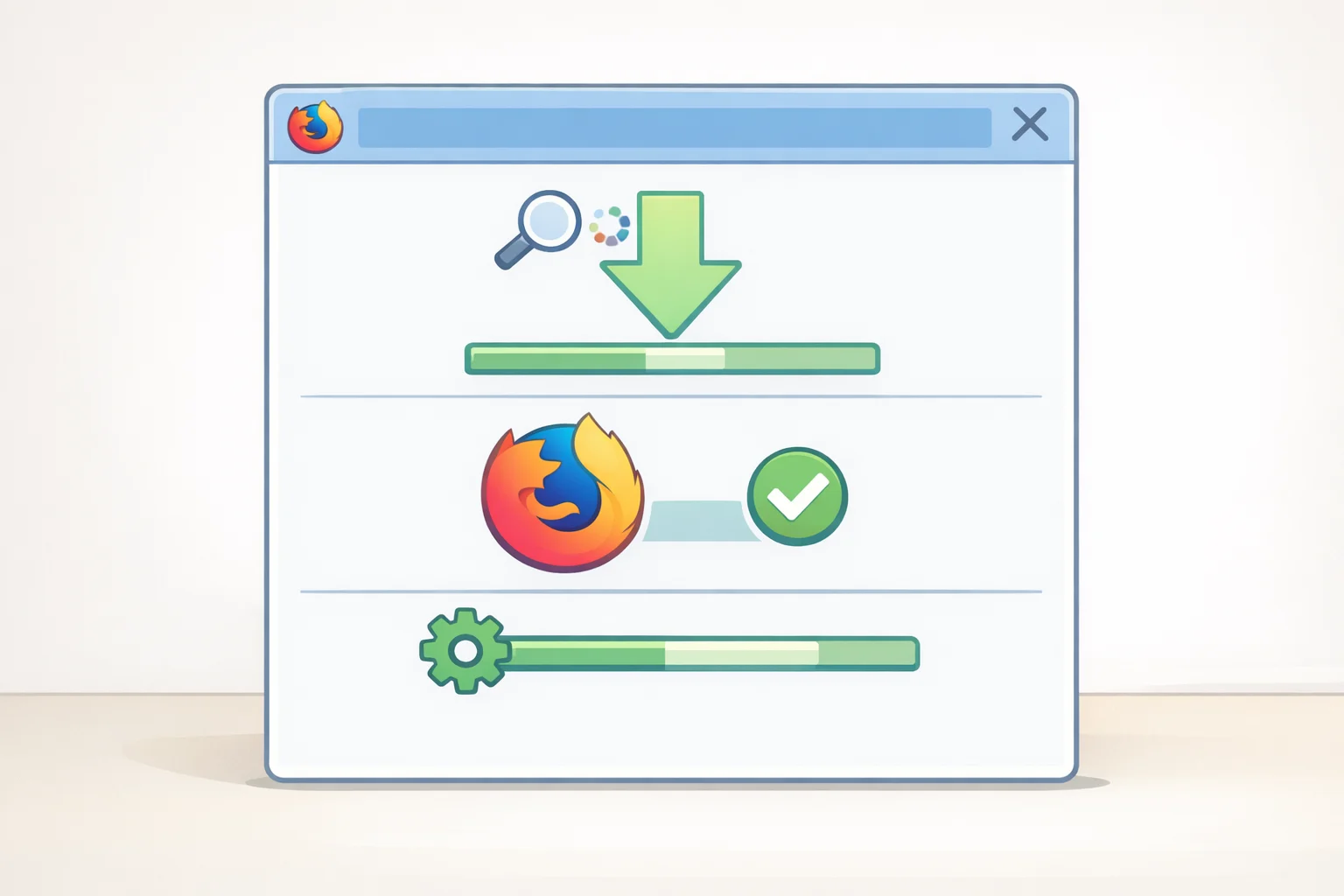
Targets: startup slowness, version-specific memory bugs, OS-level interference
Open Firefox, click the menu (≡), go to Help, then About Firefox. Firefox checks for and applies updates automatically from this screen. Then restart your computer, not just the browser.
Each release can patch performance regressions, and running an outdated build means carrying bugs that the latest version has already fixed, per Mozilla Support. The June 2026 patch is the clearest recent example: version 152.0.3 resolved a bug causing severe memory bloat and freezing at launch for users with language packs, per the Firefox release notes.
A full computer restart matters for a separate reason. Pending OS updates and background system processes can independently grind browser performance to a halt, according to Mozilla Support. Restarting clears both.
Linux note: If Firefox was installed through your distribution's package manager, updates may be handled by the system rather than the browser itself, per Mozilla Support. Check for pending system updates through your package manager before assuming Firefox is current.
Gotcha: Windows 8.1 and older, and macOS 10.14 and older, are no longer supported by the standard Firefox release, per the 152.0.3 release notes. If that applies to your machine, download Firefox ESR instead it provides current security and performance fixes for older systems. Search "Firefox ESR download" to find the current ESR release page.
If Firefox is still slow after updating and restarting, move on the cause is likely elsewhere. Continue to Step 2.
Video of the Day
Step 2: Close other apps, then find the tabs draining Firefox
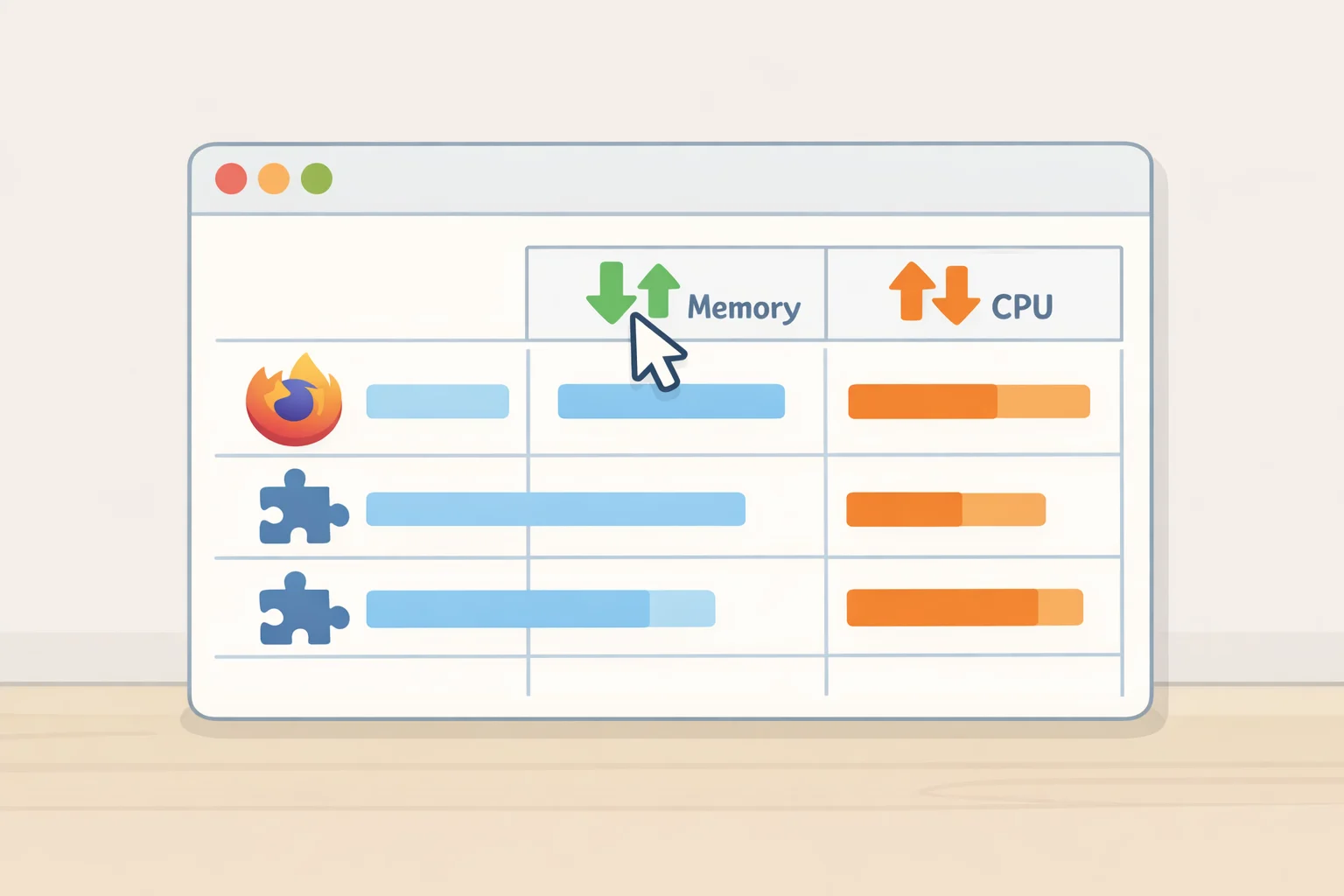
Targets: high memory and CPU use, sluggish page response, long-session slowdown
Start outside the browser. Close any applications you're not actively using. Multiple programs competing for system resources can make every application Firefox included feel sluggish, and this is a documented cause of apparent browser slowness, per Mozilla Support.
Then look inside Firefox. Type about:processes in the address bar and press Enter. This opens Firefox's built-in Task Manager, which breaks down memory and CPU consumption per tab and per extension. Sort by memory or CPU and look for anything far above the rest, then close or reload the heaviest entries.
Every open tab forces Firefox to hold a full web page in memory. For users regularly running more than 100 tabs, Mozilla explicitly recommends offloading pages to bookmarks or reading lists rather than keeping them live, per Mozilla Support. Pages like webmail clients are a particular drain they run active scripts continuously, consuming CPU and memory the entire time Firefox is open, even when you're not looking at them. about:processes will identify them by name.
Firefox's built-in Enhanced Tracking Protection blocks third-party tracking scripts before they load, which can reduce resource use, not just improve privacy, per Mozilla Support. Standard mode already helps; Strict mode may block more third-party content but can break some sites. Check your current setting in Settings → Privacy & Security.
If closing other apps and culling heavy tabs produces improvement, you've found the cause. If Firefox is still slow with a light tab load, continue to Step 3.
Step 3: Run Troubleshoot Mode to isolate a bad extension
Targets: unexplained CPU spikes, slowness that appeared after installing something new
Open Firefox, click the menu (≡), go to Help, then Troubleshoot Mode, and confirm. Firefox relaunches with all extensions and themes disabled, hardware acceleration off, and default toolbar settings active, per Mozilla Support.
Browse normally for two or three minutes. If Firefox feels noticeably faster, an extension is causing the drag.
To find which one: re-enable extensions one at a time via about:addons, restarting Firefox after each, until the slowness returns. Disable or uninstall the offender. Extensions and themes can push Firefox's resource consumption well above baseline; Troubleshoot Mode is Mozilla's recommended method for confirming this, giving you a clean comparison without permanently removing anything, per Mozilla Support.
Troubleshoot Mode is faster → extension problem, isolate and remove it. Troubleshoot Mode feels the same → extensions aren't the issue, continue to Step 4.
Firefox performance settings: check hardware acceleration first
Targets: scroll jank, flickering video, choppy rendering, high CPU during visual tasks
Open Firefox → Settings → General → scroll to Performance → uncheck "Use recommended performance settings" to expose the hardware acceleration toggle.
Before verifying it's enabled, check whether the option is visible at all. Firefox automatically hides the hardware acceleration toggle when it detects an incompatible graphics driver, per Mozilla Support. If the option is absent or greyed out, updating your GPU drivers is the prerequisite, not the follow-up. Once drivers are current, return here and confirm the toggle is on.
Hardware acceleration offloads rendering work animations, video, scrolling from the CPU to the GPU, reducing CPU load and improving visual smoothness, per Mozilla Support. Mozilla notes it eases memory and CPU demands in most cases, per Mozilla Support. Keep it on unless you have a specific reason not to.
When to turn it off: if you're experiencing video flickering, unusually high GPU temperatures, or graphics driver crashes, disabling hardware acceleration and restarting Firefox is the right move, per Mozilla Support. Treat this as a conditional test, not a universal rule.
One more gotcha: on some hardware and driver combinations, Firefox disables GPU hardware rendering preemptively due to stability and output problems, ArchWiki notes. If toggling the setting makes things worse, revert it.
Toggle changed behavior → you've found the cause. No change → graphics aren't the bottleneck, continue to Step 5.
Step 5: Clear the browsing cache and the startup cache
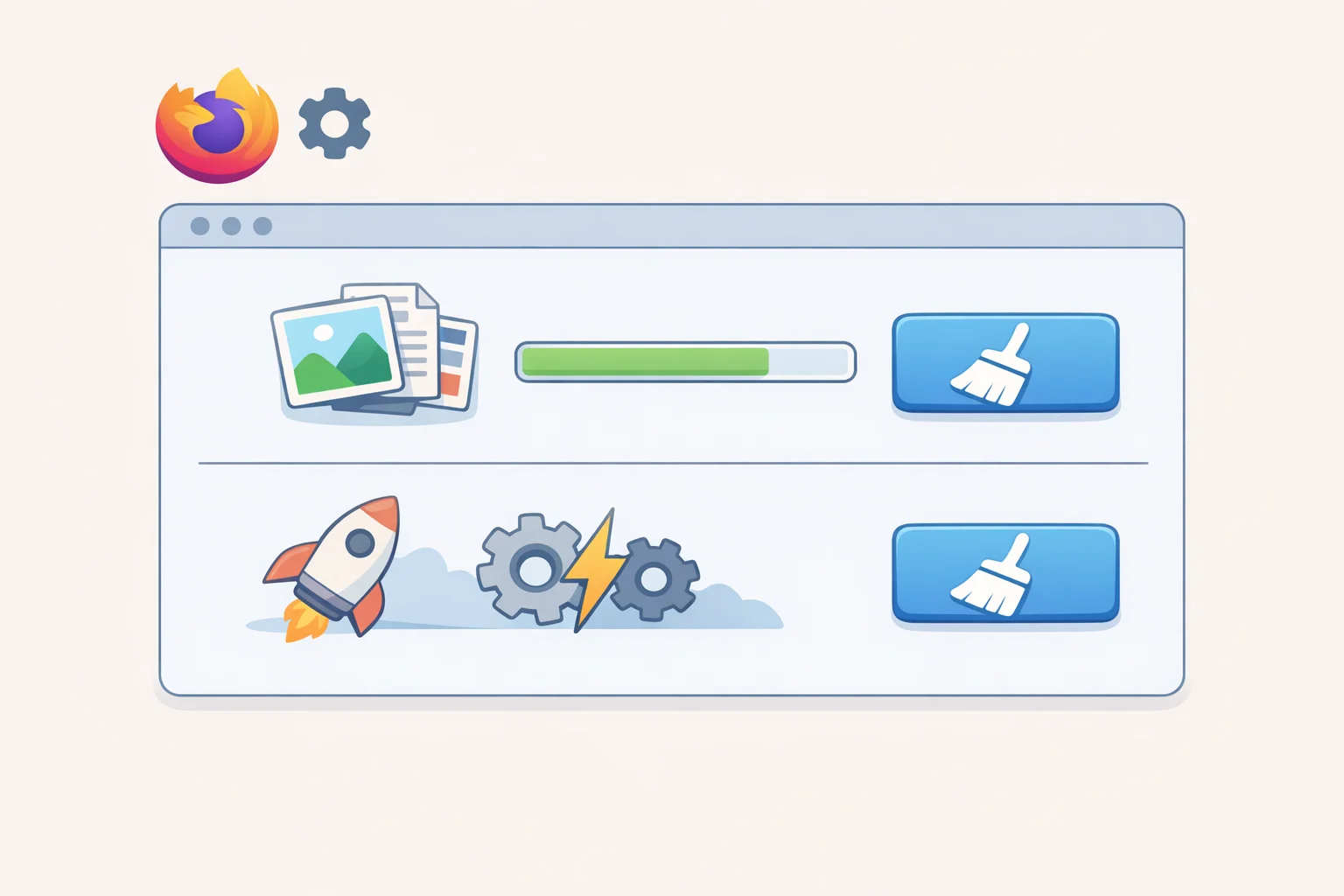
Targets: slow or failed page loads, sluggish Firefox launch, UI glitches
Two separate actions, both built-in.
Browsing cache: Settings → Privacy & Security → Cookies and Site Data → Clear Data → check "Cached Web Content" → Clear.
Startup cache: Type about:support in the address bar → click "Clear startup cache…" → confirm. Firefox restarts automatically. This does not affect bookmarks, passwords, or add-ons, per Mozilla Support.
Firefox stores downloaded web assets locally to accelerate return visits, but cached data can become stale or corrupted. Clearing it resolves many page-loading problems, per Mozilla Support. The startup cache is a separate system that accelerates Firefox's initial launch; clearing it fixes various UI issues without touching your profile at all.
Gotcha: After clearing the browsing cache, Firefox re-downloads assets on your next visit to familiar sites. First loads will be temporarily slower that's expected, not a sign something went wrong.
If page-load issues or startup lag improves, cache was the problem. If Firefox is still slow across the board, continue to Step 6.
Step 6: Free memory now, then check your network and profile integrity
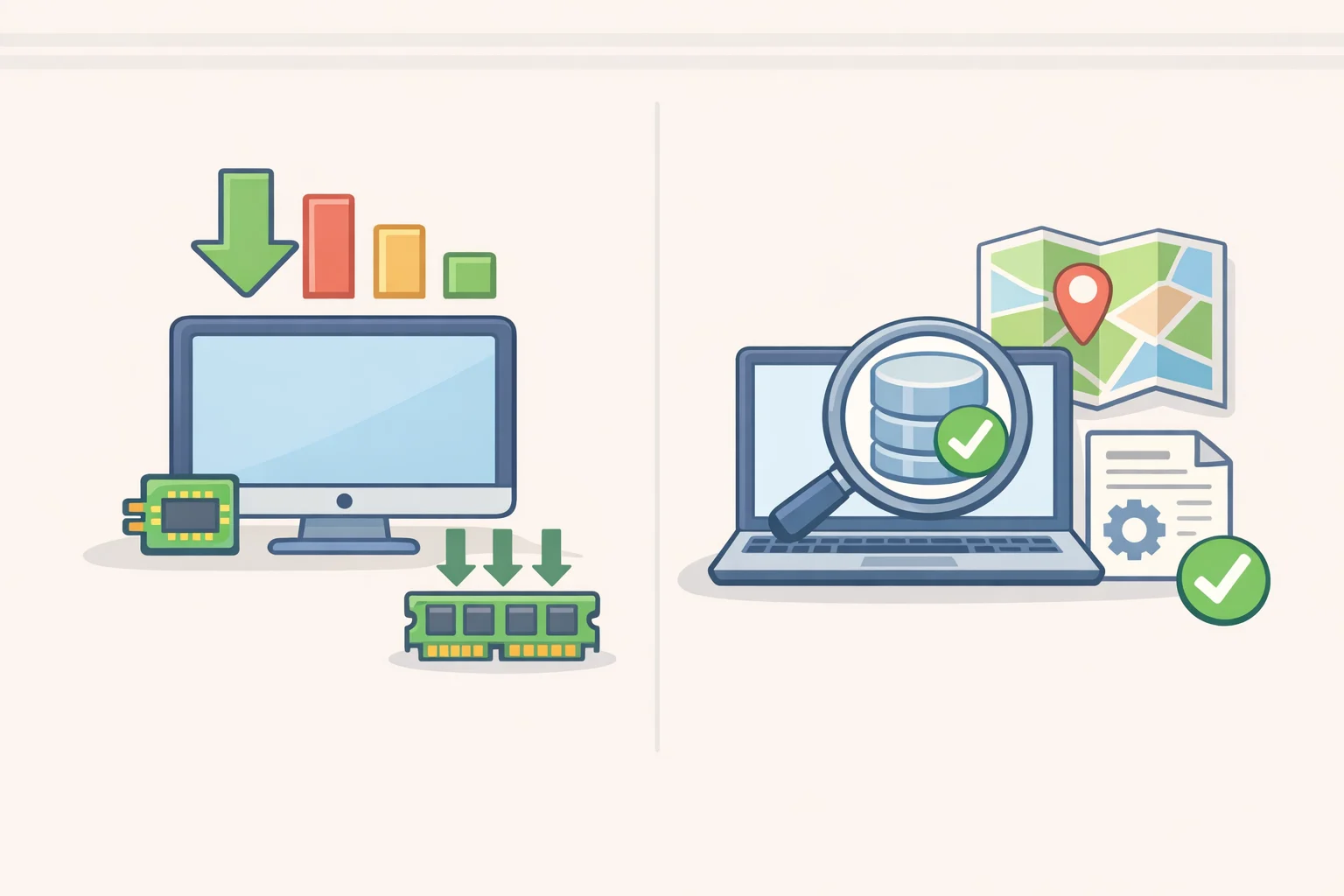
Targets: memory creep during long sessions, slow page loads with no obvious tab or extension cause
At this stage, you're checking less obvious culprits inside the profile and connection settings. Start with the quickest possible intervention.
Type about:memory in the address bar and click "Minimize memory usage." Firefox releases memory it's holding but no longer actively needs, per Mozilla Support. If the browser snaps back noticeably after this, you have a memory accumulation pattern periodic restarts will manage it going forward, which Mozilla explicitly recommends for long sessions.
If page loads remain sluggish, check your network configuration. Go to Settings → General → scroll to Network Settings → Connection Settings. Set it to "No proxy" or "Auto-detect proxy settings for this network." This is worth trying if you're on Windows 11 24H2 and nothing else accounts for the slowdown: one archived Mozilla Support Forum thread from last year describes pages taking roughly two minutes to load after a 24H2 install, with the proxy change resolving it immediately. This is user-reported, not formally documented by Mozilla, but the fix is low-effort and low-risk at this stage.
Then run a Places database check. Type about:support in the address bar, scroll to "Places Database," and click "Verify Integrity." ArchWiki identifies the Places database which stores browsing history and bookmarks as a common source of slowdown and profile corruption. The check takes seconds and repairs minor issues automatically.
Memory cleanup or proxy change fixed it → done. Integrity check shows errors → try Step 7. No meaningful change from any of the above → continue to Step 7.
Step 7: Refresh Firefox the profile reset that keeps your data
Targets: persistent, unexplained slowness that has survived all previous steps
Type about:support in the address bar, click "Refresh Firefox…," and confirm. Firefox resets to a clean profile and restarts.
What you keep: Bookmarks, browsing history, open tabs and windows, passwords, cookies, and form autofill data, per Mozilla Support.
What resets: Extensions, themes, and customized preferences all removed and returned to defaults. If an extension or a corrupted preference was behind the slowness all along, this confirms it.
Refresh Firefox is designed precisely for this situation, restoring performance without stripping out the data users actually care about, per Mozilla Support. Think of it as reinstalling the application without losing your documents. It's a last resort by ordering, not by severity a measured, reversible action.
Gotcha: Reinstall extensions selectively afterward. Skip anything you weren't actively using; reinstalling everything defeats the purpose.
If Refresh doesn't resolve the problem, run a malware scan. Security software, including some antivirus programs, is a documented cause of Firefox slowdowns and page-load failures, per Mozilla Support. If scans come back clean and slowness persists across a refreshed profile, the limiting factor is likely available RAM rather than Firefox itself, per Mozilla Support.
How to make Firefox run faster long term
The seven steps above cover every common cause of Firefox running slow that's addressable without switching browsers. Most readers will have solved the problem somewhere between Step 1 and Step 5.
Two habits prevent the problem from returning. Keep automatic updates on performance fixes ship regularly, and users with automatic updates enabled got the 152.0.3 memory fix last month without doing anything, per the Firefox release notes. Enable Enhanced Tracking Protection on at least Standard in Settings → Privacy & Security; blocking third-party scripts before they load reduces memory and CPU demands session-wide, per Mozilla Support.
If slowness comes back weeks from now, start with about:processes before retracing these steps. If it's one tab causing the problem, that will show it immediately. If the problem returns after a Refresh, look at extension count and tab habits first that's where the answer usually is. And if Firefox is slow but another browser on the same machine isn't, the bottleneck is Firefox-specific; if both are slow, it's the system.