How to monitor battery and disk usage on Linux
Stitching together upower, df, and a SMART utility every time you want to monitor battery and disk usage on Linux gets old fast. Mission Center's v1.2.0 release, out in July 2026, folds both into one graphical dashboard: a dedicated Battery page and a disk view that now breaks usage down by partition (UbuntuHandbook). This guide walks through installing Mission Center, reading its battery and storage pages correctly, and falling back to the terminal when a GUI isn't an option.
Mission Center is a local desktop application built with Rust and GTK4, and it needs a display server to run. It requires X11 or Wayland and won't run over SSH in text mode (Foss Linux). The Battery page matters most for laptops and other systems that expose battery data through UPower (Foss Linux).
Install Mission Center on Linux
Video of the Day
Mission Center ships as a Flatpak, a Snap, and an AppImage, with Flatpak flagged as the most reliable of the three (Foss Linux). If Flathub isn't already enabled on your system, add it and install the app with the standard Flatpak setup:
flatpak remote-add --if-not-exists flathub https://flathub.org/repo/flathub.flatpakrepo
flatpak install flathub io.missioncenter.MissionCenter
These are the standard Flatpak commands; check your distribution's own documentation if Flatpak support isn't already configured. The app's Flathub listing includes the changelog entry for the new Battery page (Flathub).
Once installed, launch Mission Center from your application menu. It's built on GTK4 and Libadwaita, both designed with Wayland in mind, and it runs natively on GNOME Wayland sessions without falling back to X11 (Foss Linux). Foss Linux tested it on Ubuntu 26.04 with a GNOME Wayland session and found it ran without issues (Foss Linux).
On that same test system, Mission Center used under 0.5% CPU and around 40 MB of RAM at idle, a result attributed to hardware-accelerated GTK4 rendering (Foss Linux). Results on other hardware will vary, but it's a reasonable sign the app isn't a heavy add-on to run alongside everything else.
Mission Center has no configurable alerts. There's no way to set it to warn you when disk space drops below 10% or a battery reading looks off (Foss Linux). It's a dashboard you check on your own schedule, not a background watchdog, and that limitation shapes how you should use both pages below.
Video of the Day
Check Linux battery health and usage
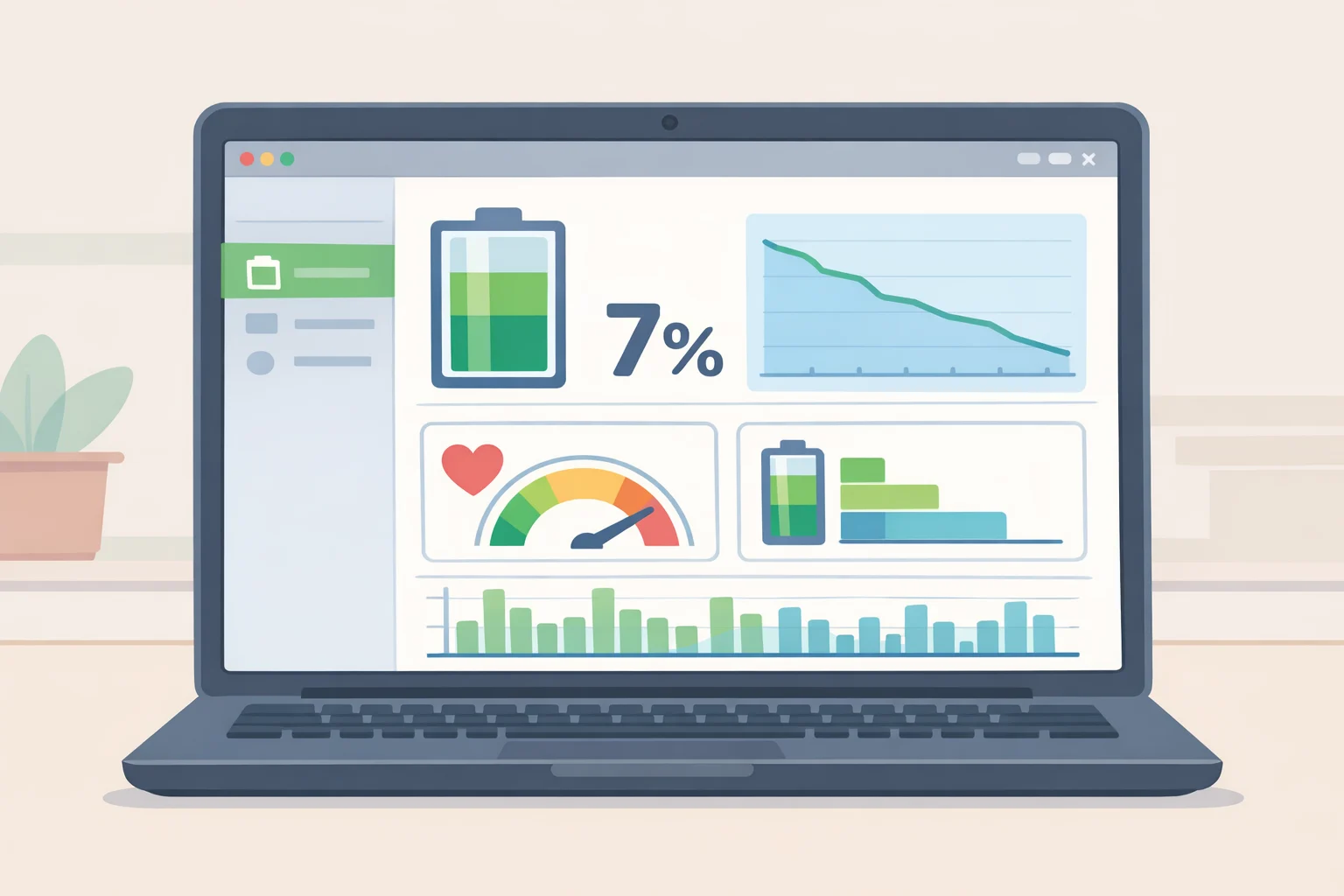
Open the Battery page under the Performance tab. It draws real-time graphs of battery input and output, plus a rolling week of charge history (UbuntuHandbook). Alongside the graphs sit the core numbers: charge percentage, health, energy in watt-hours, capacity, voltage, and charge threshold, all pulled from UPower and shown in more detail than GNOME's default Settings panel offers (UbuntuHandbook; Foss Linux).
The distinction worth holding onto is charge versus health. Charge is how full the battery is right now, a number that swings all day. Health, or capacity, reflects how much energy the battery can hold compared to when it left the factory, and that figure generally declines over time, though individual readings can shift with calibration and firmware, so don't treat any single check as gospel.
A real UPower reading illustrates the gap: one six-year-old laptop shipped with a 53.9 Wh design capacity and today holds only 38.8 Wh, which works out to 71.9% of its original capacity (OMG! Ubuntu). That's one machine, not a universal benchmark, but it shows the math behind the percentage.
OMG! Ubuntu lays out a set of reference thresholds attributed to manufacturers including Google and Apple: 80 to 100% capacity as ideal, 70 to 80% as unremarkable for a laptop three to five years old, 60 to 70% as worth watching, and below 60% as a point to start planning a replacement (OMG! Ubuntu). The source is explicit that these are generally agreed guidelines rather than hard rules, and some degradation is expected since batteries are a consumable part of any device (OMG! Ubuntu).
A low capacity reading is a prompt to check real-world runtime, not an automatic order for a new battery. If the laptop still gets through the day the way you need it to, there's no urgency. If it doesn't, that's the real signal, not the percentage on the page.
Check disk space usage on Linux
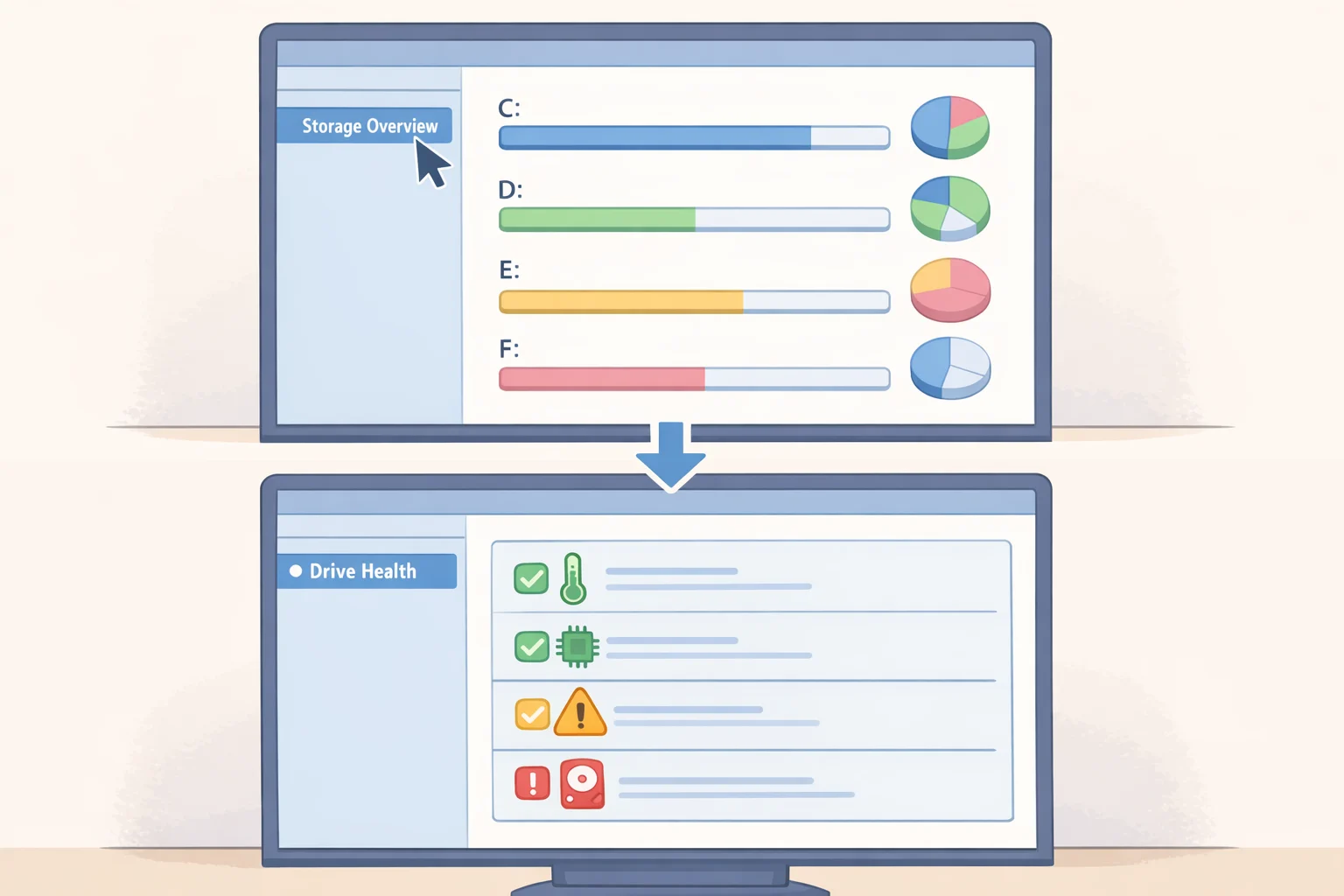
Switch to the disk or storage view to see the per-partition breakdown that shipped in v1.2.0, which lets you glance at how much space each volume is using without opening a terminal (UbuntuHandbook).
Mission Center doesn't define a warning threshold for you, so pick one that fits your own workload. When a partition is nearly full, clear space before normal operations start running into trouble rather than waiting for it to fill completely.
If a partition looks unexpectedly full, check drive health while you're in there. Mission Center also surfaces SMART data, including drive health status, temperature, power-on hours, and uncorrectable errors (Foss Linux). Odd values here don't confirm a dying drive on their own, but they're reason enough to keep an eye on the disk and make sure anything important is backed up.
Keep the limits of this view in mind: it shows how full each partition is, not which files or folders are responsible. For that level of detail, a dedicated disk usage analyzer will map out where the bytes are actually going, since Mission Center's Storage page only reports at the partition level.
Terminal alternatives for battery and disk checks
Not every machine runs a display server, and not everyone wants to open a GUI for a thirty-second check. The terminal covers the same ground, just with less polish.
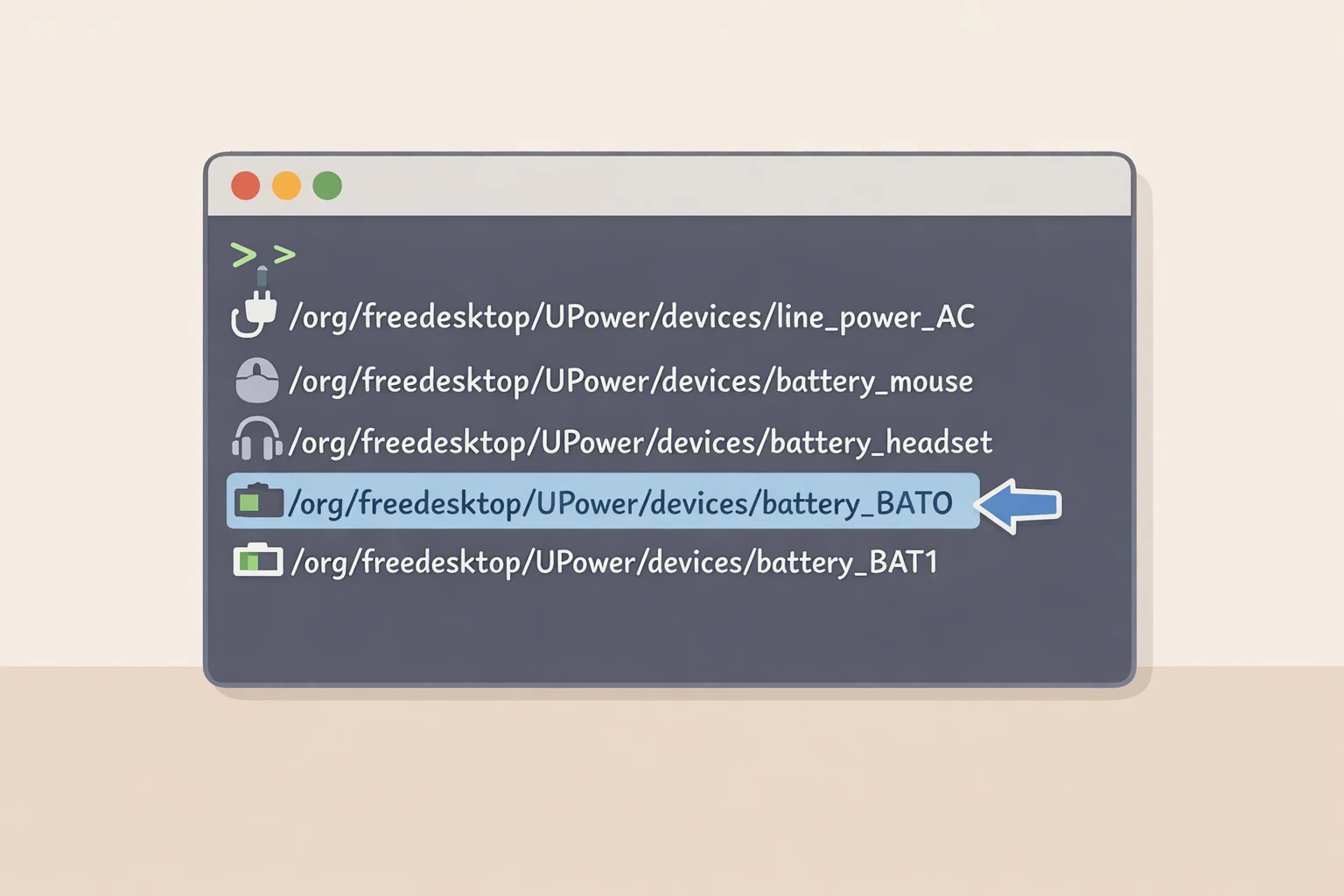
For battery status, list the available power devices first:
upower --enumerate
That returns device paths, one of which is typically something like /org/freedesktop/UPower/devices/battery_BAT0 (OMG! Ubuntu); use whichever path your own system returns. Feed that path into:
upower -i /org/freedesktop/UPower/devices/battery_BAT0
for the detailed stats (OMG! Ubuntu). Three fields matter most: energy-full is the maximum charge the battery holds today, energy-full-design is what it was built to hold, and capacity shows the difference as a percentage (OMG! Ubuntu). This is the same battery data Mission Center displays graphically; the GUI isn't hiding anything, just laying it out more legibly (Foss Linux).
If UPower isn't installed, acpi is a fallback worth trying: install it with your package manager, then run acpi -I for a battery summary (OMG! Ubuntu). inxi -B is another option once installed, giving similar information in its own format (OMG! Ubuntu).
For disk space, df -h lists used, available, and percentage-used space for every mounted filesystem in human-readable units, the terminal equivalent of Mission Center's per-partition breakdown. If a mount point needs tracing back to a physical drive, lsblk lists block devices alongside where they're mounted. Neither command replicates the SMART data or the graphical charge history Mission Center shows, so treat them as a partial substitute rather than a full replacement for the GUI.
Beyond battery and disk
The same release that added battery monitoring and per-partition disk details also brought zRAM and zswap statistics, a second CPU graph tracking temperature, power draw, and frequency, and GPU monitoring through NVTOP integration covering NVIDIA, AMD, and Intel hardware (Foss Linux). None of that shows up on the Battery or Storage pages, but it's worth exploring once checking those two becomes routine. Foss Linux's review argues these additions push Mission Center past being a pretty wrapper around /proc and into something genuinely useful for daily monitoring (Foss Linux).
Which tool to reach for comes down to where you're sitting. At the desktop, Mission Center gives you battery condition and disk space in two clicks, no terminal required. Working remotely or on a headless box, upower and df -h cover the same ground and take about as long to type as it would take the GUI to load.