• Around The HomeToggle Menu

    • Entertainment
    • Productivity
    • Smart Home
  • FamilyToggle Menu

    • Parenting
    • Toys
    • Pets
    • Travel
  • Product ReviewsToggle Menu

    • Phones
    • Tablets
    • Laptops
    • Desktops
    • Wearables
    • Audio
    • Cameras
    • Headphones
    • Printers
    • Smart Home
    • TVs
    • Gaming and Video
  • One Cool ThingToggle Menu

    • Frugal Tech
    • Kickstarters
    • Videos
Techwalla
  1. Home
  2. Around The Home
  3. Productivity
  4. How to Mount an SD Card in Linux

How to Mount an SD Card in Linux

March 31, 2015
By: Kristen Waters
  • Share
  • Share on Facebook

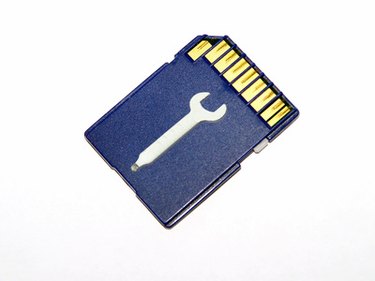
An SD card is a small storage disk used with cameras, cellphones and other portable devices. They are read by the computer using an internal or external card reader. Some portable devices allow you to plug a USB cable directly into the device to access the data on the card. Many Linux distributions will automount SD cards. If the card does not automount, you can use the "mount" command to access the card.

...
SD Card

Step

Open a terminal window. The terminal window program is found under "System Tools," "Accessories," "Utilities," "Xshells" or in the bottom toolbar and is called "Terminal," "Konsole" or "XTerm," depending on the distribution that you are using.

Step

Insert the SD card into the SD reader on the computer or in an external SD card reader plugged into the computer's USB port.

Step

Type the command "fdisk -l" to list the disks that are accessible to the computer. Make note of the device name for the SD card. It will be the first portion of one of the output lines and will look like "/dev/sdc1".

Step

Type the command "mkdir /mnt/SD" to create a mount point for the SD card. You can replace "/mnt/SD" in any directory that you prefer.

Step

Type the command "mount -t vfat /dev/sdc1 /mnt/SD" to mount the SD card. The "-t vfat" option tells the operating system that it is a Windows file system. Replace "/dev/sdc1" with the device name from Step 3. Replace "/mnt/SD" with the name of the directory you created in Step 4.

Step

Type the command "cd /mnt/SD" to access the files on the SD card.

Show Comments

Related Articles

How to Burn FLAC Files to a CD

How to Burn FLAC Files to a CD

Around The Home
Productivity
By: Anthony Brandt
How to Configure Multiple Monitors in Linux Mint

How to Configure Multiple Monitors in Linux Mint

Around The Home
Productivity
By: Fred Decker
How to Recover Deleted Pictures

How to Recover Deleted Pictures

Around The Home
Productivity
By: Ken Burnside
How to View Linux Login History

How to View Linux Login History

Around The Home
Productivity
By: Kristen Waters
How to Change the Mac Startup Disk From the Command Line

How to Change the Mac Startup Disk From the Command Line

Around The Home
Productivity
By: Nick Peers
How to Use VNC Viewer in Ubuntu

How to Use VNC Viewer in Ubuntu

Around The Home
Productivity
By: Kristen Waters
  • HOW WE SCORE
  • ABOUT US
  • CONTACT US
  • TERMS
  • PRIVACY POLICY
  • COPYRIGHT POLICY
  • Advertise

An error occurred. Try again later.

Thanks for signing up!
© 2018 Leaf Group Ltd. / Leaf Group Lifestyle

Get great tech advice delivered to your inbox.

Keep your family productive, connected, entertained, and safe.

Please enter a valid email.