How to Set Up Blip: Cross-Platform File Sharing App for Android
Blip is a cross-platform file sharing app for Android, Mac, Windows, and iOS and the closest thing to a true AirDrop alternative for Android that actually covers your full device lineup. Install it on each device, sign in with the same email on all of them, and your devices appear in a shared list ready to receive files without any action on the receiving end.
An Android Police writer put it plainly last month: since Blip runs across Android, Windows, Mac, iPhone, and iPad, he stopped having to think about which tool to reach for. It became the default.
Before you start: Blip needs to be installed on every device you want in the loop. If someone you're sending to won't install an app, PairDrop works in a browser for same-network situations. For wired Android-to-Mac file browsing, Beebom recommends OpenMTP for that specific workflow. If neither of those describes your situation, read on.
What you'll accomplish: By the end of this guide, your Android, Mac, Windows PC, and iPhone will be linked under one Blip account. Sending a file to any of them requires no action on the receiving end. Get the app at blip.net.
Why Blip works as an AirDrop alternative for Android
Video of the Day
Two behaviors make Blip feel different from other transfer tools in daily use.
Auto-accept on your own devices. When all your devices share one Blip account, transfers between them go through without any interaction on the receiving end. As long as the target device is on and logged into Blip, the transfer happens automatically no app to open, no approval prompt (Android Authority, about two months ago). Most friction in file transfer isn't transfer speed. It's picking up the other device. That's what Blip removes.
No cloud staging. Blip doesn't upload the entire file to a server before the destination can touch it. The moment you initiate the transfer, the receiving device starts downloading directly (MakeUseOf, about three months ago). When devices aren't on the same network, Blip routes over the internet rather than requiring proximity. On local Wi-Fi, one Android Authority reviewer moved a 12GB folder at 1.5Gbps; over the internet, speed depends on your upload bandwidth, not Blip's (Android Authority, about two months ago).
The gap it fills. Google discontinued the official Android File Transfer app for Mac in May 2024, according to Beebom (earlier this year), leaving Android-and-Mac users without a clean first-party option. Blip runs natively on Android 9+, iOS 15+, macOS 12.1+, and Windows 10+ (Cult of Mac, earlier this year) which covers the full range of devices most people own.
Linux support is listed as coming soon by Android Authority but as currently available by Beebom. Check blip.net directly before building it into your setup.
Video of the Day
Step-by-step: install, link your devices, and send your first file
Step 1: Download and install Blip on every device
Go to blip.net on each device Android, Mac, Windows, iPhone, or iPad and install the native app. Any device you skip won't appear as a destination when you go to send.
Step 2: Create your account on the first device
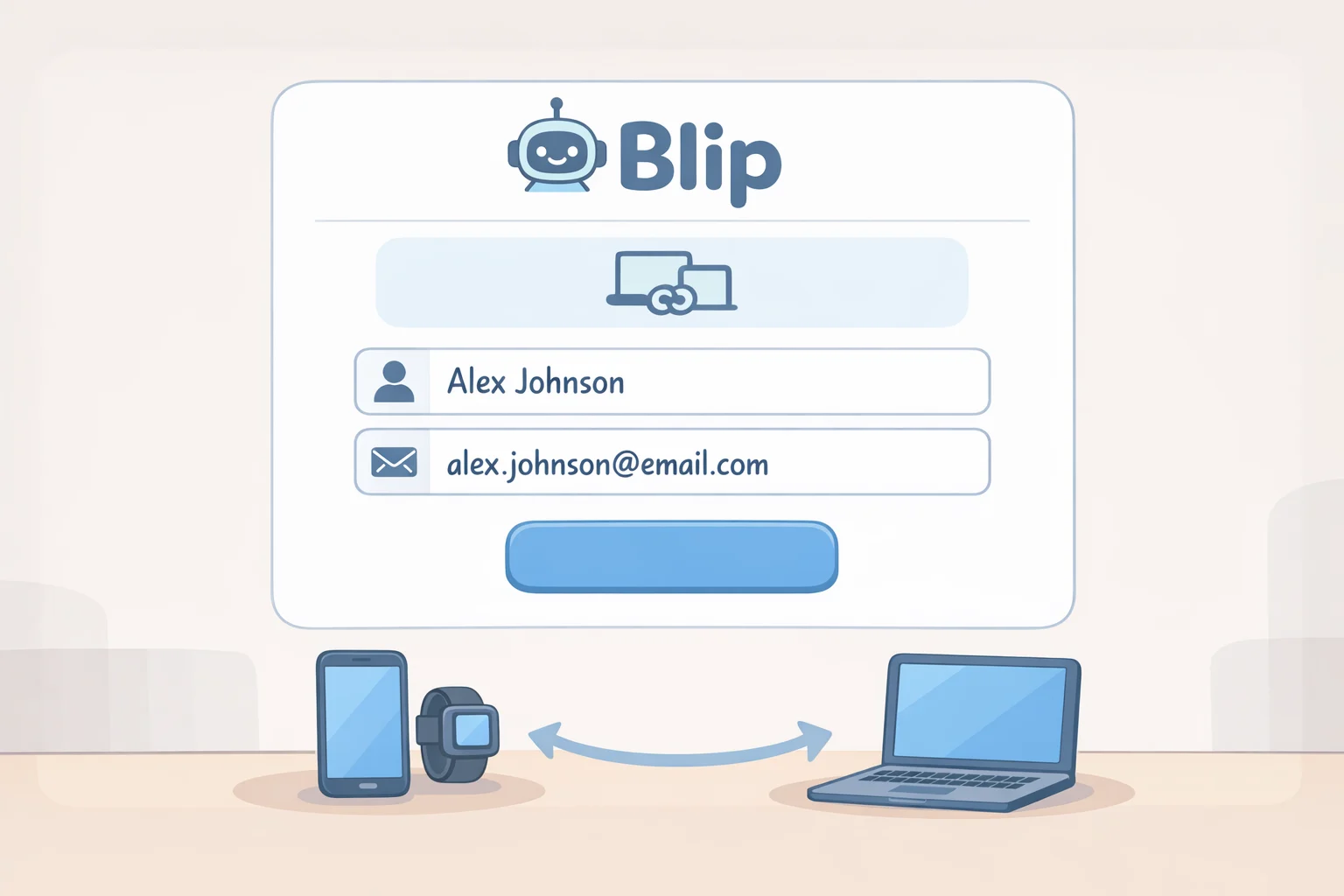
Open Blip and enter your name and email address. This is how your devices recognize each other, and how other people can search for you to send files (MakeUseOf, about three months ago).
Privacy note: If you'd rather not be searchable by name or email, go to Settings and enable private mode before sharing your account details with anyone (MakeUseOf, about three months ago). Do this before the next step.
Step 3: Sign in with the same email on every other device
Open Blip on your Mac, Windows PC, or iPhone and use the same email from Step 2. Each newly signed-in device appears in the list on all the others automatically.
Step 4: Send a file from Android to any of your linked devices
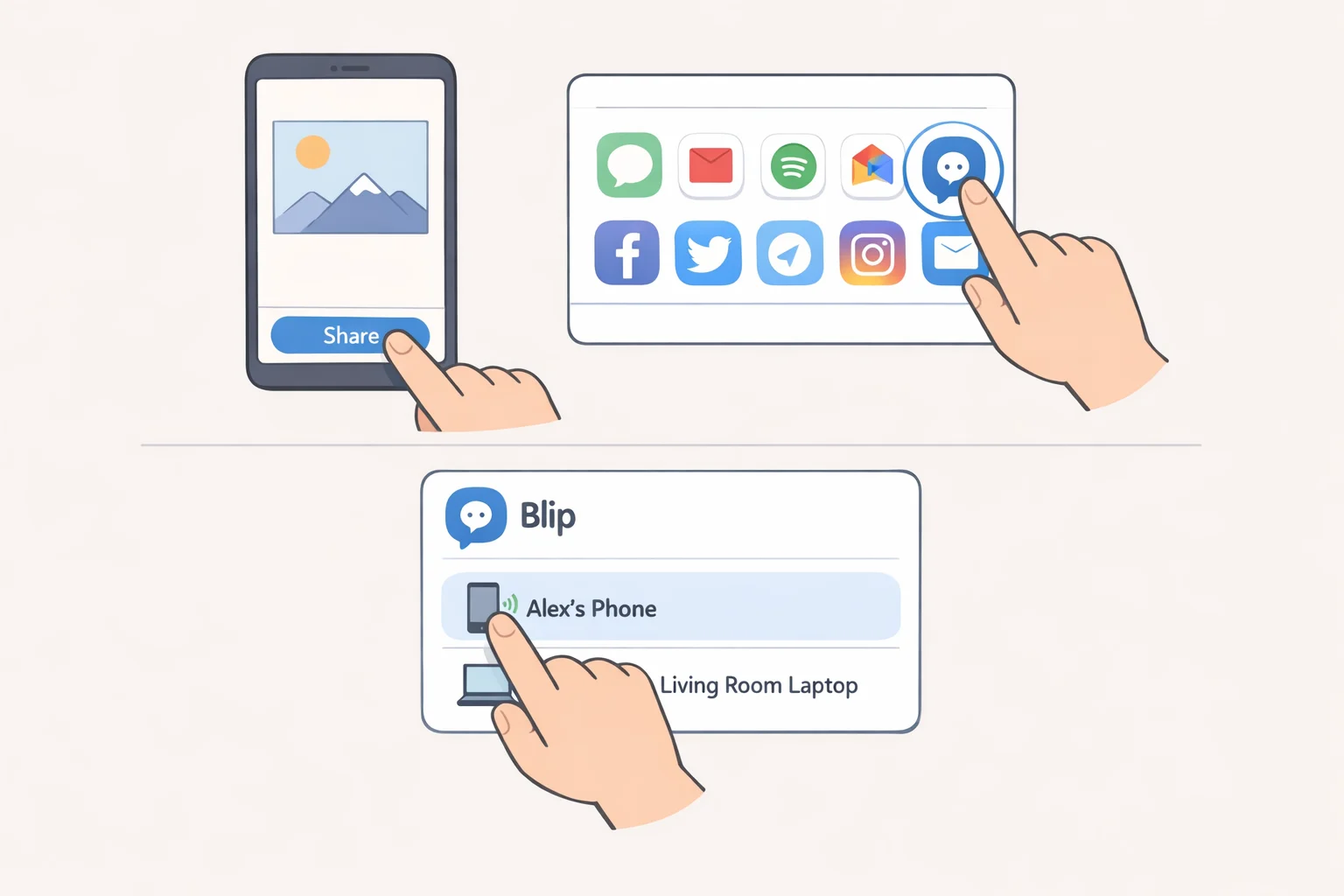
Open the file in your gallery, file manager, or any app with a share sheet. Tap Share, select Blip, then choose the destination device. The transfer completes on the receiving end without any action required there (Android Authority, about two months ago). This auto-accept behavior applies only to transfers between your own linked devices sending to someone else's account works differently (see Step 6).
Step 5: Send a file or folder from Mac or Windows
Right-click any file or folder in Finder or File Explorer, select Blip from the context menu, then choose the target device. Blip preserves the full folder structure on arrival subfolders stay intact rather than being flattened (MakeUseOf, about three months ago). There are no file size restrictions, so large project archives go through without compression or splitting.
Verify it's working: Right-click a nested folder on your Mac desktop, send it via Blip to your Android phone, and confirm the subfolder structure arrived intact. If it did, setup is complete.
Step 6: Send a file to someone else's device
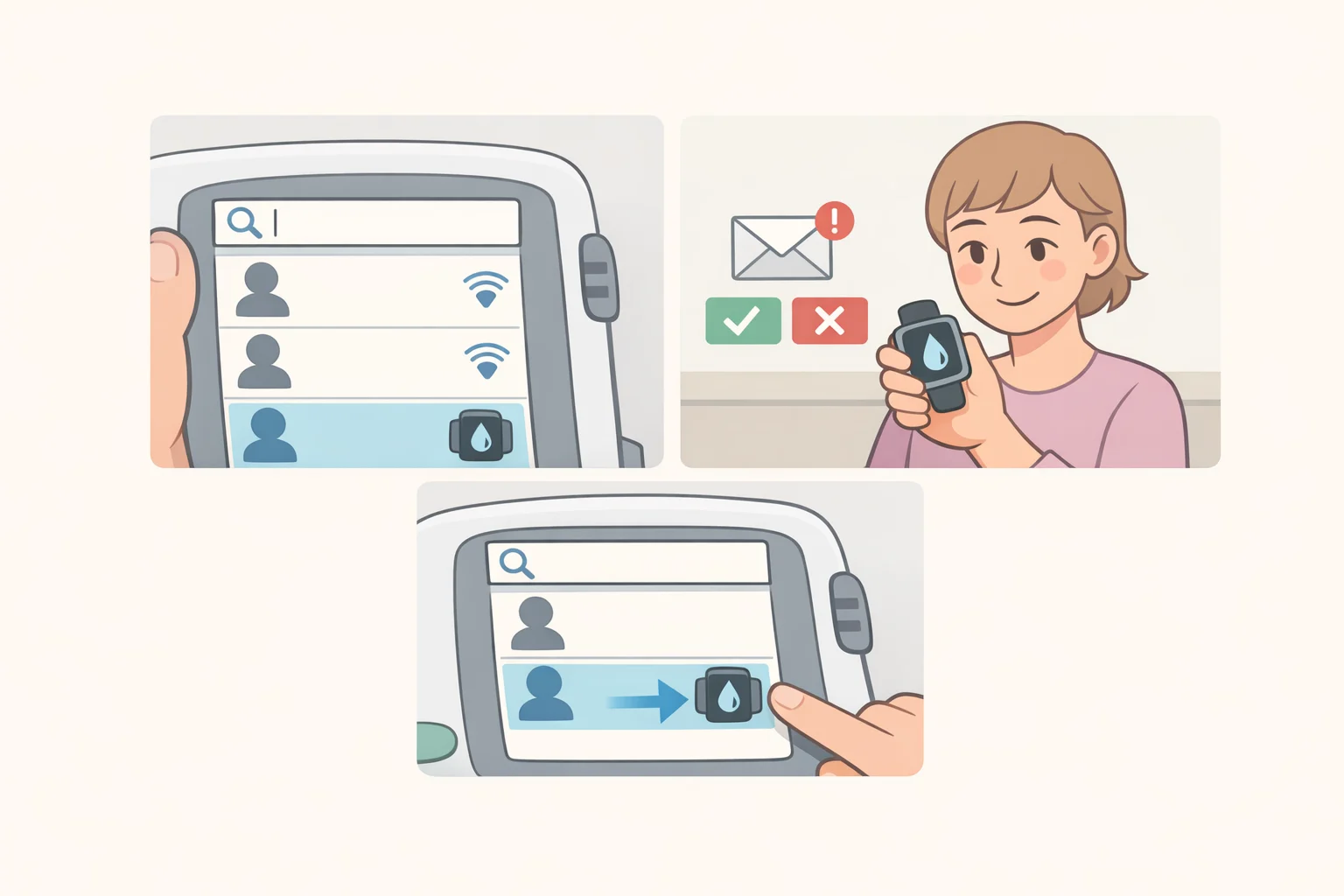
Type the recipient's name or registered email into the search bar in Blip, then select their device from the results (MakeUseOf, about three months ago). Unlike transfers between your own linked devices, this generates a notification on their end and requires manual acceptance. They'll need Blip installed. Tell them to grab it from blip.net and confirm their display name or email so you can find them in search.
Security note: Transfers are encrypted in transit, and Blip states that files don't touch its servers unless a firewall forces relay routing in that case, data passes through but is not stored, per Cult of Mac (earlier this year). These are vendor claims; no independent security audit has been published. The peer-to-peer architecture is at least structurally consistent with not storing data.
Troubleshooting: when something doesn't work as expected
A device isn't showing up in your list. Confirm it's signed into the same email account used during setup and that Blip is installed. Recognition works through your shared account, so both conditions have to be true.
A transfer isn't going through across networks. Blip routes over the internet when devices are on different networks (MakeUseOf, about three months ago). If it's stalling, check whether a firewall on either end is blocking the connection. Blip may fall back to relay routing in that case data passes through its servers but is not stored, per Cult of Mac (earlier this year).
When to use something else instead. Blip requires the app installed on both ends, with no workaround for that. For a one-off transfer to someone who won't install anything, PairDrop handles same-network sharing through a browser with no account needed. For browsing and editing Android files directly in macOS Finder without copying them first, a wired MTP tool is the right call Beebom specifically recommends OpenMTP for that workflow.
Free tier, paid plan, and honest limitations
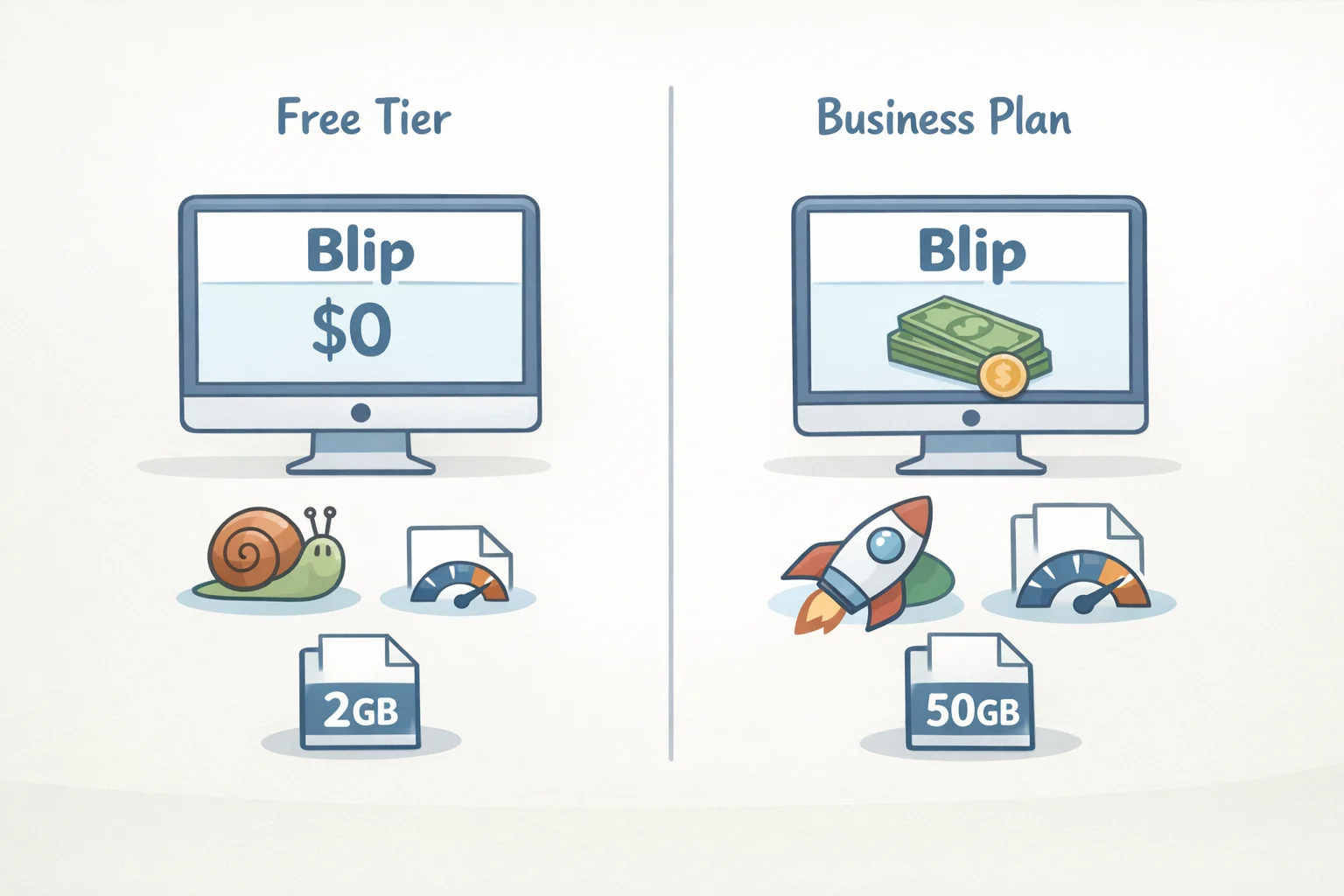
Blip's personal tier costs nothing, carries no ads, and has no file size cap (Cult of Mac, earlier this year). Everything in this guide runs on the free version.
The business plan runs $25 per user per month and adds priority speeds during peak usage and direct customer support (Android Authority, about two months ago). Priority speeds apply only to internet-routed transfers, not local Wi-Fi so if your devices are usually on the same network, the paid tier offers no practical advantage for personal use.
A few things worth knowing before committing:
- Blip requires a name and email address to register. LocalSend and PairDrop don't ask for either (MakeUseOf, about three months ago). If handing over an email is a non-starter, Blip isn't the right tool.
- The app must be installed on both sides. No workaround exists for that requirement.
- No independent security audit of Blip's encryption implementation or data-handling practices has been published. The TLS 1.3 encryption and no-server-storage claims originate from Blip's own documentation, relayed through reviewers.
Which tool fits your situation
Use Blip when you want one installed app handling transfers across your own Android, Mac, Windows, and iOS devices across any network, without touching the receiving end.
Use PairDrop when the other person won't install anything and both devices are on the same network.
Use OpenMTP (or another wired MTP tool) when you need to browse and edit Android files directly in macOS Finder without copying them first.
Install Blip from blip.net on every device, sign in with the same email on each, and enable private mode in Settings before you share your account name with anyone. If Linux is part of your setup, check blip.net directly for current support status before building it into your workflow.