How to turn off demo mode on a TV (Samsung, Sony, and more)
A new television that looks blindingly bright, oversaturated, and refuses to hold onto any picture adjustment usually has one specific cause worth checking before touching a single slider. Learning how to turn off demo mode on a TV may be the entire fix, and it can take only a couple of menu taps once someone knows where to look (Engadget, yesterday). The setting exists because store and demo modes are built to compensate for harsh retail lighting, not a quiet living room, which is exactly why a TV can look like a different product once it's out of the box at home (Engadget, yesterday).
It isn't limited to floor models, either. New TVs sometimes ship with the mode enabled even when they were bought online rather than picked up from a store display (Engadget, yesterday). Samsung's support page for the UAE market notes the mode is typically switched on in stores but "can sometimes remain enabled after purchase," and a software update or factory reset may reactivate it later even after someone has already turned it off (Samsung Support, two months ago).
This guide walks through diagnosing and disabling demo or retail mode first, since that's frequently all it takes. If the picture still looks off once the mode is confirmed disabled, the second half covers the specific processing settings worth adjusting next.
Signs your TV is stuck in demo mode
Video of the Day
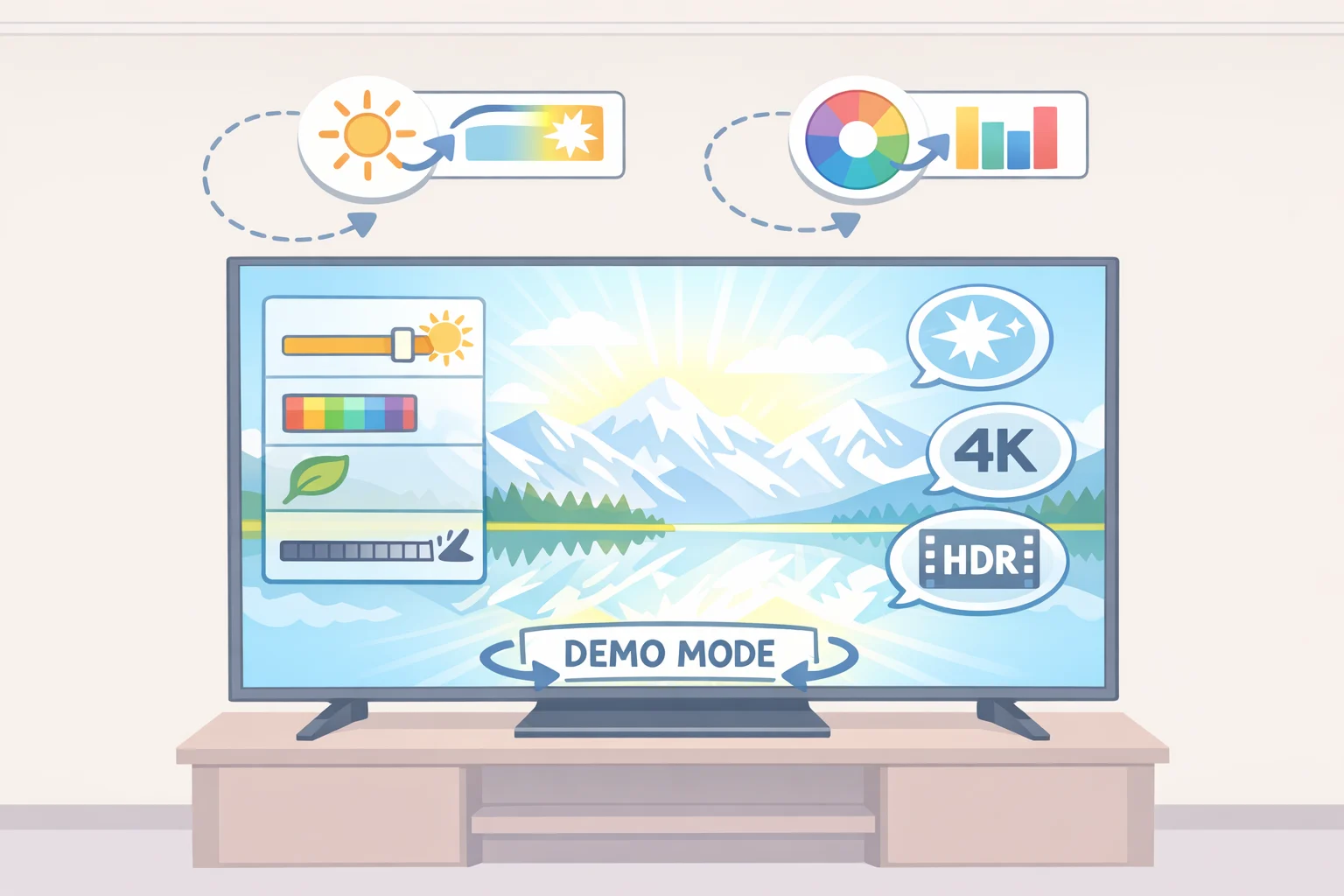
A few symptoms point directly at demo mode rather than a picture that just needs calibrating. Watch for on-screen ads or spec overlays, such as looping callouts about resolution or refresh rate, along with brightness and contrast that feel cranked past comfortable, and settings that snap back to default no matter what gets changed (Engadget, yesterday).
Samsung names the same pattern directly: a TV "continuously playing advertisements" or one whose settings keep reverting is likely stuck in demo or retail mode (Samsung Support, two months ago). The mode may reset manual changes every few minutes so the next person walking past a display sees the factory-intended look, which is exactly why tweaks made at home refuse to stick (Engadget, yesterday).
Recognizing these signs first saves time. There's little point adjusting brightness or contrast on a TV that's about to erase the change on its own.
Video of the Day
How to turn off demo mode on a TV: general steps
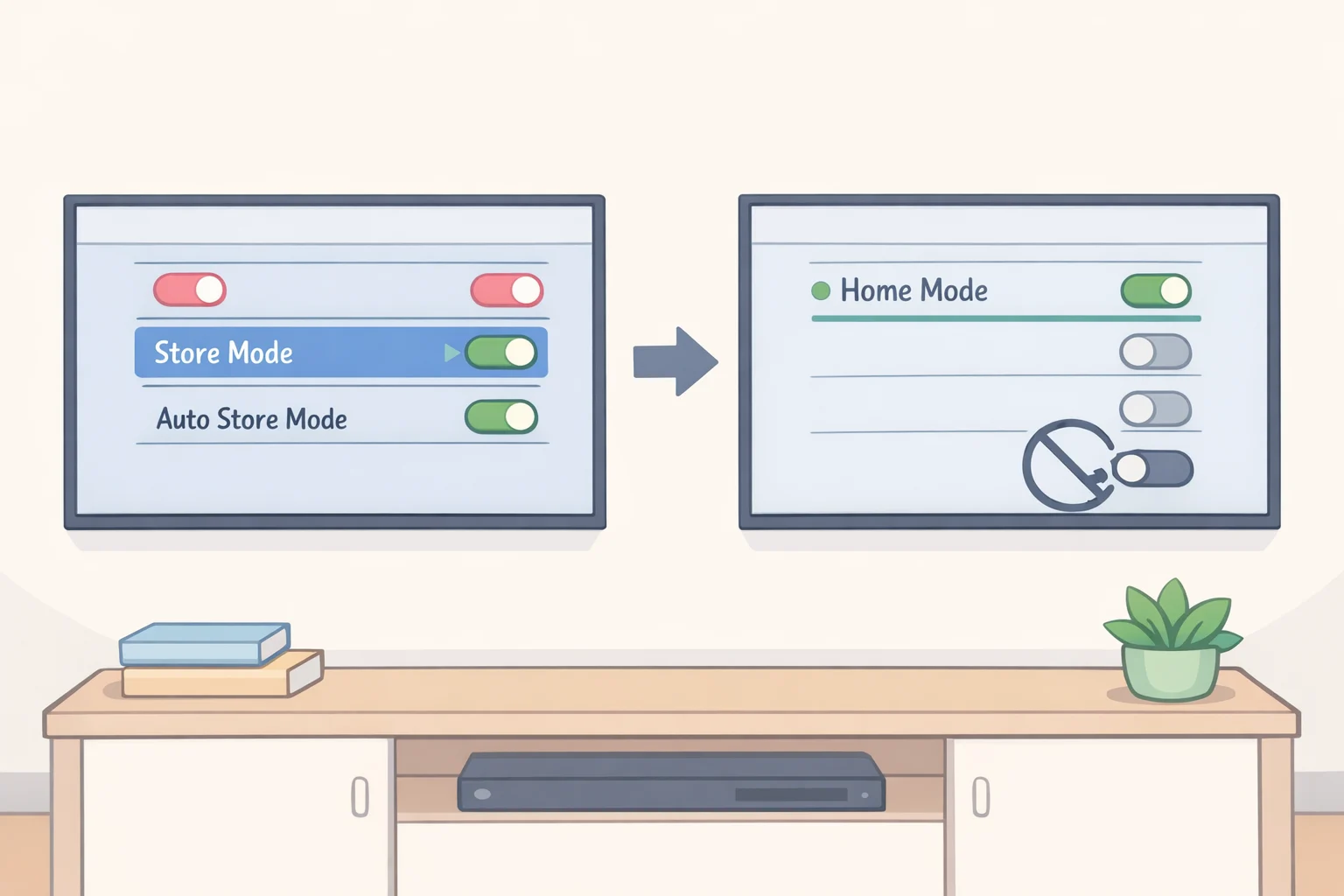
The fix, in short: switch the TV out of Store, Retail, or Demo Mode and into Home Mode. Here's how to find that switch on most sets:
- Open the Settings menu and look for an option labeled Store Mode, Demo Mode, or Retail Mode, usually under General or Support (Engadget, yesterday). If none of those exact words appear, check for a Home Mode versus Store setting instead, since some TVs frame it that way.
- Toggle it off. If the TV presents this as a choice during Initial Setup rather than a toggle, select "Home" or "Home Use" instead of "Store" or "Retail."
- Check for a separate Auto Store Mode option nearby, and switch that off too (Engadget, yesterday).
Exact wording and menu depth vary by brand and model year, so treat the steps above as a starting point rather than a universal map. Samsung publishes more specific instructions worth following directly.
Samsung. Samsung's support page for the UAE market walks through finding Demo Mode or Retail Mode in the settings list and toggling it off; if prompted for a PIN, the default it lists is 0000 (Samsung Support, two months ago).
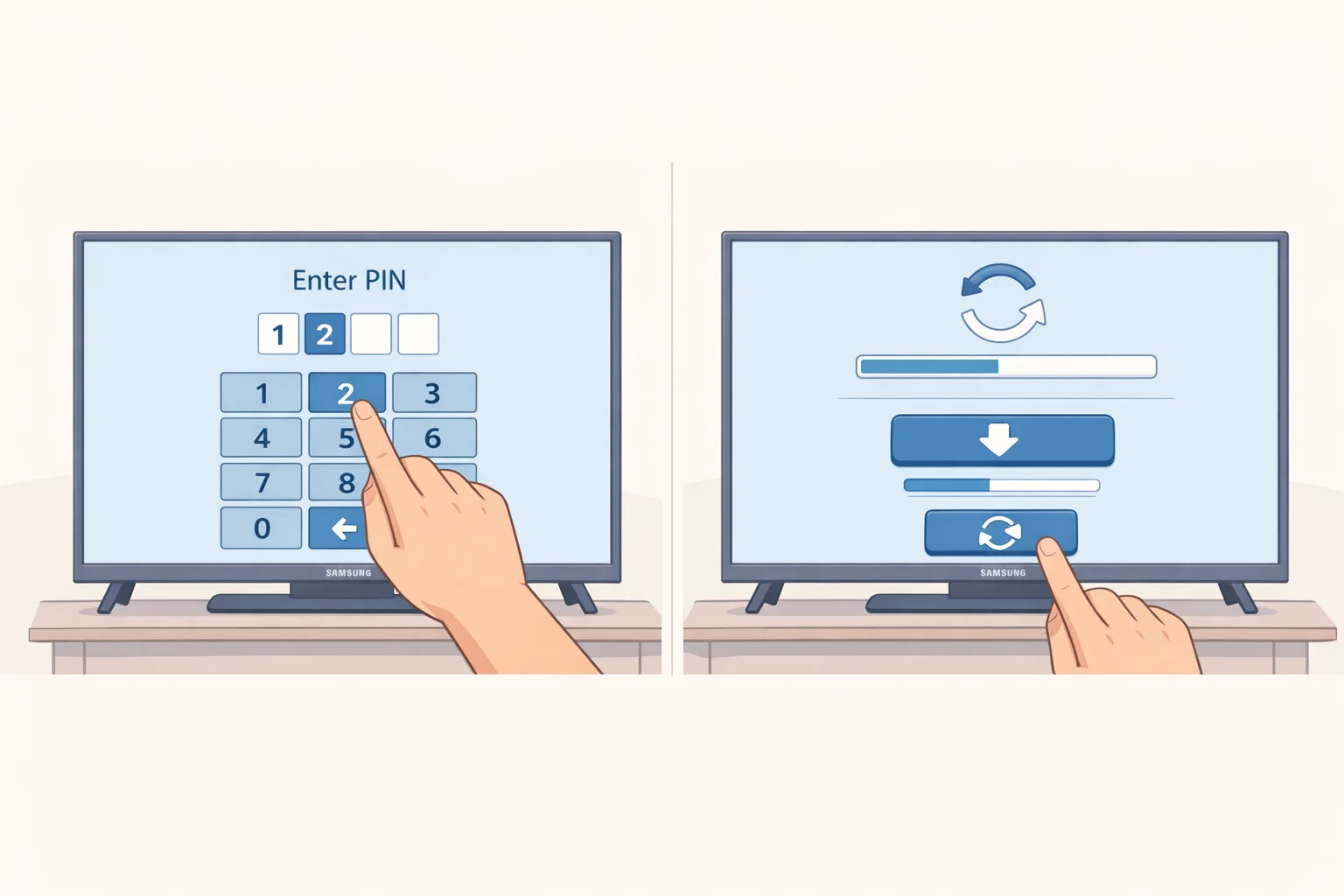
If the toggle won't hold, check for a pending firmware update first. Samsung notes that outdated software can cause unexpected behavior, and it's worth ruling out before trying anything else (Samsung Support, two months ago).
Other brands. Sony, LG, TCL, Hisense, Vizio, and other manufacturers each use their own labels and menu locations for this setting, and most keep a dedicated support page for their current lineup. Check Settings for the same sort of toggle first, and if nothing turns up, search the manufacturer's support site for "[brand] demo mode," which tends to surface the right page faster than digging through menus blind. The same approach works if a TV seems stuck in store mode rather than demo mode by name; it's typically the same underlying setting wearing a different label.
Confirm the change stuck. Once the mode is off, the on-screen ads and spec overlays should stop, and picture adjustments should hold going forward (Engadget, yesterday). Test it: change a picture setting, then turn the TV off and back on to see whether the change survived. If it didn't, go back through the settings menu, since the toggle may not have saved, or check whether a firmware update is pending.
Last resort. If demo mode won't disable through the settings menu at all, a factory reset may clear it on some sets, though that's a more drastic step worth trying only after the direct menu options have failed (ZDNet, about six weeks ago).
Why your TV looked so good in the store
The aggressive look worth escaping traces to a specific cause. Demo or retail mode typically pushes brightness and contrast up, saturates color heavily, and increases sharpness, tuned to stand out in a brightly lit retail environment (XDA Developers, last week). Stores commonly pair that with a Vivid or Dynamic picture preset and motion smoothing left on, which compounds the exaggerated effect (XDA Developers, last week).
A separate factor has nothing to do with the mode itself: showroom demo loops are often played locally from a USB drive or internal storage, using pristine 4K HDR footage chosen to show off a display (XDA Developers, last week). Turning demo mode off won't change how impressive that curated footage looks. It just stops the same exaggerated processing from following the TV home.
What to check if the picture still looks off after disabling demo mode
Turning off demo mode fixes the problem the mode itself causes. It doesn't fix everything else out of the box, though. Consumer Reports found that many new TVs ship with optional display features switched on by default, and some work against the set's best possible picture (Consumer Reports, last month).
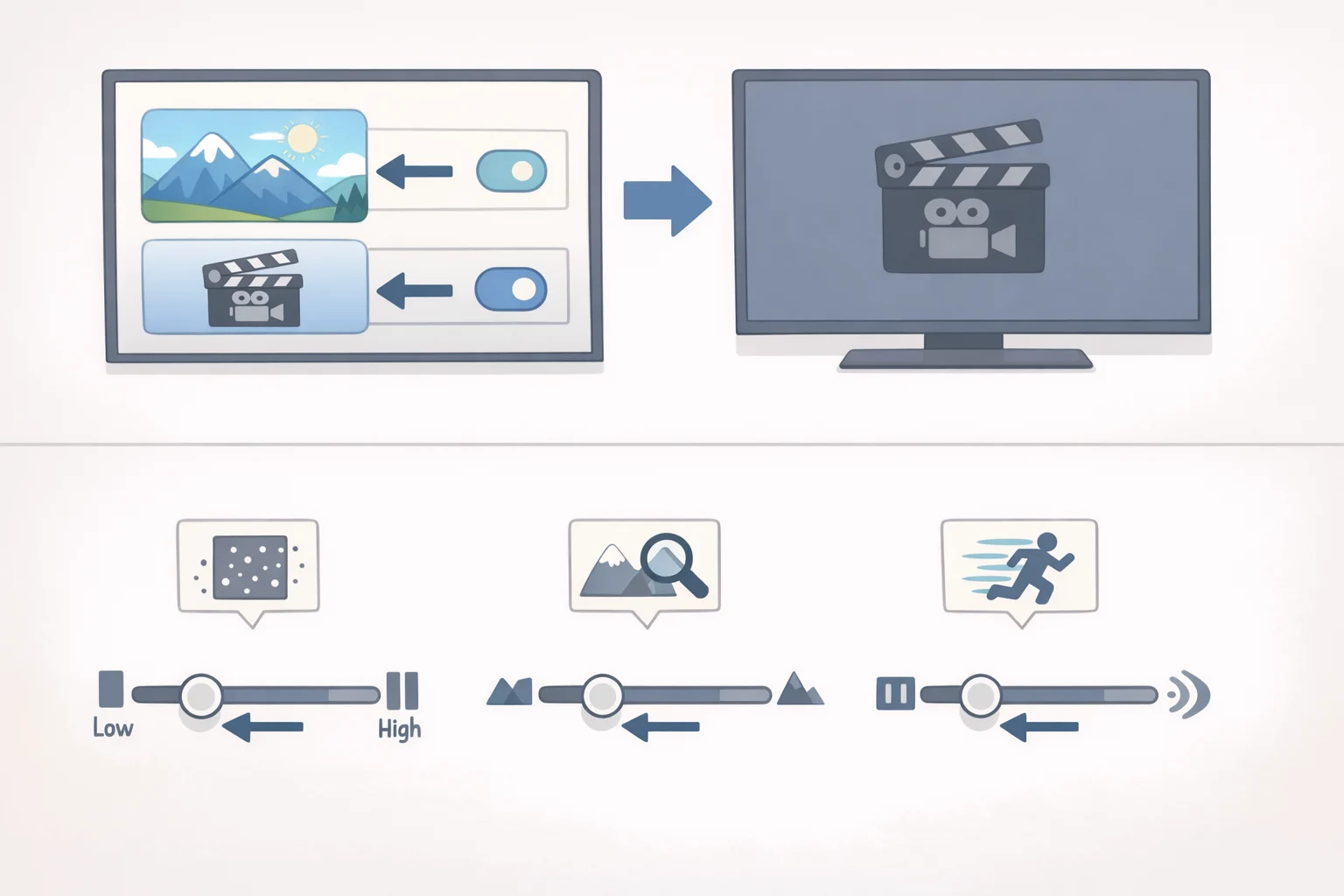
Start with the picture preset. Switch it to Movie, Cinema, or Filmmaker Mode instead of Vivid or Dynamic. Filmmaker Mode, now built into TVs from Hisense, LG, Panasonic, Philips, Samsung, TCL, and Vizio, automatically disables motion smoothing and other processing once it detects film content. Consumer Reports' own lab testing now starts from Filmmaker Mode specifically because it lands closest to its fully optimized picture settings (Consumer Reports, last month).
If the picture still looks soft, overly edgy, or artificial after that, three specific settings are worth checking, in this order:
- Noise reduction smooths away fine texture and detail rather than removing anything useful, leaving the image looking softer than it should. Turning it off produces a more natural picture (Consumer Reports, last month).
- Sharpness, or edge enhancement, doesn't add real detail. It exaggerates edges, so turning it down or off, rather than up, usually looks better. On TVs with a zero point in the center of the slider, going below that point can actually soften the picture (Consumer Reports, last month).
- Motion smoothing, also called frame interpolation, strips out the film's natural cadence, producing the "soap opera effect." Blur reduction is a separate function on many sets and is generally fine to leave on where the two can be split apart (Consumer Reports, last month).
Filmmaker Mode assumes a dark viewing room, so brightness may need a small manual bump depending on how much light gets into the room (Consumer Reports, last month).
Treat this as a sequence, not a checklist to run through all at once. Try the preset first, then touch only whichever of the three settings is still causing a visible problem. Adjusting all three on a picture that's already fine tends to make things worse, not better.
Looking ahead if the setting won't stick
Two fixes resolve most out-of-box TV picture complaints: turning off demo or retail mode, and swapping the default preset for Movie or Filmmaker Mode. Confirming the mode is off first is the sensible starting point, not a guarantee that nothing else needs attention.
If a setting keeps reverting after both fixes are applied, check the manufacturer's model-specific support page before reaching for a factory reset. Most major TV brands maintain a page for exactly this scenario, and contacting support directly is worth trying before wiping the TV's settings entirely.