How to Check if a Chrome Extension Is Stealing Your Data
Last year, security researchers at Kaspersky traced 57 extensions in the official Chrome Web Store, installed more than six million times combined, whose requested permissions didn't match what they claimed to do. That's the kind of case that should worry anyone who has clicked "Add to Chrome" without reading the fine print first.
Here's the caveat worth stating upfront, though: even in that investigation, researchers never found a confirmed instance of any flagged extension actually stealing a password or a cookie. The case against them was built on mismatched permissions, hidden distribution, and tracking code that could be switched on remotely, not on proof of theft (Kaspersky).
That distinction shapes what this guide can honestly promise. No consumer tool, including the one built into Chrome, can prove in real time that an extension is stealing your data. What this guide covers instead is how to check if a Chrome extension is stealing your data in the only way an ordinary user actually can: by comparing what an extension asks for against what it claims to do, spotting the access patterns that don't add up, and applying one rule consistently, keep what's necessary and explainable, investigate what's ambiguous, remove what isn't justified.
The steps below walk through that audit, explain why one clean check won't protect you indefinitely, and cover what to do, including locking down accounts, once an extension has to go.
How to check Chrome extension permissions
Video of the Day
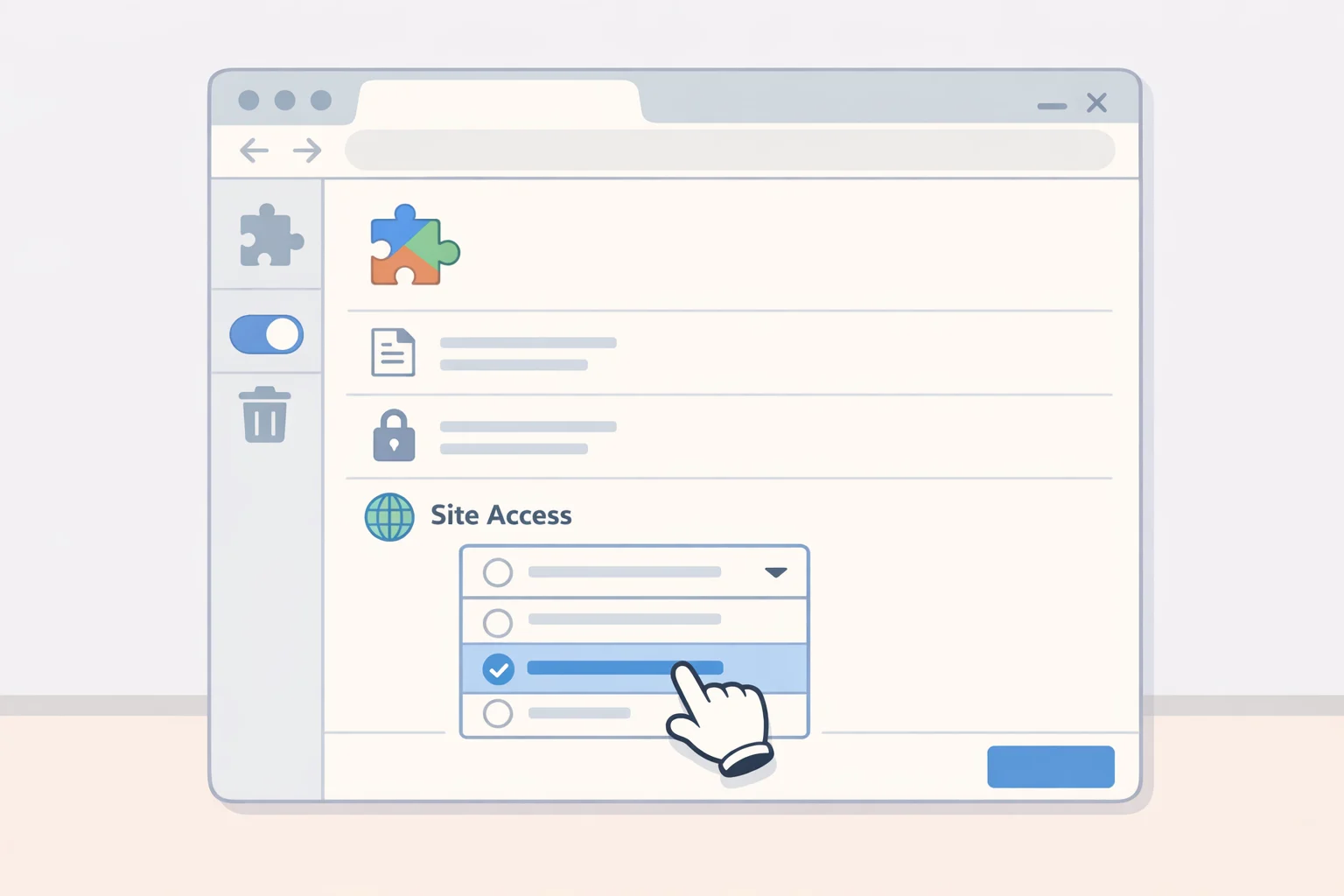
Open a new tab and go to chrome://extensions. Everything that follows works from that one page.
-
Open Details on each installed extension and check its Site access setting: on all sites, on specific sites, or on click. This is the control Chrome puts directly in front of you, and it's the fastest read on how much of your browsing an extension can reach.
-
Do a quick background check before judging the access itself. Note the developer name, compare the Chrome Web Store description against what the extension is actually supposed to do, and skim recent reviews or update notes for complaints about new pop-ups, altered search results, or behavior nobody remembers approving. None of this is a documented risk signal from a security researcher; it's ordinary due diligence, but it's often the fastest way to catch an extension that changed hands or purpose since you installed it.
-
Name the single job the extension is supposed to do: coupon finder, wallpaper changer, note-taking tool, ad blocker. Everything after this gets measured against that one stated purpose, not against what the extension could theoretically also be used for.
-
Compare that purpose against what the access actually grants. An extension set to "on all sites" with permission to read and change page data can, in principle, touch anything on any page you load, a broad capability Chrome flags with the same warning language for several sensitive permissions, including proxy control (Chrome for Developers). A note-taking tool carrying that access deserves a harder look than a password manager carrying the same access.
-
Sort each extension into one of three buckets: expected access (function and access line up, keep it), ask or investigate (access is broader than the stated function but plausible for a feature you haven't noticed, check the developer's description or reviews before deciding), or uninstall now (there's no plausible link between the access and the job).
Permission combinations worth a second look
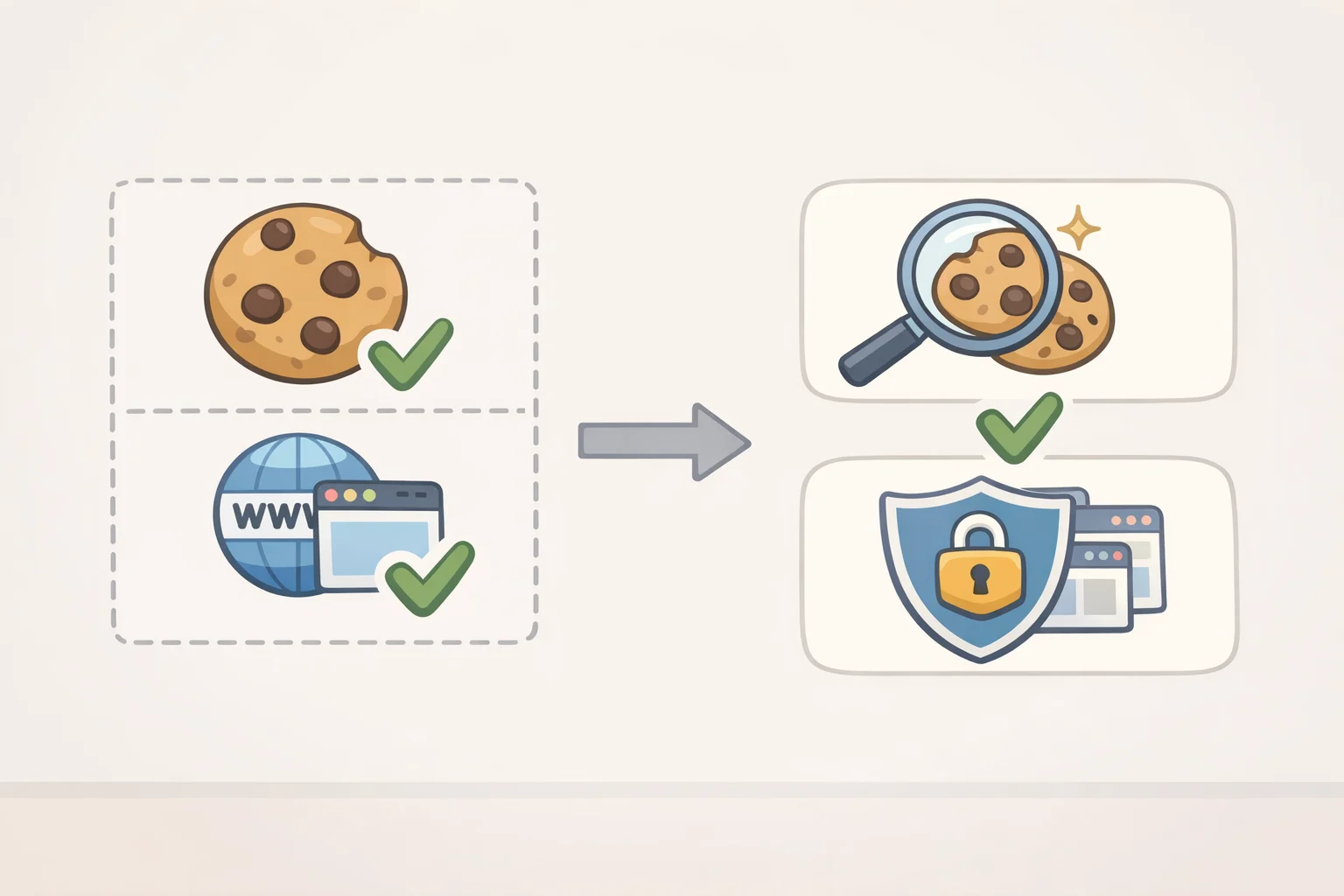
A handful of specific requests come up again and again in extensions worth extra scrutiny. Cookie access on its own doesn't grant much; an extension needs both the cookies permission and host permissions for the relevant sites before it can query or modify cookies there, including authentication cookies (Chrome for Developers). That combination was the central concern in Kaspersky's 57-extension case: session cookies of that kind let someone sign into an account without a password, which is a heavier consequence than a password manager grabbing a cookie for autofill (Kaspersky).
Proxy control hands an extension management of Chrome's own proxy settings (Chrome for Developers). It's a reasonable ask from a VPN or proxy tool and a strange one from almost anything else. Management API access, meanwhile, lets an extension inspect and control other installed extensions; Kaspersky's investigation found this exact permission gave one flagged extension, Fire Shield Extension Protection, that ability, and it's a request that rarely fits outside dedicated security software (Kaspersky).
Not every broad permission is a red flag on its own. Kaspersky points out that Google Translate asks for the same sweeping "read and change all your data on all websites" permission that shows up in far shadier extensions, because translating a page requires reading and rewriting its content (Kaspersky).
The webRequest permission is easy to overstate. Paired with host permissions, it lets an extension observe traffic on sites it already has access to, which is exactly what a security or analytics tool needs to see what's happening on a page (Chrome for Developers). What it doesn't hand most extensions is the ability to quietly block or rewrite that traffic: under Manifest V3, blocking event handlers, the code that can cancel or modify a request mid-flight, are restricted to extensions installed through enterprise policy (Chrome for Developers). Consumer ad blockers generally rely on a separate permission, declarativeNetRequest, built to block content without needing to inspect every request in flight (Chrome for Developers). An extension asking for webRequest and broad host access, with no enterprise install story and no obvious security function, is worth a second look.
| Access requested | Plausible for | Worth investigating when |
|---|---|---|
| Cookie access + host permissions for a site | Password managers, security suites | Requested by a coupon, wallpaper, or utility tool |
| Proxy control | VPN or proxy tools | Requested by anything outside that category |
| Management API access | Enterprise security suites | Requested by a consumer extension with no security function |
| Read/change data on all sites | Translators, grammar tools, page-manipulation utilities | Requested by a narrow single-purpose tool |
| webRequest + broad host permissions | Security or analytics tools observing traffic | No monitoring purpose, or claims to block/modify traffic outside an enterprise install |
| declarativeNetRequest | Ad blockers, content filters | Requested by a tool with no content-blocking function |
Chrome's own developer documentation recommends requesting sweeping permissions only when they're core to an extension's function, and asking for anything secondary at runtime instead, so the request shows up attached to the feature a user just tried (Chrome for Developers). An extension that demands everything upfront, with no runtime prompts explaining any of it later, deserves more scrutiny than one that asks as it goes.
Video of the Day
How to tell if a Chrome extension is safe after you install it
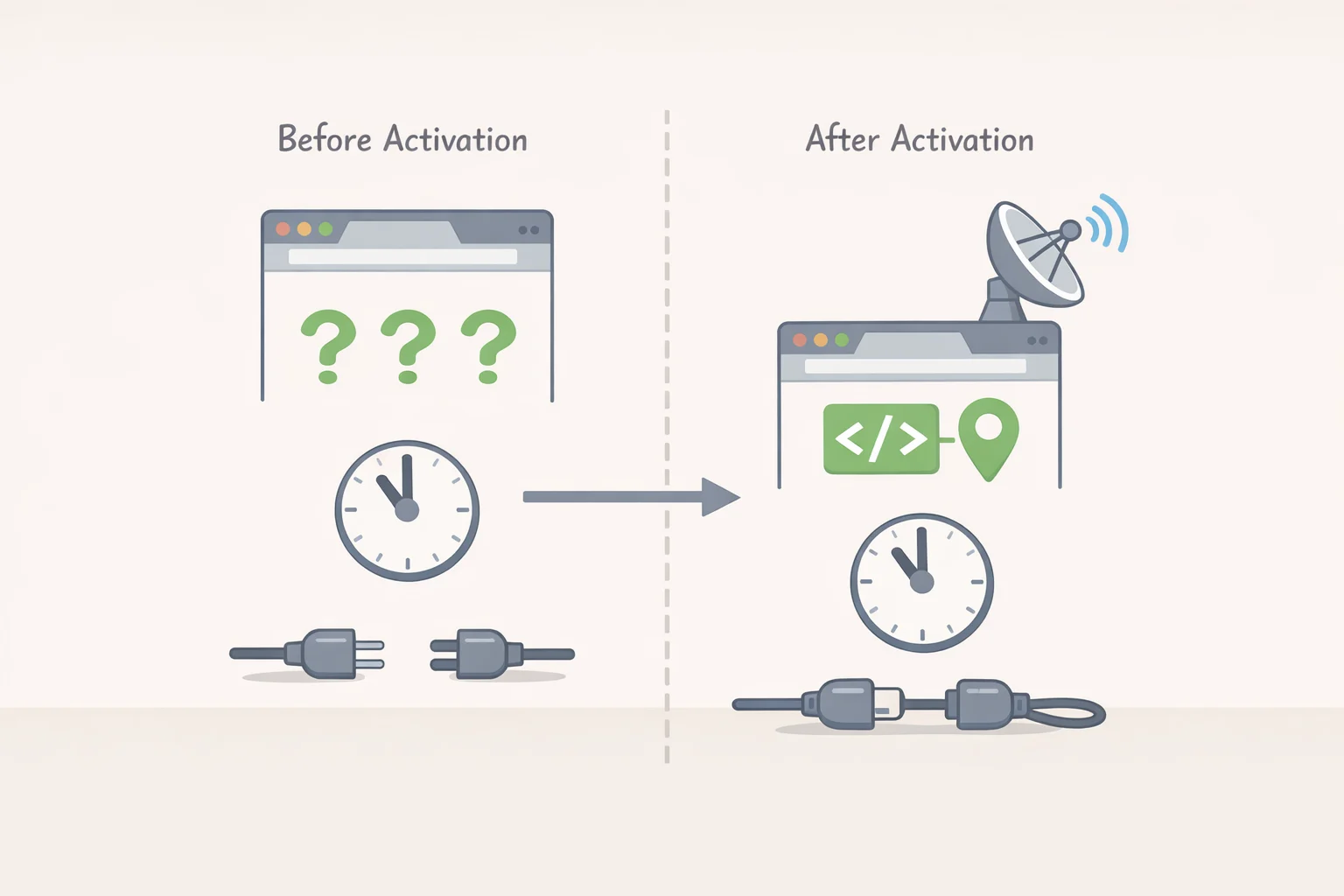
A clean check today doesn't guarantee anything about next month. Three details from the Kaspersky case explain why a single audit isn't the end of the job.
Extensions can be built to stay invisible. Dozens of the extensions Kaspersky traced were unsearchable in the Chrome Web Store and unindexed by search engines, meaning the only way to install one was already having a direct link, a distribution pattern researchers found across most of the flagged extensions (Kaspersky).
Behavior can also change after the fact. Kaspersky's researchers documented that the enhanced tracking built into these extensions didn't activate at install; it switched on later, triggered by a command sent from a remote server (Kaspersky). An extension that looks inert during an audit can still be carrying capability it simply hasn't used yet.
The same investigation tied its flagged extensions to changing default search engines, altering search results, and injecting scripts into pages people visited (Kaspersky). None of that shows up on a permissions screen, which is why the audit above matters but isn't a one-time fix; run it again periodically, or whenever an extension pushes a major update.
What to do if a Chrome extension collects too much data
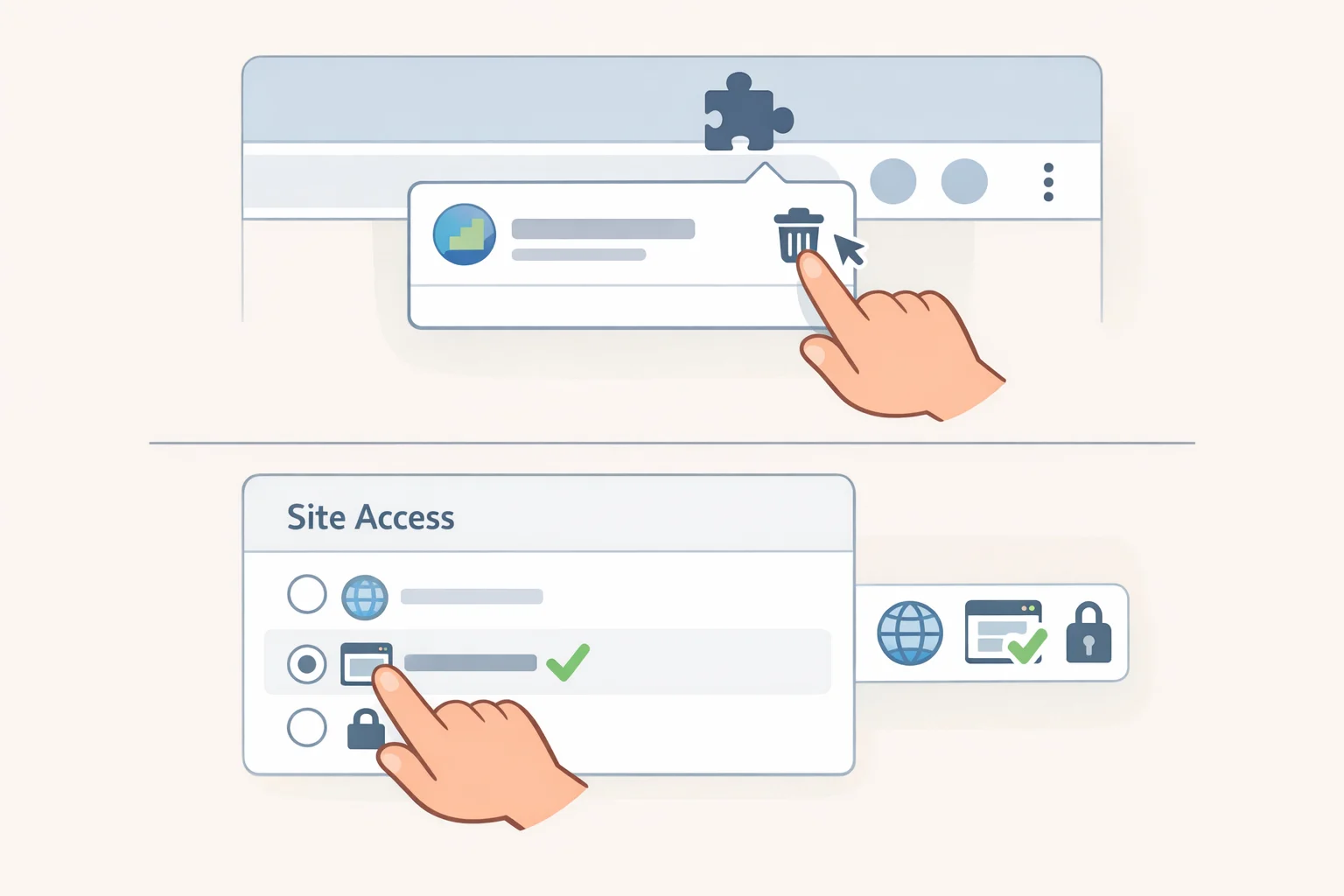
If an extension lands in the uninstall-now bucket, go back to chrome://extensions and click Remove. For a borderline case worth keeping in a reduced form, change its Site access setting to "On specific sites" or "On click" instead of "On all sites." That's the lever Chrome gives ordinary users; stripping out one specific permission a developer declared in the extension's code isn't something the interface lets you do, since that's a call made on the developer's end, not yours.
Occasionally an extension won't cooperate, it can't be removed, it reappears after deletion, or Chrome tells you it's "managed by your organization." A managed device profile, common on work or school computers, is worth ruling out first, since it alone can explain that message. If it doesn't apply, and the extension appears to have granted itself control nobody approved, treat it the way one user described discovering an extension had added itself as an administrator on their device, as a problem to escalate rather than troubleshoot solo (Google Chrome Community user report, earlier this year). Bring in IT support or a reputable malware-removal tool rather than continuing to poke at it manually.
Once an extension is gone, secure the accounts it could plausibly have reached, based on what it actually had access to rather than a blanket reset. If it combined cookie access with host permissions for a given site, it could read and modify cookies there, including the ones that keep a session signed in, and cookies like that let someone into an account without ever needing the password, so a new password alone doesn't close that door (Kaspersky).
Beyond that, it's worth treating a few more steps as standard precaution rather than documented certainty: sign out of other devices and end active sessions inside the account's own security settings, since resetting a password doesn't necessarily kill a session that's already open elsewhere. If the extension showed signs of tampering, altered search results, scripts running where they shouldn't have been, it's also worth glancing at recent account activity for anything unfamiliar while already in there.
Then run the audit from the first section on everything else installed. One extension earning a red flag is reason enough to look at the rest of the list, not just the one already removed.
The habit that matters more than the audit itself
Official presence in the Chrome Web Store and a large install count aren't proof of safety on their own, as the 57-extension case made clear (Kaspersky). Chrome's continued push toward optional, runtime-requested permissions gives legitimate developers a cleaner way to ask for less upfront (Chrome for Developers), though some permissions can't be made optional at all, and some genuinely necessary features still require broad access to function. Broad access is never proof of wrongdoing by itself. It just needs a plain, function-specific reason attached to it, and if that reason doesn't hold up, the extension has earned the same scrutiny as anything else on the list.