Dual-pane file managers on Mac: what to verify first
Switch from a Windows laptop to a Mac and the navigation habit that breaks first isn't a missing feature, it's a missing layout. File Explorer's default window keeps an address bar and a folder tree on screen together in every view mode, a layout Windows users stop noticing until it's gone. Finder has no single pinned arrangement that does both jobs at once, which is one reason twin-panel apps, usually marketed as dual-pane file managers, exist as a category at all.
This is a framework, not a review of one named app. Dual-pane managers change price, macOS compatibility, and feature sets often enough that a piece tied to a single product can go stale within months of publishing. What holds up longer is the exact gap these apps try to close, what Finder already covers for free, and the specific checks worth running on any dual-pane app, by name, before it touches original files.
Where Finder actually falls short of File Explorer
Video of the Day
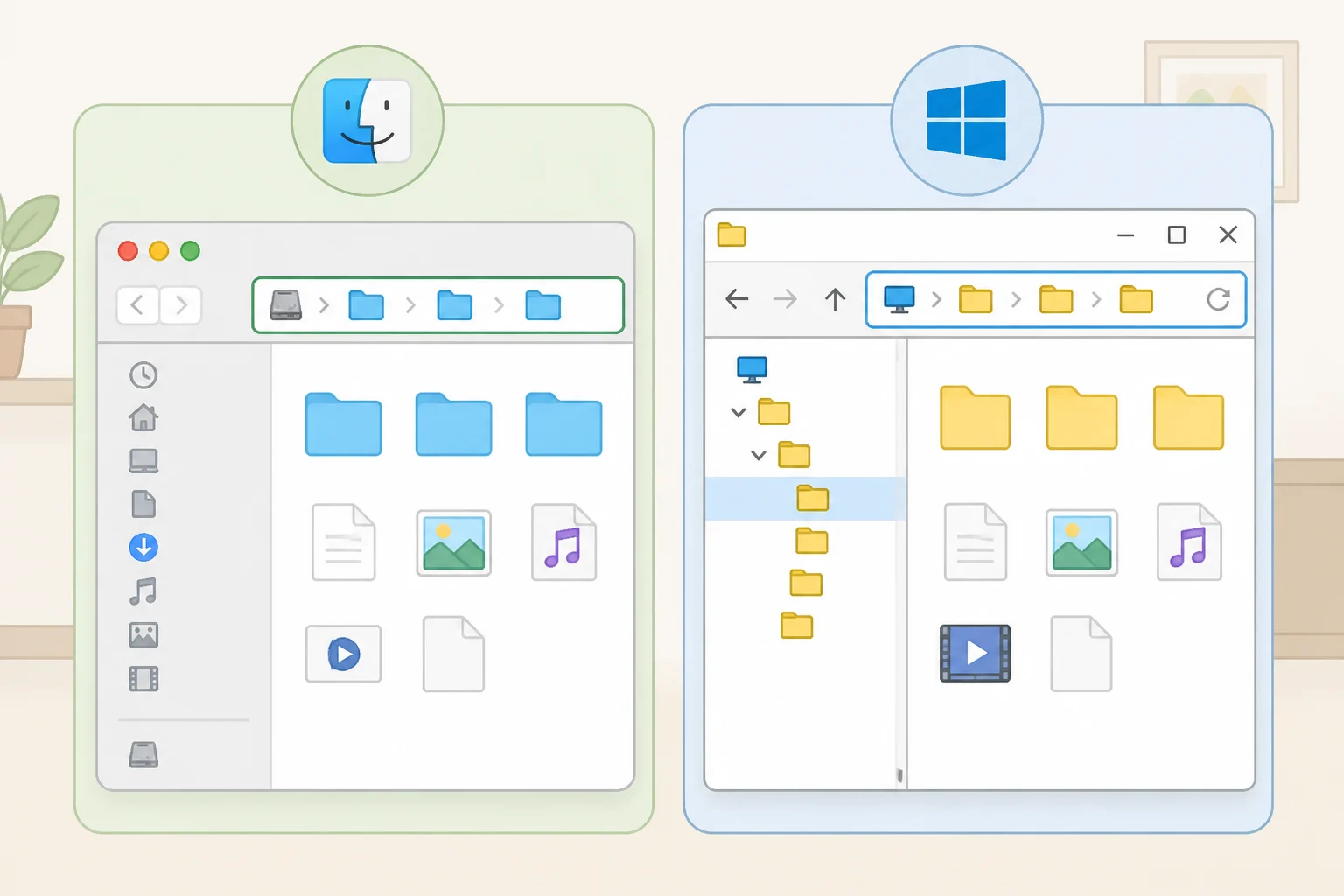
Finder isn't blind to folder structure. Turning on View > Show Path Bar adds a strip along the bottom of the window showing the full path to whatever's selected, and View > Show Sidebar keeps favorite locations and drives pinned on the left, per Apple Support's guide to Finder's view options. Based on that description, both elements are meant to persist regardless of whether the main pane is set to Icon, List, or Columns view.
Neither the Path Bar nor the Sidebar acts like File Explorer's address bar, an editable field you type a new path into directly and watch update as you click deeper into folders. The closest Finder gets is Go to Folder (Cmd+Shift+G), documented by Apple Support as a one-time dialog for jumping straight to a typed path. Once that dialog closes, nothing in the window is designed to keep tracking the path as navigation continues, a meaningful difference from a field that updates live, even though Apple's documentation is focused on how to use the shortcut rather than drawing that comparison itself.
Columns view (View > as Columns) comes closer to a folder tree, stacking every level opened across the window, but that layout is specific to Columns mode. Switch to List or Icon view and it disappears, per the same Apple Support guide. File Explorer's folder-tree sidebar, by contrast, is part of its default layout, staying visible no matter which view mode the main pane is set to.
So the gap is specific: Finder has a path bar and a sidebar, but neither behaves like a persistent, editable address field, and its closest thing to an expandable tree only shows up in one view mode. That's narrower than "Finder can't show a path," and it's the itch dual-pane managers are built to scratch.
Video of the Day
What a dedicated dual-pane app should add beyond Split View
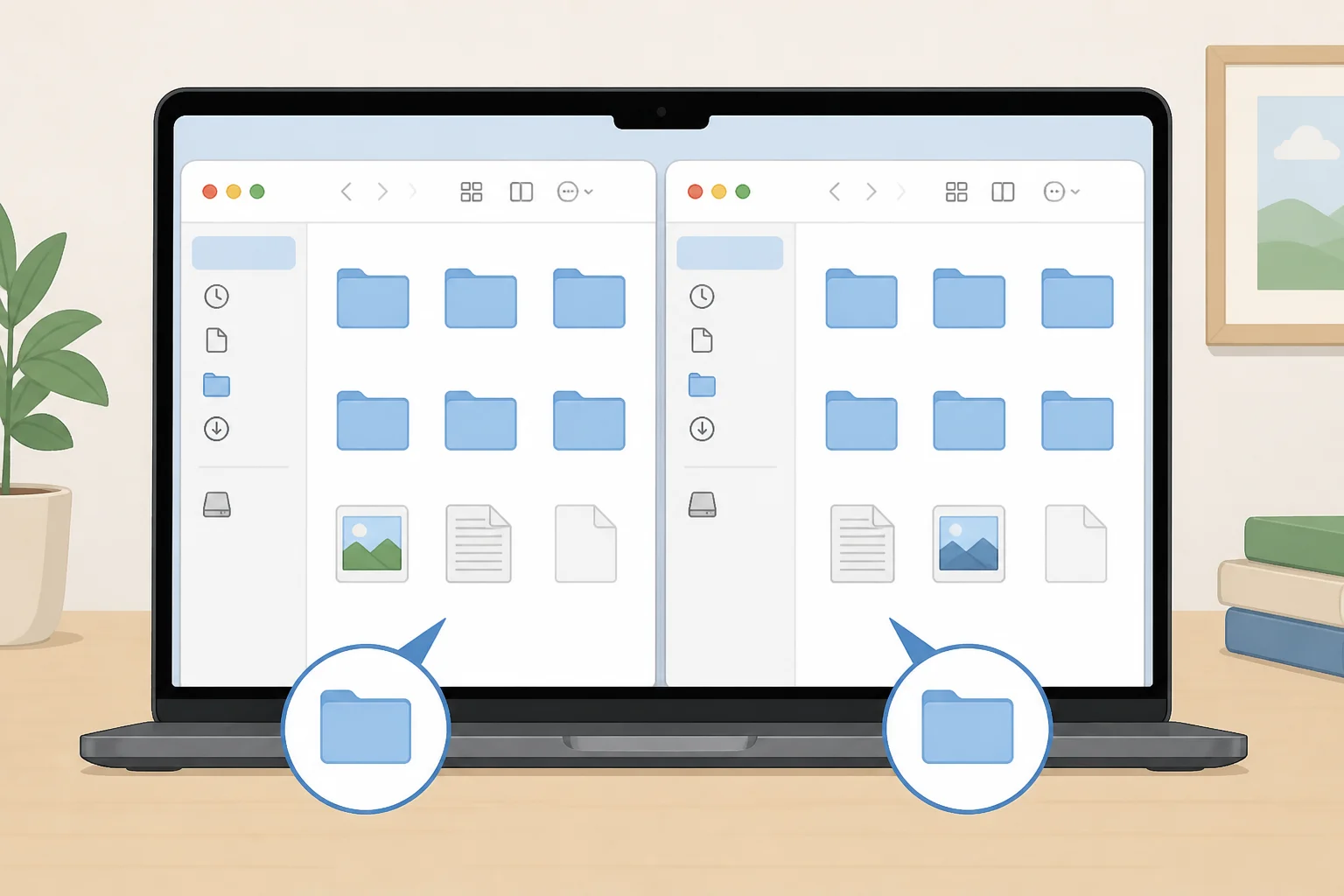
Mac already has a built-in way to put two windows side by side. Clicking and holding the green full-screen button in a window's corner, or dragging a window to one edge of the screen, tiles it against a second open window, according to Apple Support's guide to the feature. Applied to two Finder windows, that produces something that looks like a dual-pane layout at a glance.
Using it that way doesn't make it one, in the sense that matters for file management. Apple's Split View documentation describes window tiling, not a file-transfer interface, and running two Finder windows side by side this way leaves each with its own independent toolbar. Based on how two Finder windows actually behave together, there's no shared transfer queue and no dedicated copy or move control linking them; moving a file from one side to the other still means dragging it across the screen by hand.
A genuine dual-pane app is built to close that specific gap instead: two panes that pair automatically, each with its own visible path, plus controls actually designed for moving files between them, think dedicated copy or move buttons, keyboard shortcuts, or a progress indicator showing file count and time remaining mid-transfer. Those details separate an app built around file management from one that's just two folder views sitting next to each other. Confirm them in the app's own listing or through hands-on testing, not from a screenshot of two panes side by side.
What permissions and privacy claims actually depend on
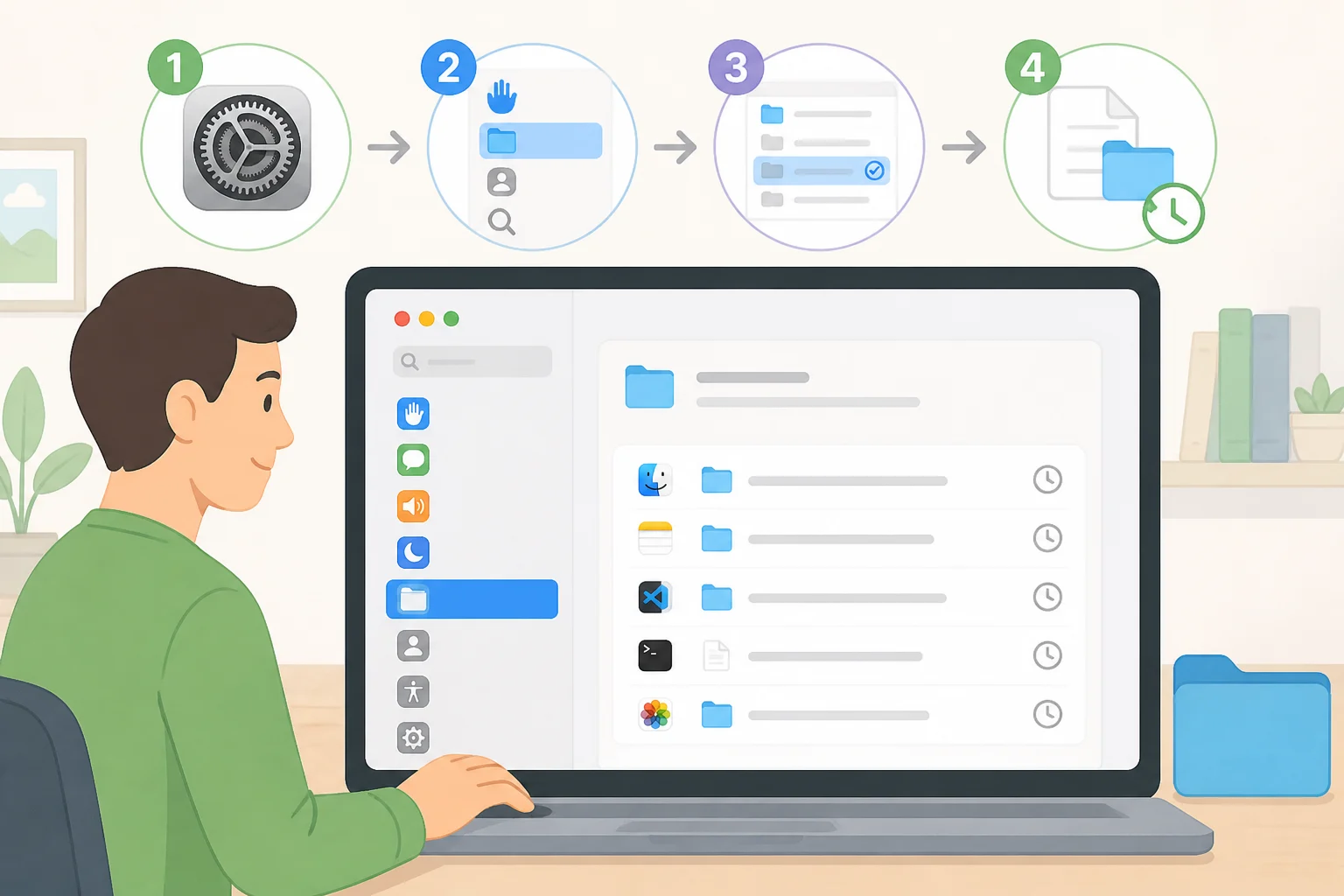
How much system access a file manager needs depends on how it was built and which folders it tries to reach. Apple's App Sandbox is a technical restriction that, per Apple's developer documentation, confines a sandboxed app to its own container until a user grants broader access to specific files or folders. That explains the general mechanism. It doesn't confirm whether a particular app is sandboxed, or whether a developer's claims about its own data practices hold up.
Whether an app actually runs inside the sandbox isn't something an ordinary user can easily verify from outside the app. What's checkable is which permissions an app has requested and been granted so far: opening System Settings > Privacy & Security > Files and Folders shows that history, based on Apple Support's guide to controlling file and folder access. That screen covers file and folder access specifically. It says nothing about network connections, analytics, or other data an app might send elsewhere.
If a developer states that an app works entirely offline or collects no data, treat that as a claim worth watching, not something App Store review verifies independently. App Sandbox restricts what an app can reach on disk; it isn't designed to audit statements about data collection.
What to verify on the official listing before downloading
Pull these details from the app's current official page, whether that's the Mac App Store or a developer's own site, not from an older review, a forum thread, or a search result that might already be out of date:
- Current price, and whether it's a one-time purchase, a subscription, or a free download with in-app purchases
- Minimum supported macOS version listed on the page right now
- Developer name and the date of the most recent listed update; a listing untouched for a year or more isn't proof an app is abandoned, but it's a reason to check compatibility more carefully before installing
- Whether the page specifies Apple Silicon support, Intel support, or both
None of this should be assumed to match an older writeup, including this one. Listings change, and the version on the page today is the only one that counts.
What to test with your own files before trusting it
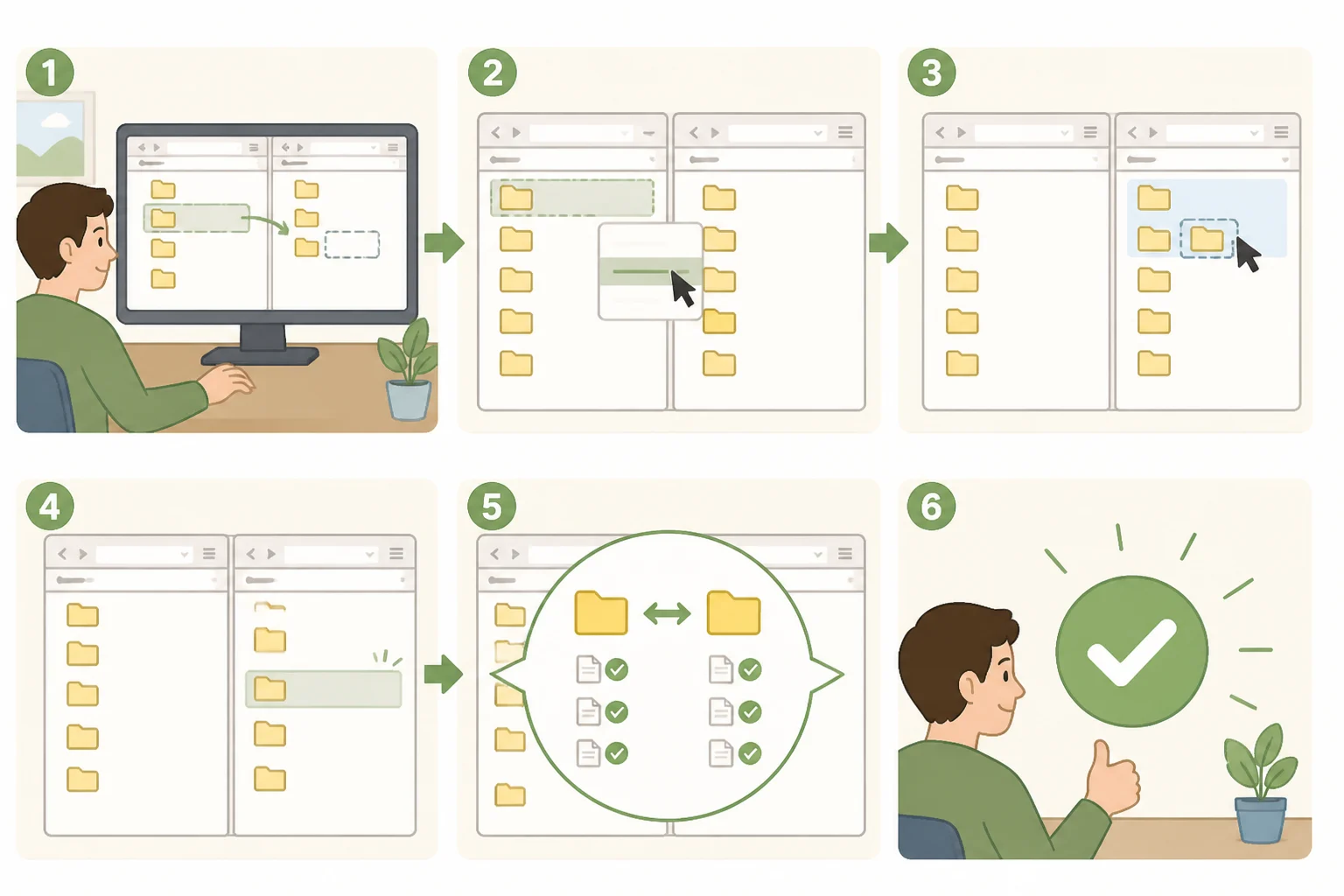
Interface screenshots and feature lists are easy to write and hard to verify from the outside. Before moving anything that actually matters, build a small duplicate test folder, never originals, and note the app version and macOS version being tested so results can be checked again later.
- Name conflicts: copy a small file and a larger file into a destination that already has files with the same names. Record exactly what happens, a prompt to keep both, a prompt to replace or skip, or a silent overwrite, then check the destination file's size to confirm which version actually survived.
- Interrupted transfers: start a multi-file copy from an external or USB drive using files of different sizes, then disconnect and reconnect the drive partway through. Note whether the app resumes, retries, cancels cleanly, or leaves partial files behind, and open the copied files afterward to confirm they aren't corrupted rather than assuming a successful reconnect means the data arrived intact.
- Hidden files and archives: check whether hidden files appear without extra configuration, then separately confirm whether a standard ZIP archive can be extracted, previewed, and deleted from within the app. Visibility alone doesn't mean those actions work.
- Transfer feedback: watch whether a copy between panes shows a file count and time estimate, or just a spinner with no information attached. A spinner isn't automatically a failure, but it's a meaningfully lower bar than the count-and-estimate display File Explorer users expect by default.
How an app handles these specific situations says more about whether it deserves trust than how its panes are arranged. An app that overwrites files without warning, or can't confirm a file arrived intact after an interrupted transfer, is worth treating with caution for anything beyond casual, low-stakes use, no matter how clean its layout looks.
Who actually needs one
In practice, the clearest beneficiaries are people moving files between the same two folders every day, sorting downloads into project directories or keeping a sync folder current. For that kind of repetitive, two-location workflow, a dual-pane app that passes the tests above saves real time over arranging two Finder windows by hand.
People who only relocate files occasionally already have what they need built in: Finder's Path Bar, Sidebar, and Go to Folder shortcut, at no extra cost, per Apple Support's guide to the shortcut. Installing a third-party file manager doesn't require handing over more system access than Finder already has by default, but macOS's own privacy and file-ownership permissions still apply to whatever app is doing the browsing, so the checks above aren't optional just because an app happens to be free.
If file moves are occasional, there's nothing to install here. If two folders genuinely need to stay open side by side every day, confirm a specific dual-pane app's price and macOS compatibility on its current official listing, then run the conflict and drive-interruption tests on duplicate files before trusting it with anything original. A stale-looking listing, a developer who's vague about recent updates, or permission requests broader than the app's stated purpose are all reasons to wait rather than install.