How to Use WhatsApp Web: Step-by-Step Setup and Troubleshooting
Go to web.whatsapp.com, open Linked Devices in your WhatsApp phone app, tap Link a Device, and scan the QR code on your screen. That's the whole setup. This guide walks through each step, explains how to use WhatsApp Web on your computer once it's running, and covers the fixes for every common failure including ones caused by outdated advice that no longer applies.
One scope note before starting: this guide covers browser-based WhatsApp Web only, not the downloadable desktop app. They behave differently, and fixes for one don't always apply to the other.
Before you begin, you'll need:
- A smartphone with WhatsApp installed and an active internet connection (required for initial pairing only)
- A supported desktop browser: Chrome, Firefox, Edge, Opera, or Safari Internet Explorer and other unsupported browsers won't work (AndroidGuias explains the compatibility limits)
- WhatsApp updated to the latest version on your phone (Techlicious notes outdated app versions as one of the most common sources of setup failures)
How to use WhatsApp Web: step-by-step setup
Video of the Day
Step 1: Confirm you're on the right page
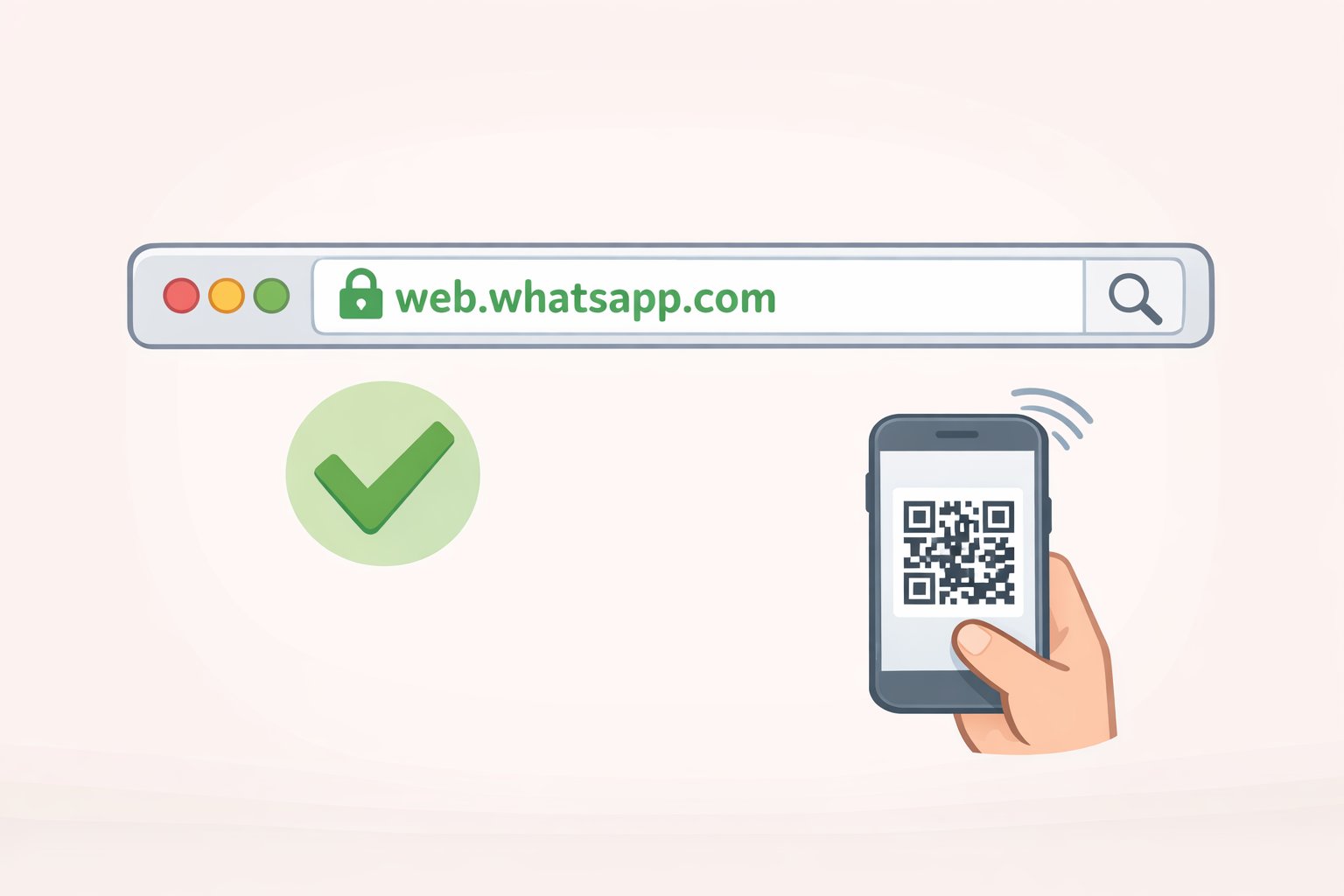
Go to https://web.whatsapp.com and verify that exact URL in your browser's address bar before doing anything else (Techlicious flags this as the first check).
Phishing pages that impersonate WhatsApp Web exist and are built to collect credentials. The real site shows exactly one thing when you arrive: a QR code. No phone number field, no password prompt. If the page asks for any credentials or looks different, close it immediately (Techlicious).
You should see a QR code centered on the page with a prompt to scan it using your phone. That's the WhatsApp Web login screen.
Step 2: Scan the WhatsApp Web QR code and link your device
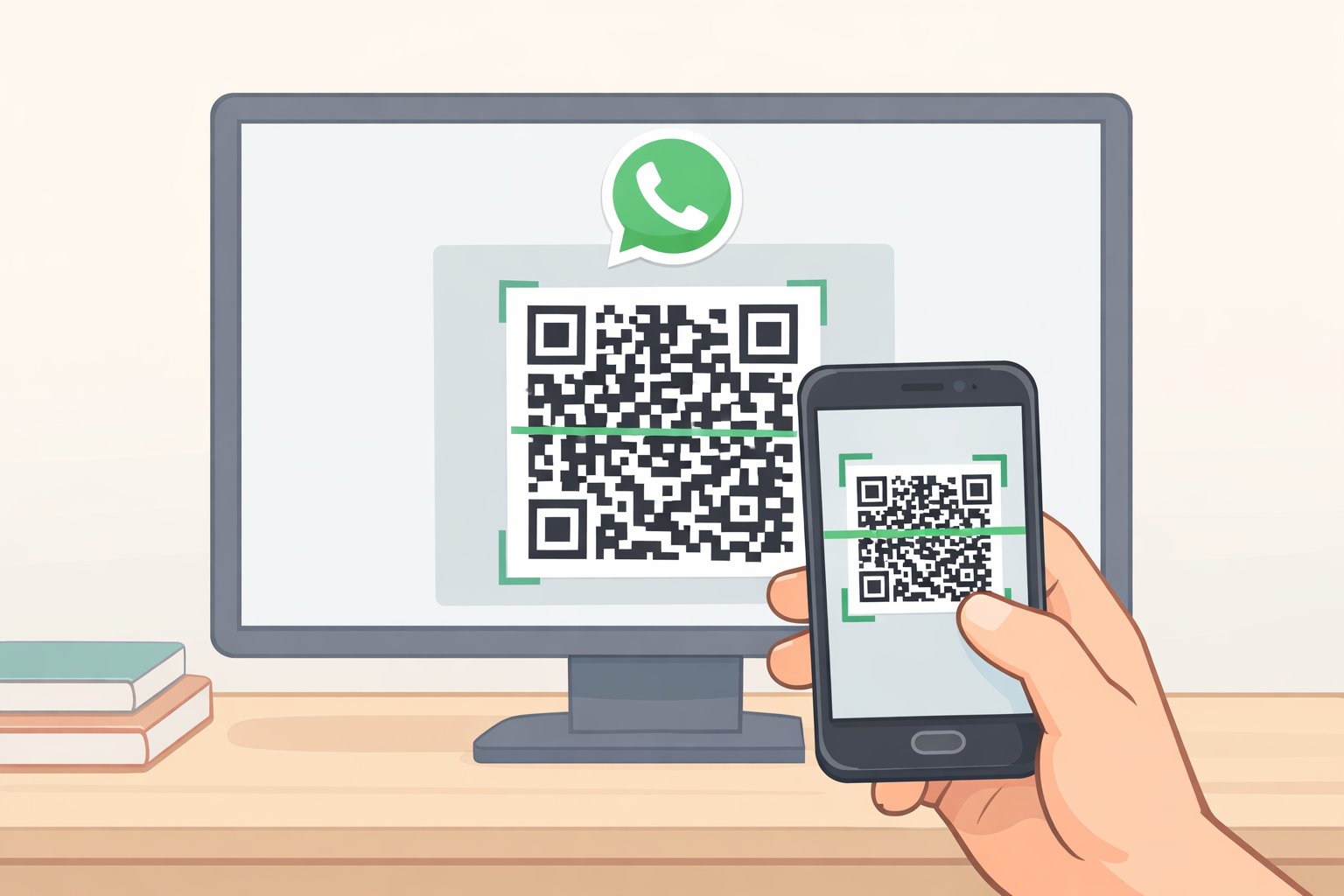
- Open WhatsApp on your phone. On iPhone, go to Settings > Linked Devices. On Android, tap the three-dot menu in the top-right corner and select Linked Devices.
- Tap "Link a Device." Your phone's camera will activate.
- Point the camera at the QR code on your screen. Hold it steady until it registers.
- Wait for your chats to load. This can take a moment if you have a large message history.
Once linked, your WhatsApp conversation list appears in the browser and you can send messages, share files, and manage conversations from your computer (AndroidGuias). Your phone doesn't need to stay online after this point more on that below.
The WhatsApp Help Center documents the full QR scanning flow and camera requirements for linking.
If the QR code won't scan
This is one of the most common setup failures, and it almost always traces back to screen visibility, camera permissions, or an expired code. Try these in order:
- Increase your computer's screen brightness
- Wipe the phone camera lens with a clean cloth
- Hold the phone slightly farther back from the screen
- Refresh the browser page to generate a fresh QR code (Techlicious)
If the camera won't activate at all, check that WhatsApp has camera permission. On iPhone: Settings > Privacy & Security > Camera. On Android: Settings > App Permissions (Techlicious). Also confirm WhatsApp is updated an outdated app version will sometimes refuse to open the camera scanner.
Video of the Day
Understanding sessions before you troubleshoot
The single most useful thing to know before diagnosing any problem: WhatsApp Web no longer depends on your phone being online. Since the 2023 multi-device architecture change, your browser session operates as its own linked device. The phone only needs internet access during initial pairing; after that, it can go offline or be turned off for a period, and the browser session stays active (Mukunda Software, AndroidGuias).
A lot of troubleshooting advice circulating online predates that change. If you're reading that your phone must stay on or stay connected to the same network, that guidance is outdated and will send you in the wrong direction.
Two limits that still matter:
- WhatsApp allows a maximum of four linked devices per account. When that ceiling is reached, new linking attempts can fail (Techlicious). Manage this in the phone app under Settings > Linked Devices.
- Only one WhatsApp Web session can be active per browser environment at a time, regardless of how many windows are open (AndroidGuias). That's a different constraint from the total device count.
Match your symptom to the right category before you start fixing things:
| What you're seeing | Most likely cause |
|---|---|
| QR code won't scan | Camera permissions, screen brightness, expired code |
| Page is blank or won't load | Browser issue, extension interference, network block |
| Messages delayed or not syncing | Connection problem, battery optimization, app state |
| Getting logged out repeatedly | Incognito mode, cookie settings, device limit, managed device |
| Nothing works, everything tried | WhatsApp server outage |
Fixing the most common WhatsApp Web problems
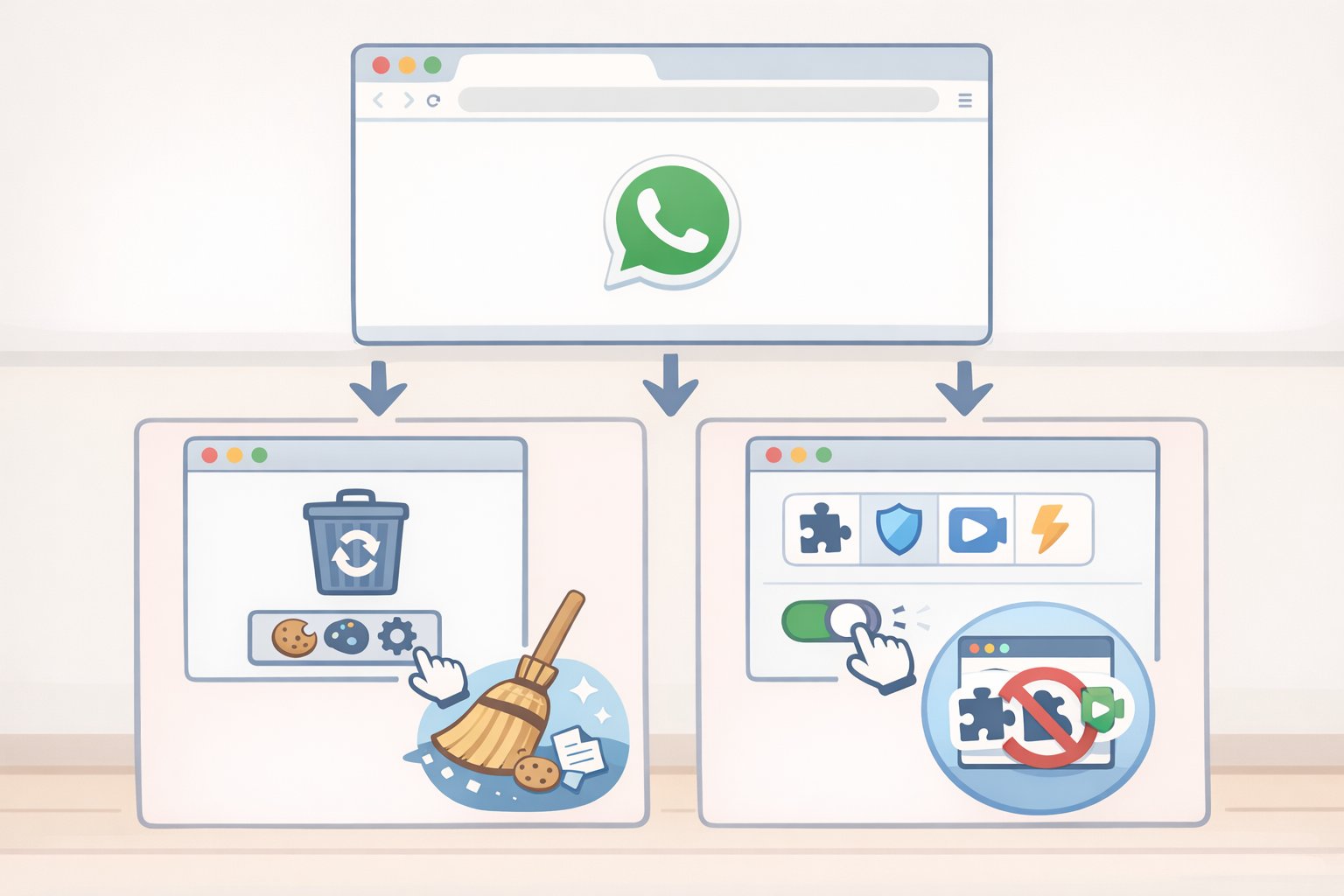
Most failures fall into three areas: network connectivity, browser or session state, or server-side issues (Mukunda Software). The fixes differ for each.
The page won't load or appears blank
Browser environment problems are the usual cause. Work through these in order:
- Clear site data for web.whatsapp.com specifically. In Chrome: click the lock icon in the address bar, select Site settings, then Clear data. Clearing your full browser cache is less targeted and less effective (Mukunda Software).
- Disable extensions temporarily. VPNs, ad blockers, and privacy tools are common culprits (AndroidGuias). To isolate whether an extension is the cause, open WhatsApp Web in an incognito window (Chrome: Ctrl+Shift+N; Firefox: Ctrl+Shift+P; Edge: Ctrl+Shift+N). If it works there, an extension is blocking it in your regular window. Identify which one by disabling them one by one or whitelisting web.whatsapp.com (Mukunda Software). Use incognito only as a diagnostic test, not as a permanent fix running WhatsApp Web in incognito will cause repeated logouts because the browser discards cookies on exit.
- Try a different supported browser (Chrome, Edge, Firefox, or Safari) and make sure it's up to date (Mukunda Software).
- On a work or school network, WhatsApp Web is sometimes blocked at the network level (Techlicious). If the page fails the same way across multiple browsers or devices on the same network, the block is above your device and there's nothing to fix on your end.
Messages aren't syncing or are delayed
Start simple, then go deeper:
- Refresh the page
- Load another site to test your computer's connection if it's slow, restart your router or switch to a wired connection (Mukunda Software)
- Toggle airplane mode on your phone, then turn it off and open WhatsApp to confirm messages are flowing (Mukunda Software)
- If you're using a VPN, disable it temporarily some networks block the ports WhatsApp uses for sync (Mukunda Software)
- Check battery optimization on your phone. Android in battery saver mode can restrict WhatsApp's background activity: Settings > Apps > WhatsApp > Battery > Unrestricted. On iPhone, disable Low Power Mode and confirm Background App Refresh is enabled for WhatsApp (Mukunda Software)
If refreshing doesn't clear it, the session may have expired or become corrupted rather than just stalled. Log out from the browser (three-dot menu > Log out), then re-scan the QR code to establish a fresh session (Mukunda Software). This is a faster fix than most people expect.
Getting logged out repeatedly
Four causes account for almost all of these: using an incognito or private browser window, browser settings that clear cookies on exit, extended inactivity triggering a security logout, or reaching the four-device limit (Techlicious).
Fix: use a regular browser window, allow cookies for web.whatsapp.com, and remove old linked devices from your phone under Settings > Linked Devices.
One cause that's easy to overlook: on a work or school computer, managed security software may force sessions to expire regardless of your browser settings (Techlicious). If logouts happen on a schedule or immediately on a corporate device, that's likely the reason and it's outside your control.
Full reset when nothing else works
Log out of WhatsApp Web from the browser (three-dot menu > Log out), then unlink the device from your phone by opening Settings > Linked Devices, selecting the session, and tapping Log out. Restart both your phone and your computer. Return to web.whatsapp.com and pair again with a fresh QR code (Techlicious). This resolves most persistent problems.
When the problem isn't yours to fix
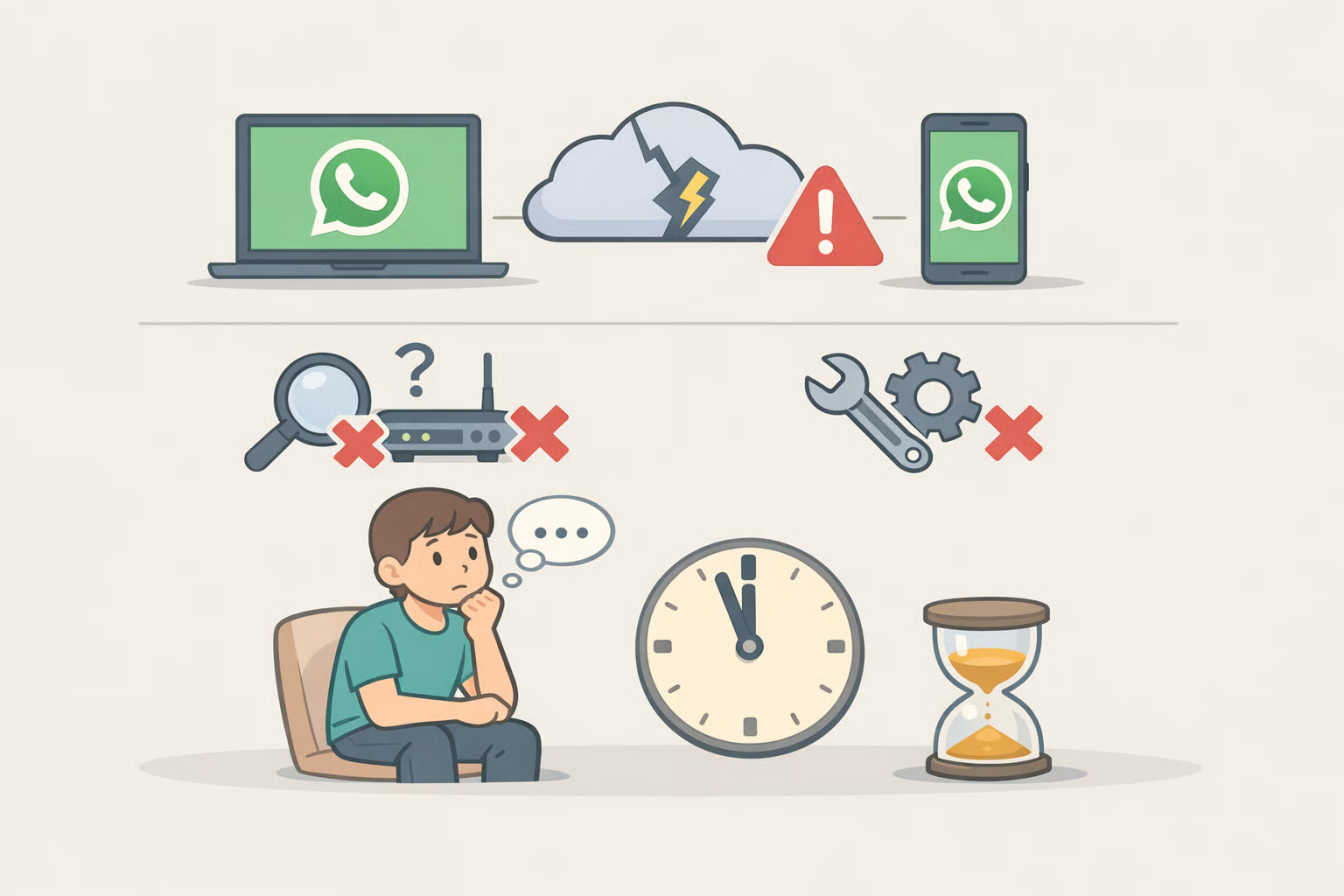
Some failures have no user-side solution. During the February 2026 WhatsApp outage, many users experienced sync delays for several hours and no amount of cache clearing or relinking would have helped (Mukunda Software). When WhatsApp's servers are down, the only option is to wait. Both AndroidGuias and Mukunda Software confirm there's no workaround during a platform outage.
If you've worked through every fix and nothing has changed, search to see whether others are reporting the same issue. A platform problem looks identical to a device problem until you check.
Three habits that prevent most issues from coming up at all:
- Keep WhatsApp updated on your phone outdated app versions are a leading cause of session and sync failures (Techlicious)
- Periodically remove linked devices you no longer use from Settings > Linked Devices; staying near the four-device ceiling causes unexpected logouts
- When something breaks, identify the category first network, browser or session, or server because that determines whether there's anything worth doing (Mukunda Software)
The setup itself is straightforward: official URL, QR scan through Linked Devices, supported browser with cookies allowed. Most problems that come up later trace back to one of those three things being off.