DuckDuckGo Search Hacks: Operators, Bangs, and Privacy Tools
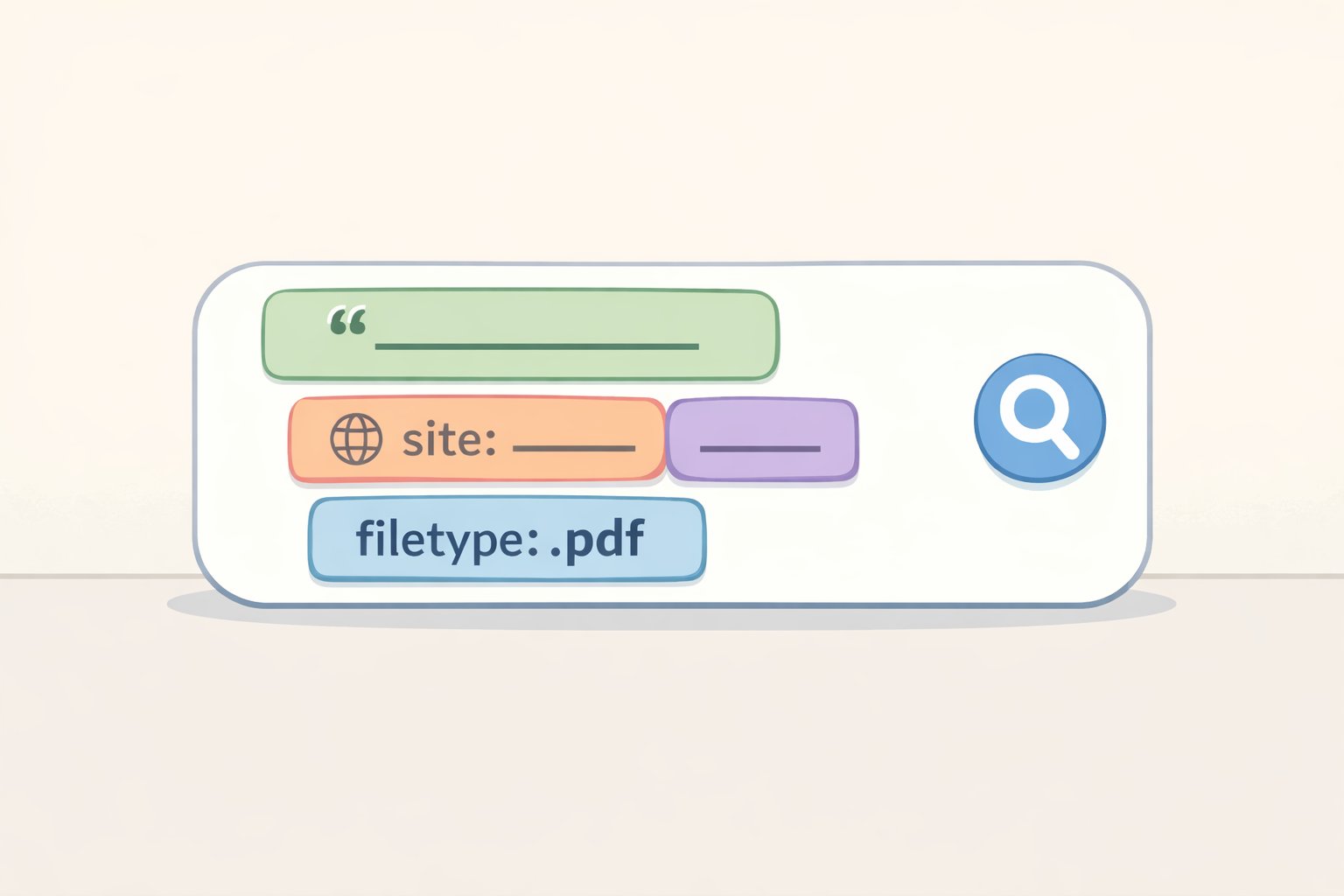
Start with this: "data retention policy" site:ftc.gov filetype:pdf. Type that into DuckDuckGo right now and you get PDFs from the FTC containing that exact phrase not summaries, not blog posts, not SEO-optimized coverage. That's one of the DuckDuckGo search hacks this guide covers, along with nine others that change what you get back from a query or from your browser.
The distinction worth understanding before diving in: searching at duckduckgo.com in any browser keeps your queries private. It does not give you tracker blocking, fingerprinting script blocking, or email protection. Those require the DuckDuckGo app or browser extension, and once installed, most of them run automatically.
DuckDuckGo's app and extension privacy stack includes third-party tracker loading protection, CNAME cloaking protection, and script surrogates. According to DuckDuckGo's own documentation, most browsers' default tracking protection only restricts trackers after they've already loaded a meaningful difference in how much data gets out. Most of DuckDuckGo's apps, extensions, and the Tracker Radar list used to identify trackers are open source, so the claims are independently verifiable a rarity in privacy tooling (DuckDuckGo Help Pages).
Prerequisites at a glance:
- Features 1-7 (search operators and navigation): work immediately at duckduckgo.com, no installation required
- Features 8-9 (tracker blocking, Email Protection): require the DuckDuckGo app or browser extension
- Feature 10 (App Tracking Protection): Android only, via DuckDuckGo Private Browser
DuckDuckGo advanced search operators worth knowing
Video of the Day
These work right now, in any browser, without installing anything. Each one changes what you get back.
Feature 1: Combine exact quotes + site: + filetype: for precision research
Each operator works alone, but stacking them turns a keyword search into a document retrieval query. The example from the opening works because every element is doing a job: quotes force an exact phrase match, site: restricts results to one domain, and filetype: surfaces only the document format you need.
The building blocks:
- Wrapping a phrase in quotes forces an exact match. Without quotes, DuckDuckGo matches the individual words wherever they appear, in any order (DuckDuckGo Help Pages).
site:domain.comlimits results to one source.dogs site:nytimes.comshows only New York Times coverage. Flip it with-site:to exclude a dominant source from broader searches (DuckDuckGo Help Pages).filetype:surfaces documents by format. Supported types are pdf, doc/docx, xls/xlsx, ppt/pptx, and html useful for pulling primary sources rather than secondary coverage (DuckDuckGo Help Pages).
Feature 2: Use intitle: and inurl: to find dedicated pages, not passing mentions
intitle:flexbox guide returns pages where "flexbox guide" appears in the page title a reliable signal that the page is actually about the topic rather than mentioning it in a single sentence. inurl:resources narrows to pages filed under that URL path. Use these when keyword matches keep surfacing loosely related content (DuckDuckGo Help Pages).
Feature 3: Weight results with - and +
Append - before a term to reduce results heavy on that word; + to weight toward it. These are signals, not hard filters. Searching python tutorial -beginner pushes down introductory content without eliminating it entirely. Useful for noisy topics where you're past the basics (DuckDuckGo Help Pages).
Know the limits before trusting filtered results. DuckDuckGo acknowledges in its own documentation that advanced syntax "isn't operating 100% correctly on all queries" because results draw from multiple underlying sources. When an operator search returns nothing, DuckDuckGo may silently substitute related results instead of showing an empty page. Filtered output can look accurate when it isn't. Cross-check when precision matters (DuckDuckGo Help Pages).
Feature 4: Route searches to any site with ! bangs
Type !imdb Severance and DuckDuckGo routes you directly to IMDB's results for that title. !yt cooking pasta lands on YouTube. !a mechanical keyboard opens Amazon. Thousands of sites are covered; the full list lives at duckduckgo.com/bang. This skips DuckDuckGo's results page entirely when you already know where you want to search (DuckDuckGo Help Pages).
Bangs hand your query to another site and its data practices. The moment you use a bang, DuckDuckGo is out of the picture. Your search happens on that site's infrastructure, under that site's privacy policy. !g is a Google search DuckDuckGo says this explicitly. Use bangs for speed; don't treat them as private (DuckDuckGo Help Pages).
Feature 5: Skip the results page with \
Prefix any query with a backslash \MDN grid layout and DuckDuckGo sends you straight to the first result without displaying the results page at all. Best when you're confident the right page will rank first and comparing options isn't the point (DuckDuckGo Help Pages).
Feature 6: Toggle Safe Search per query with !safeon / !safeoff
Append either operator to any search to override your global Safe Search setting for that query only. No settings menu, no permanent change to your defaults (DuckDuckGo Help Pages).
Feature 7: Use semantic matching for exploratory research
The experimental ~".." syntax for example, ~"climate adaptation" returns results semantically close to the phrase, including variations like "climate resilience" and "adaptation to climate change." Use it when exact-match results are too narrow or you want to map the vocabulary of a new topic. It's marked experimental and inconsistent, so don't rely on it for precision work (DuckDuckGo Help Pages).
Everything above works in the search box, in any browser, right now. The next three features are different. They only activate after you install the DuckDuckGo app (iOS, Android, macOS, Windows) or browser extension (Chrome, Firefox, and other Chromium-based browsers). Searching at duckduckgo.com without either gets you private search queries. Nothing below applies until one of those is installed.
Video of the Day
The privacy layer you have to turn on
How DuckDuckGo's protections differ from browser defaults
Standard browser tracking protection including Chrome, Firefox, and Safari defaults focuses on cookie and fingerprinting protections that only restrict trackers after those scripts have already loaded, according to DuckDuckGo's documentation. The timing problem: a tracker that loads, even briefly, has already transmitted your IP address and device identifiers before any restriction kicks in.
DuckDuckGo's third-party tracker loading protection stops most tracking requests before they load at all (DuckDuckGo Help Pages). Google Analytics identified by DuckDuckGo as the most prevalent third-party tracker on the web, embedded on millions of sites gets blocked before it runs, not after (DuckDuckGo Help Pages). DuckDuckGo also blocks many fingerprinting scripts before they can load and overrides many of the browser APIs used for fingerprinting to make them return less useful information (DuckDuckGo Help Pages).
Two additional protections aren't standard in most browsers:
- CNAME cloaking protection: Some trackers disguise themselves as first-party subdomains of the site you're visiting, a technique that bypasses standard third-party blocking. DuckDuckGo identifies these through its open-source Tracker Radar crawl and applies full blocking rules to them (DuckDuckGo Help Pages).
- Script surrogates: When a blocked tracker is also load-bearing for site functionality, DuckDuckGo replaces it with a local stand-in that mimics expected behavior without phoning home. The site works; the tracker doesn't. Surrogates are not offered in most popular browsers by default (DuckDuckGo Help Pages).
Once installed, the app and extension also strip tracking parameters from URLs before you land on a destination, trim referrer headers down to hostname only (hiding the specific page you navigated from), and replace Google AMP links with the original publisher URL so pages load from the publisher's server rather than Google's. None of these require any configuration (DuckDuckGo Help Pages).
Feature 8: Enable Email Protection to mask your real address
Through the DuckDuckGo app or extension, set up a private @duck.com forwarding address. Messages sent to it are stripped of hidden tracking pixels the kind that tell senders when and where you opened an email before forwarding to your real inbox. Email content is not stored by DuckDuckGo. Use a duck address for newsletters, retail accounts, or any sender you don't fully trust. Your real address stays hidden; the emails still arrive (DuckDuckGo Help Pages).
Feature 9: Use the DuckDuckGo Chrome extension to block Google's ad-targeting APIs
The DuckDuckGo Chrome extension disables both Google Topics and the Google Protected Audience API from running in Chrome two mechanisms Google uses to build ad targeting profiles directly in the browser after phasing out third-party cookies (DuckDuckGo Help Pages). The extension also blocks Google sign-in pop-ups on sites Google doesn't own, which are designed to connect your browsing identity to your Google account (DuckDuckGo Help Pages).
Feature 10: Enable App Tracking Protection on Android
On Android, the DuckDuckGo Private Browser extends tracker blocking beyond the browser to every app on the device. It detects when other apps are about to send data to known third-party tracking companies and blocks those requests, including when those apps are running in the background (DuckDuckGo Help Pages). The protection works by blocking tracking requests over HTTPS, which covers the majority of app network activity (DuckDuckGo Help Pages). Facebook tracking your behavior inside a health or fitness app, for example, gets blocked once the feature is enabled. Enable it under Settings > App Tracking Protection in the DuckDuckGo Android app. The tracker blocklist updates automatically.
Honest limits before you rely on this fully:
- Blocking resources loaded by service workers is currently unsupported due to platform constraints (DuckDuckGo Help Pages)
- Coverage currently extends to most of the top 10,000 sites in the US, UK, and EU, not the entire web (DuckDuckGo Help Pages)
- If a protection breaks a site (login fails, layout breaks), disable protections per-site from DuckDuckGo's privacy panel and file a broken-site report; DuckDuckGo reviews these daily (DuckDuckGo Help Pages)
- DuckDuckGo's search ads run through Microsoft. Microsoft has committed to not associating ad-click behavior with user profiles on DuckDuckGo, but the partnership is real (DuckDuckGo Help Pages)
Where to start
Three paths based on what you actually want:
- Better search results only: Start with
site:, exact-match quotes, andfiletype:in combination. Those three cover most precision research without any installation. Add bangs once you have a regular set of destinations you already trust with your queries. - Web privacy while browsing: Install the DuckDuckGo extension or app. Third-party tracker loading protection, CNAME cloaking blocking, and script surrogates activate immediately. Chrome users also get Google Topics and the Protected Audience API disabled.
- System-wide coverage on Android: Enable App Tracking Protection after installing the DuckDuckGo Private Browser. It extends the same logic block trackers before they phone home to every app on your device, not just browser sessions.
Which path makes sense depends on what you're trying to fix. If search precision is the problem, the operators are enough and you need nothing else. If it's background app tracking on Android that concerns you, start with Feature 10 and work backward. The search operators and the privacy layer are genuinely separate tools that happen to share a name and most people using one have never touched the other.