How to stop websites from tracking you: a practical browser guide
Three out of every four websites you visit contain at least one tracker, per the Web Almanac, published earlier this year. If you want to know how to stop websites from tracking you, the most durable fixes sit at the browser level. This guide walks through four specific steps that cut off the most common commercial tracking: the kind that follows you across sites, builds behavioral profiles, and feeds ad targeting. It won't make you anonymous. What it will do is meaningfully shrink how much of your daily browsing gets logged, shared, and sold.
The industry isn't going to fix this on your behalf. Consent frameworks designed to give you a real choice exist on only about 6% of websites, and full compliance with the most common standard sits at 1.7%, the same data shows. Protection has to come from your side of the connection.
What you're actually up against
Video of the Day
Tracking is concentrated, which is what makes it solvable. Analytics tools run on 64% of websites, with Google Analytics alone appearing on 53% of pages. Advertising trackers appear on 59% of pages. DoubleClick.net is the single most common third-party cookie domain, appearing on 20% of desktop sites. Meta's _fbp tracking cookie is set on 14% of all pages. Google's infrastructure touches 61% of sites via APIs and 44% via Analytics, per the Web Almanac.
That concentration works in your favor. Limit what a handful of company infrastructures can observe and you've addressed the majority of what's following you around, without blocking the entire internet.
Two distinctions worth holding onto before the steps. Some tracker-count figures bundle in CDN-delivered resources like Google Fonts, which inflates the numbers without adding much behavioral risk. The figures with direct profiling implications are advertising trackers on 59% of pages and site analytics on 52%. More important is the difference between first-party and third-party tracking: first-party tracking is the site you're visiting logging its own users' behavior, largely unavoidable and often legitimate. Third-party tracking is when a script from Google, Meta, or an ad network loads silently on that page and reports back to a company you never chose to interact with. The steps below target the third-party kind.
One more gotcha: a small share of sites use browser fingerprinting, identifying visitors by device characteristics rather than cookies. FingerprintJS appears on roughly 0.59% of mobile-accessed sites, the Web Almanac reports. It's real, harder to block, and far less common than cookie-based tracking. Get cookies under control first; fingerprinting is a separate, smaller problem.
Video of the Day
How to prevent online tracking in four browser steps
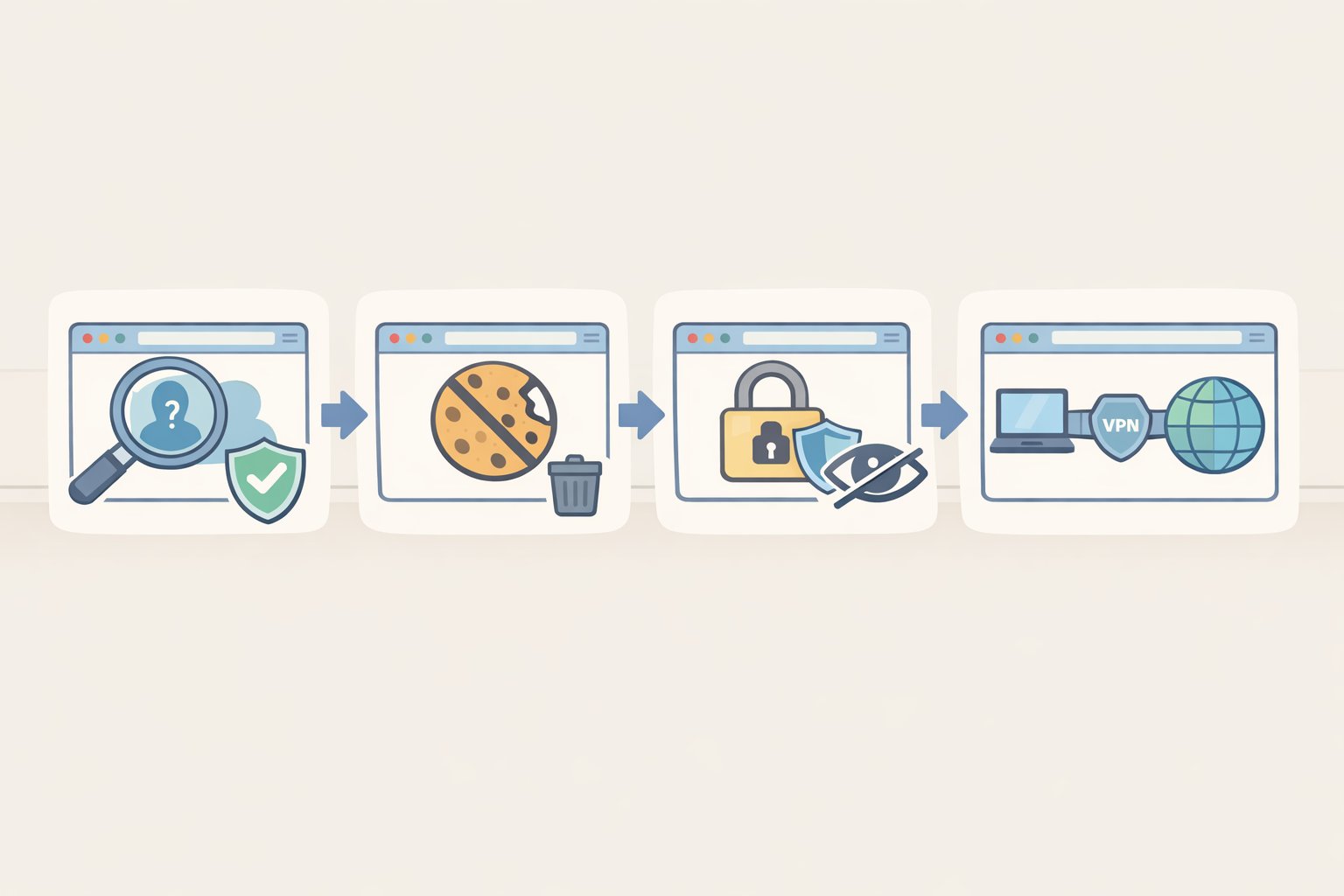
You'll need a browser installed on your primary device and about five to fifteen minutes per step. No technical background required. Steps 1 and 2 do the heavy lifting. Steps 3 and 4 are supporting moves.
Step 1: Choose a browser that's on your side by default, or configure the one you have
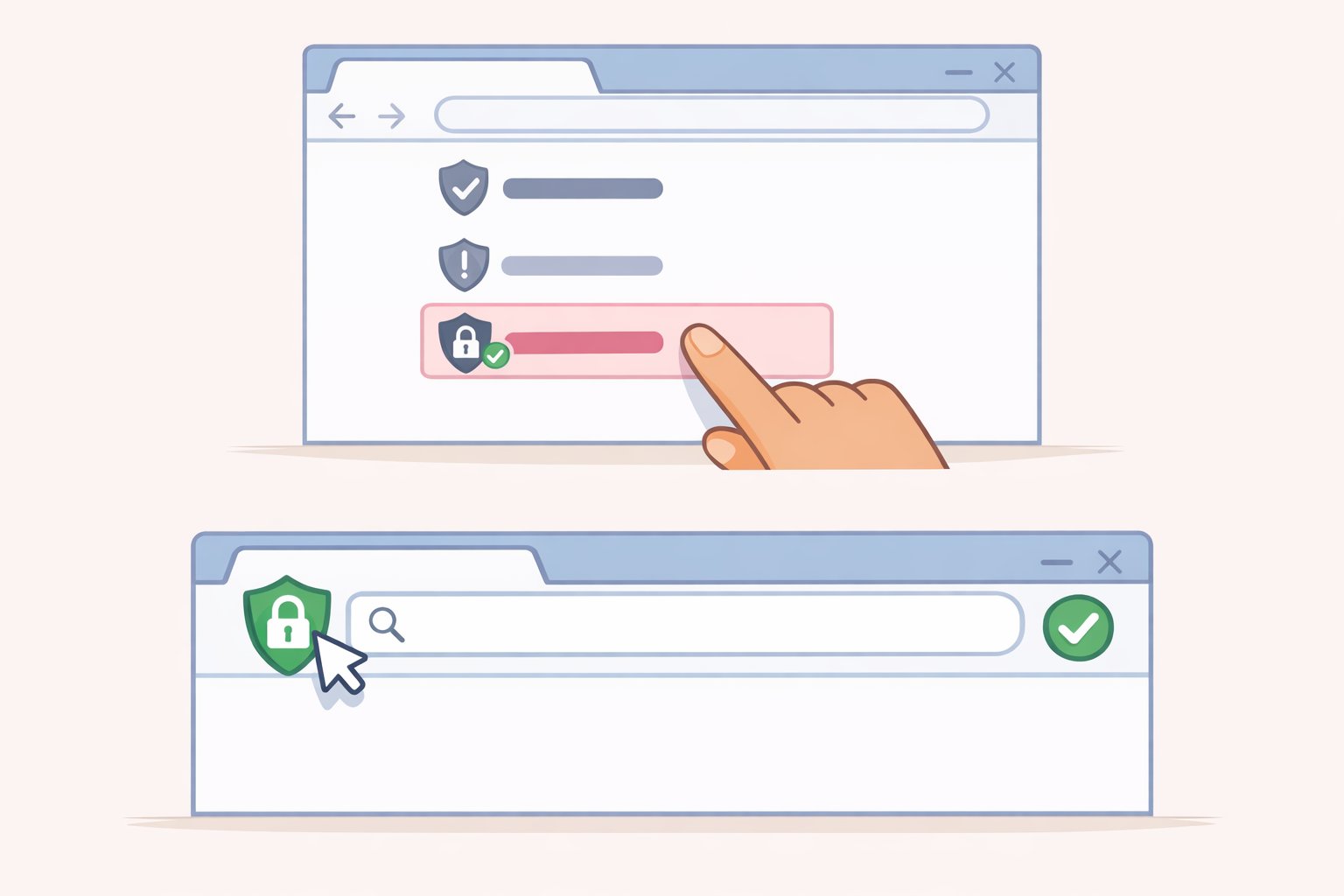
Browser choice determines what protection you get before you install anything else. The privacy gap between browsers is real, and it's worth understanding where yours sits.
- Firefox: Go to Settings → Privacy & Security → select "Strict" under Enhanced Tracking Protection. This mode blocks known trackers and cross-site cookies automatically.
- Brave: Tracking and ad blocking are built into the browser. No extension needed; settings live under Settings → Shields.
- Safari: Intelligent Tracking Prevention runs by default on Apple devices. Verify it's active under Settings → Privacy → Prevent Cross-Site Tracking.
- Chrome: Chrome's Enhanced Protection (Settings → Privacy and Security → Safe Browsing → Enhanced protection) adds some security features, but it's not designed to limit Google's own tracking infrastructure. You'll need Step 2.
After this step, cross-site cookies from known ad networks should be blocked on most sites. Some sites may ask you to log in again, or display a notice that your browser looks different. That's expected.
Gotcha worth flagging: sites that rely heavily on third-party scripts comment sections, embedded video players, some login widgets may not load correctly in strict mode. Both Firefox and Brave include per-site controls so you can whitelist selectively. Disabling protection globally to fix one site defeats the purpose.
Step 2: Install a content and tracker blocker
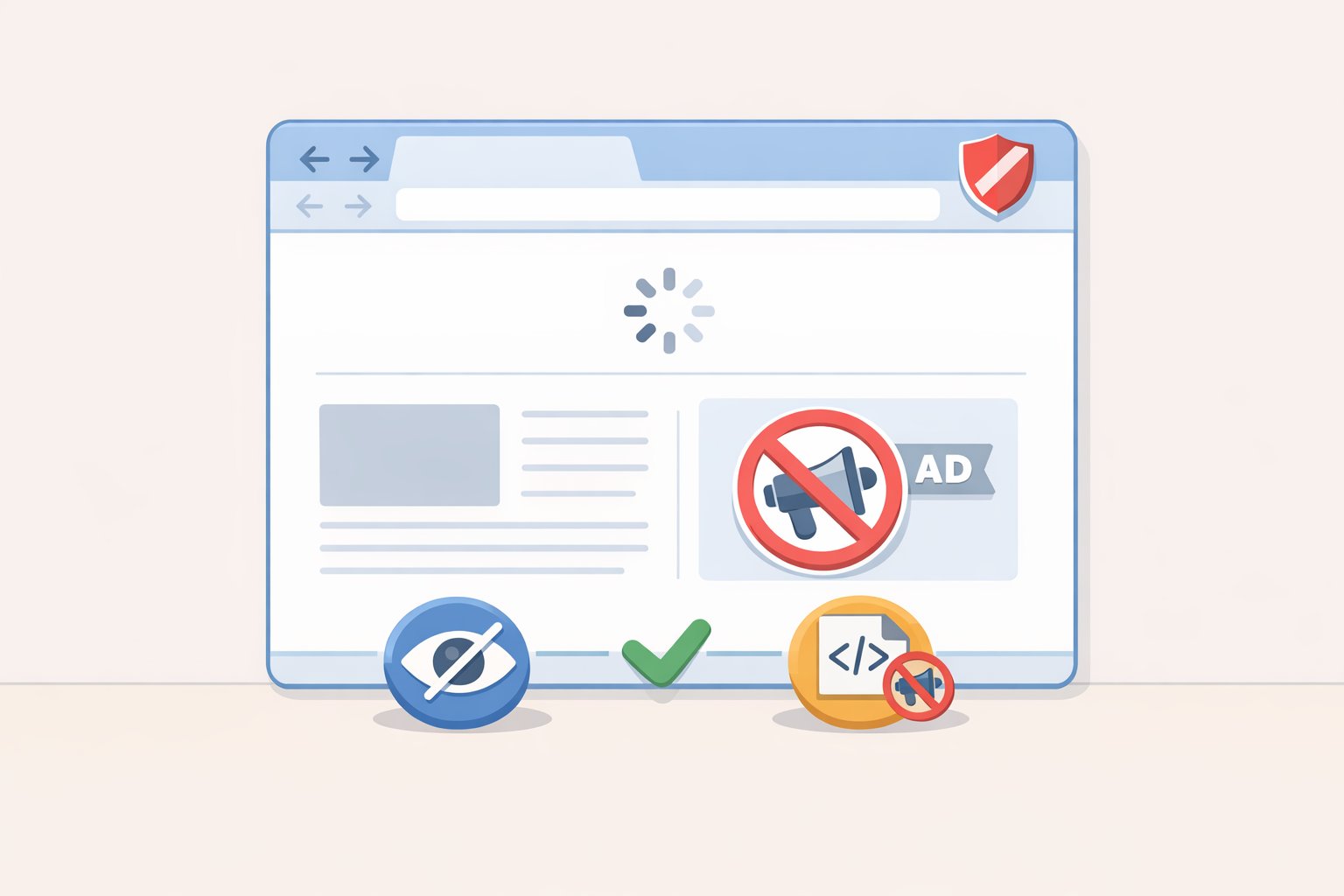
Even with strict browser settings, a blocker extension catches what browser settings miss. The FTC covers ad blockers among the tools consumers can use to understand and reduce tracking exposure, per its privacy guidance.
- uBlock Origin (Firefox and Chrome): Free and open source. Install from the official browser extension store; default settings are sufficient for most users. Pay attention to the name: don't install "uBlock," which is a different, less trustworthy product that trades on the similarity.
- Brave Shields: Already active if you're on Brave. Skip to Step 3.
Once a blocker is running, ad scripts, tracking pixels, and analytics calls are blocked before they load. Pages on ad-heavy sites typically load noticeably faster as a side effect.
Gotcha: some news sites will detect the blocker and ask you to disable it. That's a site-level business decision, not a malfunction. Whitelist trusted sites if you want to support them, or don't.
Step 3: Verify cookie settings and handle consent banners deliberately
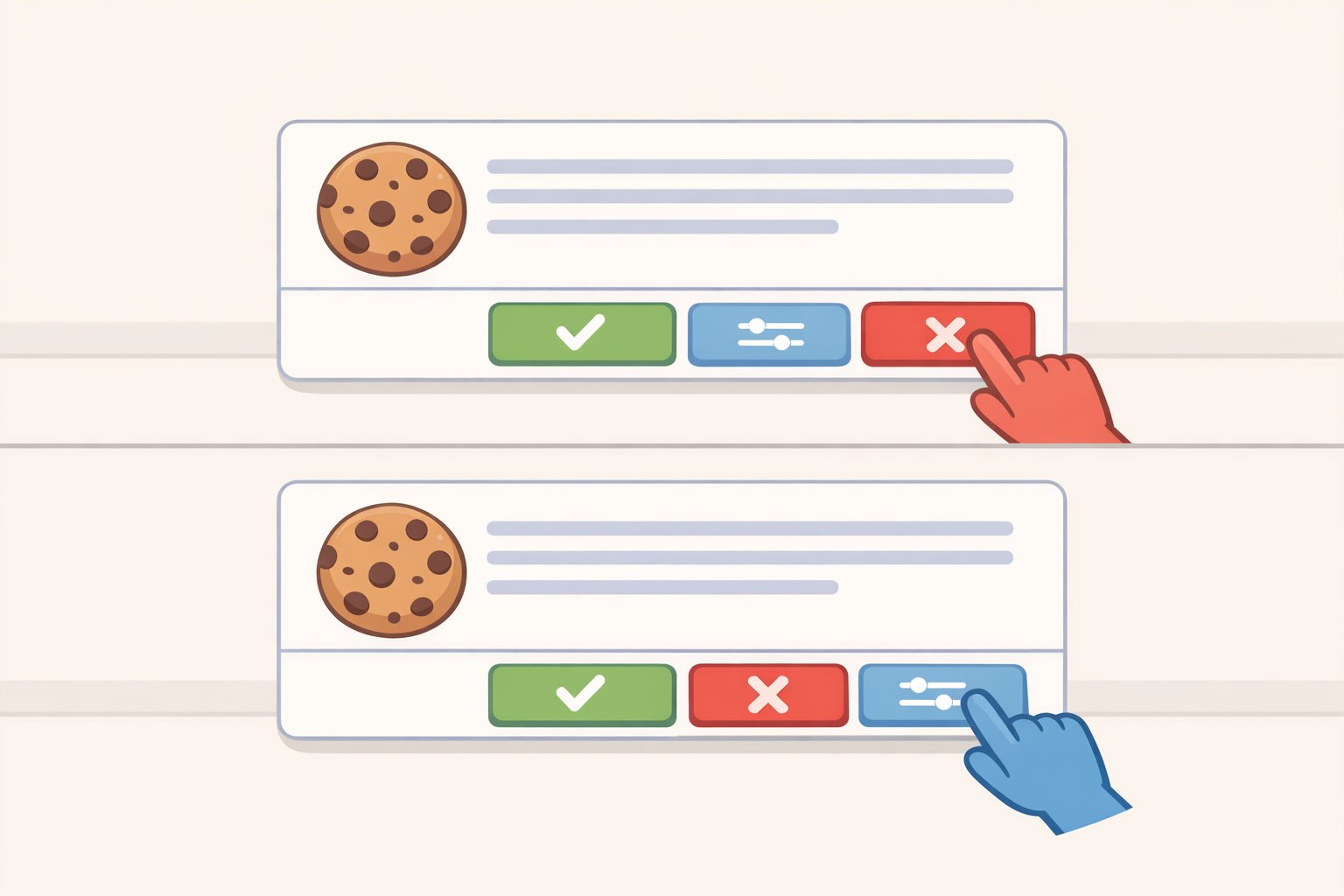
Your blocker handles most of this automatically. Still worth confirming your settings, and worth understanding what those cookie banners actually do when you click them.
In Firefox with "Strict" mode enabled, third-party cookies are blocked by design. If you're on Chrome, check that your settings haven't silently reverted: Settings → Privacy and Security → Cookies.
On the banners: clicking "Accept All" isn't a passive act. It authorizes data sharing with parties the site may not specifically name. Where the option exists, choose "Reject All" or "Manage Preferences." If a site offers only "Accept" with no workable alternative, close the tab or switch to reader mode.
The presence of a consent banner doesn't mean the site is handling your data responsibly. Consent frameworks exist on only about 6% of sites, and full TCFv2 compliance sits at 1.7%, the Web Almanac found. The banner frequently signals a site trying to capture consent it hasn't earned.
Step 4: Opt out of ad personalization at the platform level
This step reduces how your data gets used for targeting. It doesn't stop collection. Worth doing anyway, with clear expectations.
Google's My Ad Center and Meta's Ad Preferences both offer controls to limit behavioral targeting. These aren't strong privacy controls in a technical sense the data is still collected but they reduce its commercial value. The FTC covers ad personalization opt-outs as a meaningful supplementary action alongside browser-level changes, per its guidance.
After completing this step: fewer targeted ads based on cross-site browsing history. No change in how much data is collected at the infrastructure level.
Quick reference: browser choices at a glance
- Best default privacy, no setup: Brave, Safari
- Best default privacy, one setting change: Firefox on Strict
- Staying on Chrome: Chrome Enhanced Protection + uBlock Origin
- Lowest effort overall: Brave (blocking built in) or Safari on Apple hardware
Tighten your mobile app permissions too
Browser changes don't reach mobile apps. Apps run their own tracking completely outside the browser, which means the steps above don't touch them. This fix takes under five minutes and closes a parallel exposure.
On iOS: Settings → Privacy & Security → review each permission category (Location, Contacts, Microphone, Camera). On Android: Settings → Apps → Permissions. CISA advises applying the "rule of least privilege": apps should only have the access they genuinely need to function, per its online privacy guidance. A flashlight app doesn't need your location. A recipe app doesn't need your contacts. Apps may be running on default permissions you never consciously approved, gathering personal information without your knowledge. Revoking unnecessary permissions cuts that off.
Two account habits worth adding
These steps don't replace browser privacy. They limit the fallout if browser-level protection is bypassed or an account gets compromised.
Enable multi-factor authentication on email, banking, and social media first. These accounts unlock everything else if they're breached. Both the FTC and CISA recommend MFA specifically for these account types, per the FTC's privacy guidance. Authenticator apps and security keys are the more secure forms of two-factor authentication; text-based codes are better than nothing but are the weaker option.
Use a password manager and stop reusing passwords. The FTC recommends passwords of at least 15 characters, per its account security guidance. CISA advises using a password manager to generate and store a unique credential for every account, per its online privacy guidance. Reusing a password means a single breach cascades to every account that shares it. Bitwarden is free and open source; 1Password, Apple Keychain, and Google Password Manager are established alternatives.
Automatic updates, phishing defense, and public Wi-Fi hygiene all matter too, but they belong in a dedicated security piece, not tacked on here.
What changes, and what doesn't
After completing these steps: fewer ad scripts loading per page, faster load times on ad-heavy sites, and fewer cross-site behavioral ads following you from one corner of the web to another. Some login friction comes with the territory. Sites occasionally flag browser changes as suspicious, and some embedded content won't load until you whitelist the site. Consent banners will still appear. What changes is that you're equipped to refuse them without undermining everything else you've set up.
The scope here is commercial surveillance: the routine, structural tracking that concentrates in a small number of company infrastructures. A determined attacker targeting you specifically is a different problem, and a different guide.
For readers who want to go further: data broker opt-outs are the logical next move. Companies like Spokeo and Whitepages sell personal information scraped from public records; the FTC identifies opting out of these sites as a meaningful privacy action, per its guidance. Manual opt-outs are free but time-consuming; services like DeleteMe automate the process for a fee. A filtering DNS service like NextDNS can also block tracking domains at the network level before they reach the browser, useful on mobile networks where extensions don't operate. And if you suspect personal information has already been misused, the FTC's IdentityTheft.gov provides a step-by-step recovery plan, per the FTC.
Tracking is profitable because it's frictionless. These steps put friction back in the right place.