How to Protect Your Personal Information Online This Week
By the end of this guide, you'll know how to close the most common gaps that let personal information leak out of your control and you'll understand the difference between exposure you can stop completely, exposure you can reduce, and exposure that requires ongoing maintenance.
Most people picture data loss as a dramatic breach: servers get hit, millions of records spill out, you get an apology email. That happens. But most personal information leaks through quieter channels a reused password, an answered quiz question, a router still running its factory defaults. The things you do on phones, computers, smart devices, and websites leave a trail of personal information that has value to scammers and hackers, the FTC says.
Start here, before anything else: set up a password manager, enable two-factor authentication on your email and bank accounts, and turn on automatic updates across all your devices. The seven steps below build from that foundation.
Prerequisites: No technical background required. You'll need access to your devices and accounts. A password manager the free tier of most major options is sufficient will help with several steps.
Five account and device habits to fix this week
Video of the Day
These steps address exposure you cause directly. Most are one-time setup tasks.
Step 1: Reusing weak passwords (fix today)
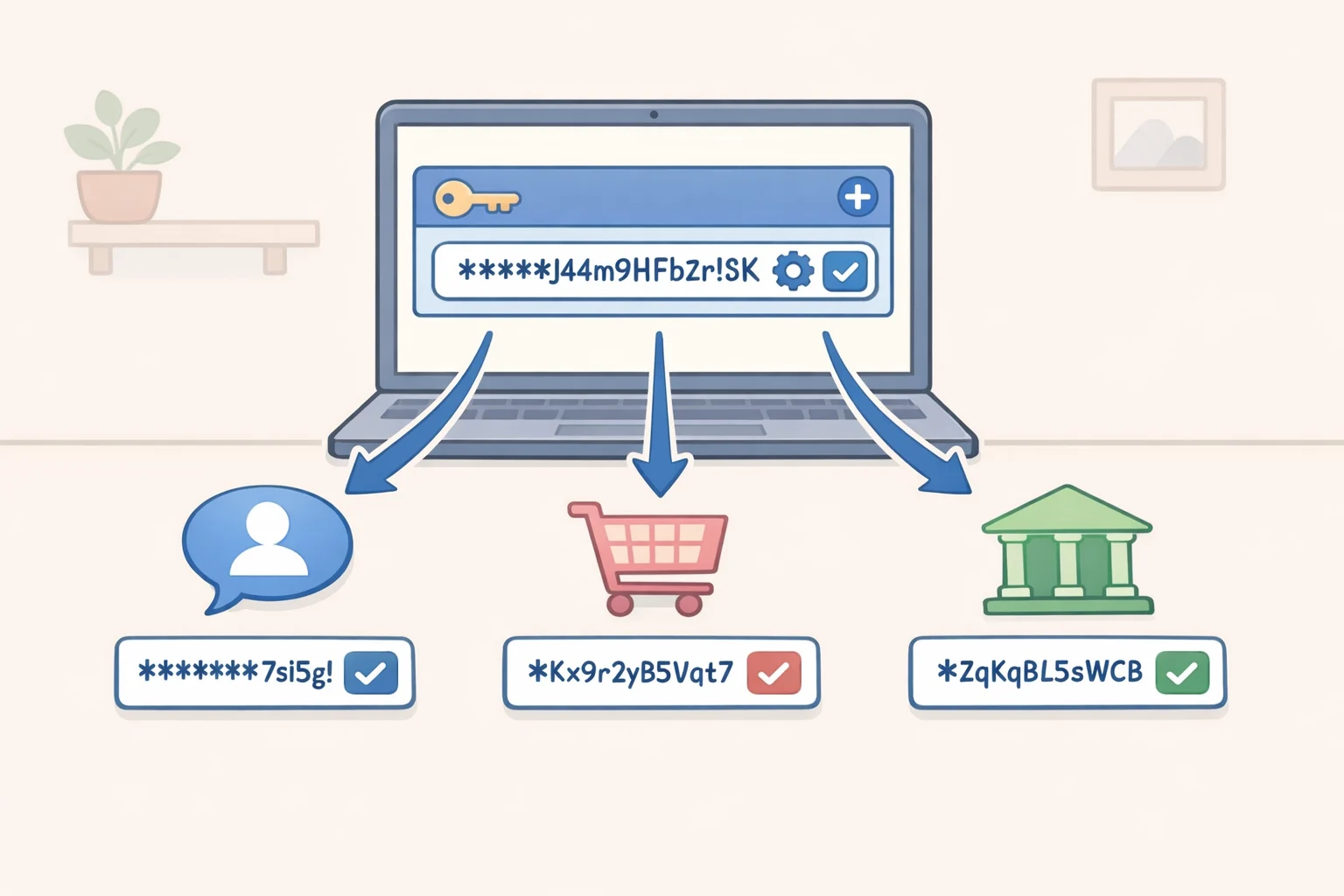
A short password, or one shared across multiple accounts, means a single breached site can expose more than one account. That's the real danger of reuse one failure becomes many.
- The FTC recommends passwords of at least 15 characters, noting that studies show people aren't good at creating or remembering strong ones. A password manager handles both problems.
- The FTC recommends long passwords and notes that passphrases a series of words separated by spaces are a practical way to reach that length (FTC).
What to do: Install a password manager and use it to generate a unique, long password for every account. Email and banking accounts are the logical starting point they're typically the recovery route for everything else. One-time setup with minor ongoing upkeep.
Step 2: Skipping two-factor authentication (fix today)
A stolen password alone isn't enough to break into an account protected by a second verification step. Without 2FA, the password is all an attacker needs.
- A hacker who obtains your password still can't log in without the second factor, the FTC explains.
- The most common form of 2FA is a one-time passcode sent by text or email. Authenticator apps and physical security keys are more secure options but text-based 2FA is still considerably better than nothing (FTC).
What to do: Enable 2FA on every account that offers it, starting with email and financial accounts. Where the service supports an authenticator app, use that instead of SMS. One-time setup; revisit when adding new accounts.
Gotcha: Never read a 2FA code to someone who calls or messages asking for it. Real services don't work that way.
Step 3: Leaving software updates pending (fix this week)
Unpatched software is an open door. Criminals look for weak points to exploit before software companies can fix them, and updates routinely contain critical security patches, the FTC says.
This applies to operating systems, browsers, security software, and mobile apps all of them, per FTC guidance.
What to do: Enable automatic updates on your phone, computer, browser, and security software. Check once to confirm the setting is on. After that, updates run in the background without requiring your attention again.
Step 4: Using default router and Wi-Fi passwords (fix this week)
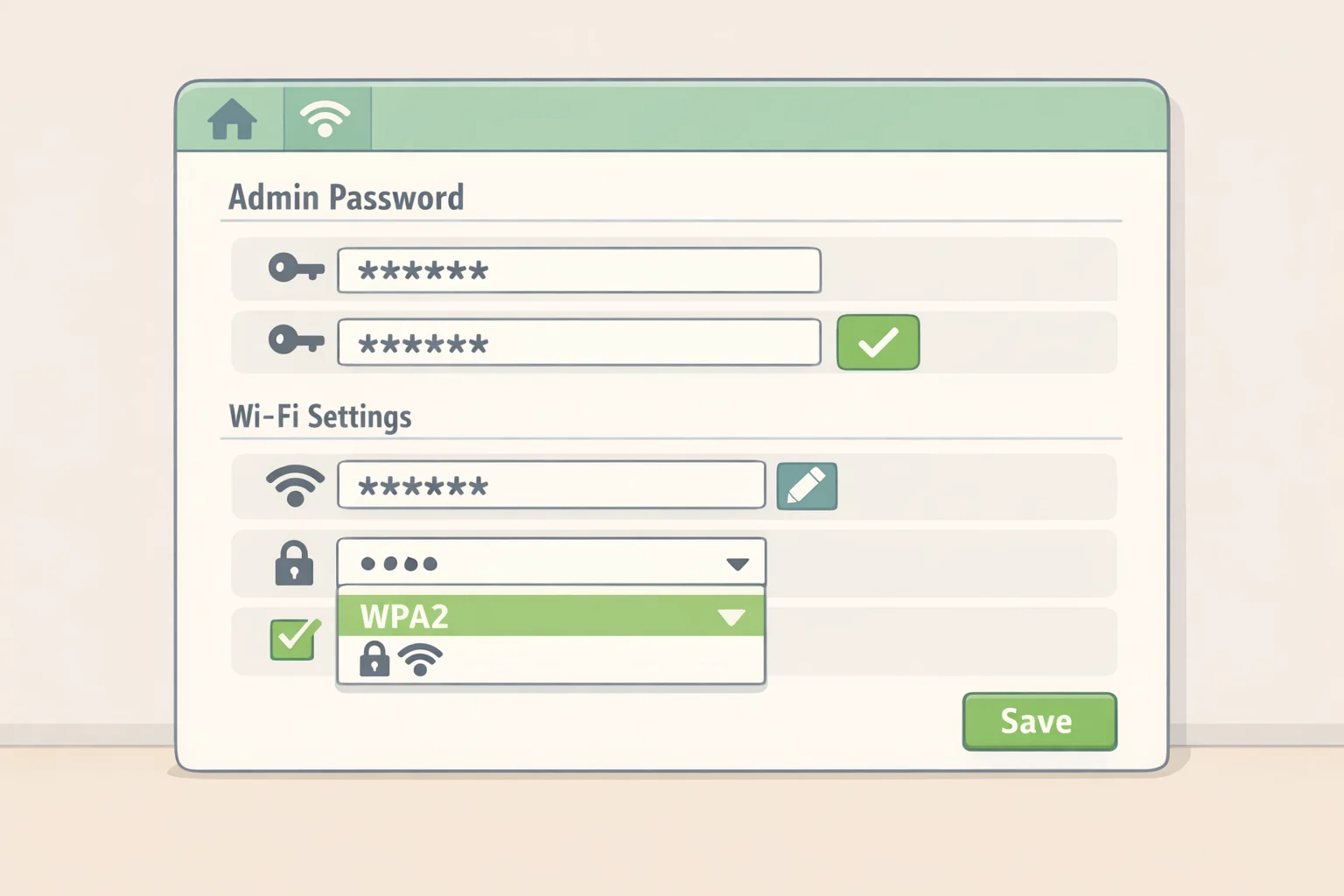
Your router is the access point between every device on your home network and the internet. Leaving the factory-set passwords in place is an unnecessary risk replace them.
If malware reaches any single device on your home network, it can spread to every other device connected through the same router, the FTC warns. Replacing both the Wi-Fi password and the router's admin password with strong, unique credentials and enabling network encryption closes the most common home-network entry points, per FTC guidance.
What to do: Log into your router's admin panel (the address and default credentials are usually printed on a label on the router itself). Replace the default admin password and Wi-Fi password with strong, unique ones, then confirm encryption is enabled. One-time setup. While you're in there, also set your phone and computer to auto-lock after a short idle period a small step that prevents unauthorized access if either device is lost or left unattended (FTC).
Step 5: Answering online quizzes and security questions honestly (fix this week)
"What street did you grow up on?" sounds like trivia. It's also a common security question that banks and email providers use to verify identity and authorize password resets. Personality quizzes, nostalgia surveys, and "what decade are you?" posts frequently ask exactly these things.
The FTC has heard from people whose quiz answers were used to trigger account resets and access financial accounts. Some attackers compromise social media accounts specifically to push quiz links to that account's contacts making the link look trustworthy because it appears to come from a friend (FTC).
The FTC's advice: treat security question answers like passwords and use fictional ones. Your mother's maiden name can be "Parmesan" just store it in your password manager (FTC).
What to do: Skip online quizzes, or participate without using real biographical details. For security questions on actual accounts, swap in random answers and store them in your password manager. One-time setup per account after that.
Video of the Day
How to protect your personal information online from phishing (Step 6)
Phishing belongs in its own section because it isn't a passive habit it's an active attempt to manipulate you in the moment. Your behavior when the message arrives is the whole point.
Step 6: Responding to unexpected requests for information
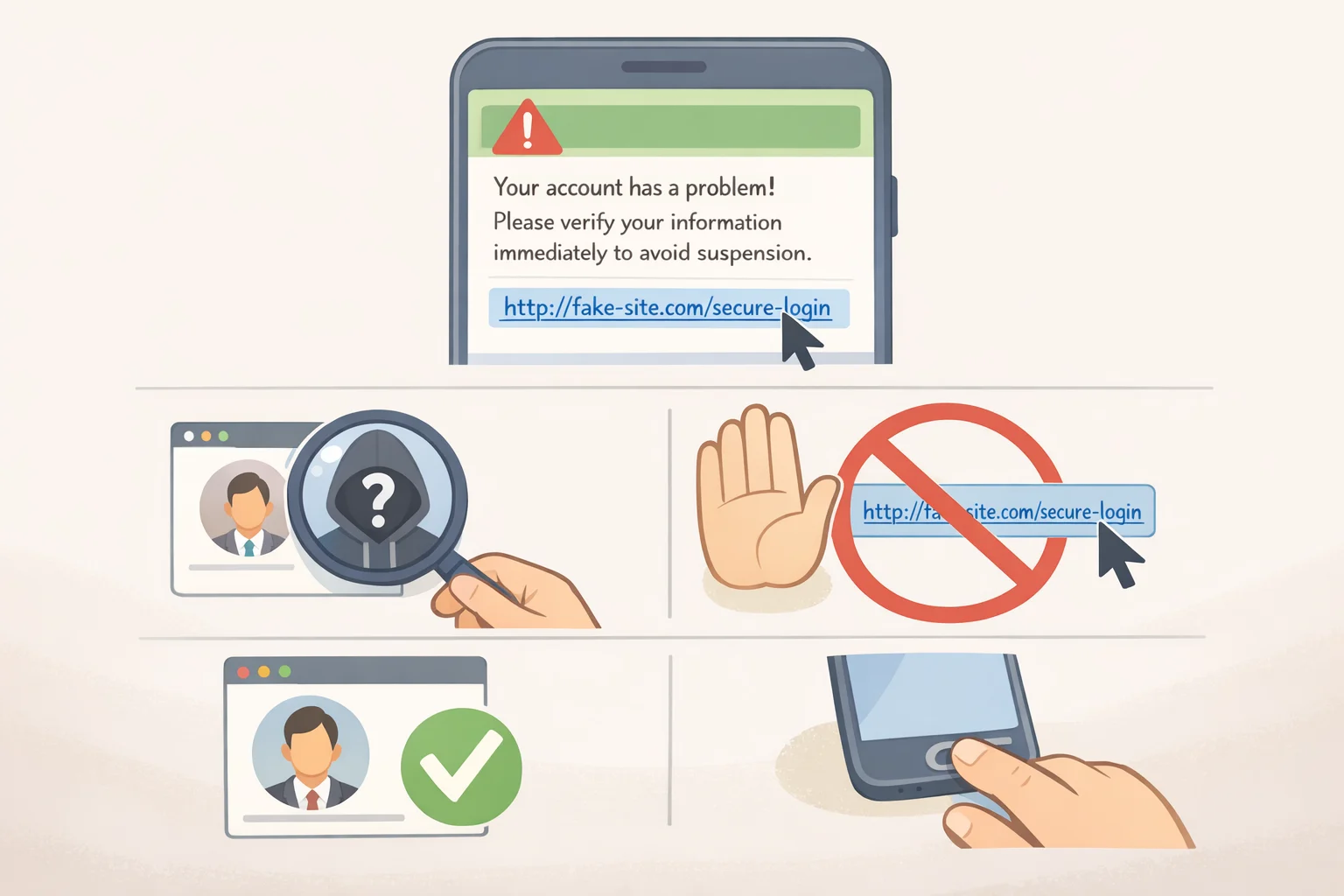
Phishing works because the messages are designed to look legitimate a bank alert, a shipping notification, a password reset from a service you actually use. The goal is either a link that installs malware or a reply that hands over credentials directly.
Scammers use deceptive emails and texts to push recipients toward links that harvest credentials or install malware, which the FTC identifies as one of the most persistent threat vectors. Legitimate banks, government agencies, and businesses won't contact you unsolicited to ask for Social Security numbers, bank account numbers, or credit card details, the FTC says. An unexpected request for that information is suspicious by default.
What to do: Don't click links in unexpected messages. If the message appears to come from a company you use, go to their website by typing the address yourself or find a phone number there independently, not one the message provided. This one requires ongoing judgment, not a one-time fix.
The background system: data brokers (Step 7)
Everything above involves exposure you can directly influence. This is different.
Data brokers collect and sell personal information about you without your knowledge or consent, the Privacy Rights Clearinghouse reports. They compile data from public records, social media activity, purchase histories, loyalty programs, app usage, and location tracking to build commercial profiles on individuals. No mistake on your part required this happens regardless.
Step 7: Letting apps, trackers, and people-search sites quietly build your profile
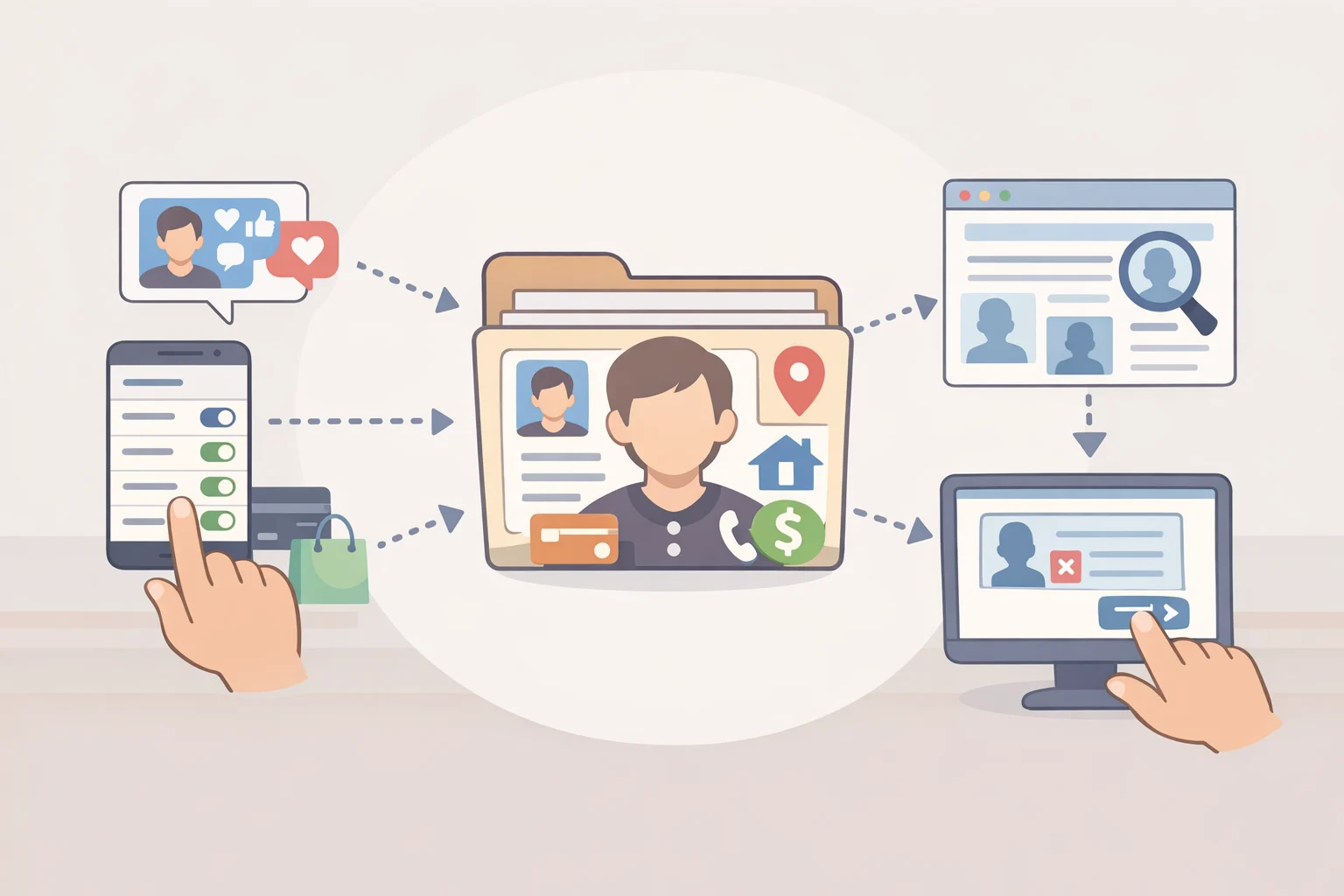
The scale is significant. Brokers produce detailed profiles on hundreds of millions of Americans often containing thousands of individual data points and sell them for advertising, background checks, tenant screening, risk assessment, and purposes most consumers would never anticipate, according to the Privacy Rights Clearinghouse. Those profiles have been used to target vulnerable populations with predatory ads, to screen job applicants and tenants, and some brokers have been caught selling data on military personnel and protestors to foreign adversaries (Privacy Rights Clearinghouse).
FTC privacy guidance highlights risks tied to health apps, voice assistants, smartwatches, and connected cars as ongoing sources of personal data accumulation. One concrete example: when you sell or donate a car without wiping its data, personal information stored in it including location history and contacts may transfer to the next owner, the FTC notes.
What to do:
- Audit app permissions and revoke location access for any app that doesn't genuinely need it
- Remove unused apps entirely they continue collecting data in the background
- Search your name on large people-search sites and follow their "Delete Your Information," "Privacy Requests," or "Consumer Privacy Rights" process to request removal, as the FTC's privacy guidance describes
- Wipe personal data from connected cars before selling or donating them
- Repeat the audit every few months profiles get rebuilt as new data flows in
California residents have a shortcut. As of January 1, 2026, the state's Delete Request and Opt-Out Platform (DROP) lets you submit a single deletion request to every registered data broker in California, free of charge. Brokers are required to begin processing those requests by August 1, 2026, and must check for new ones every 45 days (Privacy Rights Clearinghouse).
Outside California, individual deletion requests reduce your footprint but don't eliminate it. Think of this as periodic maintenance, not a solved problem.
What to do if exposure has already happened
The steps above are preventive. If something has already gone wrong, the response depends on what was compromised. Take the immediate action first, then use the resource.
- Compromised account: Change the affected password immediately and enable 2FA if it isn't already active. Then check whether the same credentials appear on other accounts a password manager makes this fast.
- Identity theft: File a report at IdentityTheft.gov, which generates a personalized recovery plan based on what was stolen. The FTC directs all identity theft cases there first.
- Phishing or scam click: Run a security scan on the device and change any passwords entered during or after that session. Report the scam to the FTC at ReportFraud.ftc.gov, which feeds enforcement databases, per FTC guidance.
- Device lost, stolen, or hacked: Remotely lock or wipe it if your platform supports that. Recover from your most recent backup the FTC recommends backing up to cloud storage or an external drive as a standard precaution. Without one, recovery is harder and data loss more likely.
- Broker or people-search exposure: Submit deletion requests to the largest people-search sites first. California residents: use DROP if you haven't. Plan to repeat this every few months.
Steps 1 through 5 are largely solvable with one-time setup. Step 6 is a permanent habit. Step 7 the data broker economy is reducible but not eliminable under current law, outside California. The goal isn't total removal. It's making yourself a harder target at every layer where you have actual use.
Passwords and 2FA: do those today. Router, updates, quizzes: this week. Broker exposure: set a calendar reminder and come back to it every few months.