How to remove headers and footers when printing web pages
Print a web page and there's a good chance a date, a URL, and a page count show up stamped across the top and bottom margins. When those fields are browser-generated, none of them came from the site's design. Figuring out how to remove headers and footers when printing web pages usually comes down to one checkbox buried in the print dialog, not any setting on the website itself.
A second, separate problem often gets lumped in with the first. Sometimes a printed page carries the site's own visible header bar, its navigation menu, or a footer crowded with links. That's page content, not browser output, and it needs a different fix entirely. Both get called "headers and footers," which is where the confusion usually starts.
This guide covers the reader-side fix first, explains how to tell whether the browser or the page itself is responsible for whatever's still showing up, then covers the developer-side fix: how to remove website header and footer elements from print, permanently, for every visitor.
If the goal is just getting rid of the date and URL on a printout, start with the next section. If a page's own nav bar or footer keeps showing up no matter what's unchecked, skip ahead to the CSS section.
How to remove browser print headers and footers in Chrome and Firefox
Video of the Day
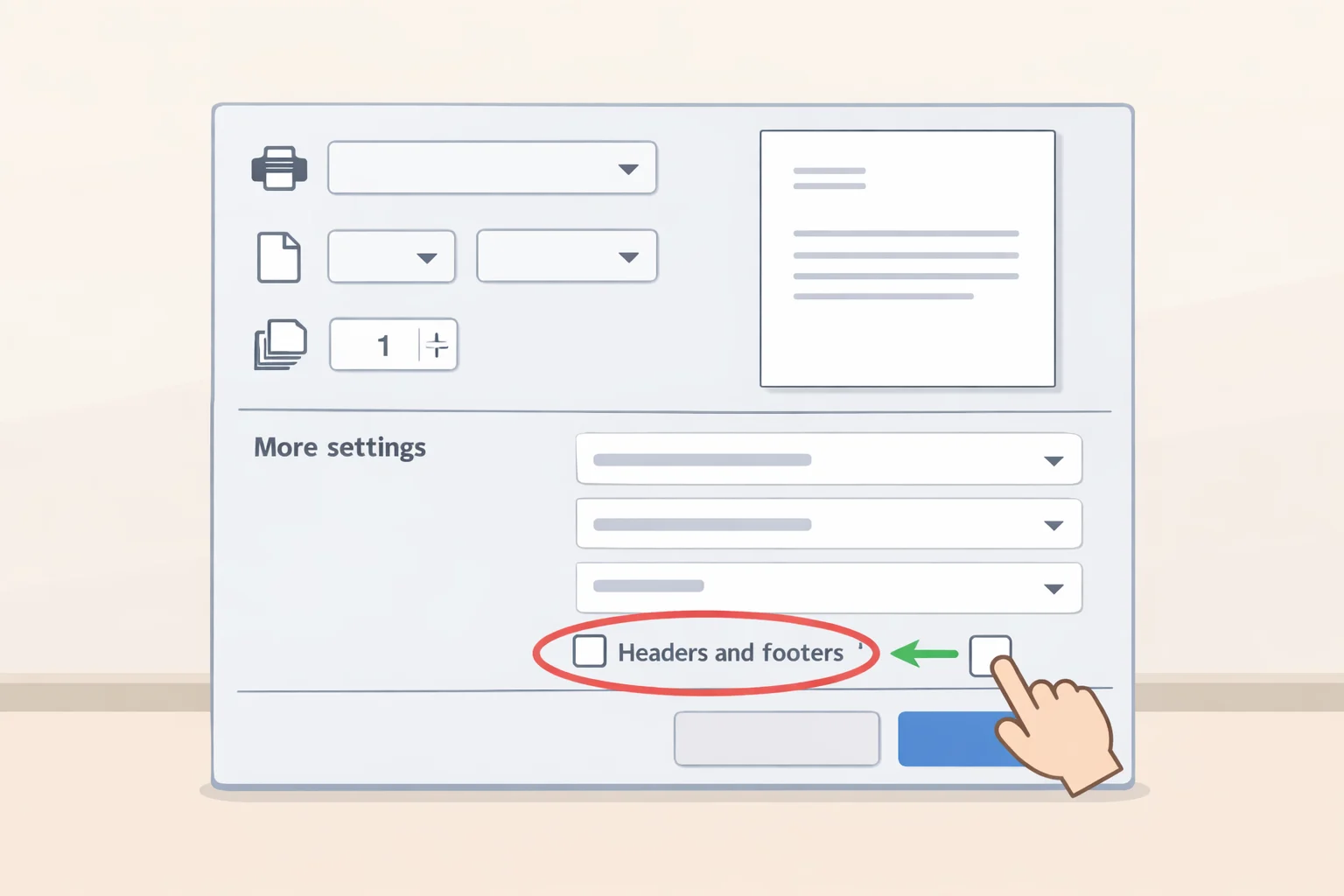
The documented print workflow uses a "Headers and footers" option that, by default, adds a page's title, its URL, the date, and the total page count to the printed margins (University of Illinois SMART Physics). That same source places the checkbox for turning it off near the bottom of the "More settings" panel, reached by clicking a "+ More settings" link at the bottom of the print dialog's left column (University of Illinois SMART Physics). A Mozilla Support Forum reply points Firefox users toward a similar option under its own "More settings" panel, though the exact wording and layout may vary by version and platform (Mozilla Support Forum).
Here's the process:
- Open the page to print and bring up the print dialog. On a Mac, press Cmd+P (University of Illinois SMART Physics); on other systems, use the browser's print command from the menu.
- Click "More settings" (sometimes shown as "+ More settings") to expand the additional print options (University of Illinois SMART Physics).
- Find the checkbox labeled "Headers and footers," near the bottom of that expanded list, and uncheck it (University of Illinois SMART Physics).
- Print the page. The title, URL, date, and page count should no longer appear in the margins (University of Illinois SMART Physics).
That Firefox answer comes from a forum reply, not official documentation, so treat it as a reliable pointer rather than a guarantee that every version presents the option identically. This guide verifies these steps for Chrome and Firefox specifically. Other browsers organize print settings differently, so check the print dialog directly rather than assume it matches what's described here.
Video of the Day
Diagnosing what's left: browser metadata versus page content
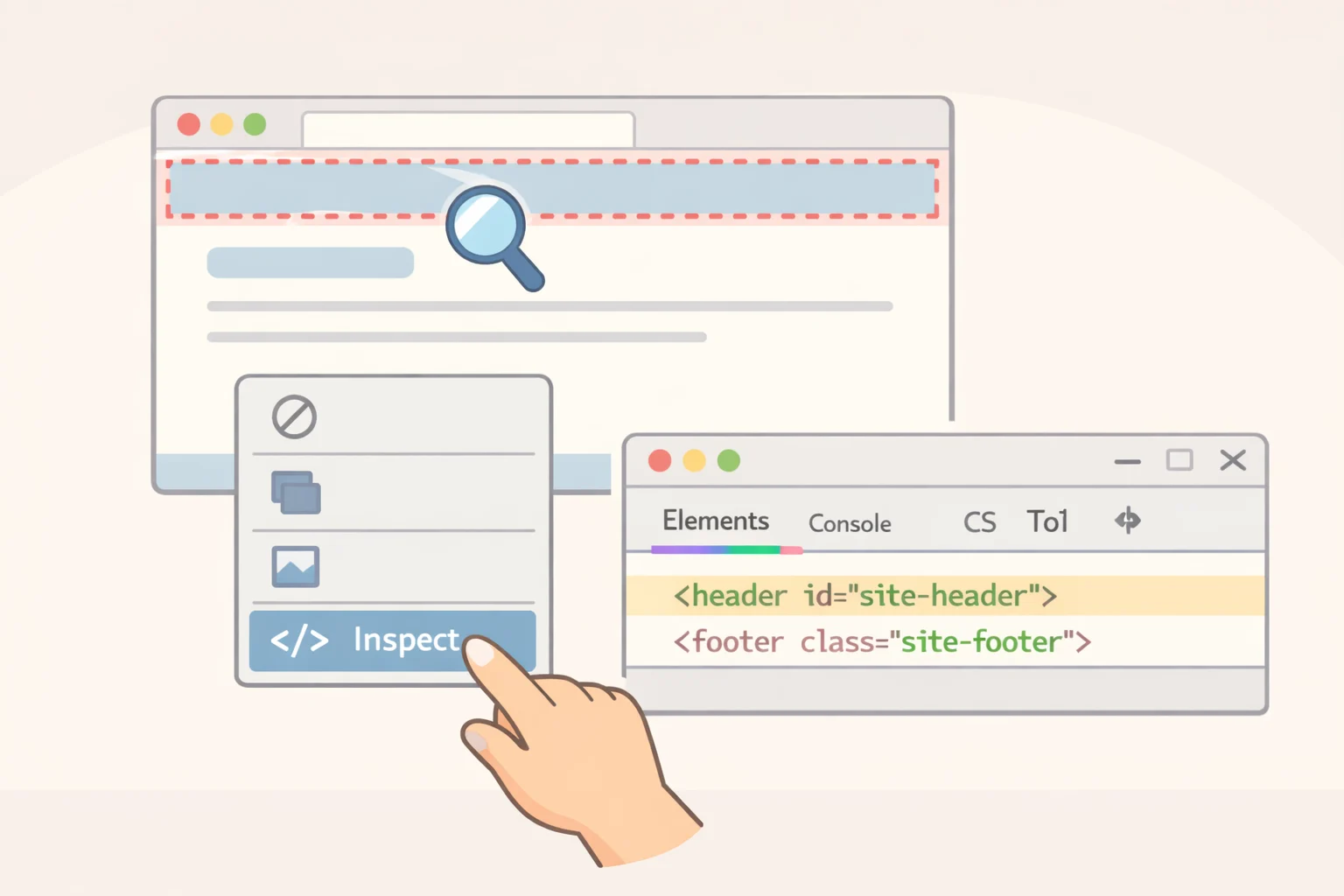
Unchecking "Headers and footers" removes what the browser itself adds: the URL, the title, the date, and the page count (University of Illinois SMART Physics). That control doesn't touch arbitrary elements built into the page's HTML, including a site's logo bar, navigation menu, or a footer full of links.
If a printout still shows a site's masthead or footer after that box is unchecked, nothing was missed. The setting is built to strip browser-generated fields, not content the site chose to display on the page itself. Confirming which is which takes one quick check: right-click the unwanted element, choose "Inspect" (or "Inspect Element"), and read the tag, ID, or class name that shows up in the developer tools panel. That name is the selector needed for the fix in the next section.
Fixing what's left is a job for the site's own print stylesheet, covered next. A reader without access to that stylesheet has no equivalent setting sitting in the print dialog to reach for instead.
How to hide headers and footers in print CSS
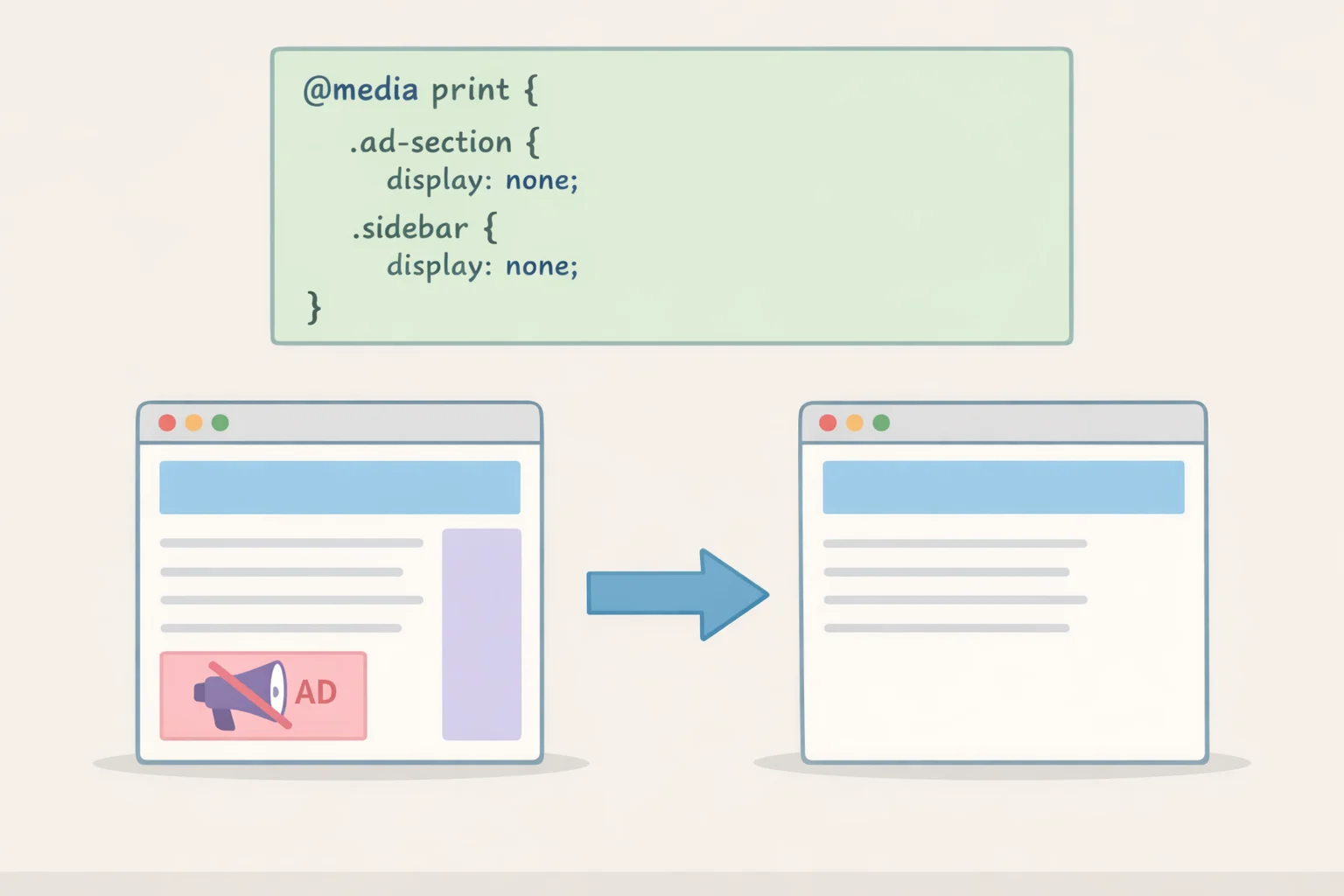
This part is for whoever maintains the site's stylesheet, not a reader printing a page they don't control. The fix is a print-specific rule using an @media print block, which browsers apply only when a page is being printed or shown in print preview (MDN Web Docs).
- Open the site's stylesheet and add an
@media printblock if one doesn't already exist. - Identify the real selectors before writing anything. Open developer tools, hover over the header, footer, or nav bar on the page, and read the ID or class shown in the Elements panel.
#header,#footer, and#navare common examples, but plenty of sites use class names instead, such as.site-header,.main-nav, or.page-footer. - Target those selectors and set them to
display: none:
@media print {
  #header,
  #footer,
  #nav {
    display: none !important;
  }
}
(MDN Web Docs)
A class-based version of the same rule looks like this:
@media print {
  .site-header,
  .site-footer,
  .main-nav {
    display: none;
  }
}
- Test the change in print preview, not the regular browser view, since that's the only place the rule actually applies. Confirm the header, footer, or nav bar disappears, and check whether anything worth keeping on paper, a byline, a page number, contact information, was nested inside that same container. Hiding a container hides everything inside it, not just the clutter.
MDN's own example includes !important in the rule, which is why it's shown that way here (MDN Web Docs). If !important feels heavy-handed for a given site, try a selector with sufficient specificity first, then inspect the computed styles in developer tools if the element still shows up in preview. A broad selector like #header can also catch more than intended: if that container holds something genuinely worth printing, target a narrower child element instead of hiding the whole block.
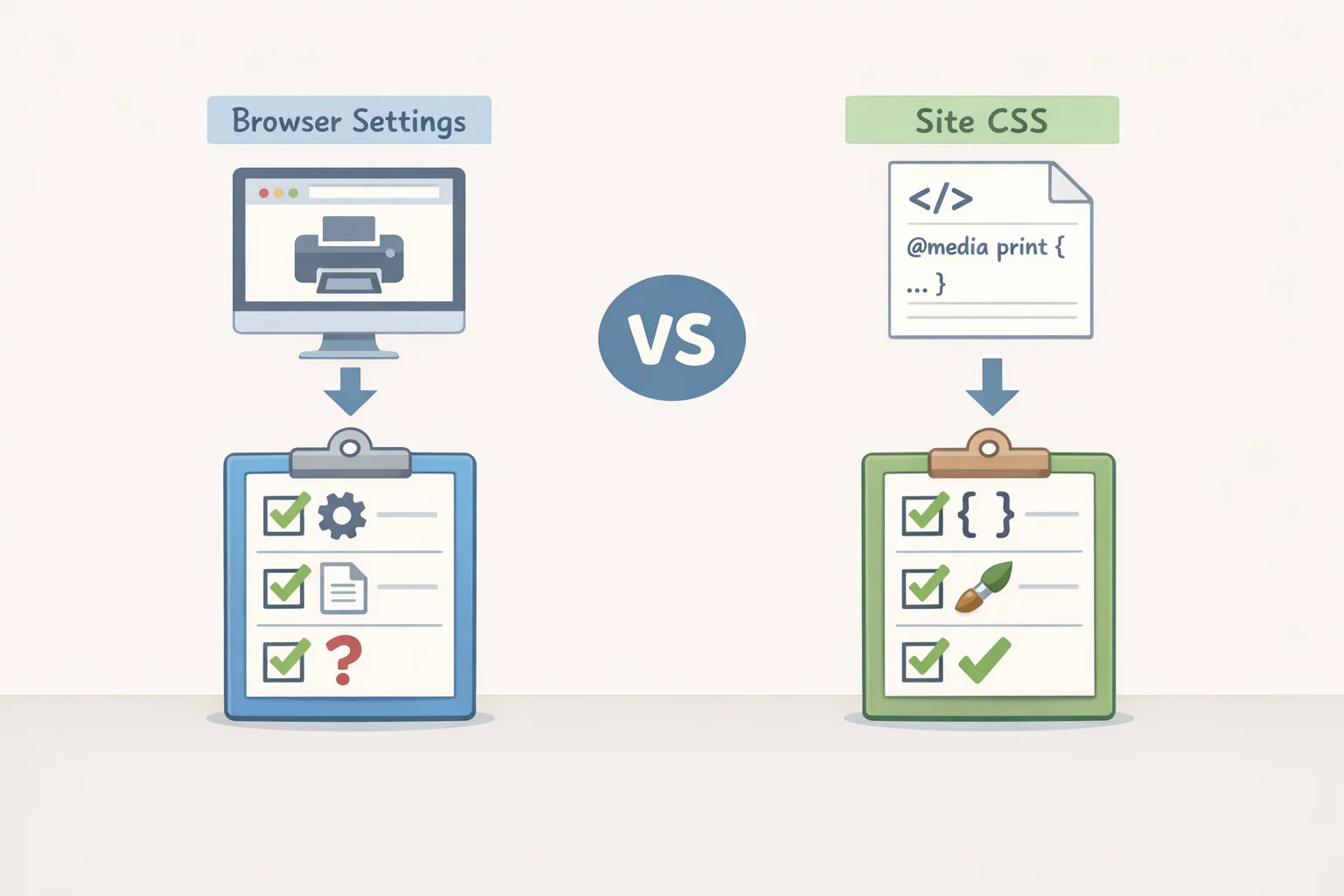
This CSS fix and the browser checkbox from the earlier section solve different problems. The @media print rule hides elements that live in the page's own HTML. The browser's date, URL, and page-count fields stay controlled by the print dialog, not by the site's stylesheet, no matter how that CSS is written.
Troubleshooting when the settings aren't where you expect
- Date, URL, or page count still printing: the "Headers and footers" checkbox is probably still checked, or the wrong panel is open. Reopen "More settings" and confirm it's unchecked before printing (University of Illinois SMART Physics).
- A site's logo, nav bar, or footer links still printing: that's page content, not browser metadata, and nothing in the print dialog removes it. It needs an
@media printrule from the section above, applied by whoever controls the site's CSS. - No "More settings" or "Headers and footers" option visible at all: confirm which print dialog is actually open before assuming the feature is missing.
- Landed in a Page Setup dialog instead: if the system opens a Page Setup dialog rather than the browser's print preview, look for a "Margins & Header/Footer" tab and set the unwanted fields to blank. The same instructions describe a separate "Shrink-to-Fit" setting worth checking too (University of Illinois SMART Physics).
If the only goal is removing the date, title, URL, and page count, the browser fix covered earlier is the relevant one, and nothing else needs to change. Anything still printing beyond that, a logo bar, a nav menu, a footer full of links, is coming from the page itself, and it needs its own print stylesheet rather than a different setting hidden somewhere in the dialog.
Two rules cover nearly every situation: turn off browser-added fields in the print dialog, and reach for @media print only when the unwanted material actually belongs to the page.