How to set up Garmin Cirqa: 5 settings to check first
The Garmin Cirqa has no screen. No watch face, no menu to scroll through mid-run, nothing to glance at when you want a quick number. Garmin Connect is the entire interface, which is exactly why knowing how to set up Garmin Cirqa correctly matters more than it would with a device you can just glance at and fix on the fly. Garmin's own manual reduces onboarding to five tasks: activate, pair, charge, update, and start an activity (Garmin CIRQA Owner's Manual, three weeks ago). That gets the band running. It says nothing about whether what it records afterward is any good.
The5KRunner finished box-to-wrist setup, firmware update included, in under 15 minutes (The5KRunner, two weeks ago). That speed is a little misleading. DC Rainmaker's accuracy testing found the band's auto-detection missed roughly 45 minutes of one cycling workout and skipped two commute rides entirely (DC Rainmaker, last week). Finishing onboarding and getting useful data out the other end are two different milestones. This Garmin Cirqa setup guide covers the gap between them: wear position, manual activity starts, a starter health dashboard, and the connected GPS and battery habits worth building before your first real workout. You'll need a phone with Garmin Connect installed, Bluetooth turned on, and kept within roughly 10 meters (33 feet) of the band during pairing.
Garmin Cirqa first steps: pairing, charging, and onboarding
Video of the Day
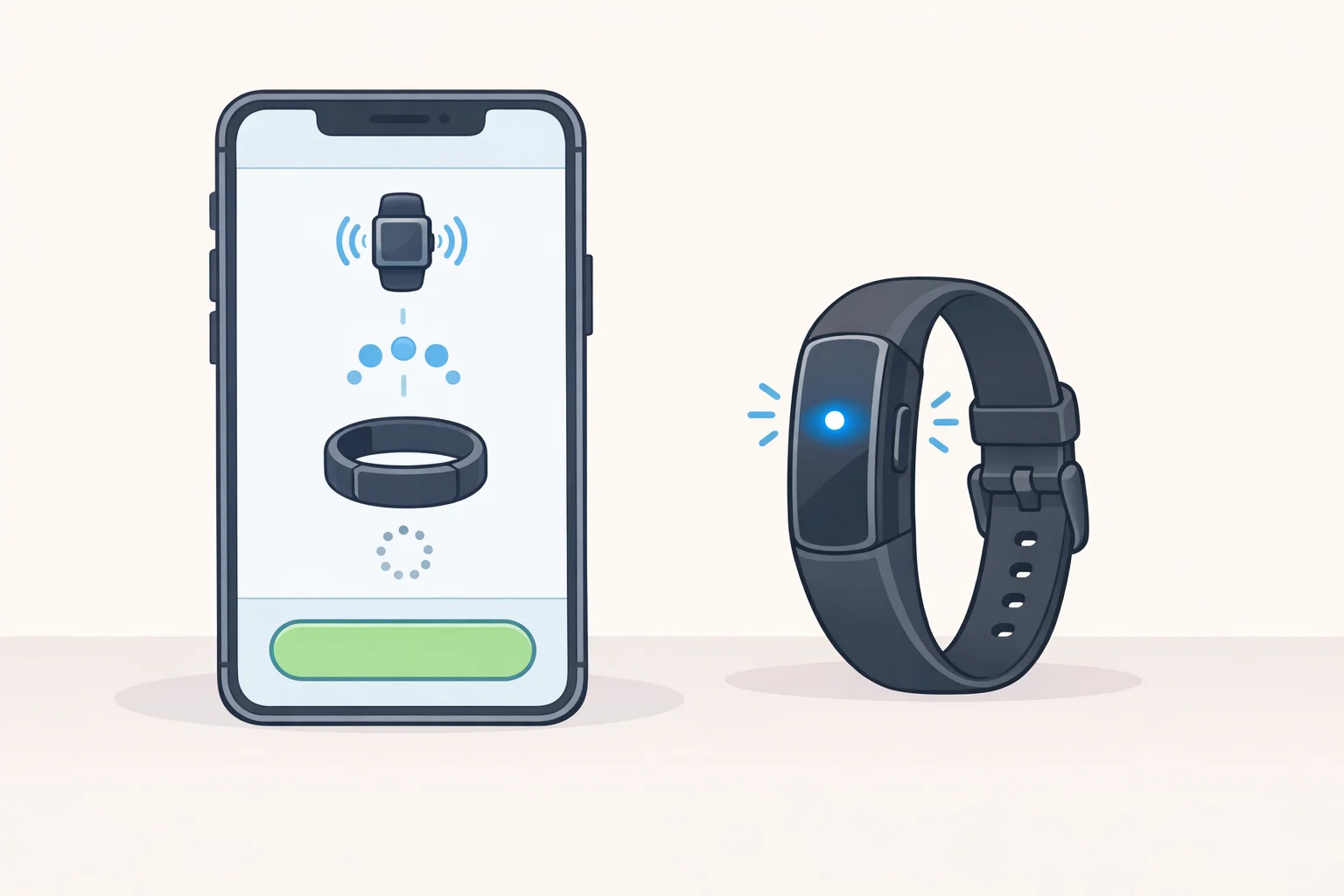
Garmin's setup sequence runs in order: plug the module into a power source to activate it, install Garmin Connect and pair the two devices, charge fully, then check for a software update (Garmin Owner's Manual, three weeks ago). Pairing is the step worth slowing down for. Garmin treats a first-time pairing and a reconnection differently, and it's easy to blend the two sets of instructions together.
Plugging in the module puts the LED into a purple flash, signaling active pairing mode (Garmin Owner's Manual, two weeks ago). That mode normally runs for 15 minutes, but if the band has never been paired to anything before, it stays open longer than that window, so don't assume it's timed out just because you're still fumbling with your phone (Garmin, "Pairing Your Device with the Garmin Connect App", three weeks ago). If pairing mode doesn't seem to be starting, press the button quickly three times, or hold it for about six seconds to force it manually. If you've paired the band before and you're trying to reconnect it, Garmin says to remove the device from your phone's Bluetooth settings first, then manually re-enter pairing mode (Garmin, "Pairing Your Device with the Garmin Connect App", three weeks ago).
Once paired, check for a firmware update right away, since that's the step Garmin pushes hardest during setup. The5KRunner found an update available immediately after pairing that took one to two minutes, with box-to-wrist setup finishing in under 15 minutes total (The5KRunner, two weeks ago). Garmin's own guidance is to keep checking after that too: new versions bring ongoing changes to privacy, security, and features rather than a single one-time patch (Garmin Owner's Manual, three weeks ago). The manual doesn't spell out a fixed check-in schedule, just that the option lives inside Garmin Connect's software-update flow.
The same onboarding sequence asks about sleep schedule and wheelchair use, then has you pick up to 10 favorite activities out of roughly 80 options (The5KRunner, two weeks ago). Choose the ones you expect to actually use now. If you need to change wear position or favorites later, Garmin's documentation doesn't lay out an exact in-app path for it, but the setting should live wherever your Cirqa entry sits inside Garmin Connect's device list.
Garmin Connect also throws up a Connect+ subscription prompt during this same setup. Skip it for now. The free core metrics covered further down don't require it, so deciding later costs nothing.
Video of the Day
Choose a wear position: wrist or bicep
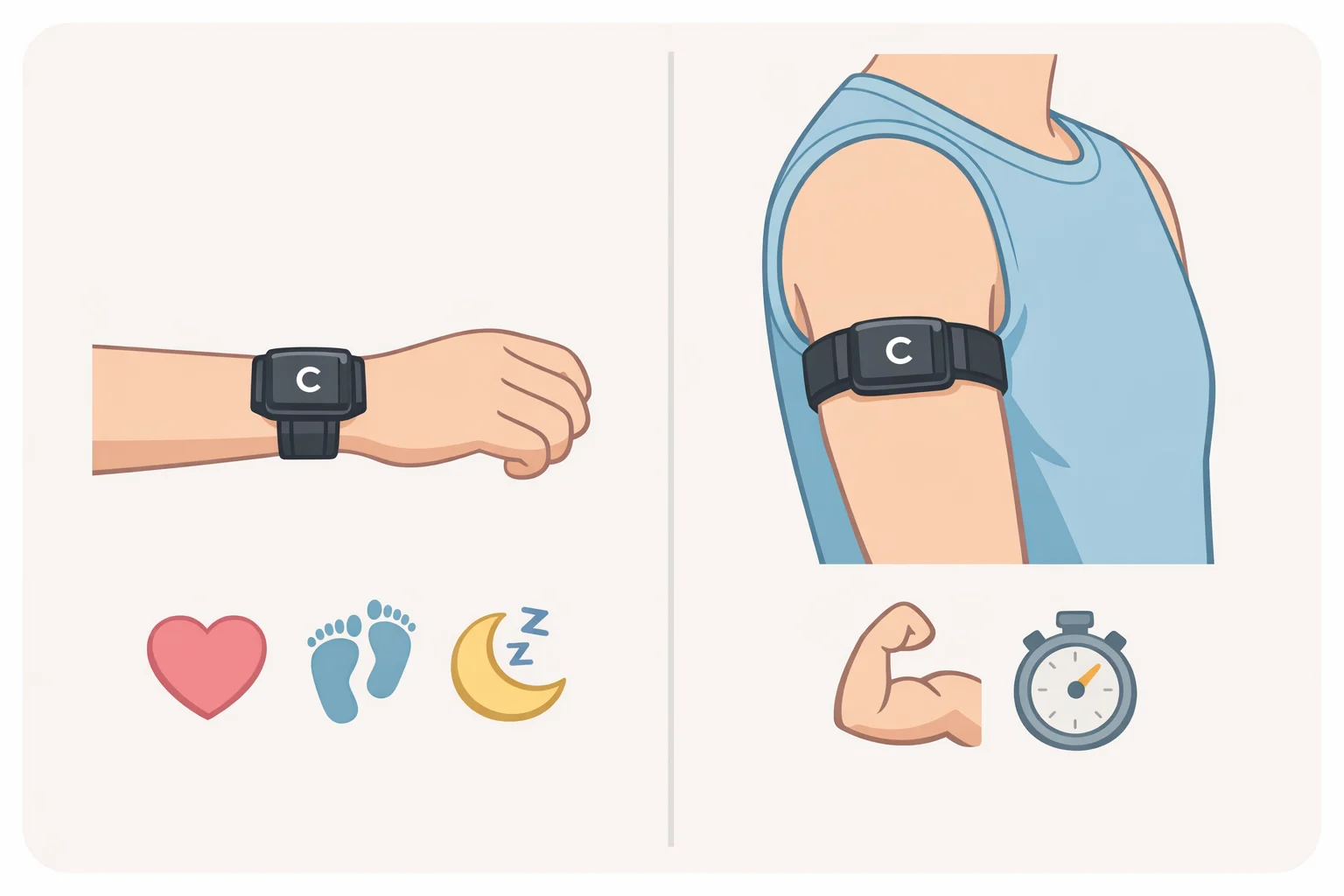
Wear position gets set during onboarding, alongside your primary device choice (The5KRunner, two weeks ago), and it's worth treating as a real decision rather than a default to click past. DC Rainmaker ran two Cirqa units at once, one on the wrist and one on the bicep, and found bicep placement produced chest-strap-level heart-rate accuracy during gravel running and interval sessions, while the wrist-worn unit "really struggled" in those same conditions (DC Rainmaker, last week).
Sleep flips the result. The same testing found a bicep-worn band can miscalculate sleep start and end times if you're reading or scrolling your phone in bed, which makes the wrist the steadier choice overnight (DC Rainmaker, last week). If sleep tracking and all-day comfort matter more to you than workout precision, wrist is the reasonable pick. If accurate heart-rate data during cycling or intervals matters more, the bicep is worth the extra strap, at least based on this early round of testing.
There's a cheap way around buying Garmin's own bicep accessory. The5KRunner found the Cirqa pod fits neatly inside an old Whoop 4.0 bicep sleeve, giving a secure upper-arm fit without paying $59.99 for Garmin's dedicated band (The5KRunner, two weeks ago). One fit detail worth knowing before you commit to the wrist: The5KRunner called the 47mm module "just about acceptable" on an 18cm wrist and noted it can leave a visible bump under a tight dress-shirt cuff (The5KRunner, two weeks ago). That's one reviewer's wrist, not a hard cutoff, but it's a fair flag if you're on the smaller side and weighing the two positions.
Garmin Cirqa activity tracking settings: start demanding workouts manually
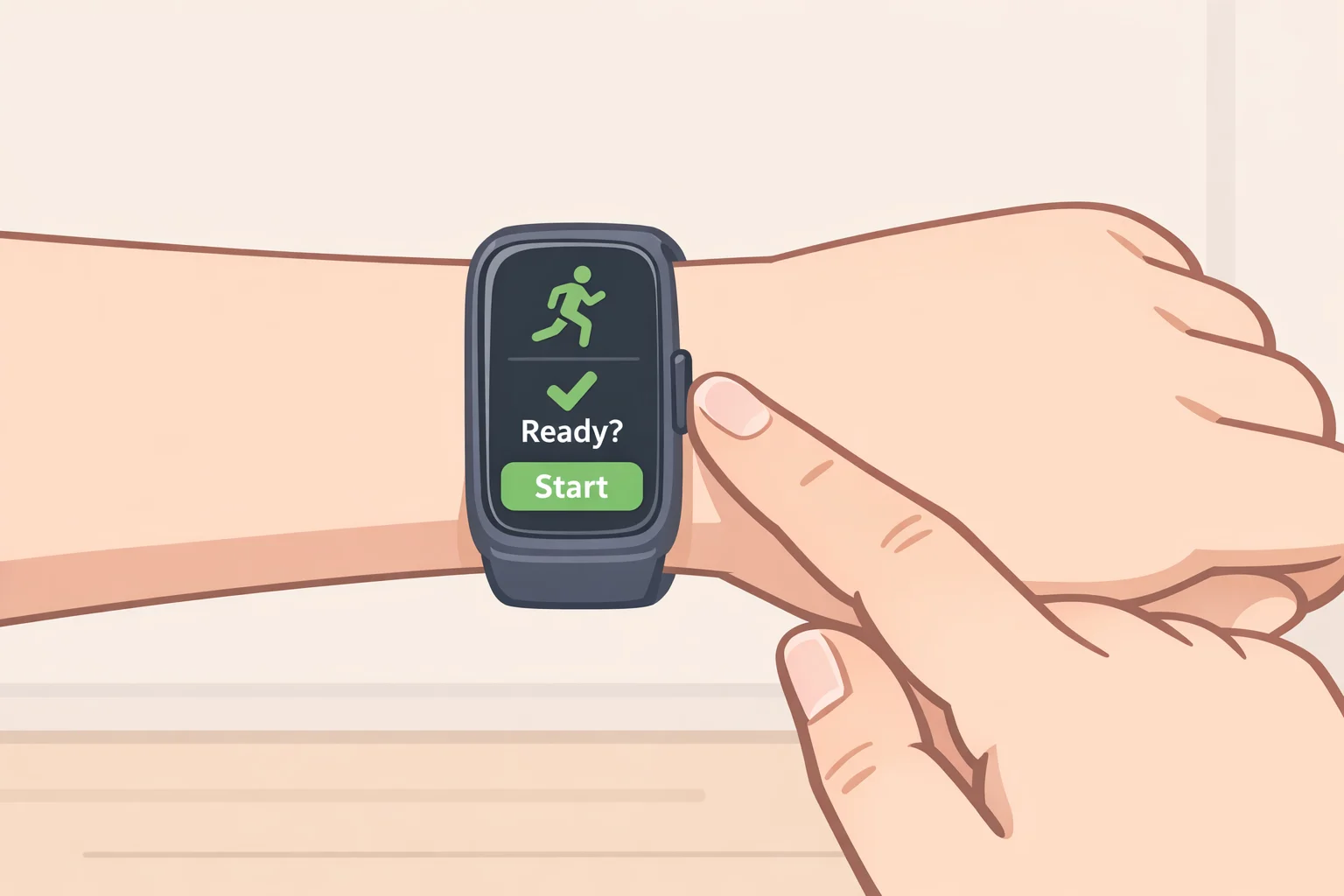
The button doubles as a manual override, and the detection failures below are reason enough to lean on it. Pressing it starts a recording, confirmed by a green LED flash and a vibration (Garmin Owner's Manual, two weeks ago). Trusted Reviews found that Garmin Connect generates the same GPS map overlay afterward whether a session was started manually or picked up by auto-detection, so opening the app and checking for that overlay is the simplest way to confirm a workout actually recorded (Trusted Reviews, last week).
Auto-detection handled the basics fine in Trusted Reviews' hands-on testing, correctly picking up straightforward walks and runs without any manual input (Trusted Reviews, last week). It gets shakier once a workout gets more demanding. DC Rainmaker's accuracy test found auto-detection missed the first seven minutes of an indoor cycling warm-up and failed to catch two separate commute rides, one roughly 20 minutes and one roughly 30, while other screenless bands worn at the same time caught both (DC Rainmaker, last week). On a longer ride, it skipped the final 45 minutes entirely, including several high-intensity climbs.
A missed detection means no heart-rate data for that stretch of the workout, which throws off training load and recovery calculations for the whole session (DC Rainmaker, last week). Press the button yourself before anything harder than a casual walk, whether that's cycling, intervals, or whatever counts as a real workout for you. Auto-detect is a decent backup. It's not a primary method.
Build a starter health dashboard on Garmin Connect
The Gen 4 sensor tracks heart rate, blood-oxygen saturation, stress, HRV, VO2 Max, and more, and Garmin Connect's "At a Glance" section lets you choose which of those surface first (Trusted Reviews, last week). Trusted Reviews doesn't detail the exact taps required to customize it, only that the section is customizable, so expect some trial and error inside the app the first time through.
A few metrics are worth watching closely while you're still getting a feel for the device. Sleep Score gives a 100-point rating with a breakdown of sleep cycles and restlessness, plus a look at how the night affected Body Battery (Trusted Reviews, last week). There's a quirk worth knowing before your first alarm goes off: if you use Cirqa's internal vibration alarm, sleep tracking cuts off at the alarm's set time no matter how many times you hit snooze afterward, so a heavy-snooze morning will read as less sleep than you actually got (DC Rainmaker, last week). The wear-position choice pays off here too. Wrist-worn devices generally nailed wake-up times better than bicep placement, since waking usually means movement the sensor can register (DC Rainmaker, last week).
Body Battery and HRV status are worth watching without overreacting to any single reading. Don't treat one morning's number as a verdict; look instead for a pattern across several days. Training Readiness pulls those threads together, combining last night's Sleep Score, acute training load, HRV status, and recent stress into a single recommendation on workout intensity (Trusted Reviews, last week).
Body Battery, HRV status, and Training Readiness don't require a subscription (The5KRunner, two weeks ago), and Trusted Reviews confirms the device works without one altogether, unlike Whoop or the Oura Ring 5 (Trusted Reviews, last week). That's exactly why skipping the Connect+ prompt earlier costs nothing. Wear the band overnight for a consistent run of nights before treating any single score as meaningful, and leave the rest of the 80-plus-activity menu alone until you've got a baseline worth building on.
Garmin Cirqa connected GPS setup and battery planning
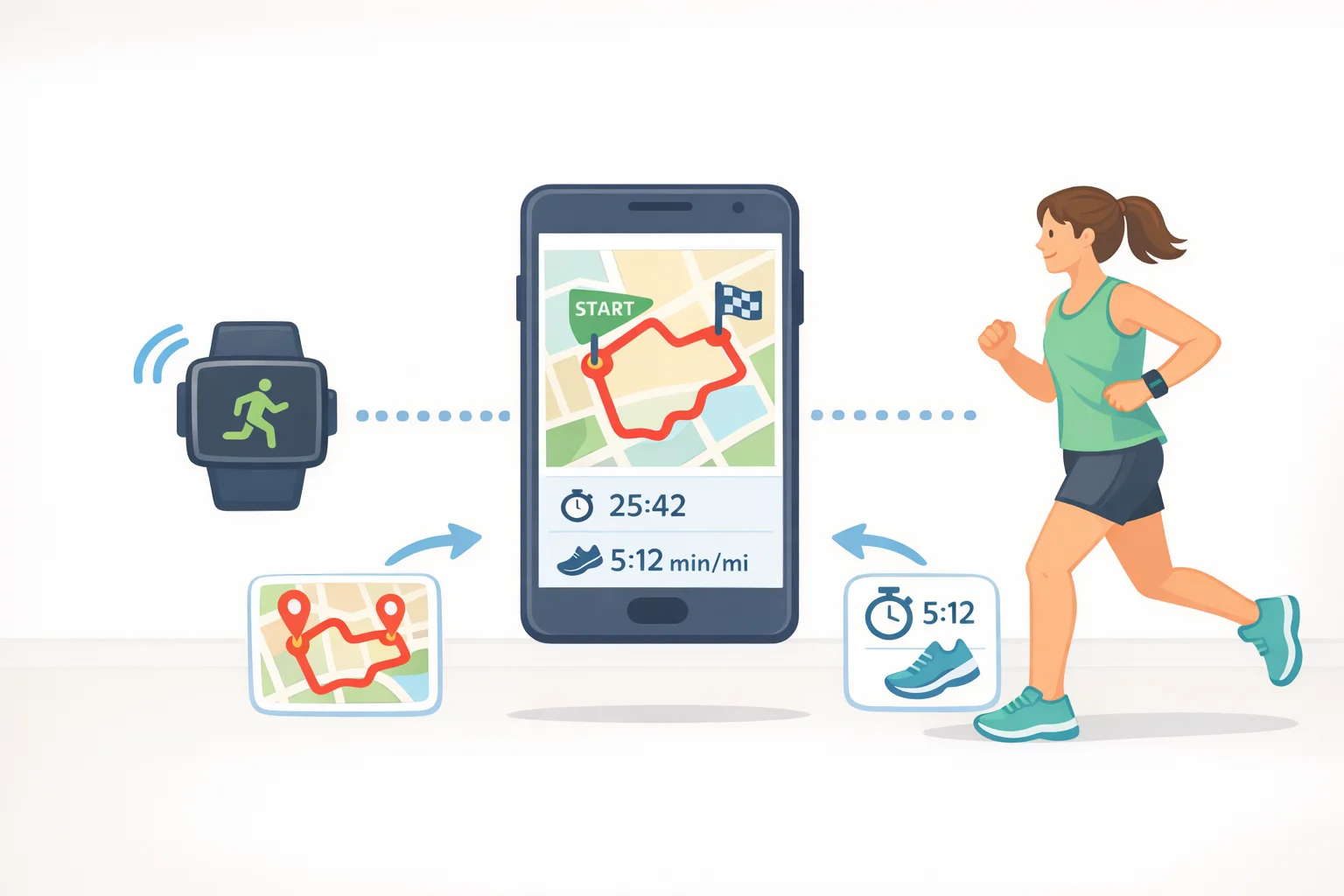
Cirqa has no built-in GPS chip. Outdoor pace and route data come from Connected GPS, which borrows the location signal from your paired phone instead (Trusted Reviews, last week). That means a mapped route depends on your phone actually being with you, worth knowing if you're used to leaving it at home for runs (Trusted Reviews, last week).
Garmin rates battery life at up to 10 days, with charging taking up to 90 minutes (Garmin Owner's Manual, two weeks ago). Real-world testing lines up with that: Trusted Reviews reported 52% remaining after six days of use and a full charge finishing in under two hours (Trusted Reviews, last week). One documented drain is broadcasting heart rate to another device, like a bike computer or gym display, which Garmin's own documentation confirms shortens battery life (Garmin Owner's Manual, two weeks ago). Bring your phone for any run or ride you want mapped, and get into the habit of a top-up every few days rather than waiting for the battery to hit zero.
Your Garmin Cirqa first-week checklist
The placement findings above come from a real setup, not a lab. DC Rainmaker ran two Cirqa units at once, one on the wrist and one on the bicep, with a second wearer's device providing a further comparison point (DC Rainmaker, last week). It's a thorough test, but still a small sample. Treat the guidance above as a useful signal from early testing, not a definitive accuracy standard for every wrist.
After a week of wear, run through three checks:
- Compare sleep scores on mornings you used the alarm against mornings you didn't; heavy snoozing will show up as lost sleep rather than the extra rest you actually got.
- Compare heart-rate data from workouts you started manually against ones you left to auto-detect, especially anything harder than a walk.
- Confirm outdoor routes are mapping the way you'd expect with your phone along for the ride.
Check Garmin Connect for updates every so often beyond the initial setup, since launch-period software tends to change fast. Once the free tier has proven it covers what you need, that's the point to weigh Connect+ or Garmin's Natural Cycles integration, a separate subscription that tracks skin temperature overnight for fertility purposes (Trusted Reviews, last week), not before.