How to connect Bluetooth headphones to PS5 via USB adapter
Most people assume the PS5 works like a phone: open Bluetooth settings, find your headphones, connect, done. It doesn't. Nearly everything else that plays audio, a laptop, a phone, even a Nintendo Switch, pairs with Bluetooth headphones without drama, but the PS5 is the holdout among them, according to Lifehacker, last year. Standard Bluetooth headphones generally won't even show up as an option in the console's own settings menu, a limitation Techozea's guide, updated six weeks ago, confirms directly.
There's still a way in. This guide covers how to connect Bluetooth headphones to PS5 using a USB Bluetooth transmitter plugged into one of the console's ports, the exact settings screen to configure once it's paired, how to handle voice chat (which needs its own fix), and which setup suits different situations, whether that's casual solo play or a competitive shooter where timing is everything.
If you already own Bluetooth headphones, the good news is you probably don't need to replace them just to use Bluetooth headphones on PS5. What you need is the right adapter and a few minutes of setup. This guide also walks through what separates a basic transmitter from a dedicated gaming-headset dongle and what to check before buying a PS5 Bluetooth adapter.
Why won't the PS5 pair with Bluetooth headphones directly?
Video of the Day
The PS5's Bluetooth radio is built mainly for controllers and select accessories, not general-purpose audio gear like headphones, according to Soundcore, earlier this year, and Techozea makes the same point. That's a design choice, not an oversight.
The reasoning comes down to latency and inconsistency more than any single flaw. Standard Bluetooth audio can introduce noticeable delay, codec support that varies from one headphone model to the next, and mic modes that quietly crush audio quality when active, per Techozea.
That thinking shows up in the accessory market too: officially supported PS5 headsets tend to rely on 2.4GHz USB dongles or wired connections rather than standard Bluetooth, according to Techozea.
None of this rules out Bluetooth headphones. It changes the target. Instead of pairing headphones to the PS5 itself, you route audio through a device the console will actually recognize.
Video of the Day
How to connect Bluetooth headphones to PS5 with a USB adapter
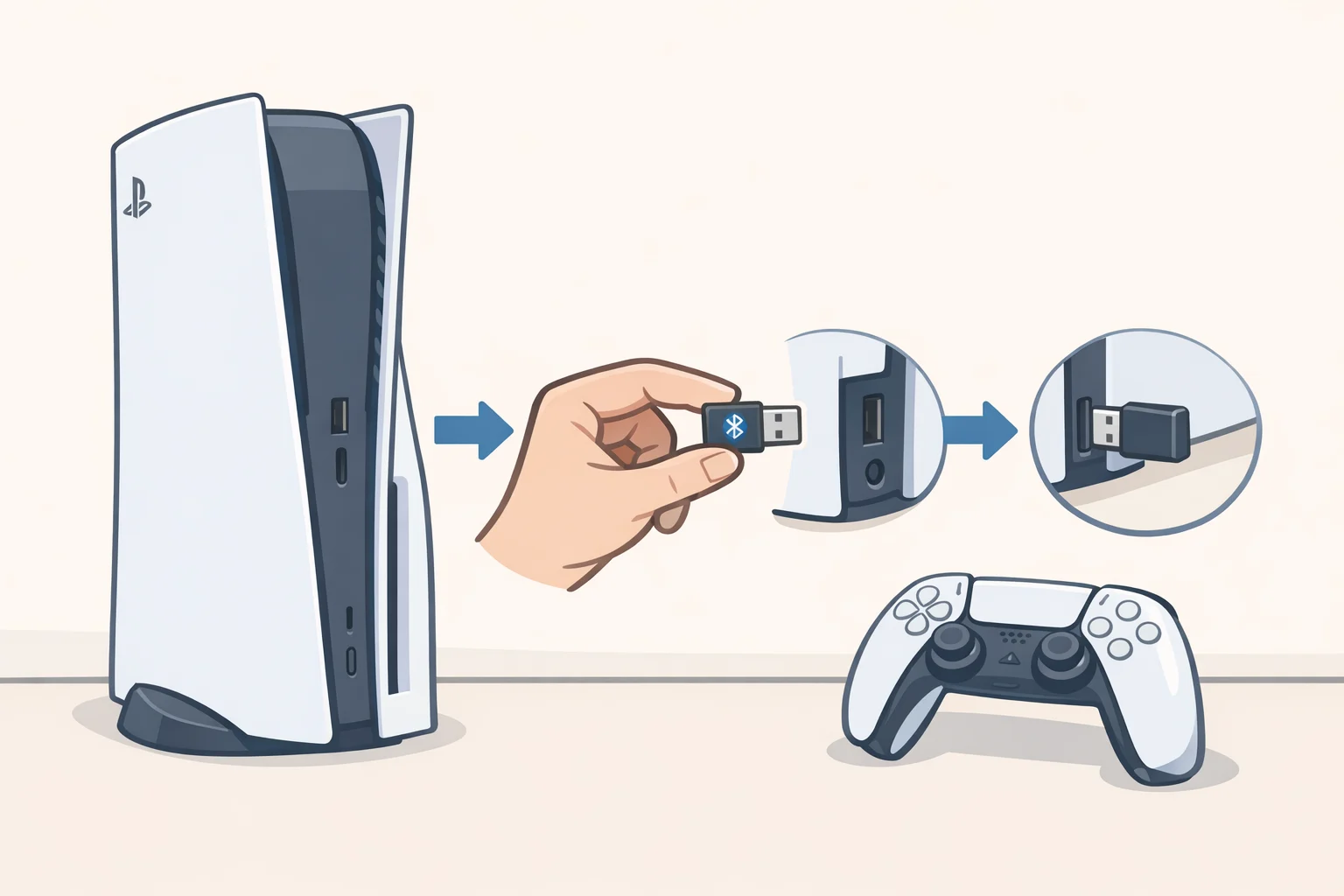
Before starting, gather three things: a USB Bluetooth transmitter built to function as a USB audio device (not just any Bluetooth-branded dongle), your headphones charged and within reach, and a free USB port on the PS5.
This setup handles game audio only. Most basic transmitters don't carry a microphone signal back to the console, so treat voice chat as a separate problem, covered further down.
- Plug the adapter into a PS5 USB port, front or back. Techozea cites Avantree and Ugreen as examples of adapters built this way (Techozea).
- Put the adapter into pairing mode. Hold its pairing button until the LED starts flashing, usually alternating red and blue, though the exact pattern varies by model, so check the adapter's manual if the light behaves differently. Some adapters exit pairing mode faster than expected; if that happens, hold the button again until the LED clearly signals it's ready, per Techozea.
- Put your headphones into pairing mode, the same way you'd pair them with a phone.
- Let the console pick up the connection. Once pairing completes, the PS5 should recognize the adapter as a USB audio device, according to Techozea. It typically shows up in the device list labeled "USB Headset" rather than by brand name; that's normal.
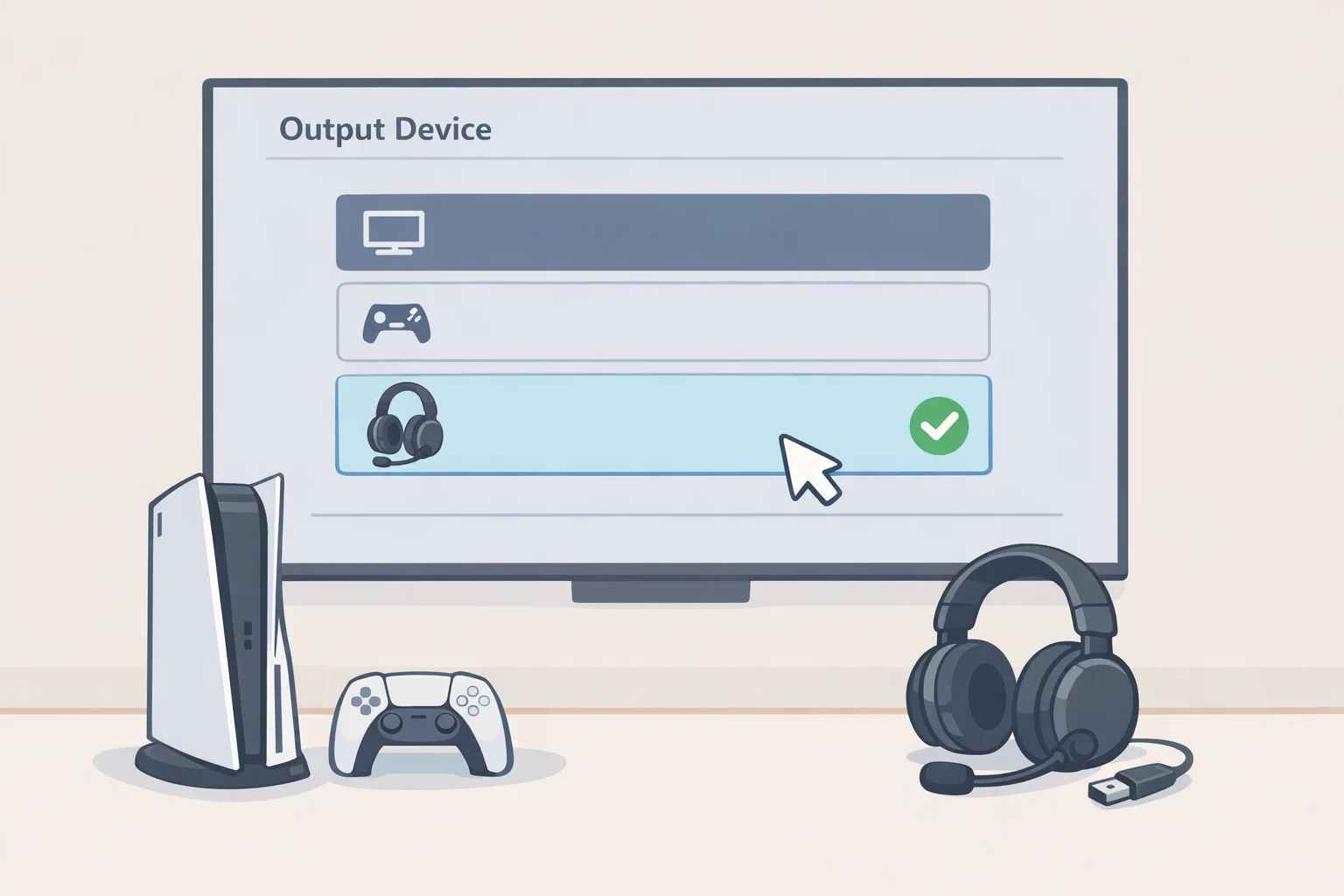
- Open Settings, then Sound, then Audio Output. Set Output Device to the USB adapter (listed as "USB Headset"), turn on Switch Output Device Automatically if you want the PS5 to default to it whenever it's plugged in, and set Output to Headphones to "All Audio" so you get full game sound rather than just chat, per Techozea.
That's the setup, and most of the frustration reported with these adapters traces back to cheap hardware that was never really designed for console use in the first place. Test yours before a night of online play with friends rather than assuming it'll hold up.
Transmitter or dedicated headset: what's actually different
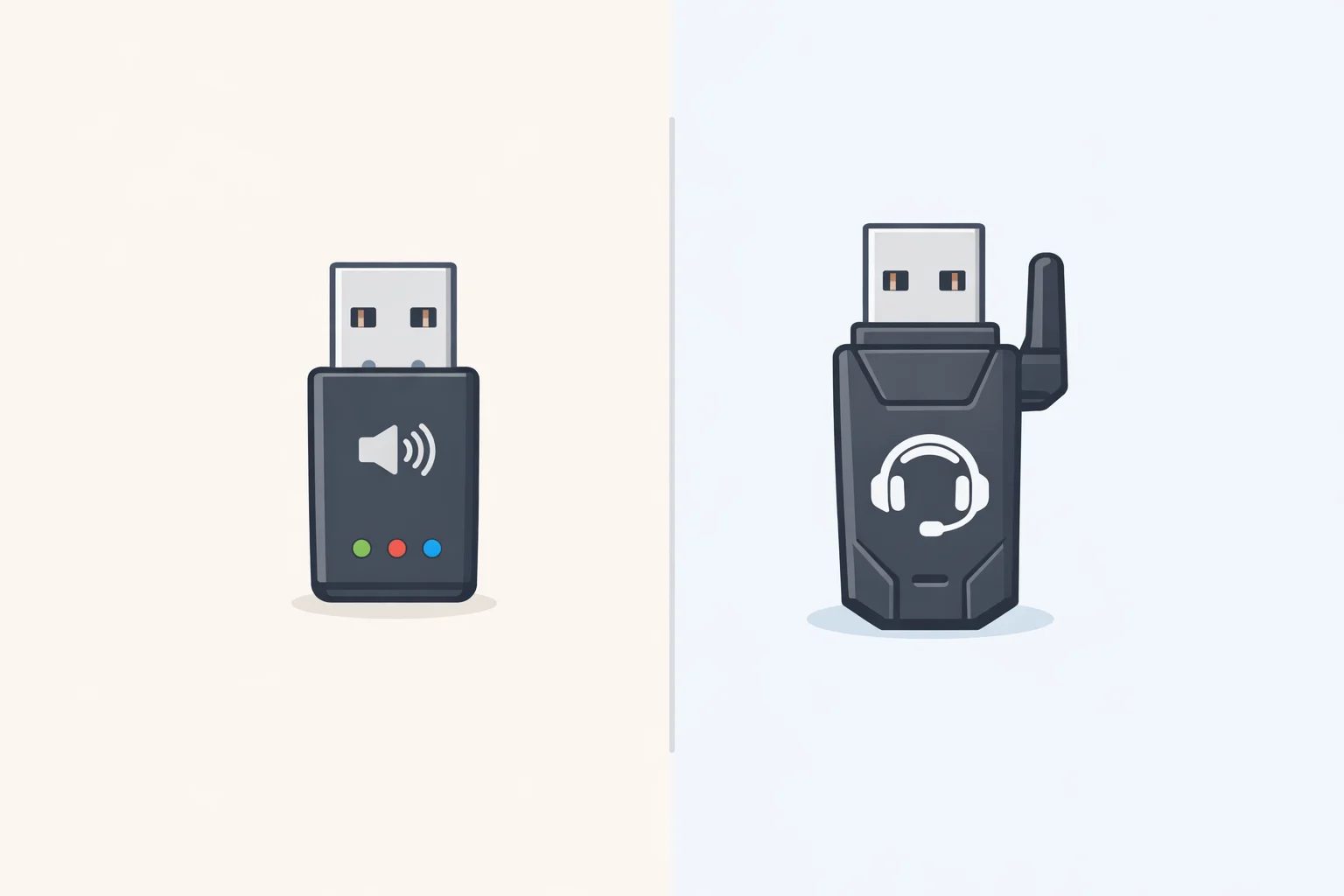
These solve two different problems. A USB Bluetooth transmitter is a bridge: it takes the PS5's USB audio output and translates it into a Bluetooth signal your existing headphones can receive. It doesn't know anything about your headphones beyond standard pairing, and most versions were built for phones and laptops, not consoles, per Techozea.
A wireless gaming headset with its own USB dongle is a different animal. It typically uses a proprietary 2.4GHz connection rather than Bluetooth, and the dongle is designed from the start to carry both game audio and microphone traffic to the PS5 at once, according to Techozea and Soundcore. That's why officially licensed PlayStation headsets skip Bluetooth entirely in favor of their own receivers.
The tradeoff is straightforward. A transmitter lets you keep headphones you already like, at the cost of uncertain mic support. A dedicated headset costs more upfront but is built to handle chat and audio together without the guesswork.
What to look for in a PS5 Bluetooth audio adapter
Not every USB Bluetooth transmitter performs the same, and the gap becomes obvious the moment timing matters. Standard Bluetooth audio delay can run as high as 150 milliseconds, PCWorld found two years ago, compared to roughly 40 to 50 milliseconds for the transmission stage alone when both ends use a low-latency codec like aptX LL. That's an upper-range figure, not a guaranteed delay for every adapter, but the difference can be noticeable in timing-sensitive games like shooters or rhythm titles.
There's a catch with aptX LL that trips people up: it only works if both the transmitter and the headphones support it. One-sided support does nothing, PCWorld notes. Check both ends before assuming you're covered.
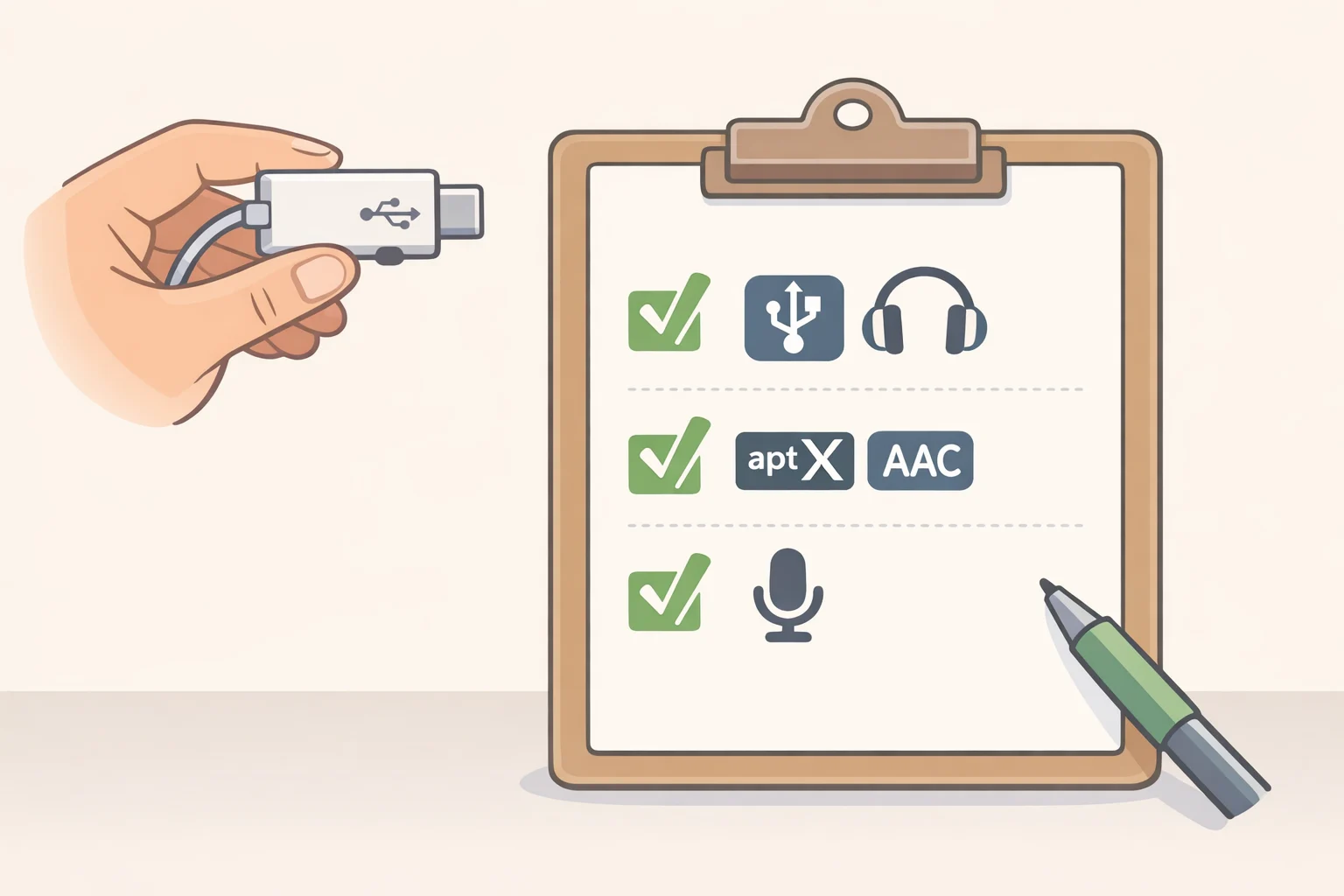
Before buying, run through this checklist, drawn from Techozea's buying guide:
- Confirm the adapter works as USB audio on PS5, not just marketed as "Bluetooth 5.3" for PCs.
- Check for stated low-latency codec support if you play anything fast-paced.
- Look for a clear pairing button and status LED; unclear indicators make setup more frustrating than it needs to be.
- Verify explicit mic or chat compatibility if voice chat matters to you.
- Check the seller's return policy, since compatibility can still be inconsistent even with a well-reviewed adapter.
Cheap adapters can introduce crackling, dropouts, or added delay, according to Top Headphone Reviews, two months ago. Treat "lag-free" marketing language with some skepticism until you've tested it yourself.
Voice chat has its own limitation
Getting game audio working is straightforward. Getting a microphone to come through the same adapter is a separate limitation, and one most guides gloss over. Many basic Bluetooth transmitters only handle audio output; they were never designed to carry a microphone signal back to the console, per Techozea.
Whether party chat works at all depends on whether your specific adapter presents a mic input the PS5 can recognize, and that varies by device rather than being guaranteed, Techozea explains. Some adapters support it; others don't.
If your adapter doesn't handle a mic, look for a gaming-focused adapter that explicitly states microphone input support, per Techozea. Mic support remains one of the biggest limitations of any Bluetooth workaround, an issue Top Headphone Reviews flags directly. Confirm your particular headset and adapter combination actually support the features you need before counting on it for chat.
If chat matters more than convenience, a dedicated wireless gaming headset with its own USB dongle is generally the safer bet, since those are built to handle audio and mic input at once rather than hoping a budget adapter manages both jobs, according to Top Headphone Reviews and Techozea.
Choosing the setup that fits how you play
There isn't one correct answer here. The right setup depends on what you're optimizing for: latency tolerance, chat needs, or plain convenience.
- Game audio only, casual or single-player: A basic USB Bluetooth transmitter works fine here, even without a low-latency codec, per Techozea. Most players won't notice the delay in story-driven games where split-second timing isn't the point.
- Game audio plus chat: A dedicated wireless gaming headset with its own USB dongle is generally the safer choice, since it's built to carry both without depending on whether a Bluetooth adapter happens to support a mic path.
- Lowest latency, no exceptions: Prioritize an aptX LL-compatible transmitter paired with aptX LL-compatible headphones, or skip the transmitter route entirely and plug wired headphones straight into the controller's 3.5mm jack, an option Techozea lists as the simplest zero-latency fix. It removes the wireless hop altogether; the PCWorld numbers above explain why that matters in fast games.
- Convenience over precision: If your TV supports Bluetooth audio output, it can bridge PS5 sound, sent over HDMI, to your headphones without extra hardware plugged into the console, an approach covered by Top Headphone Reviews and Soundcore. Latency here depends heavily on your specific TV model, and it may not solve voice chat at all, so treat it as a fallback rather than a primary setup.
If you already own Bluetooth headphones you like and mostly play solo, a transmitter is the simplest path for game audio alone. If chat matters as much as sound, spend the extra money on a dedicated headset instead of hoping an adapter covers both jobs.
Fixing Bluetooth headphones that won't connect to PS5
Most connection problems fall into one of three categories: the adapter isn't detected, the headphones pair but no sound comes through, or audio works but the microphone doesn't. Here's how to work through each.
Adapter not detected: Move the adapter to a different USB port, then re-enter pairing mode on both the adapter and the headphones. Some adapters drop out of pairing mode faster than expected, a common stumbling block, per Techozea. If it still isn't picked up, reset both the headphones and the transmitter and try again with them a few feet apart, per Soundcore.
Headphones paired but no sound: Head into Settings, then Sound, then Audio Output, then Output Device, and select the USB adapter manually if the PS5 doesn't switch automatically, per Techozea. Confirm Output to Headphones is set to "All Audio."
Sound works but the microphone doesn't: This usually means the adapter doesn't support mic passthrough, a common limitation rather than a defect, per Techozea. Revisit the voice chat fallbacks covered above rather than troubleshooting further, since some adapters simply weren't built for it.
Two more things worth checking either way: disable multipoint or dual-connection mode on your headphones, since that feature is handy for switching between a phone and laptop but can interfere with a clean pairing to a dedicated adapter, Techozea advises; and update firmware on both the adapter and the headphones while cutting down on nearby Bluetooth activity and interference. Both firmware and interference affect stability, according to Soundcore.
Once game audio comes through cleanly, the setup is done. Whether the microphone follows depends entirely on which adapter you bought, which is worth confirming before you're mid-match wondering why nobody can hear you.