How to turn off LG TV tracking: privacy settings guide
LG has spent the past two weeks answering for a two-hour-and-15-minute video. A Gamers Nexus investigation accused its smart TVs of recording household conversations, tracking every input, and quietly handing viewing habits to advertisers. LG pushed back hard, stating that its TVs "do not continuously record or transmit users' conversations" (LG statement, 2 weeks ago). If you own one of these sets and want to know how to turn off LG TV tracking without losing streaming or live TV, the good news is that the settings exist. They're just scattered across three different systems, and LG's own defense doubles as a map of where to find them.
LG doesn't dispute that its TVs can collect viewing habits, voice commands, and network data. Its argument is narrower: the features driving that collection, Automatic Content Recognition (ACR), voice recognition, and interest-based advertising, are optional and switched off until a user actively agrees to them (LG statement, 2 weeks ago). On an internet-connected LG TV, that collection sorts into three categories worth checking, though which ones actually apply depends on the model and the market it was sold in: content-recognition tracking, voice and microphone activity, and the separate tracking built into whatever streaming apps run on the TV (The Verge, 6 days ago). Each needs a different fix, and switching one off does nothing to the others. What follows covers all three: the settings to change, what each one actually does, and what none of them will stop.
How to turn off LG TV tracking: the settings to change
Video of the Day
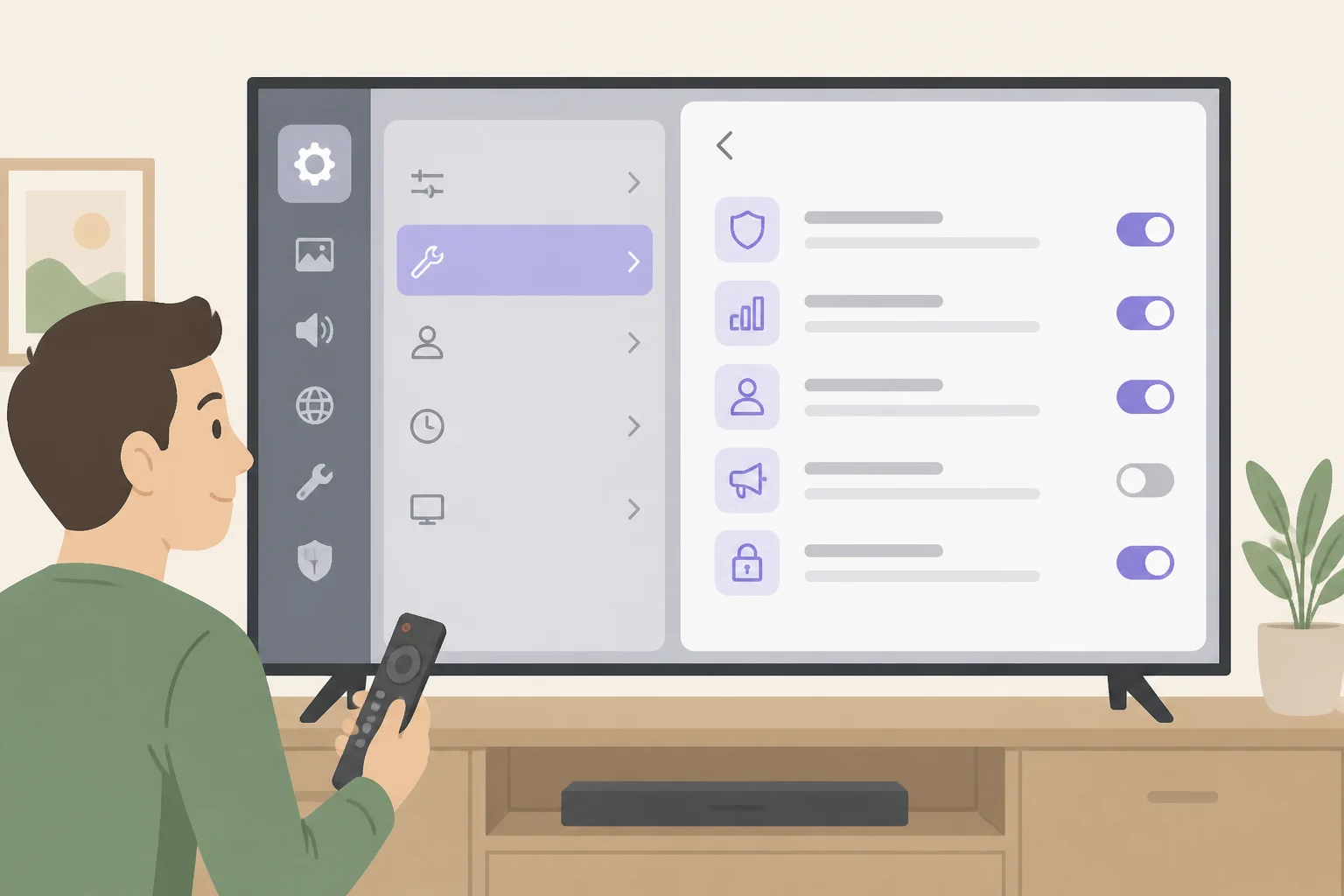
All LG smart TVs run on the company's webOS platform, so this menu path holds across current models (Consumer Reports, 11 months ago).
- Open Settings > General > User Agreements. This is where webOS groups its privacy toggles, including a "Do Not Sell My Personal Information" option (Consumer Reports, 11 months ago).
- Confirm Viewing Information is off. This is LG's name for ACR. It's off by default during setup, but a "Select All" tap or a leftover setup choice can turn it on, so check the current state instead of assuming (Consumer Reports, 11 months ago).
- Withdraw Interest-Based and Cross-Device Advertising consent separately. It's a distinct agreement from ACR and can be declined without losing streaming, live TV, or HDMI functionality (LG statement, 2 weeks ago).
- Review Voice Information. Turning it off disables voice recognition entirely, remote button included. Leaving it on but disabling Hands-Free Voice Control specifically stops standby wake-word monitoring while keeping remote-button voice search available (LG statement, 2 weeks ago).
- Flip the hardware microphone switch, if the model has one. It disables the TV's built-in mic, the one used for hands-free wake-word detection (LG statement, 2 weeks ago).
- Select "Do Not Sell My Personal Information." It limits third-party data sales, though LG still collects what's needed to run services already opted into, such as LG Channels or Live Plus (Consumer Reports, 11 months ago).
Watch the initial setup screen closely if the TV is new out of the box. Reporting on LG's onboarding flow found six separate agreements presented on one screen, with the cursor defaulting to "Select All" even though only two were required to continue (The Verge, 6 days ago). Decline them one at a time rather than accepting the bundle, then loop back through the same menu after setup finishes to confirm nothing got switched on by default.
Video of the Day
What each LG TV privacy setting controls
LG Automatic Content Recognition settings, explained
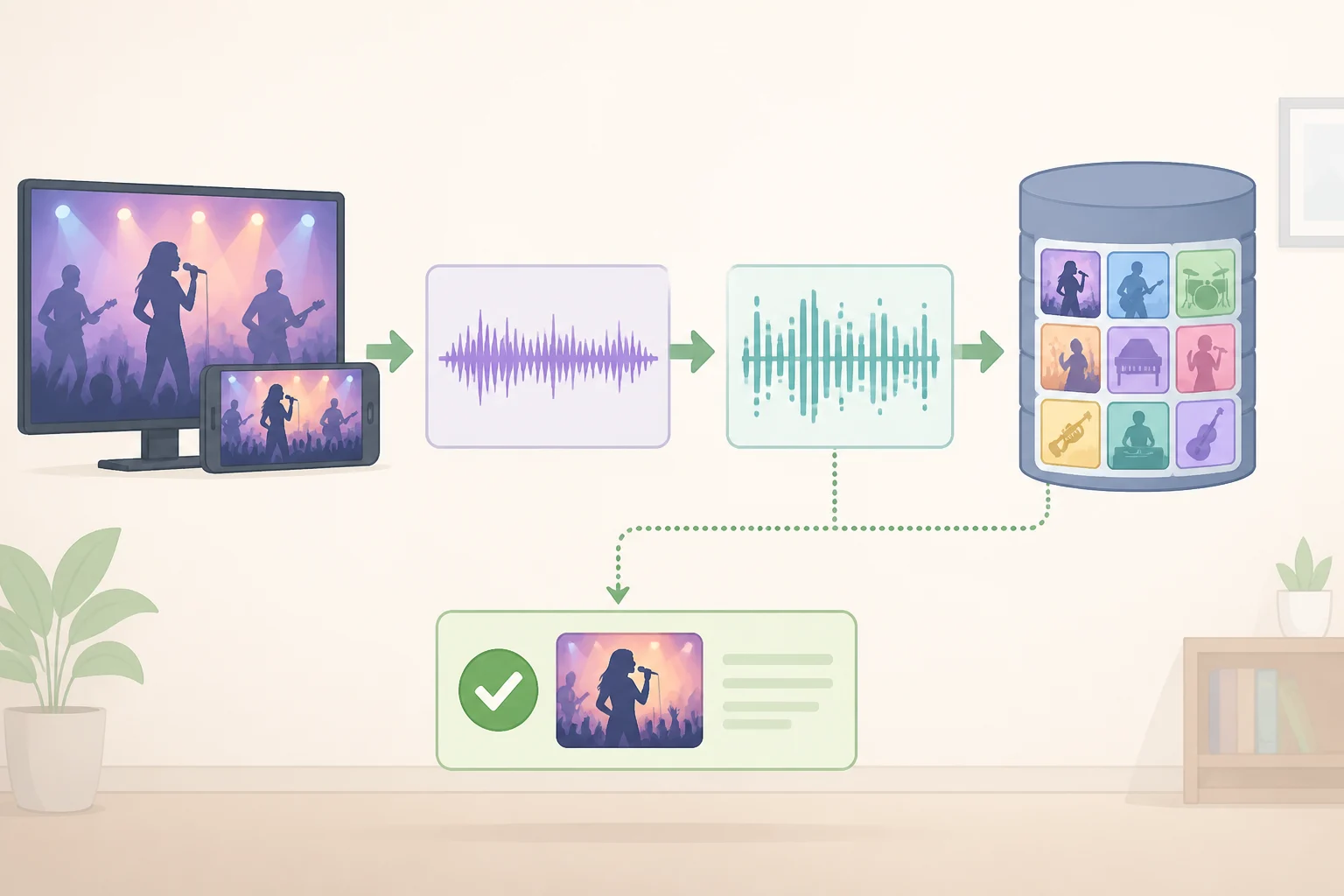
ACR works something like Shazam for a television. It samples snippets of audio or video, converts them into a digital fingerprint, and checks that fingerprint against a reference database to identify exactly what's playing, whether the source is cable, an antenna, a game console, or a streaming app (The Verge, 6 days ago). That data feeds content recommendations and ad targeting, and it's also how ratings companies like Nielsen track viewership across platforms.
LG says ACR is off by default, requires accepting a Viewing Information Agreement, and works through audio fingerprinting rather than screenshots or video capture. Disabling Viewing Information in the TV's settings is what triggers the opt-out. The company also says ACR doesn't operate inside third-party apps such as Netflix or YouTube (LG statement, 2 weeks ago).
An academic audit of specific LG and Samsung models backs up part of that account and adds a wrinkle to another part. Researchers found ACR traffic active while watching linear TV and even when the set was used purely as an HDMI display, but no ACR traffic while streaming through apps like Netflix or YouTube, which lines up with LG's claim. The same tests found meaningful differences in how ACR behaves in the UK versus the US, and confirmed that opting out through the TV's own settings stopped the ACR traffic entirely (arXiv audit, 2024).
Voice and microphone data: what LG's mic actually hears
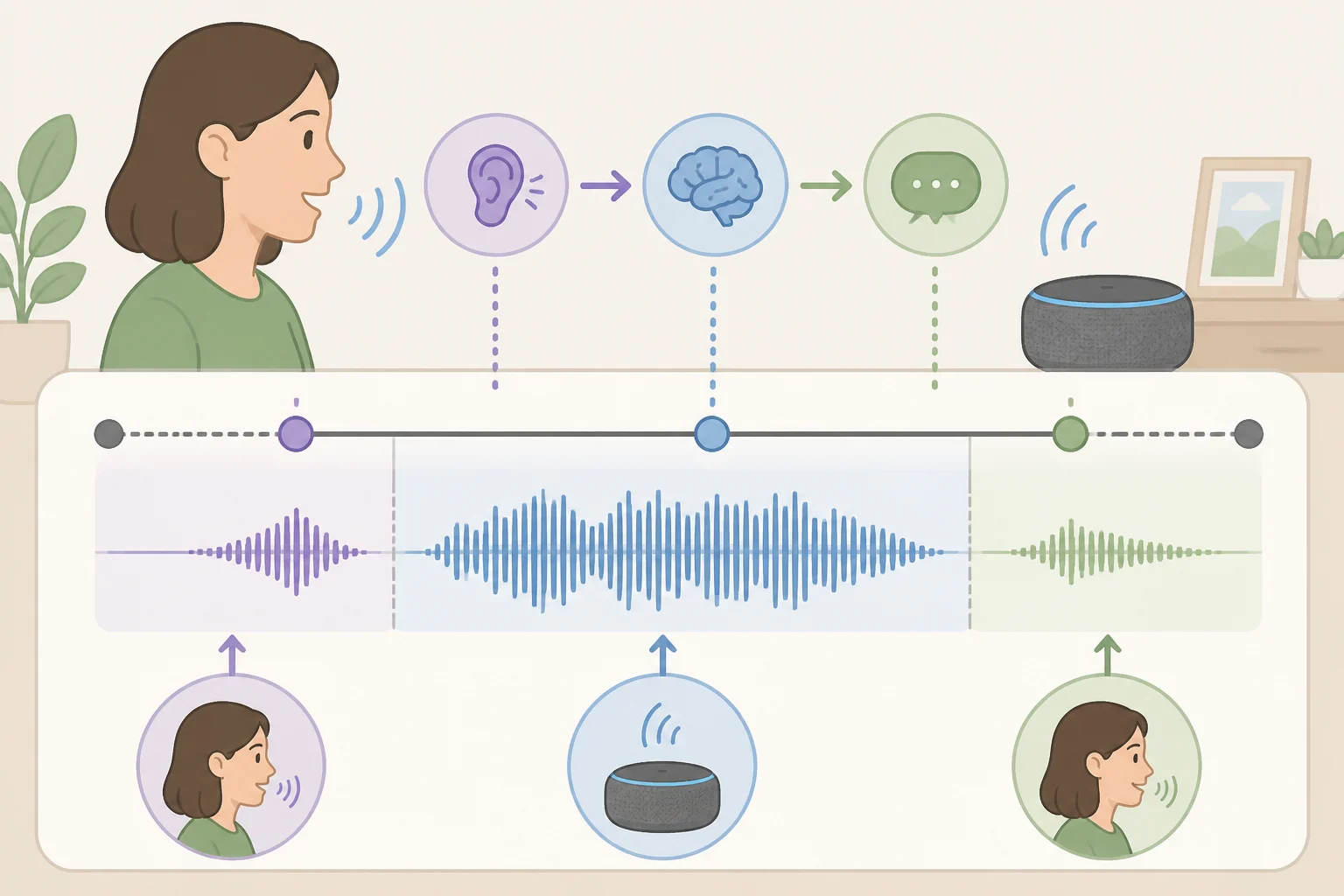
LG's account of voice data is specific. Speech-to-text processing begins only after the wake word "Hi LG" is recognized or the remote's mic button is pressed. Audio that doesn't contain the wake word is processed locally and discarded, never converted to text or transmitted (LG statement, 2 weeks ago). Voice-recognition sessions are capped at roughly 18 seconds, and if no speech is detected, a session ends automatically after about 10 seconds.
That timing is where the current dispute lives. Gamers Nexus reported that once the mic activated, it kept recording for 10 to 15 seconds after last detecting speech (The Verge, 6 days ago). LG's response frames that window as ordinary voice-session behavior rather than evidence of continuous listening, pointing to the 18-second session cap as the actual boundary (LG statement, 2 weeks ago). Neither account disproves the other. They're describing the same few seconds from different angles.
Two microphones are involved, and they don't behave the same way. The hardware switch on supported models only disables the TV's own built-in mic, the one handling hands-free, far-field wake-word detection. The remote's microphone is separate, and voice search through the remote's button keeps working as long as LG Voice Recognition is enabled (LG statement, 2 weeks ago). Turning off Voice Information entirely disables both. Disabling just Hands-Free Voice Control leaves remote-button voice search intact while stopping standby wake-word monitoring.
Network, device, and app tracking
Turning off ACR doesn't make the TV anonymous. LG's device-discovery function recognizes connected hardware like game consoles and set-top boxes so those devices work correctly, and it processes nearby Wi-Fi signal data separately, which LG says can help estimate the TV's approximate location when ACR is enabled (LG statement, 2 weeks ago). Meanwhile, every streaming app running on the TV, Netflix, YouTube, Disney+, tracks usage inside its own login regardless of what's set at the TV level (The Verge, 6 days ago).
What turning off these settings won't stop
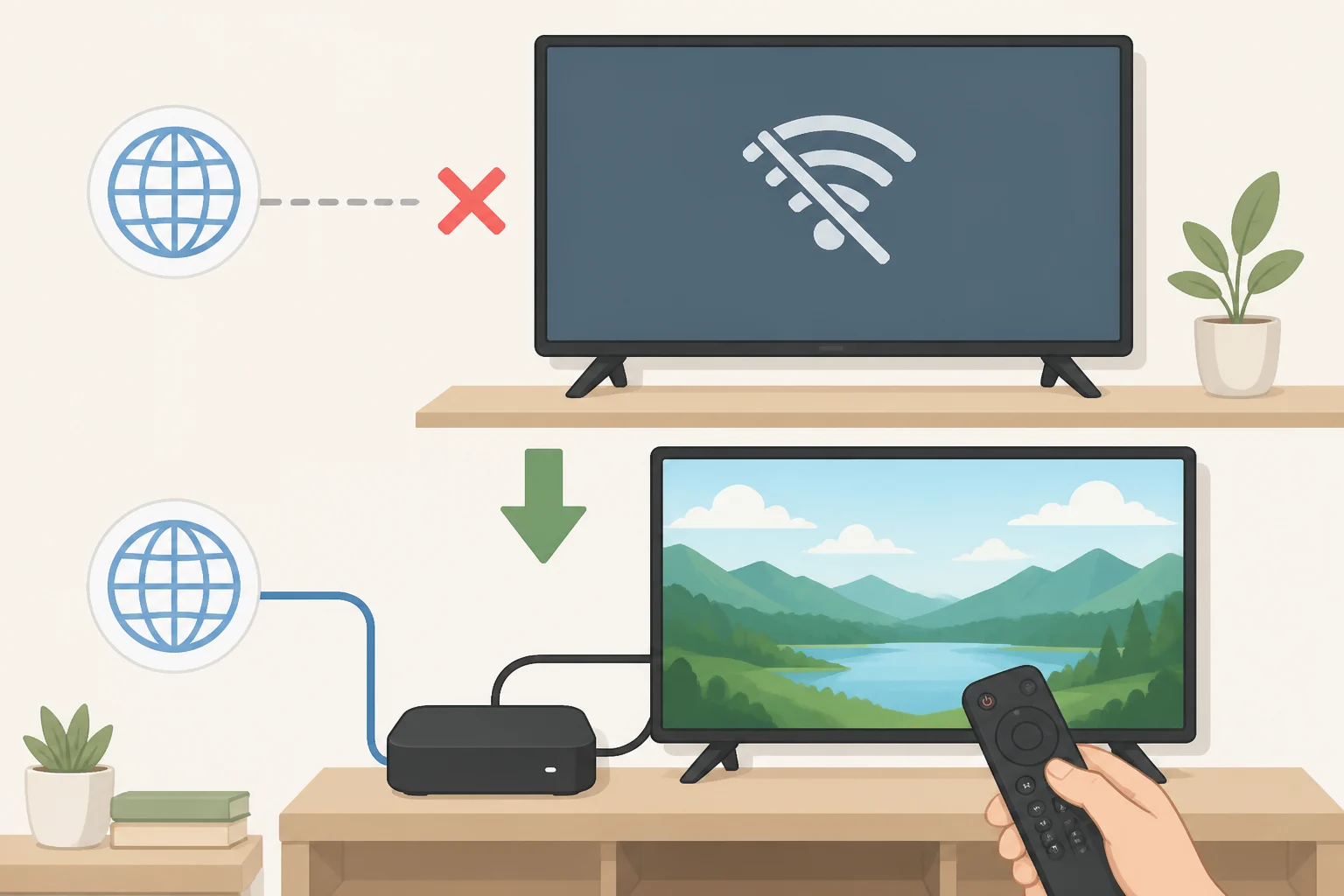
None of this makes an LG TV private in an absolute sense. Consumer Reports puts it plainly: there's no combination of settings that stops all data collection short of disconnecting the TV from the internet entirely (Consumer Reports, 11 months ago). If the goal is to turn off LG TV data collection completely, unplugging the network cable is the only setting that actually achieves it.
Streaming apps are the biggest gap. Turning off ACR doesn't touch what Netflix or YouTube log against your account, since that tracking happens inside the app itself, independent of anything set at the TV level (The Verge, 6 days ago). Selecting "Do Not Sell My Personal Information" cuts off third-party data sales, but LG still keeps whatever it needs to run services already opted into, like LG Channels (Consumer Reports, 11 months ago).
For anyone who wants to go further: disconnect the TV from Wi-Fi and Ethernet, route everything through an external streaming box instead, and use a separate email address for TV and streaming logins so the accounts can't be cross-referenced (The Verge, 6 days ago).
Recheck these settings after every update
LG isn't a special case here. Falling TV prices have pushed the whole industry toward advertising and data as the real revenue, which is a large part of why Walmart bought Vizio in 2024 (The Verge, 6 days ago). Every major TV brand runs some version of ACR, voice recognition, and app tracking. LG just happened to be the one under the microscope this month.
Thorin Klosowski, senior security and privacy activist at the Electronic Frontier Foundation, argues the real fix should come from law rather than settings menus, calling for a thorough federal privacy law that requires opt-in consent without deceptive design tricks, along with a data minimization requirement limiting companies to collecting only what a service actually needs (The Verge, quoting EFF, 6 days ago). Nothing like that exists yet.
Until it does, treat these settings as something to revisit rather than something to set once and forget. Software updates and factory resets have a habit of reintroducing default agreements, so it's worth walking back through Settings > General > User Agreements after either one.