How to use split view in Firefox: step-by-step guide
Split view doesn't squeeze two websites into one tab, despite what the name might suggest. It places two full tabs side by side in the same browser window, so both stay visible without the usual back-and-forth clicking (Mozilla Blog). This guide covers how to use split view in Firefox: what to check before turning it on, the two ways to activate it, how to close it, and the one documented mix-up that makes the option vanish from the right-click menu entirely.
Some people search for "Firefox two websites in one tab," which gets close but isn't quite right. Split view keeps each tab independent; it just displays them together in one window, so what you get is two separate, scrollable pages side by side, not one merged page.
Mozilla rolled split view out to every Firefox user with the release of Firefox 149 on March 24, about six months ago, describing it as a way to "compare, copy and multitask without bouncing between tabs" (Mozilla Blog). The company says it built the feature around three everyday habits: comparing, referencing, and writing (Mozilla Blog).
What you need before you start
Video of the Day
Split view has a short list of requirements, and most of the trouble people run into comes from skipping one of them.
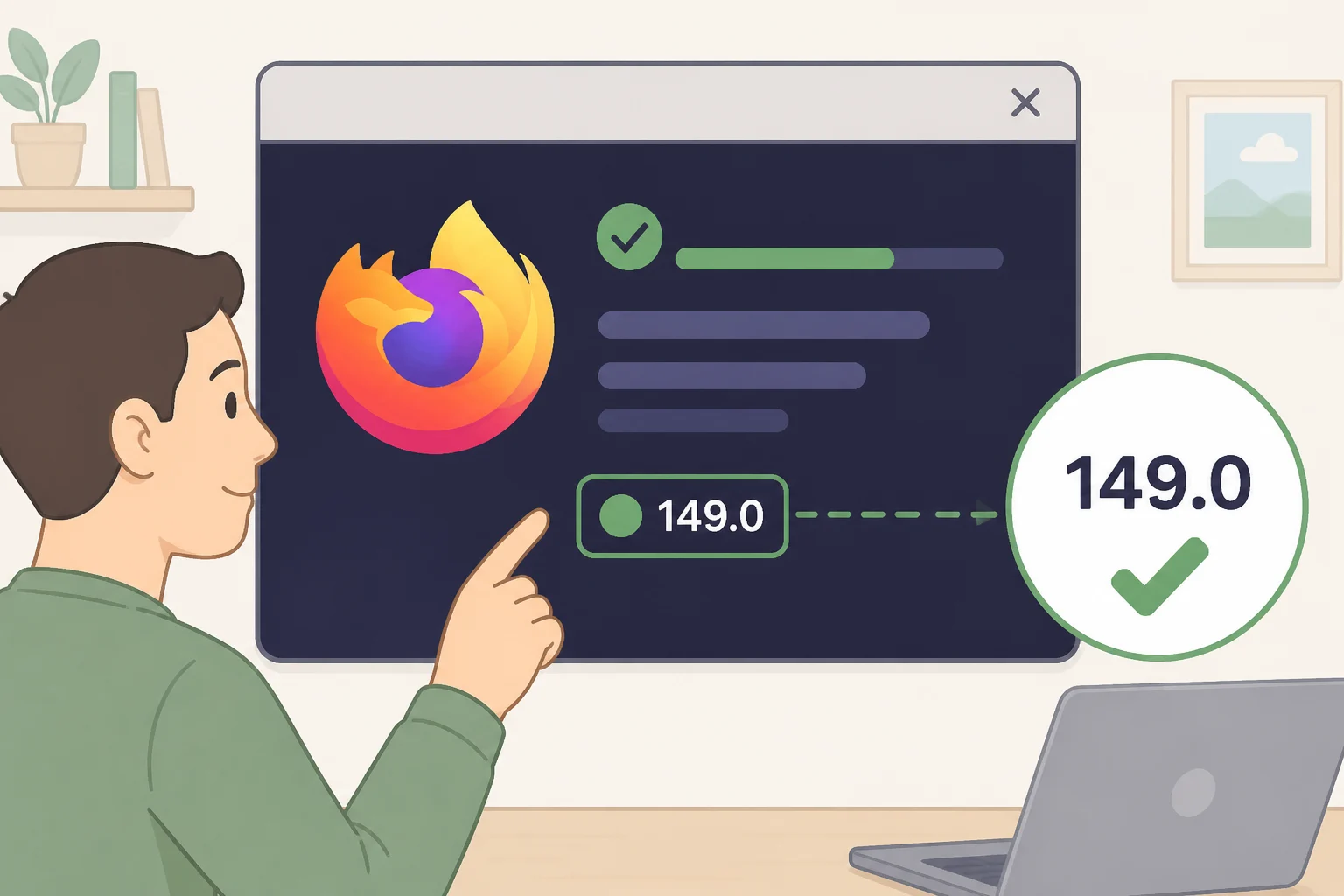
Update to Firefox 149 or later. The feature doesn't exist in earlier versions, so no amount of right-clicking will surface it (Mozilla Blog). To check your version, open the Firefox menu and select About Firefox on Windows or Linux, or find the Firefox menu in the top bar on a Mac. The version number sits at the top of that window, and Firefox will prompt an update if it's behind.
Have at least two tabs open before you start. Split view pairs tabs that already exist; it doesn't open a second page for you (Mozilla Blog).
Know exactly what you're right-clicking. The split view commands live on the tab itself, not on a bookmark, a link, or the page content. That distinction trips people up more than you'd expect, especially near the Bookmarks Toolbar, which sits directly under the tab bar and can look similar at a glance (more on that below).
If you use vertical tabs instead of the horizontal bar, right-click the tab entry in the sidebar rather than a row at the top. One Firefox user who had recently switched to that layout said they'd simply stopped registering the sidebar list as tabs they could right-click. For that user, the problem was recognizing the sidebar entries as tabs at all, not a missing feature (Mozilla Support Forum).
Video of the Day
How to view two pages side by side in Firefox
Split view supports two starting points. Begin from a single tab and add a second, or select two tabs you already know you want to compare.
Method 1: start from one tab
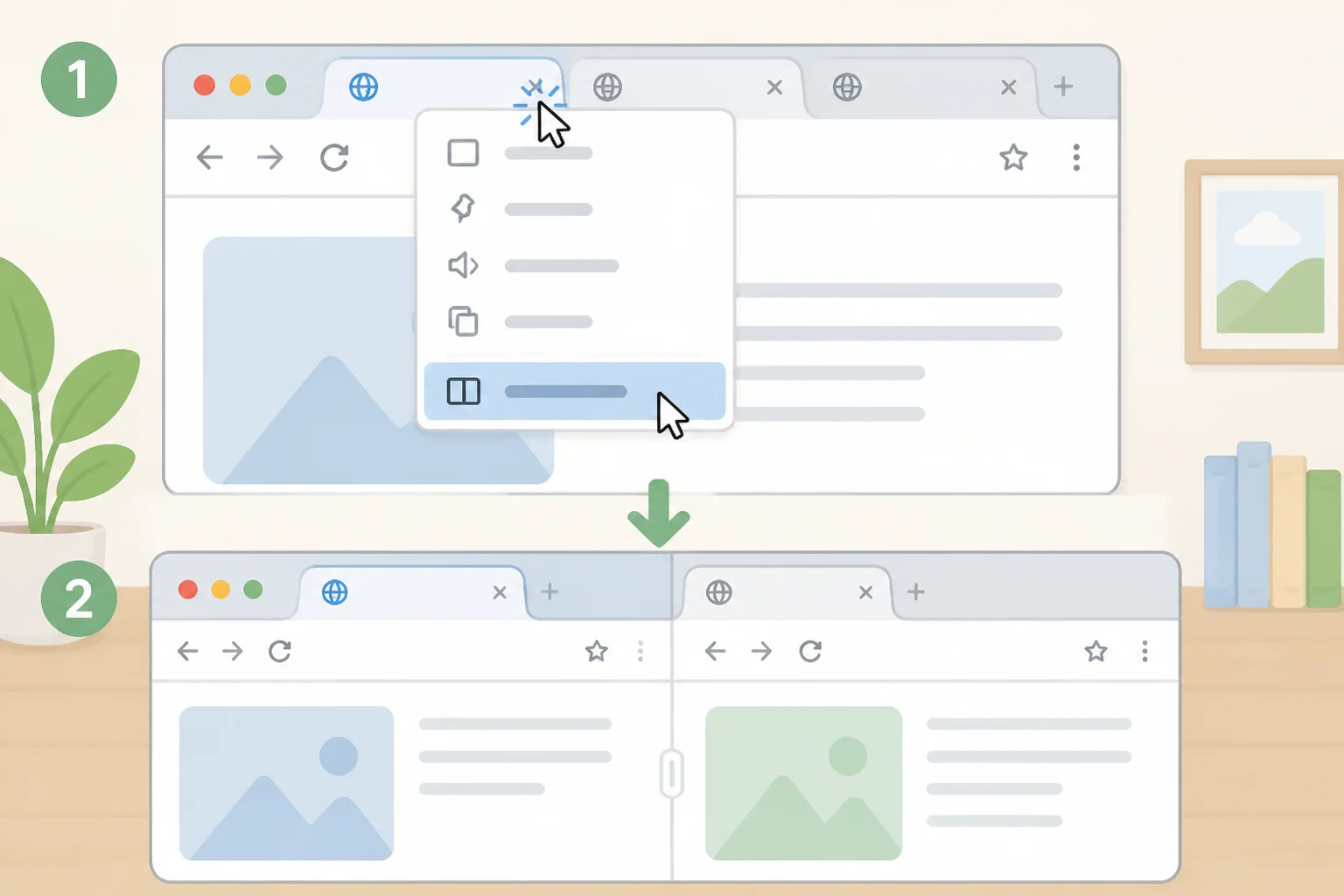
- Open the tab you want on one side of the split.
- Right-click that tab.
- Select Add Split View. Your selected tab opens on the left, and the right side of the window shows a list of your other open tabs (Mozilla Support Forum).
- Choose a tab from that list to fill the right side and complete the split.
Method 2: start from two tabs
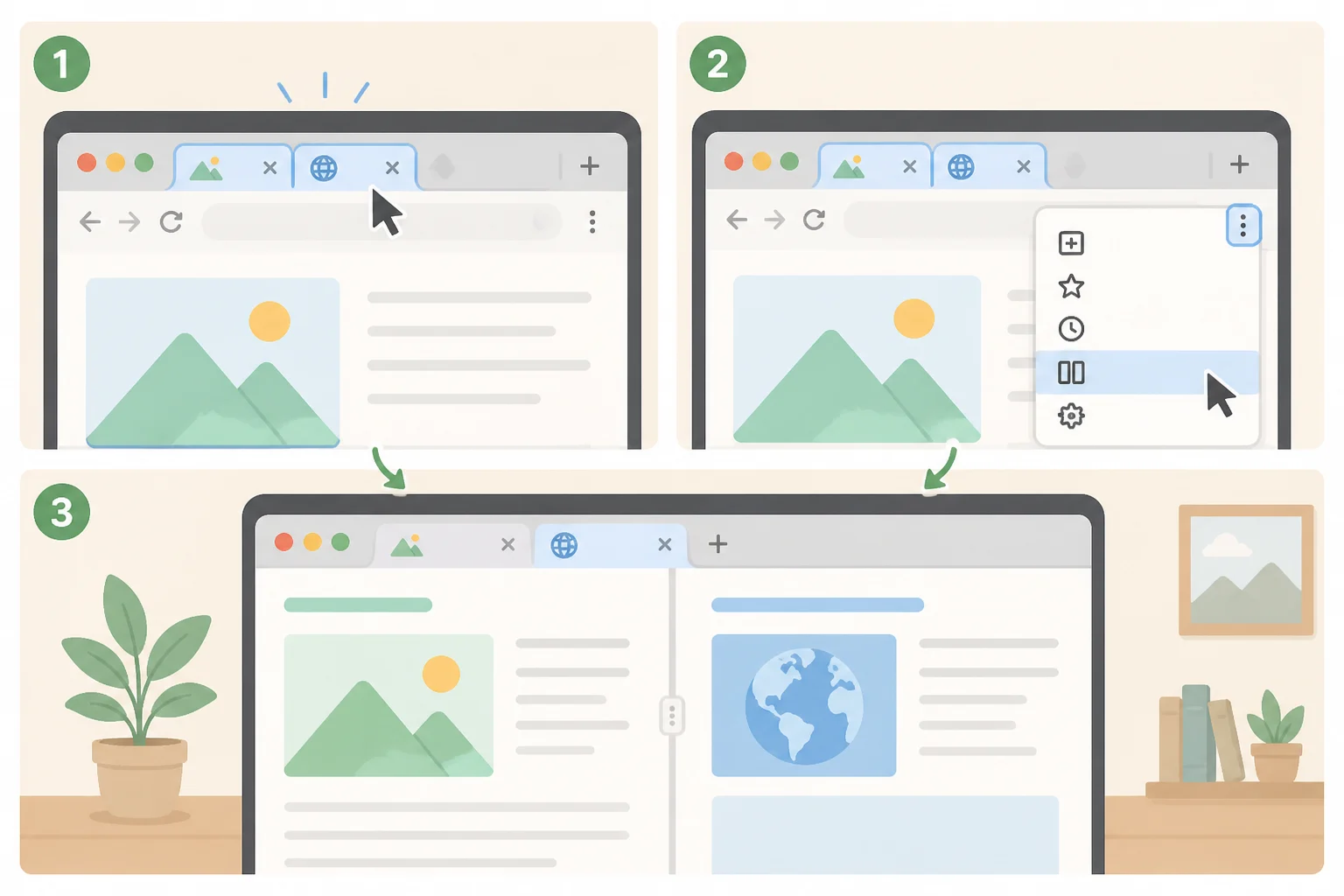
- Select the two tabs you want to compare in the tab bar.
- Right-click either selected tab.
- Choose Open in Split View. Mozilla describes this as building a split view "from two selected tabs in the tab bar" (Mozilla Support Forum).
Pick whichever matches how you're already working. Starting from one tab makes sense mid-task, when you realize partway through that a comparison would help. Selecting two tabs up front works better when you already know exactly what you're putting side by side.
Close a split view
Closing a split view follows the same logic as opening one. Right-click inside the split and look for the command that mirrors the one you used to create it. Mozilla's support documentation (support.mozilla.org/en-US/kb/split-view-firefox), linked directly from its own user forums (Mozilla Support Forum), walks through this step if the option isn't where you expect it to be.
For now, the right-click menu is the dependable way to both start and stop a split view. Nothing in Mozilla's current documentation points to a faster alternative, so there's no hidden shortcut worth hunting for in the preferences menu just yet.
If "Add Split View" doesn't appear
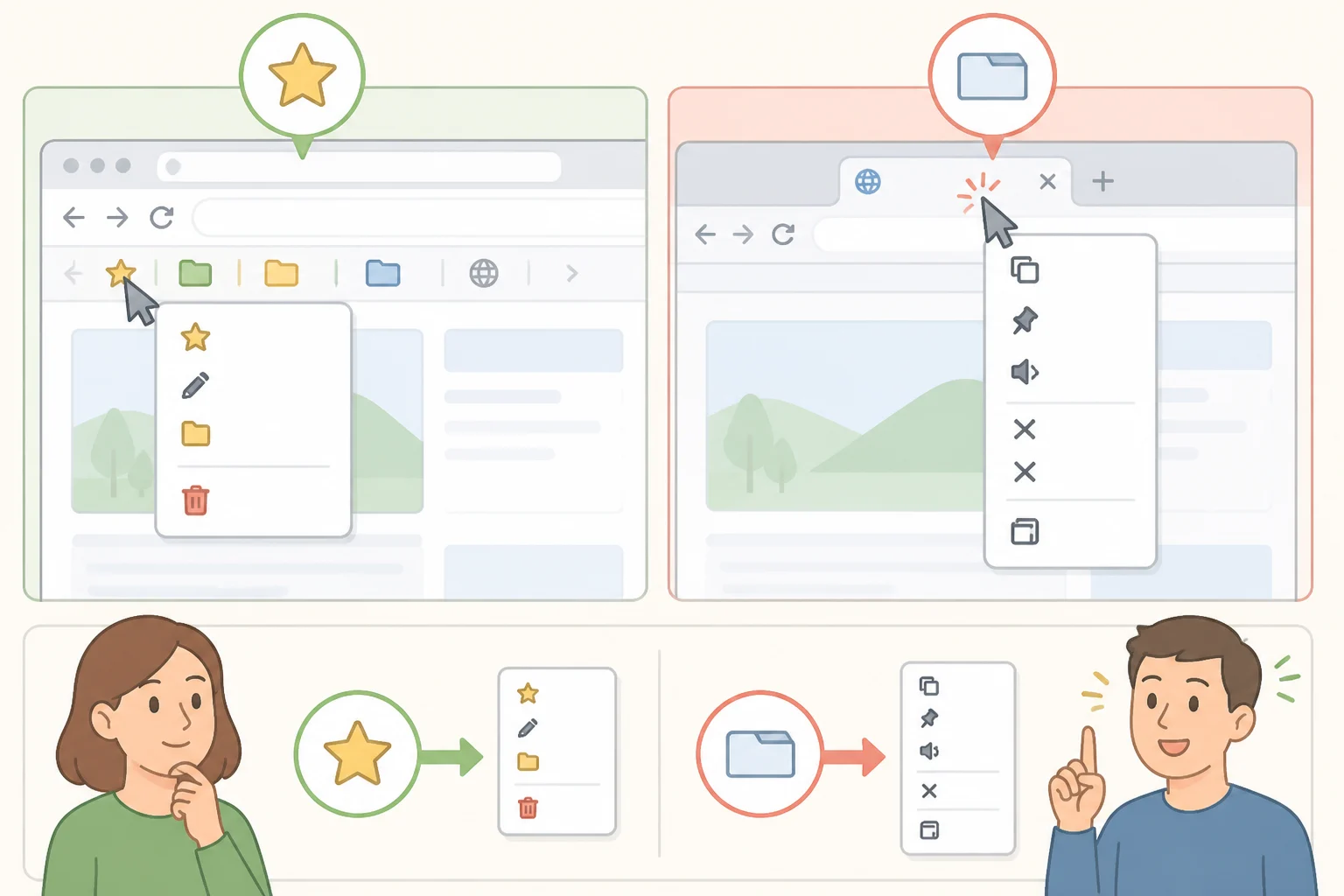
One Firefox 149 user on Windows 11, who had just updated to that version, right-clicked a tab exactly as instructed and found no Add Split View option anywhere in the menu (Mozilla Support Forum). The fix was simple: that user had been right-clicking a bookmark on the Bookmarks Toolbar, not a tab (Mozilla Support Forum). Bookmarks and tabs sit close together on screen but open entirely different context menus, and only one of them has split view in it.
The same thread surfaced a second habit worth checking. After switching to Firefox's vertical tabs layout, the original poster admitted they'd stopped seeing the sidebar entries as tabs at all, so they'd right-clicked past the option without realizing it was there (Mozilla Support Forum). That's one documented account, not proof of a wider pattern, but it's worth ruling out first: confirm the cursor is actually landing on a tab, wherever your layout happens to keep them.
For extension users
Mozilla has been building split view support into its extension platform in stages rather than all at once. Firefox 149 introduced a read-only splitViewId property that lets extensions recognize which tabs are paired together (Mozilla Add-ons Blog). Firefox 150 went further, letting extensions swap which tab sits in which half of an existing split view, while treating the pair as a single unit the same way the browser itself does (Mozilla Add-ons Blog). Firefox 151 then added the ability for extensions to move a split view into a tab group (Mozilla Add-ons Blog).
If a tab-management extension behaves differently after a Firefox update, check whether its developer has added support for these split view APIs before assuming something's broken. The feature is young enough that extension compatibility is still catching up release by release, so a quick look at a tool's changelog can save some troubleshooting.
What's next for split view in Firefox
Split view is one piece of a broader redesign Mozilla has been rolling out under the internal name Project Nova, aimed at making Firefox feel "cleaner, warmer, faster and more adaptable" (Mozilla Blog). That effort groups split view with tab groups and vertical tabs as tools meant to sit "at your fingertips, but not in your face" (Mozilla Blog), and it's also brought back compact mode and added new theme and wallpaper options (Mozilla Blog).
Mozilla has also tied the redesign to performance, reporting a 9% improvement in load times for key page content over the past year, partly a result of tracker blocking (Mozilla Blog). None of that changes how split view works today, but it's a sign the feature sits inside a wider push rather than a one-off addition, which is worth exploring once split view stops feeling new and starts feeling routine.