How to Turn a TV Into an Art Gallery Using Free Museum Art
Samsung's Frame TV convinced a lot of people that a television could double as wall art. What it didn't convince most of them to notice is that the art itself, the actual museum paintings, has been sitting online for free for years. Samsung's real product is a subscription to its Art Store catalog and a screen engineered to look like a print. Figuring out how to turn a TV into an art gallery for free means skipping one or both of those things, depending on what you already own.
The Cleveland Museum of Art alone has released high-resolution image files for more than 37,000 works, with metadata covering over 64,000 records, all under a CC0 public-domain dedication (Cleveland Museum of Art, 2024). A survey of ten major museum and archive programs found that nine release at least some collection images this way, free to copy, edit, and reuse without permission (UmberLore, three weeks ago). What free files can't replicate is hardware: the Frame's matte coating and ambient sensors are physical features, not something a download fixes (FrameSaver, earlier this year).
This guide splits into two paths. Frame TV owners can use the steps below to stock Art Mode with real museum art and drop the Art Store subscription. Everyone else can build the same rotating gallery on whatever smart TV, or older TV, is already on the wall. Steps specific to Samsung hardware are flagged as such; the rest are general-purpose and worth confirming against your own TV's manual.
Find art you're actually allowed to use
Video of the Day
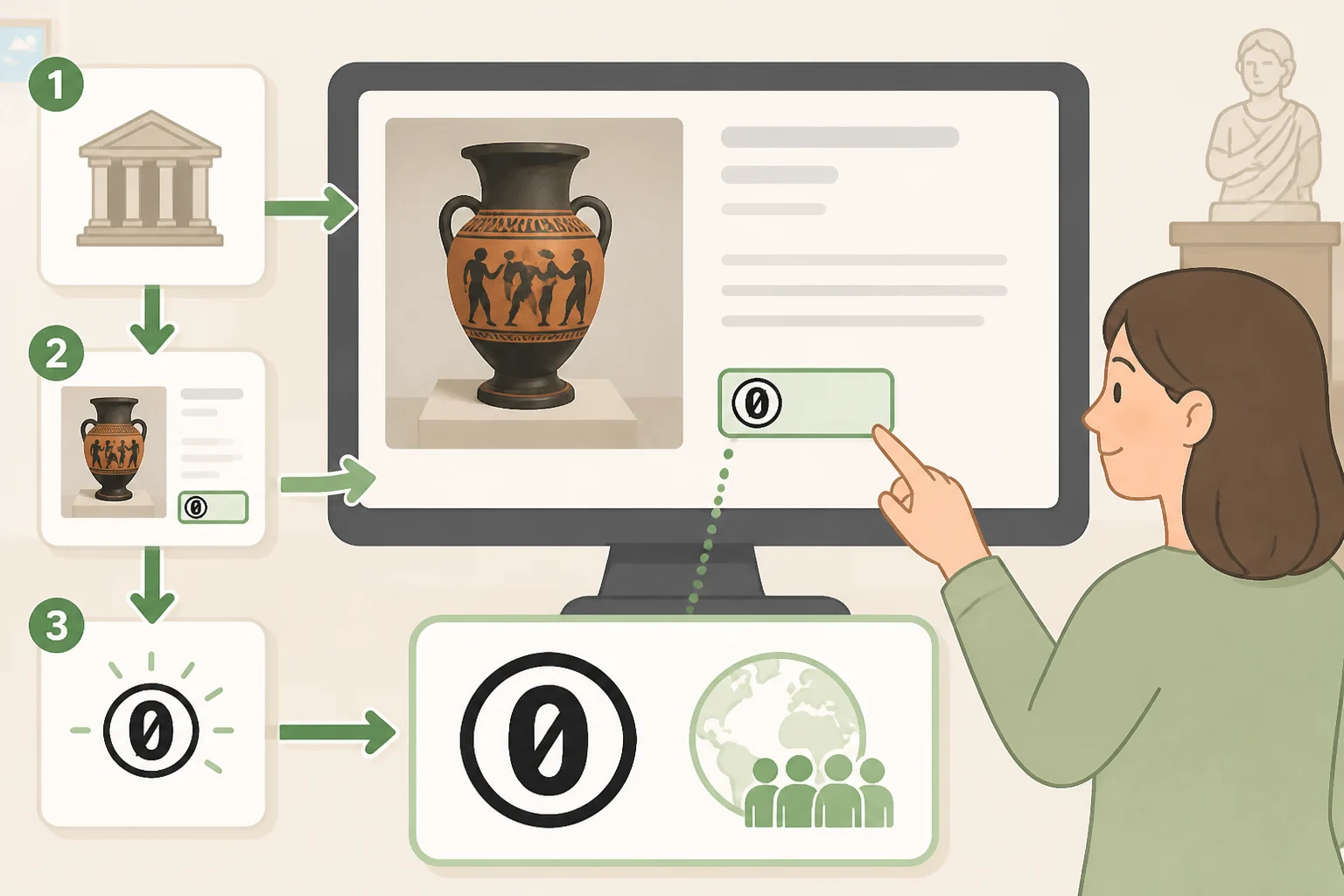
A museum announcing an open-access program doesn't mean every image in its collection is free to use. Works by living artists, or artists who died too recently for copyright to have expired, are typically excluded even from otherwise open collections (UmberLore, three weeks ago). Check the rights label on the individual object page, not the general policy statement on the museum's homepage.
The label to look for is CC0, a full public-domain dedication. It means no permission and no credit are legally required, even if you crop, recolor, or otherwise edit the image, or use it commercially (UmberLore, three weeks ago).
Not every open collection works this way. The British Museum licenses its images under CC BY-NC-SA 4.0, which requires attribution, rules out commercial use, and forces any edited version to carry the same license forward (UmberLore, three weeks ago).
One more wrinkle worth knowing: a faithful photographic scan of a public-domain painting generally doesn't create a new copyright of its own, since there's little original creative choice in a straight reproduction. Copyright rules are also territorial, so treat an institution's own rights statement as the final word rather than assuming clearance in one country applies everywhere (Creative Commons, 2025).
Step 1: Open the Cleveland Museum of Art's open-access collection, which has published CC0 files and metadata since its initiative launched in 2019 (Cleveland Museum of Art, 2023), and search for a few pieces worth downloading.
Video of the Day
Prepare the files for a TV screen
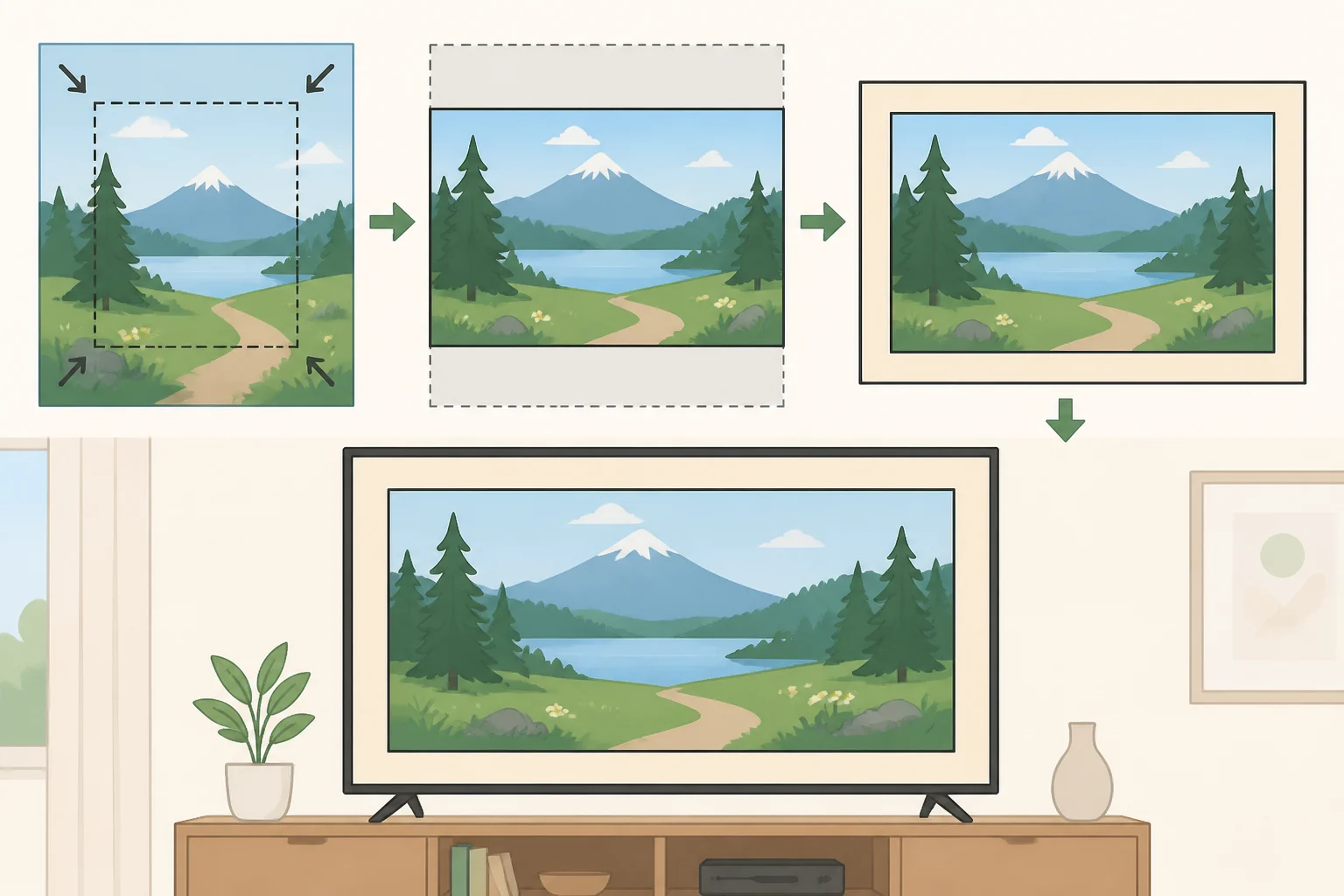
Download the largest file size offered. The CMA's open-access dataset links to web, print, and full, uncompressed versions of each cleared work. Grab the biggest one your storage can handle (Cleveland Museum of Art, 2024).
On Samsung TVs specifically, match the shape of the screen as well as the resolution. Files sized close to the panel's 4K, 16:9 ratio crop less aggressively once loaded into a slideshow (FrameSaver, earlier this year). Most paintings are portrait-oriented, so plan to add a neutral border around the image rather than let the slideshow crop the subject out.
None of this costs money, exactly. The CC0 art is free, and skipping the Art Store subscription is free. What you might still pay for, depending on which display method below fits your setup, is a USB drive, an HDMI cable or adapter, or the electricity to keep a second device running.
A simple naming habit, artist, title, year, keeps files sorting in order once they land on a USB drive or in an upload folder.
How to display museum art on your TV
Which method works depends entirely on what's already plugged into the wall. Pick the one that matches the screen:
- Own a Samsung Frame TV? Use Art Mode's upload feature.
- Own a different smart TV with a USB port? Try a USB slideshow first; it's the simplest thing to test.
- Have an older or non-smart TV, or want something screen-agnostic? Connect a laptop or tablet over HDMI.
- Want a curated feed on top of your own art, not instead of it? A browser-based option exists for Frame TVs and other browser-capable smart TVs, covered below.
Step 3a: Frame TV owners, use Art Mode's upload feature
Upload the downloaded images through the SmartThings app's Art Mode controls. They join the rotation alongside the TV's small built-in free art set, no Art Store subscription needed (FrameSaver, earlier this year).
One distinction matters here. Art Mode's default standby shows a single static piece. To get an actual rotation of your own images, open Art Mode settings, enable the slideshow option, and choose how often it changes (FrameSaver, earlier this year).
This path also keeps the Frame's low-power behavior intact. Its motion sensor dims or shuts off the panel when the room sits empty, the same as it does for paid Art Store content (FrameSaver, earlier this year).
Step 3b: TVs with a USB port, try an offline slideshow
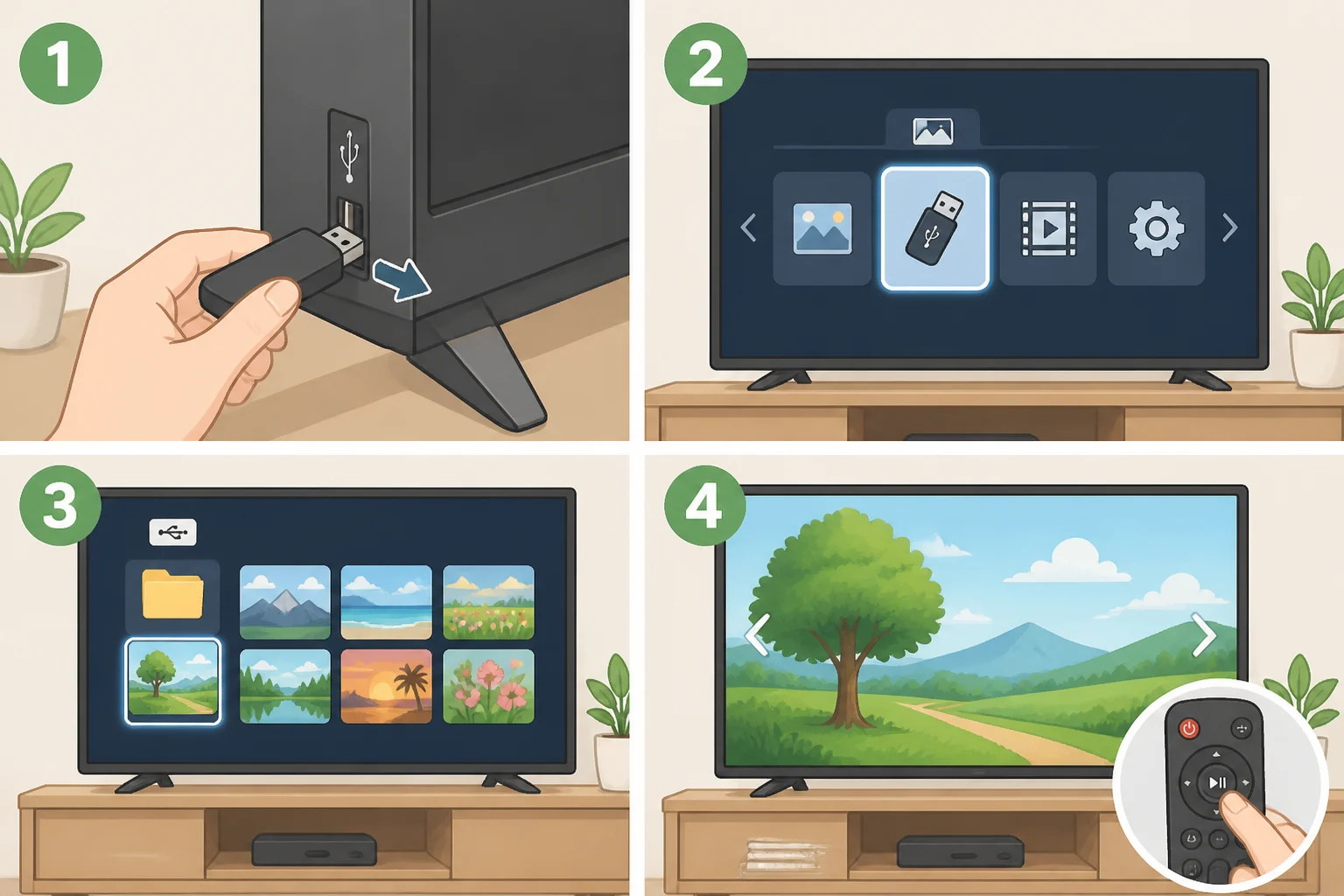
Copy the files to a USB drive, plug it in, and open it from the TV's source or media menu. Most Samsung TVs include a built-in slideshow or photo playback option here, fully offline, no account or internet required (FrameSaver, earlier this year).
Other brands often have some version of this feature too, but menu names, supported file formats, and slideshow timing vary by manufacturer and firmware. Check your TV's manual before assuming it behaves the way a Samsung set does (FrameSaver, earlier this year).
The trade-off is manual upkeep. There's no automatic refresh, so updating the gallery means pulling the drive, adding files on a computer, and plugging it back in.
Step 3c: A DIY art TV without a Frame TV, connect over HDMI
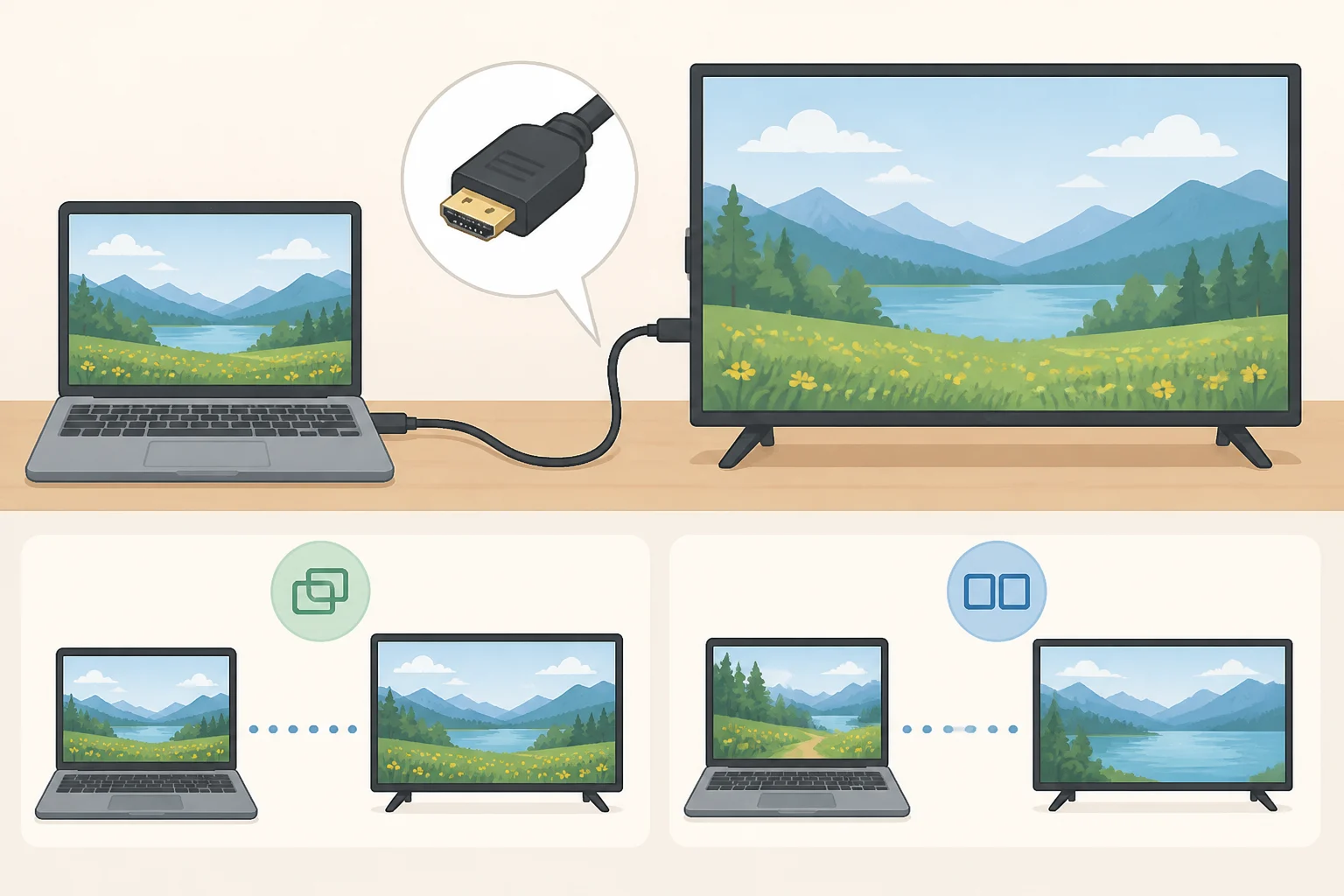
A laptop or tablet with an HDMI output, or a compatible adapter, turns almost any screen with an HDMI input into a slideshow display, independent of the TV's own smart features or brand. Run a local slideshow application or a full-screen browser gallery of the downloaded files.
This is the option worth recommending for an older TV, a non-smart TV, or any display whose manufacturer-specific photo features aren't documented anywhere obvious. The trade-off is that it ties up a second device, which has to stay powered on and connected for the slideshow to keep running.
Optional: a curated feed, not your downloaded art
Separate from everything above, opening a site such as framesaver.app in a Frame TV's built-in browser and signing in with a one-time QR code or emailed code loads a different, pre-curated library of open-access and Creative Commons photography, not the museum paintings downloaded in step one (FrameSaver, earlier this year). It's a reasonable add-on if the goal is more variety, but it runs in the browser, which means the TV stays in its normal "on" state and draws roughly the same power as active viewing, not the low-power idle state Art Mode uses (FrameSaver, earlier this year).
Here's how the four approaches compare:
| Method | Works on | Uses your own downloaded art? | Rotates automatically? | Needs account or internet? | Power draw |
|---|---|---|---|---|---|
| Art Mode upload | Samsung Frame TV | Yes | Yes, once slideshow is enabled | SmartThings app, one-time | Low, sensor-dimmed standby |
| USB slideshow | Most Samsung TVs with USB; other brands vary | Yes | Depends on model | No | Varies by device |
| HDMI from laptop or tablet | Any screen with HDMI, via a connected device | Yes | Yes, software-dependent | Device-dependent | Same as the connected device |
| Browser curated feed | Frame TV browser; other browsers untested | No, separate library | Yes | Yes, ongoing | Normal "on" power |
(Figures drawn from FrameSaver's screensaver guide and Art Mode explainer.)
What a Frame TV still does that a workaround can't
Free content only gets a non-Frame setup so far. Some of what makes the Frame TV look like a print on the wall is hardware, and hardware doesn't download.
The Frame's matte, anti-reflective screen coating is a big part of why its art reads like a print rather than a glossy, backlit panel. Most other Samsung TVs use glossy or semi-glossy finishes that reflect the room instead (FrameSaver, earlier this year).
Built-in motion and ambient-light sensors let Art Mode dim or power off automatically and adjust brightness and warmth to the room. None of the workaround methods above reproduce that sensor behavior; a USB slideshow or an HDMI-connected laptop just displays images at whatever brightness the screen is already set to (FrameSaver, earlier this year).
Digital mat borders, the on-screen passe-partout effect that simulates a framed print, are a free built-in feature of Art Mode specifically. They aren't a setting available on non-Frame screens (FrameSaver, earlier this year).
None of this changes the math for most people. The realistic goal here is skipping the Art Store subscription, and if relevant the TV purchase, not faking every piece of specialty hardware Samsung built into the Frame.
Building a gallery that keeps growing
A free rotating gallery is buildable today from CC0 sources like the Cleveland Museum of Art's archive of more than 37,000 open-access images (Cleveland Museum of Art, 2024), displayed through whichever method actually matches the screen on the wall: Frame TV Art Mode, a USB slideshow, or an HDMI-connected laptop.
The one habit worth keeping past this project is checking the license on each individual piece before reuse. An open-access policy doesn't clear an institution's entire collection, only the portion it has specifically cleared (UmberLore, three weeks ago).
The collection will keep expanding on its own. The Cleveland Museum of Art updates its open-access library every January as more works enter the public domain (Cleveland Museum of Art, 2023), so the free version of this hobby grows every year, no subscription required, regardless of which screen it ends up running on.