How to Stop Your Internet Provider From Tracking You
A stranger piggybacking on your home Wi-Fi and your internet provider watching your connection get lumped together constantly, though they're separate problems with separate fixes. Anyone searching for how to stop your internet provider from tracking you usually lands on advice about router settings, which solves the wrong problem. Router hardening keeps neighbors and intruders off your network; it does nothing about what your provider itself can see further upstream. This guide treats the two as what they are: distinct threats, handled with distinct tools.
Start with the local risk, since it has the clearest documentation. An unsecured Wi-Fi signal can be pulled out of the air by any nearby device, and once connected, that device might be able to see what someone does online, including personal information entered along the way (FTC). If someone uses that connection for something illegal, the activity could trace back to the account holder (FTC).
That's a threat from inside the house. What an ISP can observe sits on the other side of the router, and it's the question the rest of this guide answers: a correctly configured VPN, encrypted DNS, and a hardened router each close a different gap. No single step makes a household invisible. This is about shrinking the picture, not erasing it.
What your ISP can see, and what it can't
Video of the Day
An ISP sits at the point where a home network meets the broader internet. By the basic mechanics of how internet routing works, that position gives it the technical ability to observe connection metadata, which servers a device reaches and roughly when, even when the content of that traffic is encrypted. That's a description of network architecture, not a documented policy from any specific provider; no ISP-specific data on logging or retention practices was available for this piece, so treat it as a baseline capability tied to position on the network, not a claim about what any particular company actually records.
That's different from the Wi-Fi risk already covered above, which lives inside the home network rather than beyond it.
A third layer is worth naming, if only to mark its boundary. Individual sites and apps collect their own data independent of the network. Privacy Guides points out that even when users turn on the privacy options Google and Facebook offer, both companies still collect enough data to sustain billions in advertising profit each year (Privacy Guides, in a 2025 article). That's a real problem, but it lives at the account and browser level, not something a VPN or router setting touches.
Video of the Day
How to stop your internet provider from tracking you with a VPN
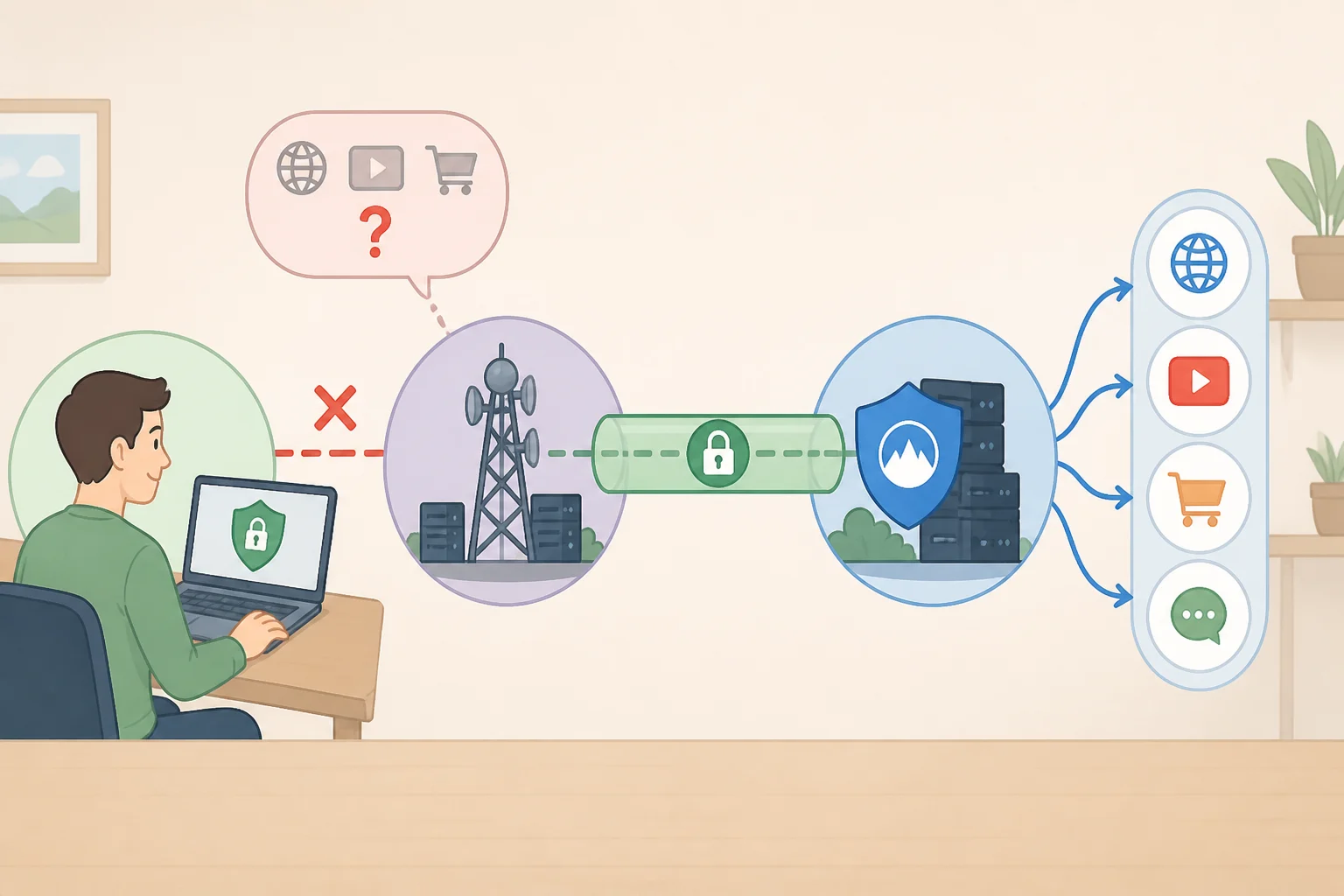
A VPN works by routing traffic through an encrypted tunnel to a server run by the VPN provider. That's the standard design of the technology in general, not a finding from a specific lab test or provider audit referenced here. On a connection like that, an ISP can typically still see that a device is talking to the VPN's server, but not which individual sites or services are reached once traffic is inside the tunnel, since concealing that is the whole point of the design. Visibility doesn't disappear. It moves: the ISP loses sight of destinations, and the VPN provider gains it.
A common misconception is that VPNs leave DNS lookups exposed by default. On a properly built, full-device VPN, DNS queries are generally designed to travel through the same tunnel as everything else, so there isn't an automatic separate leak. Leaks tend to happen with misconfigured setups, split tunneling left on by accident, or apps that mishandle DNS, which is exactly why checking for them is worth the few minutes it takes.
Getting a VPN running takes more than installing an app:
- Install the provider's official app on each device that needs protection, rather than relying on manual configuration, since the app typically handles DNS routing correctly out of the box.
- Turn on the kill switch in the app's settings, usually under a security or connection tab. A kill switch is meant to cut internet access if the VPN connection drops, so traffic doesn't quietly fall back to the unprotected network without notice.
- Check whether split tunneling is switched on. It can let specific apps or sites bypass the tunnel entirely, which is sometimes useful but works against the goal of hiding traffic from the ISP for anything on the exclusion list. Turn it off unless there's a specific reason to keep something outside the tunnel.
Picking a provider worth that trust means checking a few concrete things rather than reading marketing copy:
- A published, independently audited no-logs claim
- Transparent company ownership and a privacy policy written in plain language
- Built-in DNS-leak protection in the app, not something added later
- A kill switch included by default, not locked behind a paid tier
An audit evaluates a defined scope, specific apps, specific server configurations, a specific stretch of time, not a permanent guarantee that logging never happens afterward. Treat it as the strongest signal currently available, not a lifetime promise, but a provider that skips an audit entirely is a tougher sell than one that has been checked at all.
Encrypted DNS: another way to hide browsing activity from your ISP
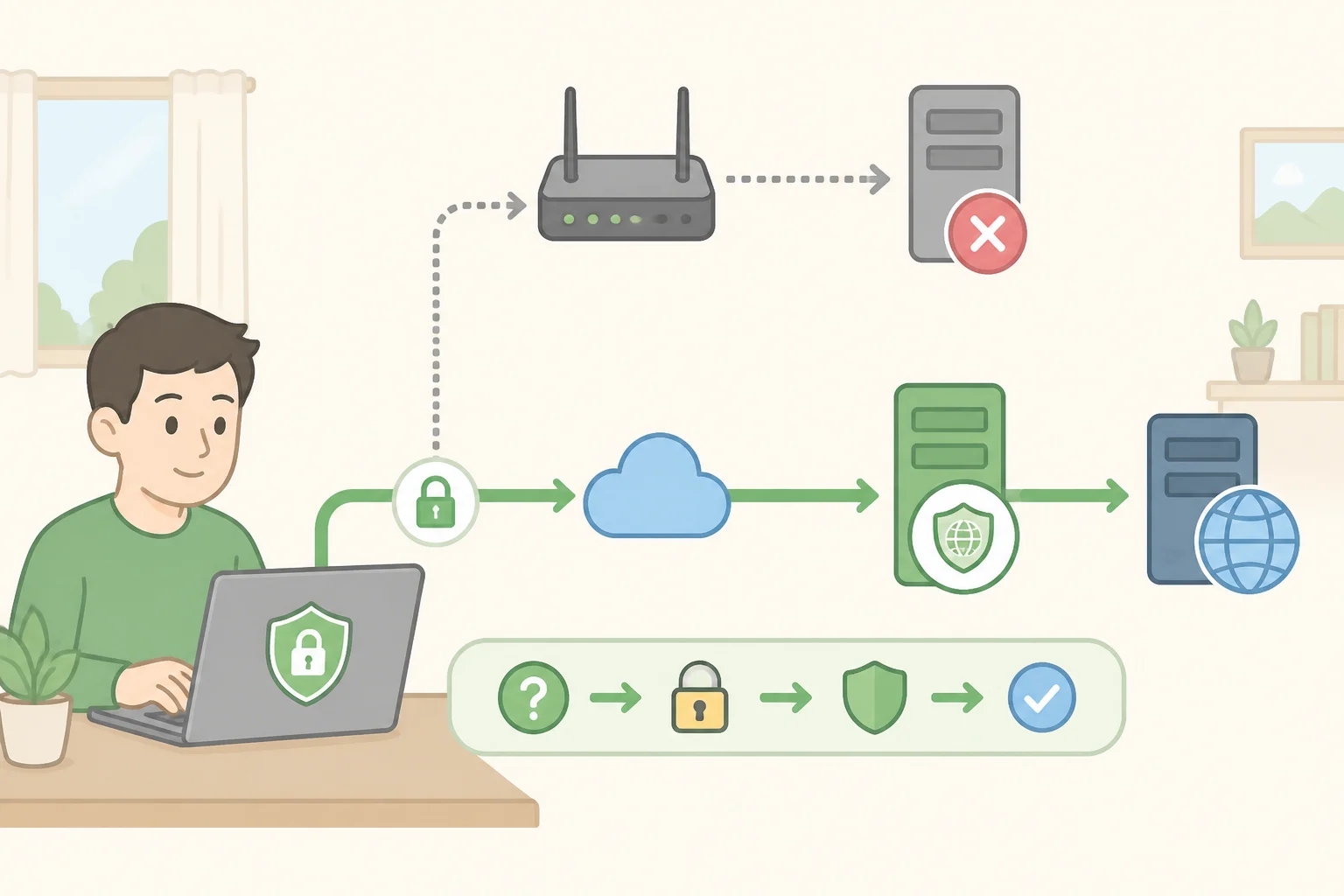
Most web connections begin with a DNS lookup that translates a domain name into an address a device can connect to. That's basic to how domain name resolution is built to work, not a specific technical audit cited here. When that query travels unencrypted, anything watching the traffic, including an ISP's own resolver on a connection with no VPN running, can potentially see which destinations a device is heading toward.
Turning on DNS-over-HTTPS or DNS-over-TLS is meant to encrypt those queries and send them to a resolver chosen by the user instead of whichever one the ISP assigned by default. The protocols are designed to shift visibility away from the ISP's resolver toward whichever provider now handles the lookups. That's a meaningful improvement over doing nothing, not anonymity, since the new resolver can still see the lookups even if the ISP can't.
Where to find the setting varies by device and shifts as software updates roll out, so the safest move is to check the current privacy or network settings on a browser, operating system, or router directly, or search the maker's support documentation for "encrypted DNS" or "DNS over HTTPS" by name. Not every router supports setting this for the whole network; it depends on the model and the firmware installed.
When a VPN is active and routing DNS through its own tunnel as intended, these settings mostly sit unused in the background. They matter most in the gaps: moments the VPN is off, or set at the router level so every device on the network gets the same protection by default, including ones that can't run a VPN app at all.
Securing your home Wi-Fi network
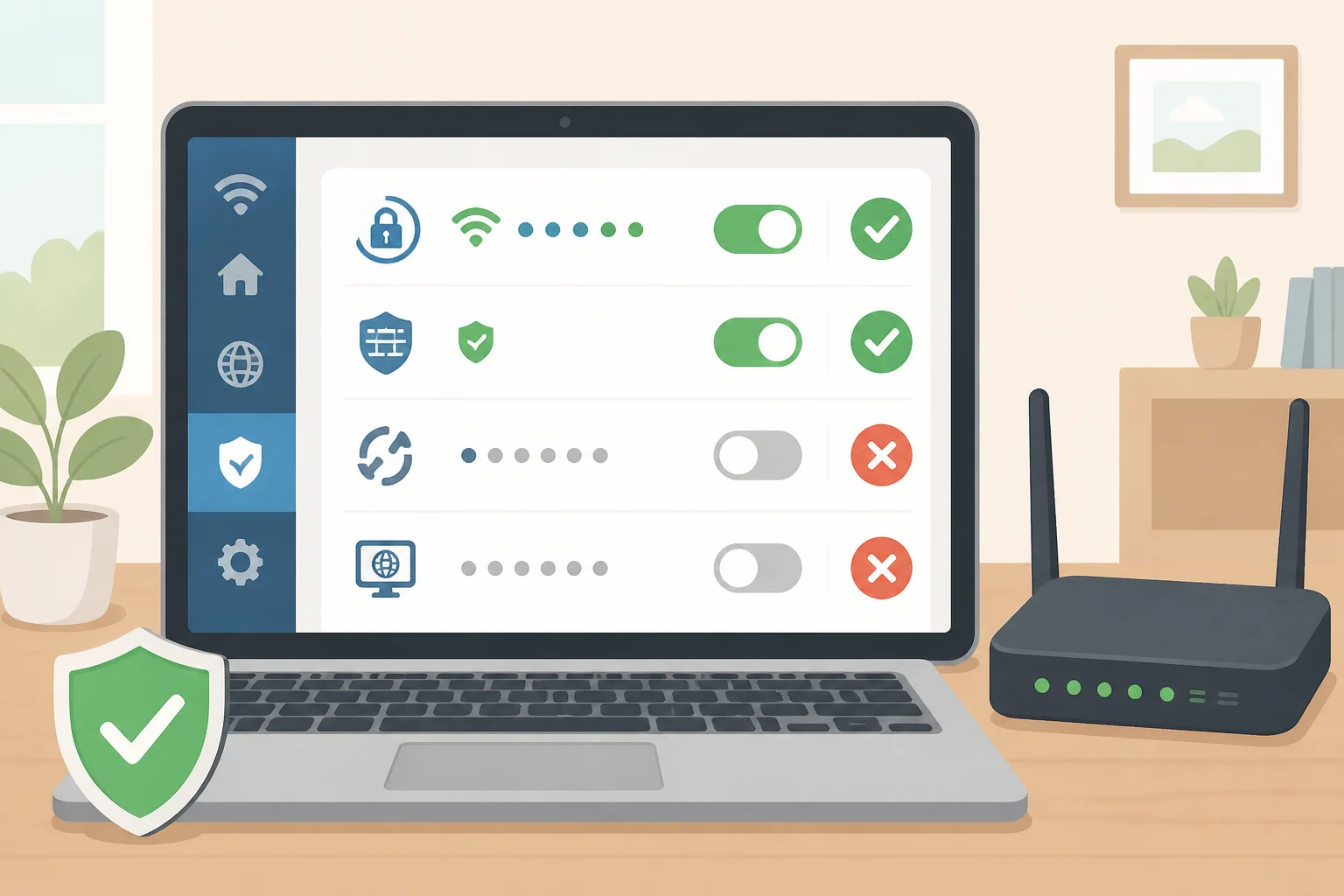
None of the above touches the local network, which is a separate job with its own checklist.
Encrypt the network with WPA3 Personal, or WPA2 Personal if the router doesn't support WPA3. Older WPA and WEP encryption are outdated and no longer secure (FTC).
Reset both passwords that live on the router. A unique Wi-Fi network password keeps strangers from connecting at all; a unique router admin password keeps an intruder from logging into the administrative side and resetting that Wi-Fi password, which would undo every other precaution on this list (FTC).
Check that the router's built-in firewall is switched on, since most routers ship with one but it isn't automatically confirmed in the settings, and log out of the admin interface after making changes so the controls aren't left exposed to anyone who gains access to that session (FTC).
Turn off remote management, WPS, and UPnP, features that can trade convenience for weaker security. Keep router firmware current, checking with the manufacturer directly or, for an ISP-supplied router, confirming whether updates arrive automatically. Set up a guest network so visitors never get the primary password (FTC).
These steps reduce the risk of local snooping, piggybacking, and an intruder seizing control of the router. They don't touch what the ISP can see upstream; that's the VPN and DNS sections' job.
Putting the pieces in order
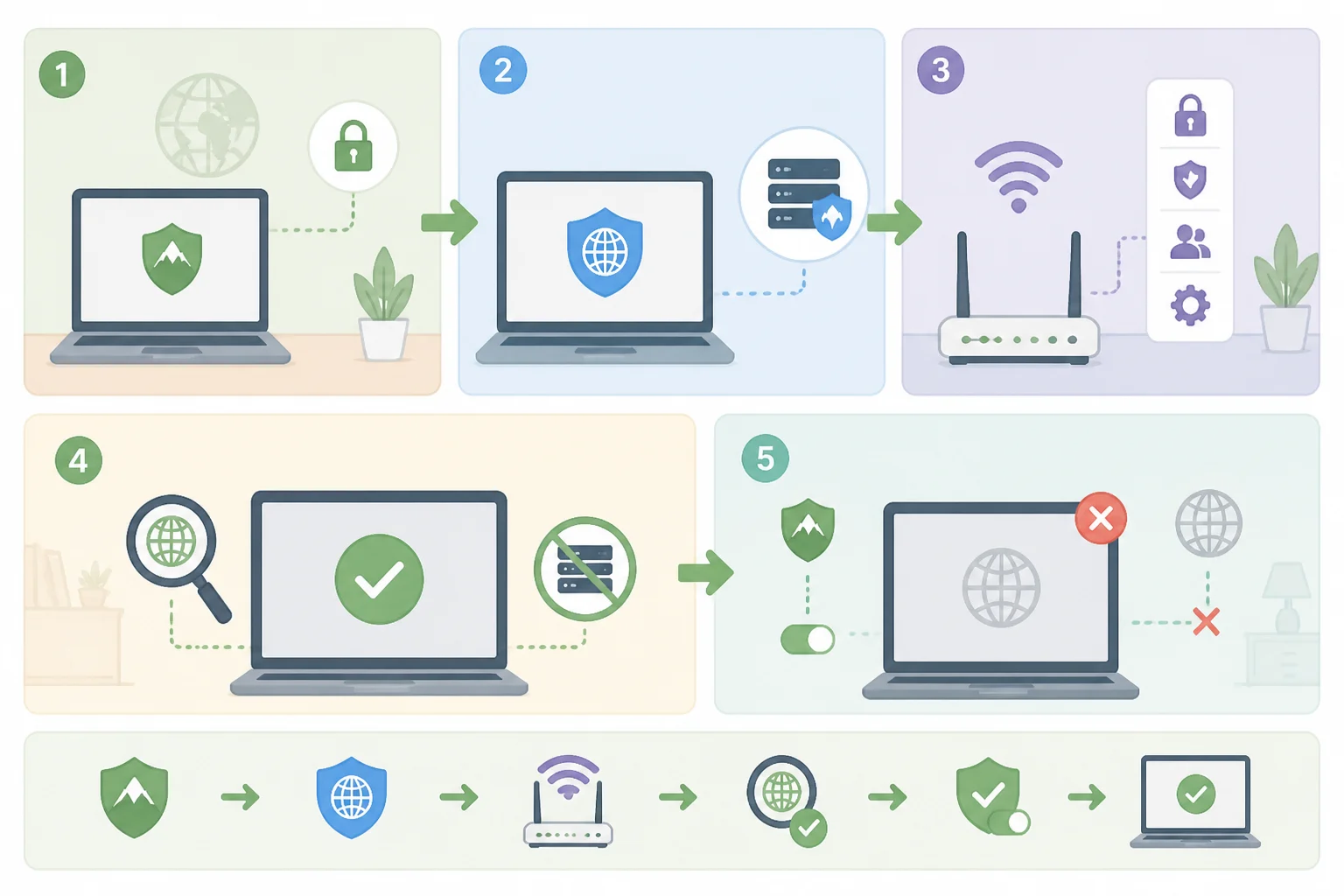
For a household specifically trying to limit what an ISP can see, the order matters:
- Install and configure the VPN first. It's the step intended to prevent the ISP from seeing individual destinations.
- Decide between a device-level or router-level VPN. A device app is simpler to set up and check one at a time. A router-level VPN is designed to protect everything on the network automatically, including smart-home gadgets that can't run an app, but it depends on the router having enough processing power and the provider supporting router-based configurations.
- Turn on encrypted DNS as a backstop, at the browser, OS, or router level, so lookups stay covered the moments the VPN isn't running.
- Verify the setup with an independent DNS-leak test.
- Harden the Wi-Fi network using the steps above. Skipping it leaves the local network exposed no matter how well the VPN is configured.
A few checks are worth doing before trusting any of this day to day. Look for the app to show "connected" before opening anything sensitive, rather than assuming it's running quietly in the background. Disconnect the VPN deliberately for a moment and confirm the app actually blocks internet access until it reconnects; that confirms the kill switch works, not just that the setting exists.
Open the split tunneling menu, if the app has one, and confirm nothing important is set to bypass the tunnel unless that was a deliberate choice. For devices that can't run a VPN app at all, a smart speaker or a streaming box, check whether a router-level VPN covers them, or treat them as outside the protection and plan around that. A phone on cellular data or a laptop on public Wi-Fi away from home sits outside anything configured on the home router; the device-level VPN app is what covers those situations, not the router setup.
That DNS-leak verification deserves a caveat. A resolver that doesn't carry the VPN's brand name isn't automatic proof of a leak. Some VPNs intentionally route DNS through a separate resolver they operate or contract with, and reputable ones document that arrangement in their support pages. Compare whatever the test shows against that documentation before concluding anything is wrong; a resolver that traces back to the ISP is a warning worth investigating, not conclusive proof on its own, since the result also depends on the test's methodology.
Even with everything configured correctly, a few things are generally designed to stay visible to the ISP, by the basic shape of how VPN connections work rather than any gap in the setup: the account holder's identity, the fact that a connection to a VPN server exists, and roughly when that connection is active. A VPN is designed to conceal destinations and traffic contents from the ISP, within the limits of correct configuration, the protocol's own behavior, and whatever encryption the destination site already applies. It isn't designed to hide that a connection is happening at all.
Keeping it working
A VPN only helps on devices where it's actually installed and running. Check that the app is set to auto-connect on startup across every device meant to be covered, including the ones used least often, so a dropped connection or a restart doesn't quietly leave something exposed.
After an app, browser, router, or operating-system update, recheck the VPN and DNS settings in case anything changed. Running the leak test again afterward takes a few minutes and catches a setting that reverted without anyone noticing.
Policy note: VPNs and a site-blocking bill
A site-blocking bill the EFF reported on this week would let a copyright holder seek court orders requiring internet providers, DNS providers, and, what the EFF describes as "new and explicit" in this bill, VPN providers to take "commercially reasonable steps" to stop their U.S. users from reaching websites a court has designated for blocking (EFF, this week). Last year's site-blocking bill excluded companies that offer only VPN service or only encrypted DNS resolution; the bill in question, known as the ACPA, drops those exclusions (EFF, this week).
Which jurisdiction a VPN provider operates in, and how it has handled legal pressure before, is worth checking for anyone who treats a VPN as a permanent fixture rather than a setup to revisit occasionally.
Conclusion
Three problems, three fixes: a hardened Wi-Fi network closes off local snooping, a vetted VPN is built to keep destinations away from the ISP, and encrypted DNS covers the gaps where the VPN isn't running. None of it is permanent. Router firmware changes, VPN providers change hands, and the legal footing under proposals like the one above shifts over time.
Treat this less as a one-time setup and more as a checklist worth rerunning every few months, especially after switching VPN providers, getting a new router, or hearing about an app update. That's the realistic version of limiting what an ISP can see: not a single switch flipped once, but a setup that stays current because someone keeps checking it.