How to Try Linux Distros Online with DistroSea Before Installing
Choosing a Linux distribution used to mean committing 20 to 45 minutes to downloading an ISO, flashing a USB drive, and rebooting before you saw a single pixel of the desktop you were evaluating. DistroSea cuts that down to seconds. The free, browser-based service lets you try Linux distros online with DistroSea by streaming over 85 distributions as remote virtual machines directly to a browser tab. No ISO, no bootable media, no changes to your system. ZDNET reported today that the catalog spans 85 distributions, from Ubuntu and Fedora to niche picks like CachyOS, Bazzite, Chimera Linux, and AerynOS.
The right way to use it is as the first step in a three-stage process: browser trial to build a shortlist, live USB to validate hardware compatibility, local VM for persistent configuration work. DistroSea earns its place at the front because of speed and zero-friction access, not because it replaces the others. This guide covers how to launch a distro, what you can meaningfully evaluate in a session, and where DistroSea's limits are.
One hard requirement: DistroSea needs a stable broadband connection. You're interacting with a remote desktop over the network, and an unstable connection means disconnections with no way to resume. How-To Geek found that even a solid connection will produce some input lag. That's expected behavior. A shaky one makes the service unusable.
How to run a Linux distro in your browser with DistroSea
Video of the Day
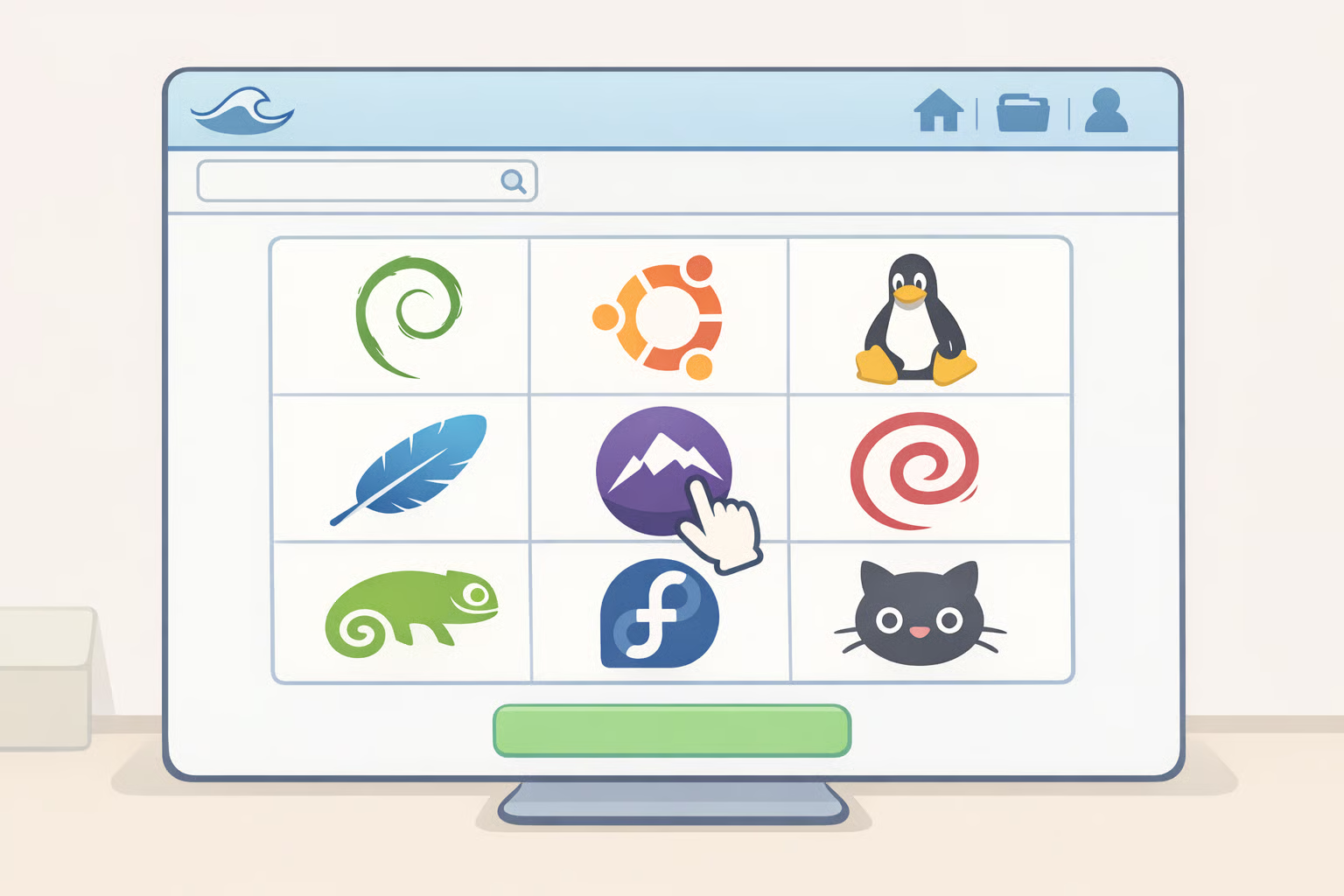
Step 1: Open distrosea.com. Go to distrosea.com. The site presents a list of available distributions. No account, no extension, no installation required. Find the distro you want to evaluate.
Step 2: Select your distro, then choose a version and desktop environment. Click a distro. Many offer a version dropdown; distributions that ship multiple desktops give you a desktop environment selector too. Linux Mint, for example, lets you pick between Cinnamon, MATE, and Xfce, with historical releases from version 20.2 through 22.3, plus LMDE editions 5 through 7, as a YouTube walkthrough shows. If you're comparing desktop environments rather than just distributions, make that selection here.
Step 3: Join the queue. After clicking your distro, DistroSea queues you for a virtual machine slot. ZDNET found the wait ranges from nearly instant to a few minutes depending on server load. Keep the tab open while you wait.
Step 4: Click "Continue" to boot. When your slot is ready, a prompt appears. Click Continue. The distro boots and drops you into a live desktop.
Step 5: Tune the display before you judge anything. A small handle sits on the left edge of the browser window. Click it to open the noVNC toolbar. Under Settings, adjust image quality, compression, and scaling mode. Switching from Remote to Local scaling typically sharpens the rendering noticeably. ZDNET noted these adjustments can meaningfully improve the experience. Spend 30 seconds here before forming any impressions about the distro's visual polish.
Step 6: Start testing, and keep the session alive.
Mouse and keyboard input go to the remote VM. You can open a terminal, browse files, launch apps, and install software. The default user account has no password set, so sudo runs without prompts. Critical gotcha: How-To Geek found the service disconnects inactive sessions after roughly two minutes with no warning. If a package is installing while you're reading something else, nudge the mouse periodically. There's no resume; the session ends and the VM resets clean.
Video of the Day
What you can actually evaluate, and what you cannot
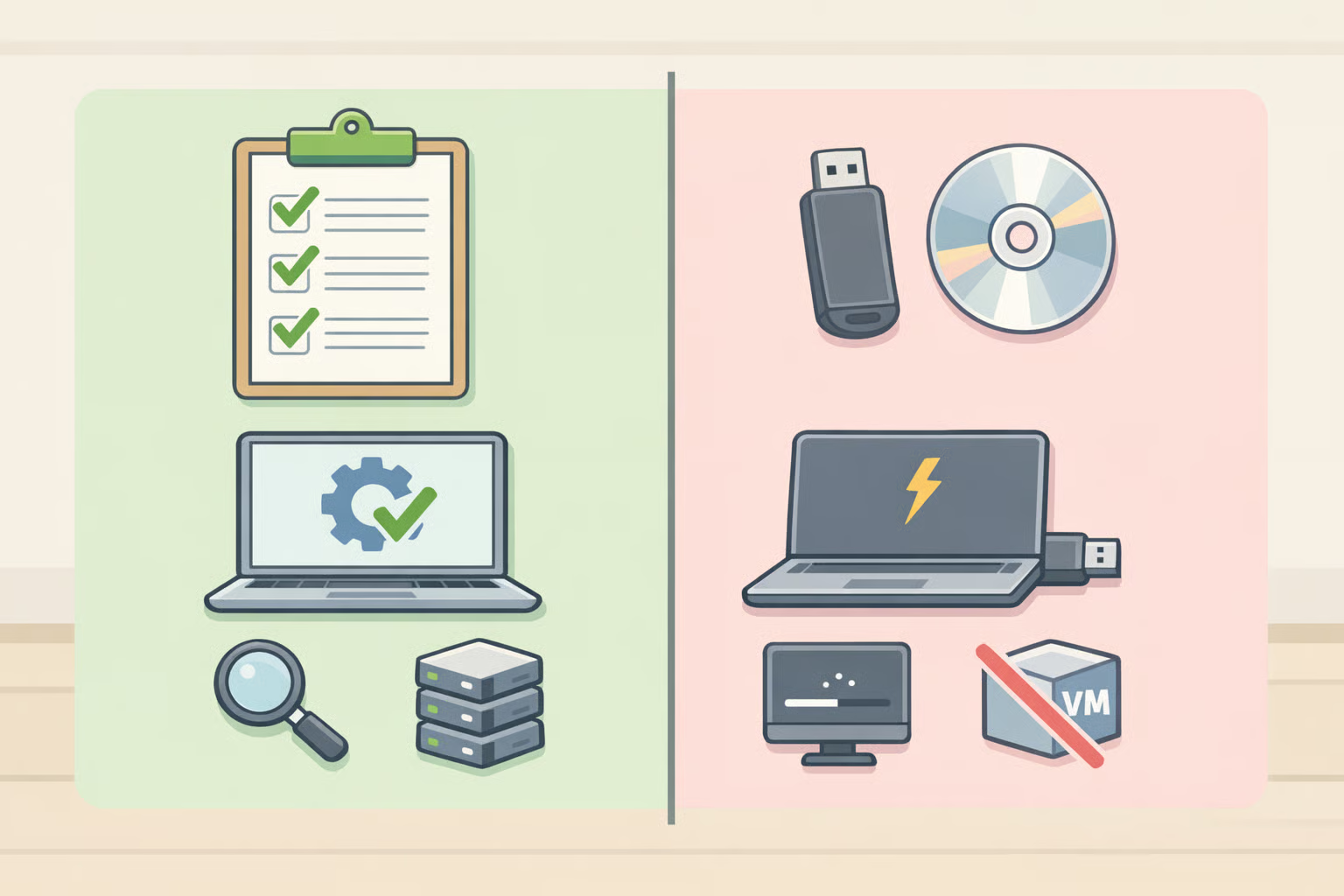
DistroSea gives you more than a screenshot tour. How-To Geek's hands-on testing confirmed that downloading and installing roughly 1GB of packages via the Ubuntu terminal, including VLC, Git, and GIMP, worked without issues, and the App Center functioned normally. A YouTube walkthrough showed LibreOffice Writer, Calc, and Impress running with no noticeable lag in Linux Mint, and basic file operations were smooth throughout.
That's enough to answer the fast questions: What does the desktop look like? What ships by default? Does the package manager behave the way you expect?
What DistroSea tests reliably:
- Desktop environment and UI feel. Layout, app launcher behavior, window management, default theme. This is the primary use case.
- Default application suite. What ships installed, how it's organized, whether the bundled tools match your workflow.
- Package management. Terminal-based installs, graphical software centers, and package availability all work. One clarification worth knowing: the Google account restriction applies only to in-browser web browsing from within the guest system, as the YouTube walkthrough clarified. Package installs via the terminal or software center don't require it. The restriction exists to prevent abuse of the service's outbound connections.
- Basic terminal and system navigation. Default shell, command-line behavior, filesystem layout.
What requires a live USB instead:
- Input responsiveness. Even on a good connection, mouse clicks and keyboard shortcuts show some delay, per How-To Geek. That lag belongs to the remote session, not the distro. Evaluating a desktop environment's snappiness here will give you a misleading read.
- Audio. Sound does not work in DistroSea sessions. How-To Geek and the YouTube walkthrough both confirmed this independently. If audio or media workflows are part of your evaluation criteria, DistroSea can't help.
- Your hardware. DistroSea runs distros against virtualized server hardware, not your GPU, Wi-Fi adapter, webcam, or touchpad. Hardware passthrough testing isn't possible, as IT'S FOSS noted. Driver compatibility, suspend behavior, and graphics acceleration all require a live USB on your actual machine.
- Installation reliability. ZDNET's testing today found that elementary OS stalled at drive selection during installation, and Bodhi Linux's virtual disk lacked enough space to install at all; both fell back to live mode. Don't use DistroSea to evaluate the installer.
- Anything requiring persistence. Every session starts clean. Installed apps, changed settings, created files; all of it disappears when the session ends.
A ten-minute first-session checklist: Open the app launcher and scan what's installed by default. Open a terminal and run a package install. Check the system settings panel for display, locale, and network options. Open the file manager and look at the default directory structure. That covers UI, package management, default tooling, and settings organization. Enough to decide whether a distro warrants the next step.
When to move on to a live USB
Use DistroSea to build a shortlist of two or three distributions. The catalog grew from 60+ distributions as recently as last summer per How-To Geek to 85 today per ZDNET, and it continues to add versions, so most distros you'd realistically consider are represented.
Once you have a shortlist, write an ISO with Balena Etcher, boot from it on your target machine, and check the things DistroSea cannot: Wi-Fi detection, audio, graphics performance, suspend and resume. Hardware compatibility either confirms or eliminates a candidate there. If you want persistent configuration testing before committing to a full install, a local VM with VirtualBox or VMware adds snapshot capability, but it requires an ISO download and local setup, which is exactly what DistroSea let you skip in the first round.
DistroSea is funded by community donations and run by a small team, as How-To Geek noted. It's not an enterprise-grade service with guaranteed uptime. For what it does, removing every barrier between a curious person and a running Linux desktop, it does it well. Start there, then commit the hardware time to whichever distros earned it.