Phone Privacy Settings to Turn Off: iPhone and Android Guide
By the end of this guide, you'll have made the highest-impact privacy changes available on any iPhone or Android device in under 30 minutes. If you're looking for the phone privacy settings to turn off first, start with notifications, not location. This guide covers what's universal, what's situational, and what belongs in a separate conversation about advanced security.
Most phone privacy advice starts with location and camera. Those matter, but they're not where most people's exposure actually begins. The more immediate leak is something almost no one reviews: push notifications.
Every alert your phone receives, whether a message preview, a news item, or a banking update, travels through Apple's or Google's infrastructure before it reaches your screen. Per Senator Wyden's letter to the Department of Justice, notification content may be visible to those companies in transit; at minimum, both collect metadata about which apps triggered alerts and when, as EFF reported earlier this year. Apple and Google now require a court order before sharing notification data with law enforcement, which suggests how much those records are worth to investigators. EFF reports that Apple still shares data on hundreds of users even with that requirement in place.
Then there's what happens after an alert lands. Dismissed notifications aren't gone. Content is written to internal device storage, where forensic extraction tools can recover it, including messages from apps like Signal, as EFF reported citing a 404 Media investigation. This pattern, defaults optimized for convenience rather than privacy, extends beyond notifications. A 2025 study of more than 6,000 popular Android apps found widespread gaps between stated privacy practices and actual app behavior, most often because developers left third-party SDK settings at their most data-permissive defaults rather than choosing more restrictive alternatives (NSF Public Access Repository, 2025). The defaults are not on your side.
What this guide covers: Practical triage, not a thorough privacy manual. The settings below are organized by priority:
- Do these for everyone, immediately: Lock-screen notification previews, per-app notification pruning, ad tracking identifiers, app permissions
- Check these if they apply to you: AI notification summaries (especially WhatsApp users), backup encryption
- Foundational, but often overlooked: Device passcode strength and remote wipe
Steps are provided for both iPhone and Android. Most changes take under two minutes.
Prerequisites: You need your phone's Settings app. Some Android steps require Android 15 or 16; if your device runs an older version, certain options may not appear. If you're on iPhone and haven't updated to iOS 18.7.8 or iOS 26.4.2, do that first. Apple reportedly addressed a significant notification-storage vulnerability in those releases, per EFF.
Phone privacy settings to check first: notifications, ad tracking, and app permissions
Video of the Day
Notifications create two separate privacy risks: one during transmission, one after the notification lands on the device.
During transmission: Push notifications appear to come directly from apps, but they're routed through Apple's or Google's servers first. Notification content may be visible to those companies in transit; at minimum, both firms collect metadata about which apps sent alerts and at what times, per EFF. Most messaging apps route message content through this pipeline. Signal is a notable exception: it sends only a wake signal that prompts the app to retrieve content directly, so actual message text never passes through Apple's or Google's servers, as EFF explains.
After landing on the device: Swiping away a notification doesn't delete it. Content is recorded in device storage and can be recovered by forensic tools, including content from end-to-end encrypted apps, even after the originating app is deleted, if the OS doesn't fully purge notification data, per EFF. Apple's iOS 18.7.8 and 26.4.2 reportedly address this: dismissed notifications should no longer be retained in the notification database on updated devices. If you haven't updated, do it before continuing.
This matters most to anyone with sensitive message conversations, professional communications on a personal device, or a phone that could be physically accessed at a border crossing, by an employer, or following theft.
Setting 1: Hide notification content from your lock screen
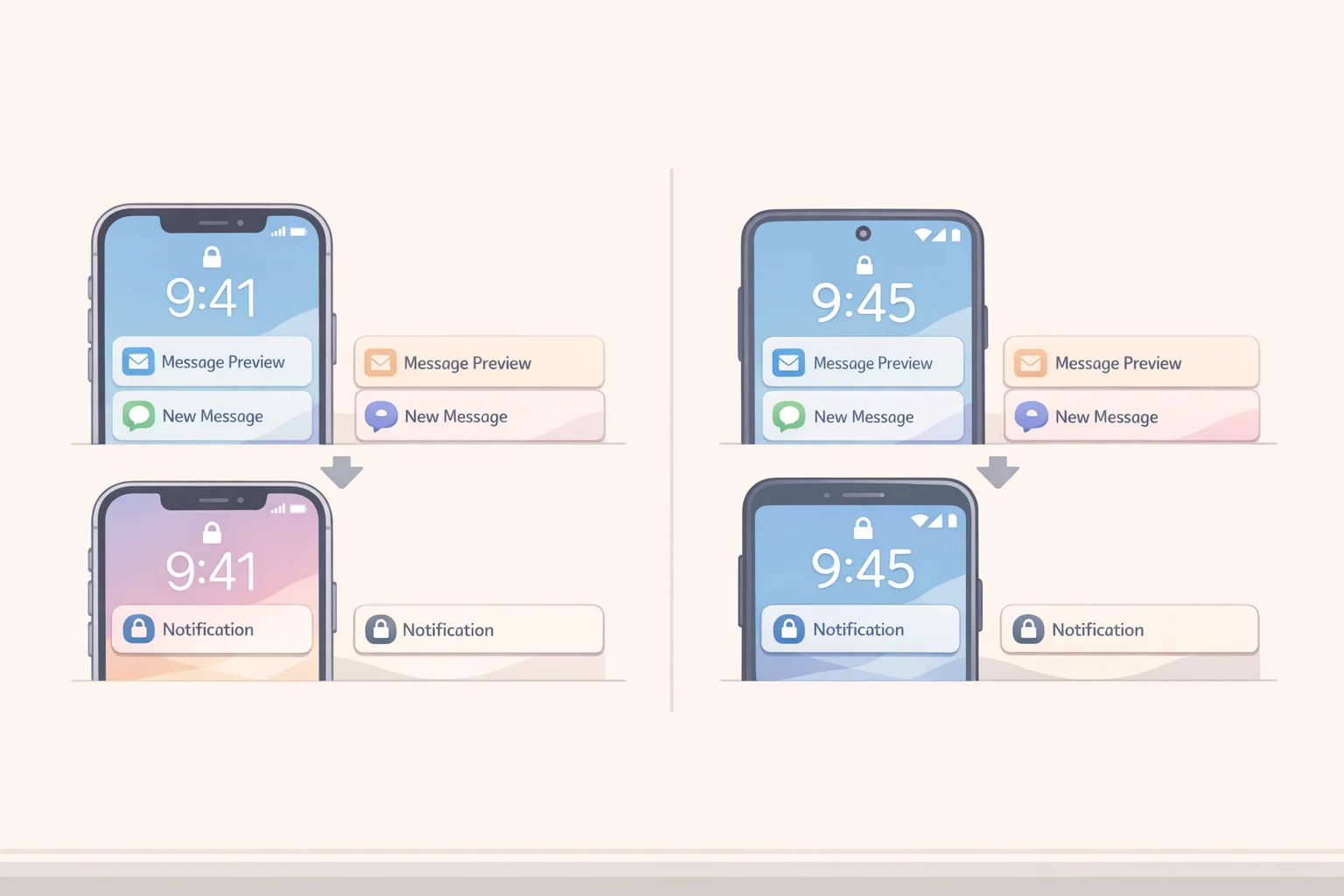
Your lock screen is the most exposed surface on your phone. With default settings, anyone nearby can read full message previews without touching your device. One change fixes that.
iPhone:
- Open Settings > Notifications.
- Tap Show Previews.
- Change "Always" to "When Unlocked" (content appears only after Face ID or passcode) or "Never" (only the app name shows, no content).
- To adjust per app: scroll down, tap any app, tap Show Previews, and set your preference. "When Unlocked" is the practical default for messaging apps; "Never" for anything highly sensitive.
Android:
- Open Settings > Notifications > Notifications on lock screen.
- Disable "Show sensitive content."
Gotcha, Android: This setting depends on app developers correctly flagging their notifications as sensitive. Not all do, as EFF notes, because Android's core OS leaves more notification-privacy decisions to individual developers than iOS does. For any specific app you're concerned about, use Setting 2 to disable its notifications entirely rather than relying on this toggle alone.
Setting 2: Prune which apps can send notifications at all
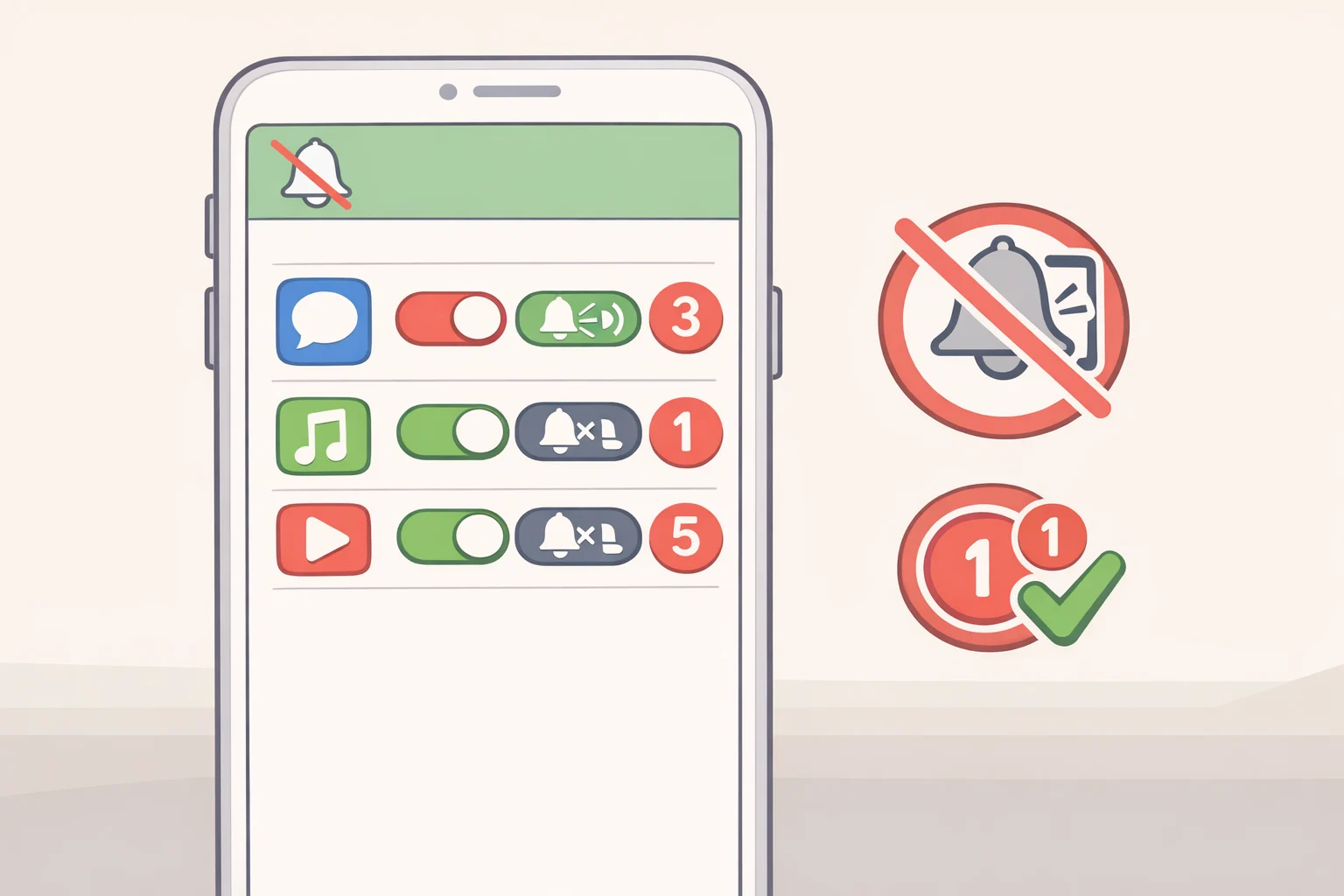
Every app with notification permission is an active data channel. Each alert potentially routes content through Apple's or Google's servers and writes to on-device storage. Whether notification databases are included in cloud backups is an open question; EFF notes that if those backups aren't end-to-end encrypted, that content could be accessible to a cloud provider or via a law enforcement request. Fewer apps sending notifications means less content at risk.
iPhone:
- Open Settings > Notifications.
- Scroll through the app list. For anything that doesn't need to interrupt you games, shopping apps, news aggregators tap the app and toggle off Allow Notifications.
- For apps you want to keep but want quieter: disable Alerts and keep only Badges. You'll see unread counts without content being transmitted and stored.
Android:
- Open Settings > Notifications > App notifications.
- Toggle off any app that doesn't have a clear reason to send alerts.
- For messaging apps with subcategories: tap the app name, then Additional settings in the app to control message alerts, calls, and group notifications separately.
Gotcha: Deleting an app doesn't guarantee its notification records are purged from device storage, per EFF. On updated iOS devices, the patch addresses this for dismissed notifications, but disabling notifications before removing an app is still the cleaner approach.
Setting 3: Delete your advertising identifier
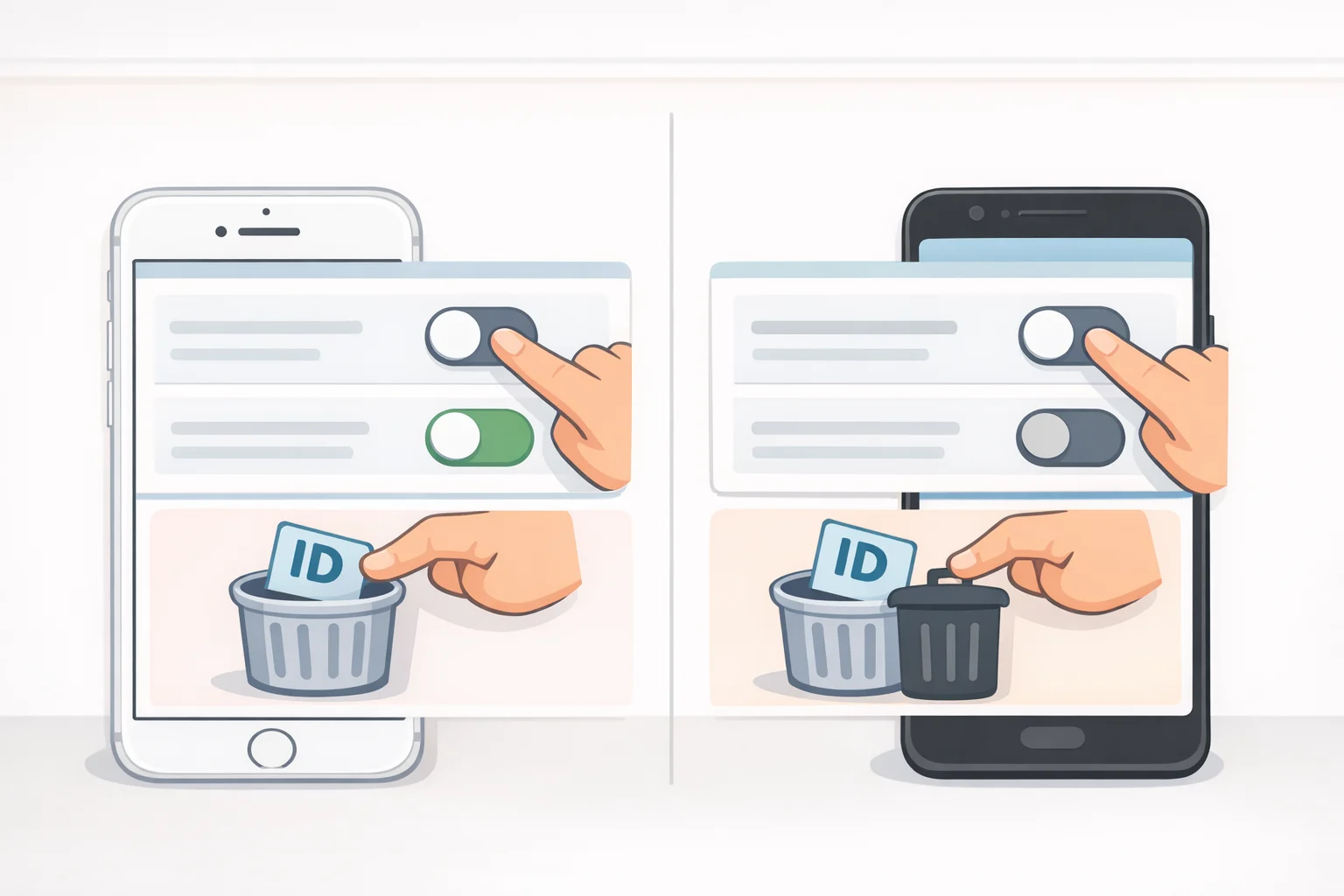
Impact: High. Affects every app on your phone.
The advertising ID is a persistent identifier that links your behavior across apps over time. Removing it makes that cross-app linkage harder and eliminates a key identifier advertisers use to build profiles of your activity. It's one of the highest-use changes available because it takes effect across every installed app at once.
iPhone:
- Go to Settings > Privacy & Security > Tracking and turn off "Allow Apps to Request to Track."
- Go to Settings > Privacy & Security > Apple Advertising and disable Personalized Ads.
- If you use Safari: go to Settings > Apps > Safari > Advanced and disable "Privacy Preserving Ad Measurement." Despite the name, this is still an ad measurement mechanism, per EFF.
Android:
- Go to Settings > Security & privacy > Privacy controls > Ads and tap "Delete advertising ID." Per EFF, deleting it removes the identifier advertisers rely on to link your activity across apps.
- Run through Google's Privacy Checkup to review what Google services, including YouTube and location history, are sharing with advertisers.
Setting 4: Audit which apps hold access to location, microphone, camera, and contacts
Impact: Varies by what you have installed. Worth 10 minutes.
- iPhone: Open Settings > Privacy & Security and review each permission category. Android: Open Settings > Security & privacy > Permission manager.
- Revoke access for any app that doesn't have a clear functional reason to hold it. A flashlight app with microphone access has no legitimate justification; remove it, per EFF.
- On iPhone, switch location access for most apps from "Always" to "While Using" or "Never." Background location access is rarely necessary for an app to function.
- Remove apps you no longer use. Dormant apps still hold permissions and may still run background processes.
The EFF's Surveillance Self-Defense guide is explicit that no single collection of settings fits every user. Camera and microphone access for a video app you use daily is appropriate to keep. The goal is removing access that's unnecessary or unexplained.
Video of the Day
Setting 5: AI notification summaries (conditional, check if you use WhatsApp)
Both iOS and Android offer AI-powered notification summaries, condensed digests of your alerts. Whether that creates additional privacy risk depends entirely on where the summarization happens.
- Apple's notification summaries run on-device, a meaningfully lower-risk profile than sending content to external servers, per EFF.
- WhatsApp's notification summaries do not run on-device, per EFF. If you use WhatsApp for sensitive conversations, enabling summaries means that content is being sent externally to generate them.
- WhatsApp's "Advanced Chat Privacy" feature can disable AI summaries for both you and other participants in a specific conversation, which matters for group chats where you can't control other people's settings, per EFF.
WhatsApp (iPhone), disable notification preview:
- Open WhatsApp and tap the "You" bar.
- Tap Notifications, then disable Show preview.
WhatsApp, per-conversation summary control:
- Open the conversation, tap the contact or group name at the top.
- Enable Advanced Chat Privacy to block summaries for everyone in that thread.
iPhone, system-level summaries:
- Open Settings > Notifications > Notification Summaries.
- Remove any app whose content you'd prefer not to be processed, even on-device.
Android: AI summary controls vary significantly by manufacturer. Check within individual apps rather than relying on a platform-level toggle.
Settings 6–7: Foundational protections (what makes everything else work)
The next two steps matter because they protect the phone itself. They don't turn off a data-collection mechanism; they determine whether all the previous steps actually hold up if your phone ends up in the wrong hands.
Setting 6: Use a strong passcode and enable remote wipe
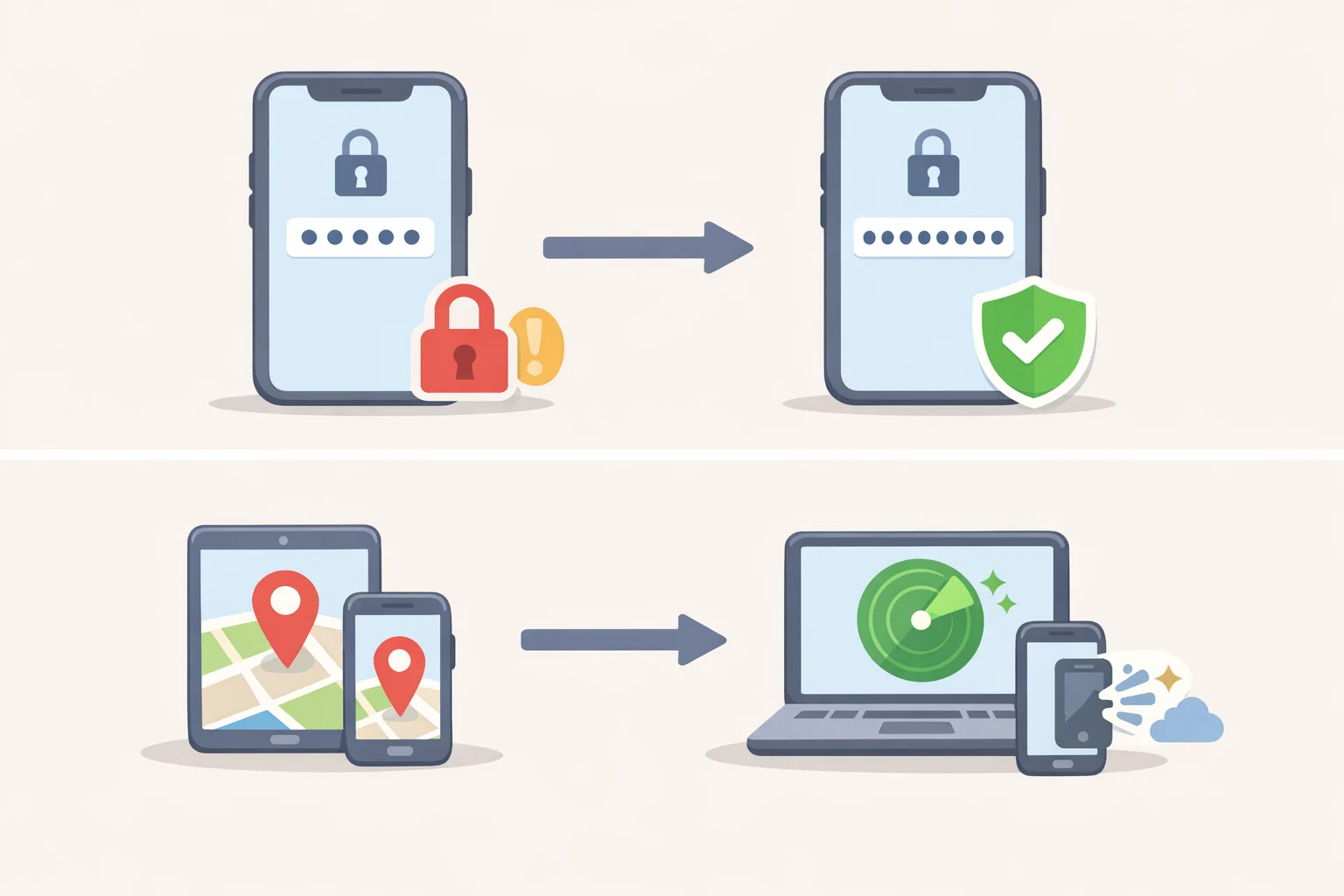
Without a strong passcode, device encryption can be easier to break using a brute-force attack, per EFF's Surveillance Self-Defense. A short, predictable code is often the weakest link in an otherwise well-configured device.
Android: Go to Settings > Security & privacy > Device unlock > Screen lock and set a minimum 6-digit code, or an alphanumeric passphrase for stronger protection. Enable Find My Device so you can remotely wipe the phone if it's lost or stolen. Google states that location data in Find My Device is end-to-end encrypted and visible only to you and those you explicitly share with, per EFF's Surveillance Self-Defense.
iPhone: Go to Settings > Face ID & Passcode > Passcode Options and switch from a 4-digit to a 6-digit or custom alphanumeric code. Enable Find My in Settings so you retain the option to wipe remotely.
Setting 7: Check whether your backups are end-to-end encrypted
Who should act on this: Anyone whose phone contains sensitive communications, work data, or who faces any realistic risk of device seizure.
Whether notification databases end up in cloud backups is still unresolved. EFF explicitly states it doesn't know how long notifications are stored or whether they're backed up to the cloud; if they are, and those backups aren't end-to-end encrypted, the cloud provider or law enforcement could potentially access that content, per EFF.
Android: Go to Settings > System > Backup and confirm that Google's end-to-end encrypted backup is active. Don't assume it's on by default, per EFF's Surveillance Self-Defense.
iPhone: Standard iCloud backups are encrypted, but not end-to-end encrypted for all data categories. Enable Advanced Data Protection under Settings > [Your Name] > iCloud > Advanced Data Protection to extend end-to-end encryption to most backup types.
What these settings do, and what they can't
Short on time: do Settings 1 through 3. Lock your lock screen, prune app notifications, delete your advertising ID. Those three address the highest-confidence exposure points in current research.
The settings above cover what you can control on your end. They don't fix the underlying infrastructure. EFF has called on Apple and Google to ensure notification content isn't transmitted across their servers in plain text, that operating systems don't include notification databases in unencrypted cloud backups, and that deleting an app reliably purges all associated notification records, per EFF. Apple's iOS patch is real progress; significant questions about storage duration and cloud backup behavior remain unanswered.
The consistent finding across this research: defaults favor data collection, and privacy requires deliberate action. The 6,000-app study found widespread mismatches between disclosed practices and actual behavior, most often because developers left the most permissive settings in place rather than choosing more restrictive alternatives (NSF Public Access Repository, 2025). Checking your settings isn't overcaution. It's the only reliable way to know what your phone is actually doing.
For a second tier of hardening, the EFF's Surveillance Self-Defense Android guide covers disabling 2G connections to block IMSI catcher attacks, setting up a Private Space for sensitive apps, and configuring Google's Advanced Account Protection for high-risk users. That's a different class of advice, appropriate once the baseline settings here are in place.