How to Go Incognito and What Private Browsing Actually Hides
By the end of this guide, you'll know how to go incognito in every major desktop browser and on mobile, understand exactly what gets erased when you close a private session, and have a clear mental model for when private browsing is worth using and when you need something else entirely.
That mental model matters more than the steps: private browsing protects against local traces on your device; it does not protect against network observation, website tracking, or account-level data collection. Both pieces are true. The feature is genuinely useful. It's also widely misunderstood.
A 2018 study by Wu, Gavazzi, Williams, and colleagues at the University of Chicago and Northeastern University found that 56.3% of the 460 people surveyed believed Google would not save their searches while they were signed into a Google account in an incognito window. Another 27% believed private mode protected them from viruses and malware. SudoTool's cross-browser analysis (May 2026), which summarizes the study's findings, calls it the most documented misconception about private browsing. Neither belief is correct.
What this guide covers:
- When to use private browsing (and when not to)
- Step-by-step instructions for Chrome, Edge, Firefox, and Safari on desktop and mobile
- A plain-language breakdown of what each session clears and what it doesn't
- How Firefox and Safari differ from Chrome on built-in tracking protections
Prerequisites: Just a working browser. No extensions, accounts, or settings changes required.
When private browsing is actually useful
Video of the Day
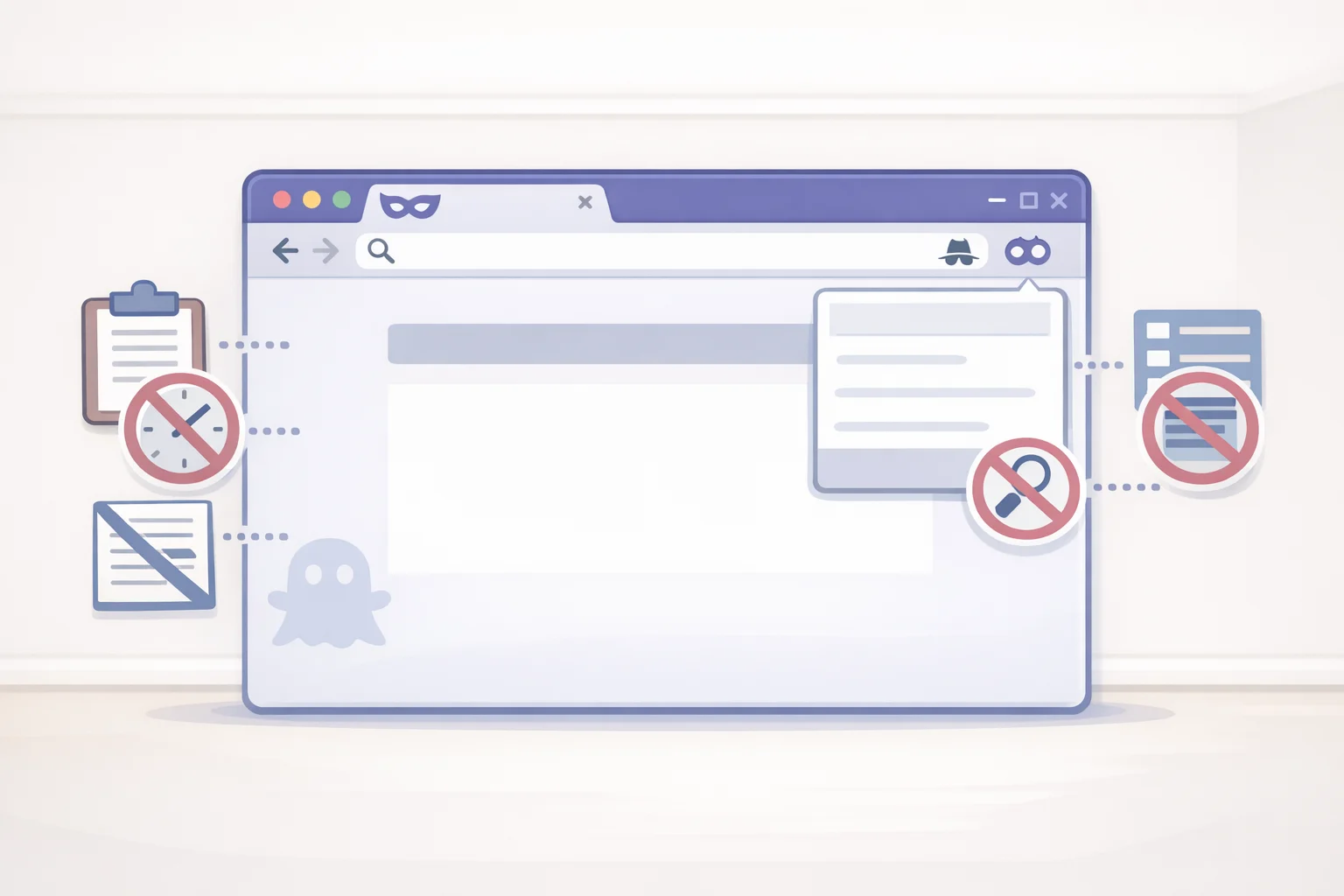
Private browsing has three practical uses that hold up regardless of browser.
Shared devices. On a computer that multiple people use a family laptop, a library terminal, a work machine private mode keeps your session out of the browser history, autocomplete suggestions, and saved form fields. This is the original use case and still the clearest one.
Multiple accounts at once. Open a standard window signed into one Google or Microsoft account, then open a private window and sign into a second. Because private windows maintain a separate cookie store from your regular session, both can run simultaneously without conflicts. Pima Community College's IT documentation (May 2026) flags this as a primary use case, alongside troubleshooting sign-in problems.
Bypassing personalization and session state. Troubleshooting a login issue, checking prices without cached preferences skewing results, testing how a site appears to a first-time visitor a private window gives you a clean browser state without touching your main profile.
What private mode cannot do: hide your activity from websites, your employer's network, your ISP, or any service you're signed into. Mozilla's support documentation (May 2026) puts it plainly: "Your Internet service provider, employer, or the sites themselves can still gather information about pages you visit." All four major browsers say the same, as SudoTool's analysis (May 2026) documents.
Simple decision rule: Need to keep something off this device? Private mode works. Need to hide something from the network or a website? It won't.
Video of the Day
How to open incognito mode in Chrome, Edge, Firefox, and Safari
The steps are nearly identical across all four browsers. The names differ Chrome calls it Incognito, Edge calls it InPrivate, Firefox and Safari both say Private Browsing but the mechanic is the same: two-click menu or keyboard shortcut, confirmed by a visual change in the browser's header (Pima Community College KB, May 2026).
Google Chrome incognito mode
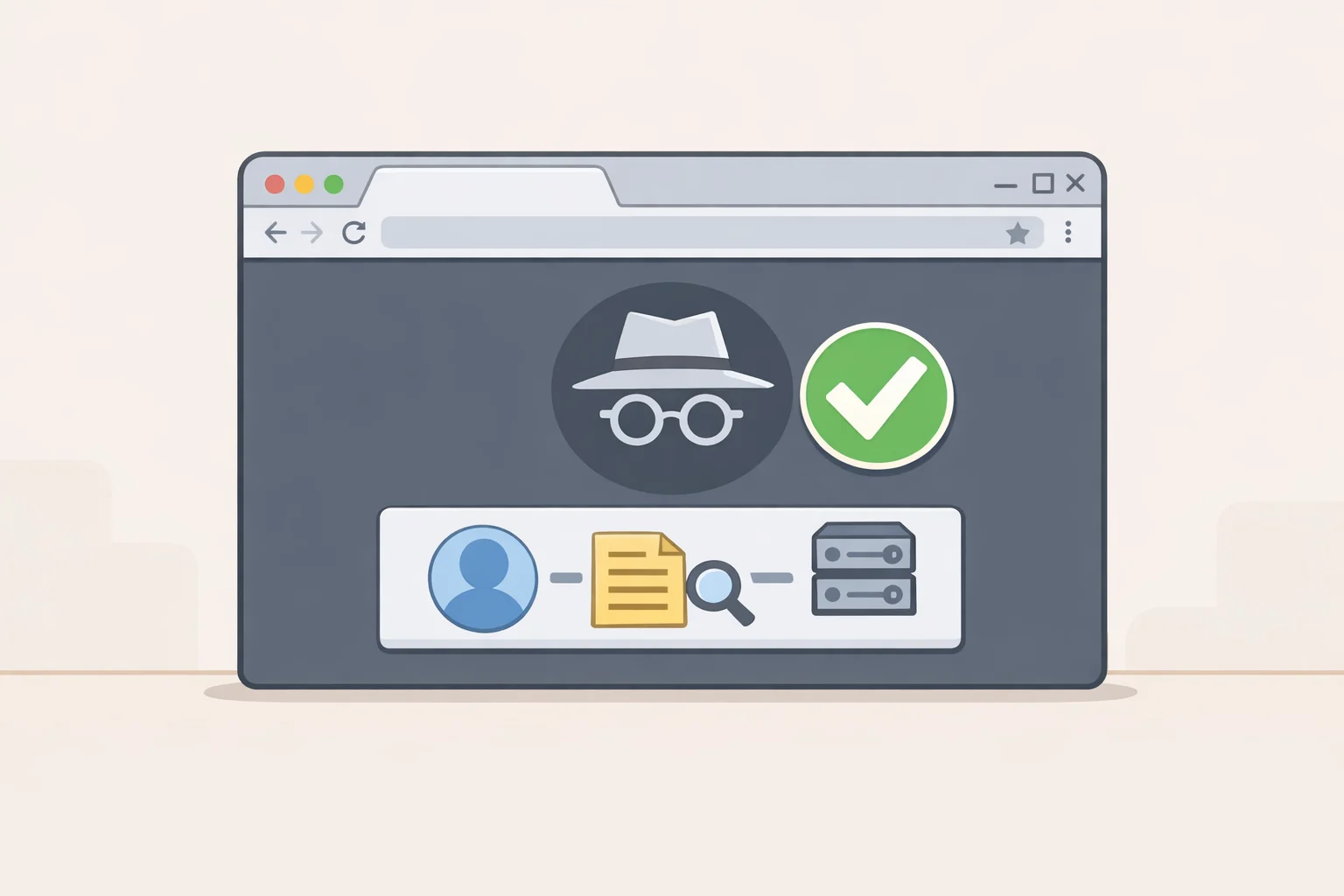
Desktop (Windows / macOS)
- Open Chrome.
- Click the three-dot menu (⋮) in the upper-right corner.
- Select New Incognito Window.
You'll see a dark window with a spy-figure icon in the upper-left. That's your confirmation.
Shortcut: Ctrl+Shift+N (Windows) / Command+Shift+N (Mac)
Mobile (Android / iOS)
- Tap the three-dot menu vertical (⋮) on Android, horizontal (⋯) on iOS.
- Tap New Incognito Tab.
The tab shows the same spy icon, confirming incognito is active.
Important: If you're signed into a Google account inside an Incognito window, Google can still record your searches. Incognito prevents the browser from saving a local copy; it doesn't override what your account logs (SudoTool, May 2026).
Microsoft Edge InPrivate mode
Desktop (Windows / macOS)
- Open Edge.
- Click the three-dot menu (⋯) in the upper-right corner.
- Select New InPrivate window.
The window opens with a dark header and a blue "InPrivate" badge next to the address bar (Pima Community College KB, May 2026).
Shortcut: Ctrl+Shift+N (Windows) / Command+Shift+N (Mac)
Note: Edge and Chrome share the same shortcut. If you have both browsers open, the shortcut fires only in whichever window is currently focused.
Mozilla Firefox private browsing mode
Desktop (Windows / macOS)
- Open Firefox.
- Click the menu button (≡) in the upper-right corner.
- Select New Private Window.
A purple mask icon (🎭) appears in the upper-right corner of the private window (Mozilla Support, May 2026).
Shortcut: Ctrl+Shift+P (Windows) / Command+Shift+P (Mac)
Watch out: Some third-party help articles list
Ctrl+Shift+Nas Firefox's shortcut. That's wrong it'sP, notN. TheNshortcut opens a new standard window.
Firefox 151+: A flame icon appears beside the address bar in private windows. Clicking it labeled Clear Private Session wipes all current session data without closing the browser, then opens a fresh private session in its place (Mozilla Support, May 2026).
Apple Safari private browsing mode
Desktop (macOS)
- Open Safari.
- In the menu bar, click File.
- Select New Private Window.
Shortcut: Command+Shift+N
iPhone (iOS)
- Tap the Tabs icon (two overlapping squares) in the bottom-right corner.
- Tap the Tab Groups button labeled with your current tab count or "Start Page" at the bottom center.
- Select Private from the list.
- Tap Done.
On both Mac and iPhone, the address bar turns dark to confirm an active private session (Pima Community College KB, May 2026).
What private mode clears and what it doesn't
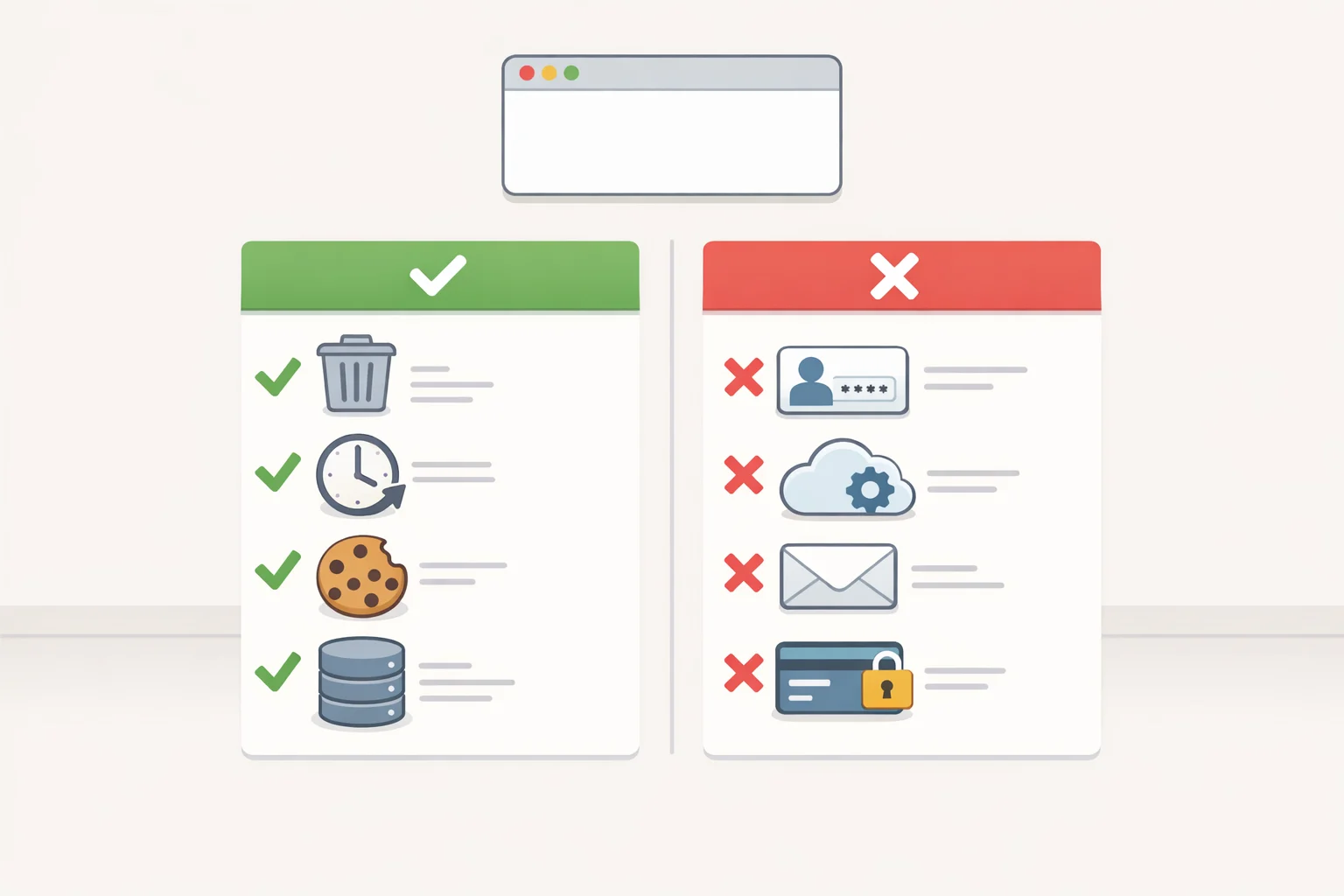
Closing the private window is the trigger. Until you do that, session data lives in temporary memory, isolated from your normal profile. When you close, the browser discards it.
What gets cleared:
| What | Detail |
|---|---|
| Browsing history | Visited pages don't appear in history menus or address bar suggestions |
| Session cookies | Held in temporary memory, separate from your normal cookie store; discarded on close |
| Cached files | Temporary files and any offline content stored during the session |
| Form entries | Search bar inputs and text field autofill data |
| Downloads list | The record in the browser's downloads panel disappears |
What does not get cleared:
| What | Detail |
|---|---|
| Downloaded files | The files themselves remain on disk, wherever the browser saved them (SudoTool, May 2026) |
| Bookmarks | Any bookmark created during the session is permanent (SudoTool, May 2026) |
| Saved passwords | Passwords saved during the session go into the browser's password manager as normal (Mozilla Support, May 2026) |
| Account activity | Anything logged by a service you were signed into during the session |
One behavior that surprises people: cookies function normally within a private session. A site can set a cookie, and that cookie gets sent back to the same site on other tabs in the same private window the cleanup only happens on close (SudoTool, May 2026). Log into a site during a private session, open another tab in that same window, and you'll appear logged in there too.
Private mode also offers no protection against keyloggers or spyware already running on the device. Mozilla's documentation (May 2026) flags this explicitly.
How the browsers differ on tracking protection
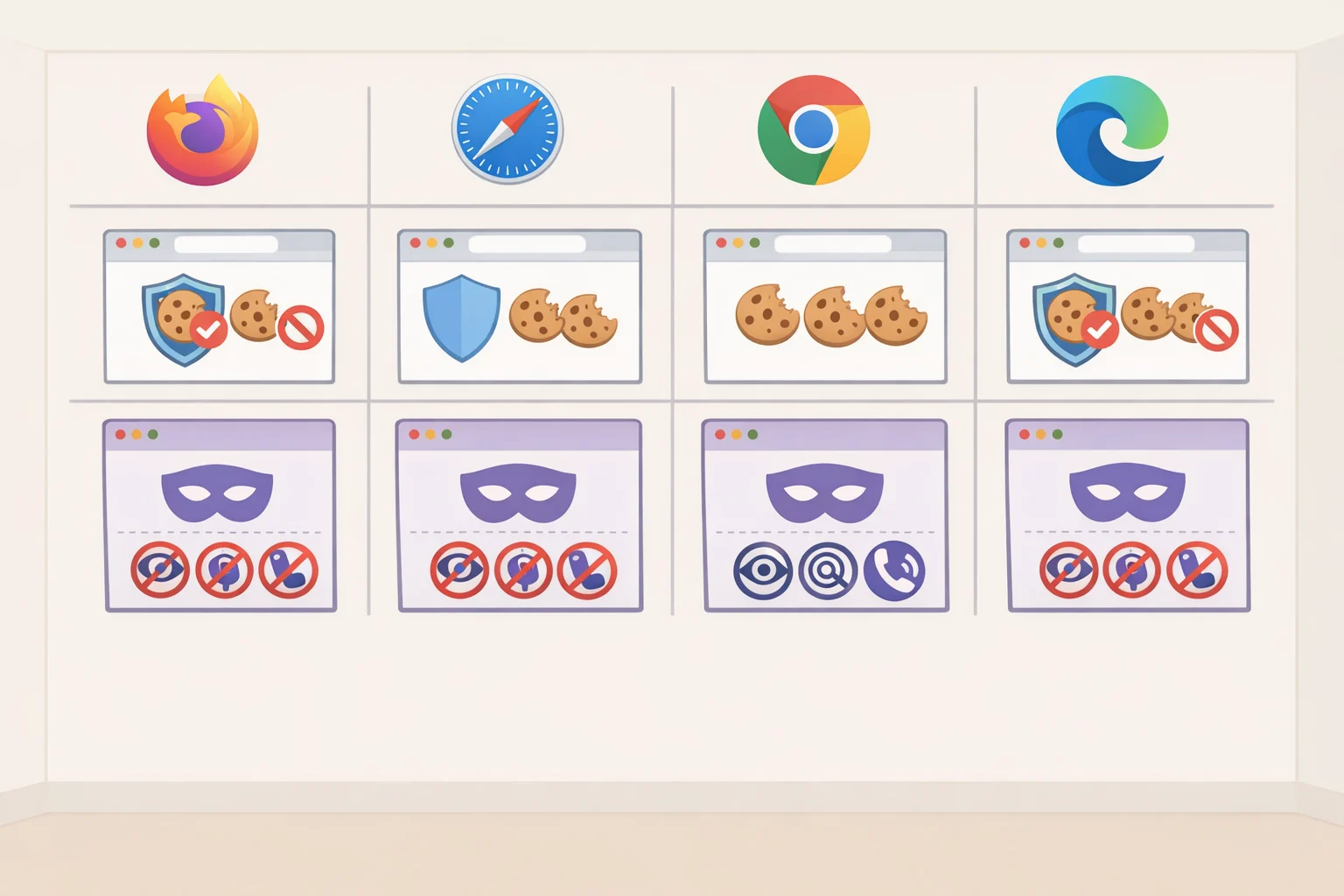
Opening private mode looks nearly identical across all four browsers. What those private sessions actively block is not.
Firefox goes furthest out of the box. Total Cookie Protection gives each website its own isolated cookie jar, which prevents third-party cookies from following you across sites. Enhanced Tracking Protection blocks known trackers by default. Private windows also default to HTTPS-first connections, and SmartBlock substitutes local stand-ins for blocked tracking scripts so pages still render correctly (Mozilla Blog, November 2021).
Safari blocks all third-party cookies by default via Intelligent Tracking Prevention. SudoTool's vendor documentation review (May 2026) quotes WebKit's published policy directly: the blocking applies "by default" with "no exceptions" making it the strictest default third-party cookie stance of the four browsers.
Chrome has blocked third-party cookies by default in Incognito since 2020 (SudoTool, May 2026). Tracker blocking beyond that is limited. EFF's Cover Your Tracks project is direct on the point: Chrome Incognito does not protect against trackers or fingerprinters (SudoTool, May 2026).
Edge delivers the same baseline local-state clearing as the others. The available research doesn't document specific anti-tracking protections beyond that, so no comparative claim is made here.
On fingerprinting, none of the four browsers offer meaningful protection in private mode. Fingerprinting works by combining signals the browser exposes screen resolution, graphics renderer, installed fonts, timezone, and others into a near-unique identifier that doesn't rely on cookies at all. Private mode changes none of those signals (SudoTool, May 2026). Resisting fingerprinting requires either Firefox with additional configuration or a specialized tool like Tor.
For straightforward local-state clearing, all four browsers deliver the same result. If limiting cross-site tracking is the goal, Firefox and Safari offer more by default.
Closing your session and confirming it worked
Close the private window. That's the complete action.
In Chrome, Edge, and Safari, close every tab in the private window or the window itself. In Firefox 151 and later, the flame icon (Clear Private Session) lets you wipe session data and reset to a fresh private window without closing the browser entirely.
To confirm you're back in standard mode: the visual indicators disappear. No dark header, no spy icon, no purple mask, no InPrivate or Private label in the address bar.
One thing worth checking before you walk away: downloaded files stay on your device after the window closes. They won't disappear on their own delete them manually if that matters.
Private browsing handles local cleanup. For anything beyond that hiding traffic from your ISP, masking your location a VPN or Tor is the right tool. That boundary isn't a flaw in private mode; it just wasn't built for that job.