Garmin Forerunner 165 Tips and Tricks to Fix Data Issues
The Forerunner 165 does a lot out of the box. It also quietly produces worse data than it should, because a handful of default behaviors and missed setup steps get in the way. These Garmin Forerunner 165 tips and tricks cover five specific, reproducible fixes three you can apply in the next ten minutes, two that take a few extra minutes in the watch settings. Every one targets a concrete pain point: GPS data that starts late, indoor pacing that drifts, touchscreen inputs that fire at the wrong moment, pre-run alerts that don't exist until you configure them, and a post-run save flow that interrupts you with questions you never asked for.
Garmin's Vice President of Global Consumer Sales described the Forerunner 165 Series as a watch for runners at every level, with personalized training plans, advanced running metrics, and 24/7 wellness monitoring (Garmin press release). Lifehacker called the Music variant "the perfect entry point for runners who want serious metrics" which is fair, though it implies those metrics need some deliberate setup before they mean anything.
Before starting, confirm the watch is running Software Version 28.05 or newer. Garmin pushed that update globally last month with seven fixes specific to the Forerunner 165, including failed activity uploads, race events appearing duplicated after syncing, and display settings changed via Garmin Connect Mobile failing to apply to the device (Notebookcheck). Check Settings > System > Software Update first. Several of the problems below may already be resolved.
Fix 1: wait for the green before you press start
Video of the Day
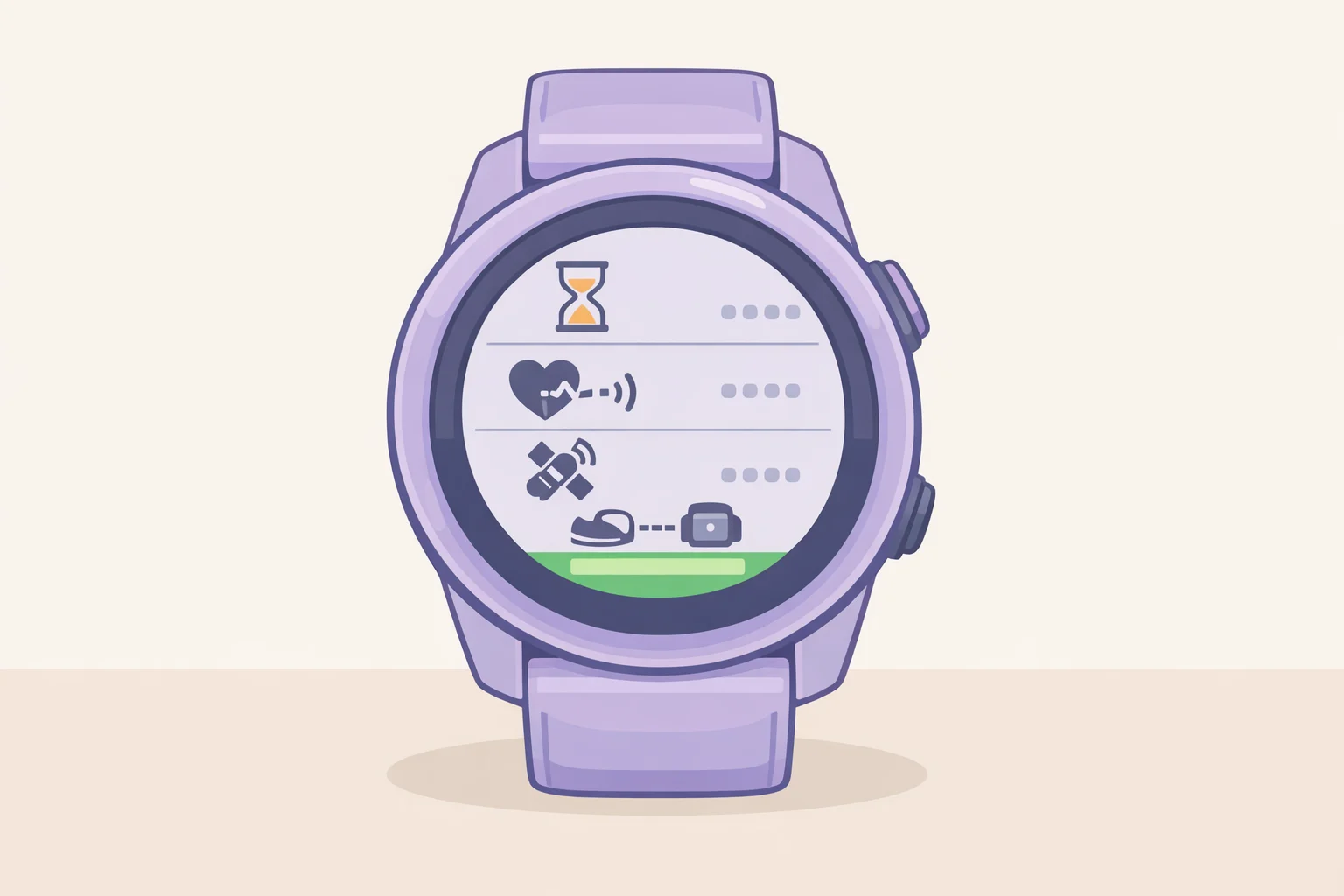
This is the simplest fix on the list and the one most runners skip. The status bar turns solid green only after the watch has confirmed three things: a wrist heart rate reading, GPS satellite lock, and any connected wireless sensors. A flashing icon means it's still searching. Solid means ready (Garmin Owner's Manual).
Satellite acquisition takes 30 to 60 seconds enough time for a few dynamic stretches, not enough time to stand impatiently and hit Start anyway (Garmin Owner's Manual). If you're running with an external chest strap or foot pod, those show as separate status icons and need to confirm before the bar goes green. The Forerunner 165 supports both ANT+ and Bluetooth Smart sensor pairing, so any connected accessory is part of the ready state (DC Rainmaker).
Steps:
- Select your activity profile and stay on the pre-activity screen.
- Watch the status bar. Wait until every icon is solid, not flashing.
- Press Start only after the bar turns fully green.
The opening data screen will appear with a heart rate reading already populated and GPS distance ticking from zero.
One thing to know: the watch records activity data only while the timer is running (Garmin Owner's Manual). Time spent outside waiting for lock doesn't appear in your activity file. That's fine. It means your first-minute pace data is only trustworthy if you waited for the green.
Video of the Day
Best Garmin Forerunner 165 settings for touchscreen control
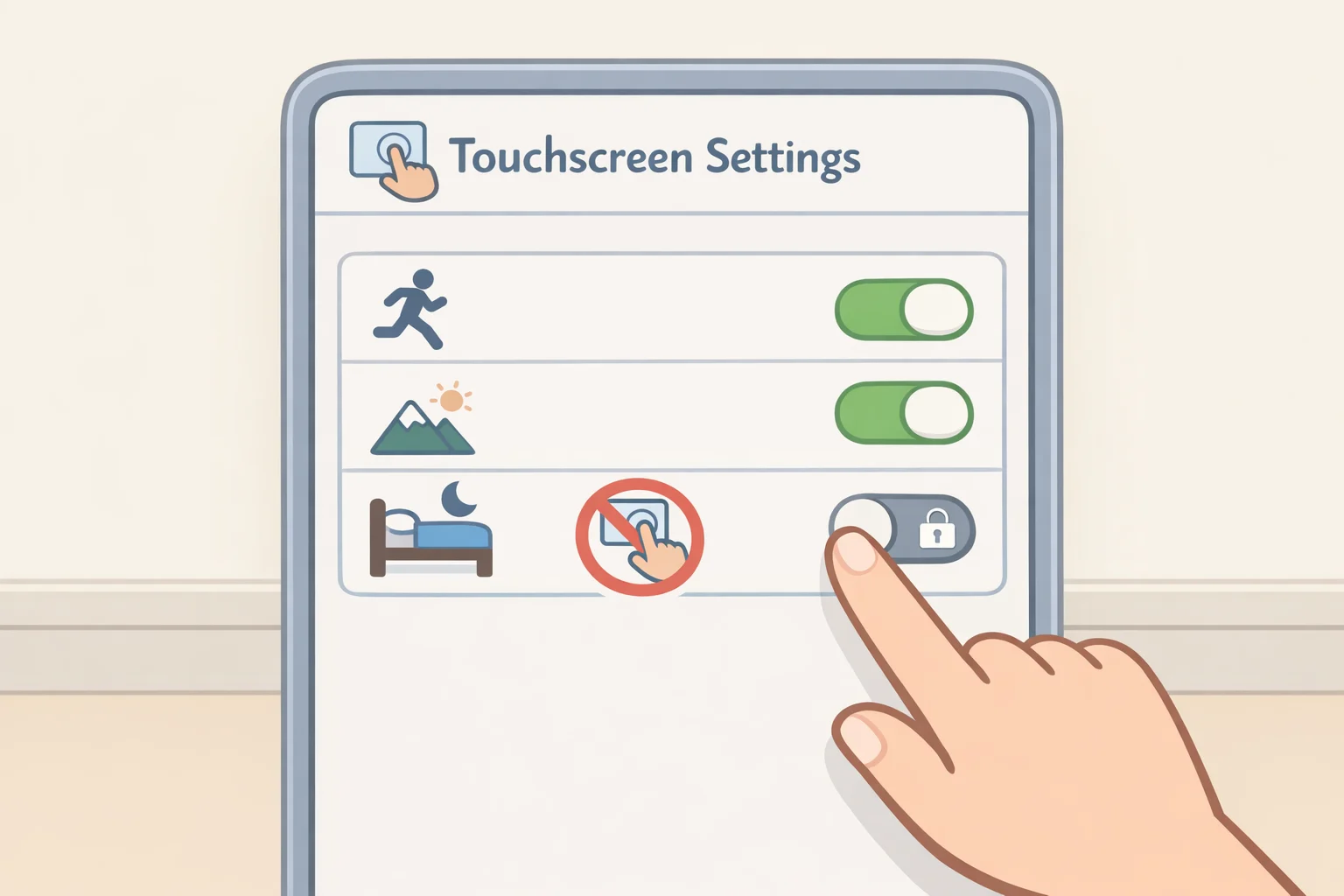
The touchscreen is useful on the watch face and irritating mid-run. The watch treats these as separate problems with separate solutions. Touchscreen behavior is configurable independently for general use and for each individual activity profile disabling it for running has no effect on the watch face or other activities unless you adjust those separately (Garmin Owner's Manual).
Swimmers don't need to worry about this at all. The touchscreen is disabled at the hardware level during swim activities and won't respond to taps in water regardless of any setting (Garmin Owner's Manual).
If touchscreen changes weren't sticking before the recent update, that's a known bug. Software Version 28.05 fixed the issue where display settings changed through Garmin Connect Mobile weren't propagating to the device (Notebookcheck).
Steps:
- Hold the UP button to open the settings menu.
- Go to System > Touch.
- Select During Activity to configure per activity profile, or General Use for everyday navigation.
- Toggle the touchscreen off for any activity where accidental inputs are a problem.
Each activity profile stores its own setting. Disabling touch for running leaves it active in hiking, cycling, and strength profiles unless you go through those too. Work through the profiles you use regularly it takes about two minutes total.
Fix 3: calibrate treadmill distance once, benefit every indoor run
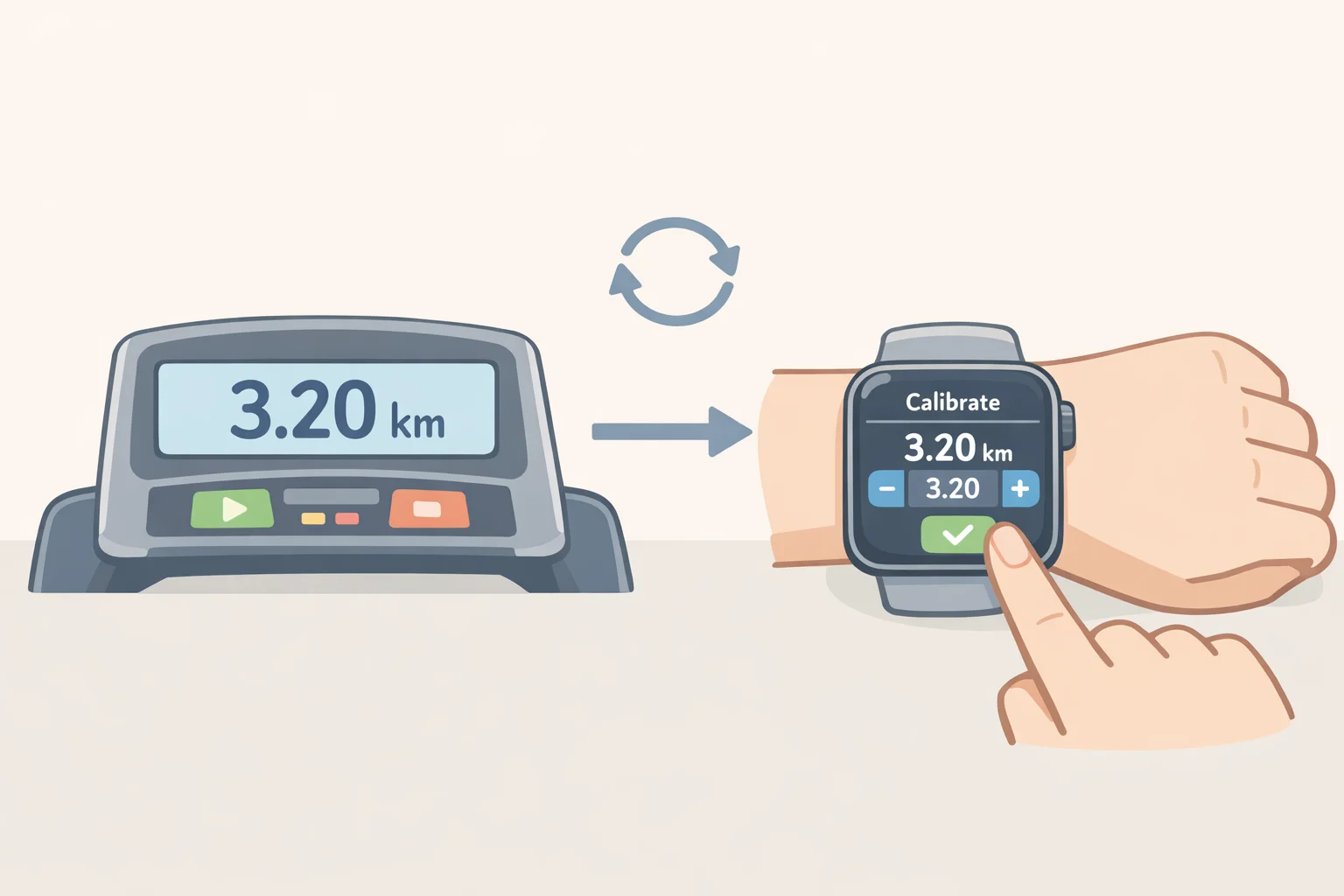
When GPS is off for indoor activities, the Forerunner 165 uses its accelerometer to estimate speed and distance. That estimate improves naturally after several outdoor GPS runs, because the watch calibrates its motion model against verified GPS data (Garmin Owner's Manual). But "improved" still isn't "accurate" until you do a manual calibration.
After running at least 2.4 km (1.5 miles) on the treadmill, you can calibrate the watch's indoor distance against the belt readout, and the watch uses that calibration to improve future treadmill estimates (Garmin Owner's Manual). One other thing: holding the handrails reduces accelerometer accuracy. The watch measures arm swing to estimate stride, so a braced arm produces systematically worse data (Garmin Owner's Manual).
Steps:
- Run at least 2.4 km / 1.5 miles on the treadmill without holding the handrails.
- Note the distance shown on the treadmill's display at the end of the run.
- After stopping the activity, go to the activity summary on the watch.
- Select Calibrate & Save and enter the treadmill's reported distance when prompted.
The watch stores the calibration factor and applies it going forward. Indoor pace and distance will track noticeably closer to the belt display.
Calibration is only as accurate as the treadmill itself. On an older machine with an inconsistent belt, the calibration will reflect that. On any well-maintained gym treadmill, one run is enough to get meaningfully closer.
Fix 4: configure run/walk intervals and training alerts before the run starts
This is where the Forerunner 165 has a design quirk that catches people off guard. Run/walk interval alerts must be configured before starting a run. There is no way to turn them on mid-activity (Garmin Owner's Manual). Once set, the configuration carries forward automatically to every subsequent run until you disable it or switch to a different run mode which is either convenient or a trap, depending on what you're training for.
The alerts system is more capable than most runners realize. The watch supports three types: event alerts (fire once at a threshold), range alerts (fire whenever a value goes above or below a set boundary), and recurring alerts (fire each time a defined interval is reached). These apply to pace, heart rate, cadence, distance, and time (Garmin Owner's Manual). The watch can also transmit live pace, heart rate, or cadence to compatible third-party coaching apps via ANT+ or Bluetooth Smart (Garmin Owner's Manual; DC Rainmaker).
Steps run/walk intervals:
- From the watch face, press START and select the Run activity profile.
- Before pressing Start, press UP to access activity settings.
- Select Alerts > Run/Walk and set your run duration, walk duration, and whether it repeats.
- Return to the activity screen. The alert is now active and will stay on for all future runs until manually disabled.
Steps heart rate or pace alerts:
- From the pre-run activity screen, press UP and go to Alerts.
- Select the metric to monitor: Heart Rate, Pace, Cadence, or Time.
- Choose Range (notifies when outside upper/lower bounds) or Recurring (notifies at each interval).
- Set your target values and confirm.
The persistent-state behavior of run/walk mode is the part that bites people. Set it up for a recovery run with walk breaks, forget to disable it, and it will interrupt your next hard workout with walk alerts. Check the alerts status before any run that isn't a run/walk session.
Fix 5: turn off self-evaluation to save activities in one step
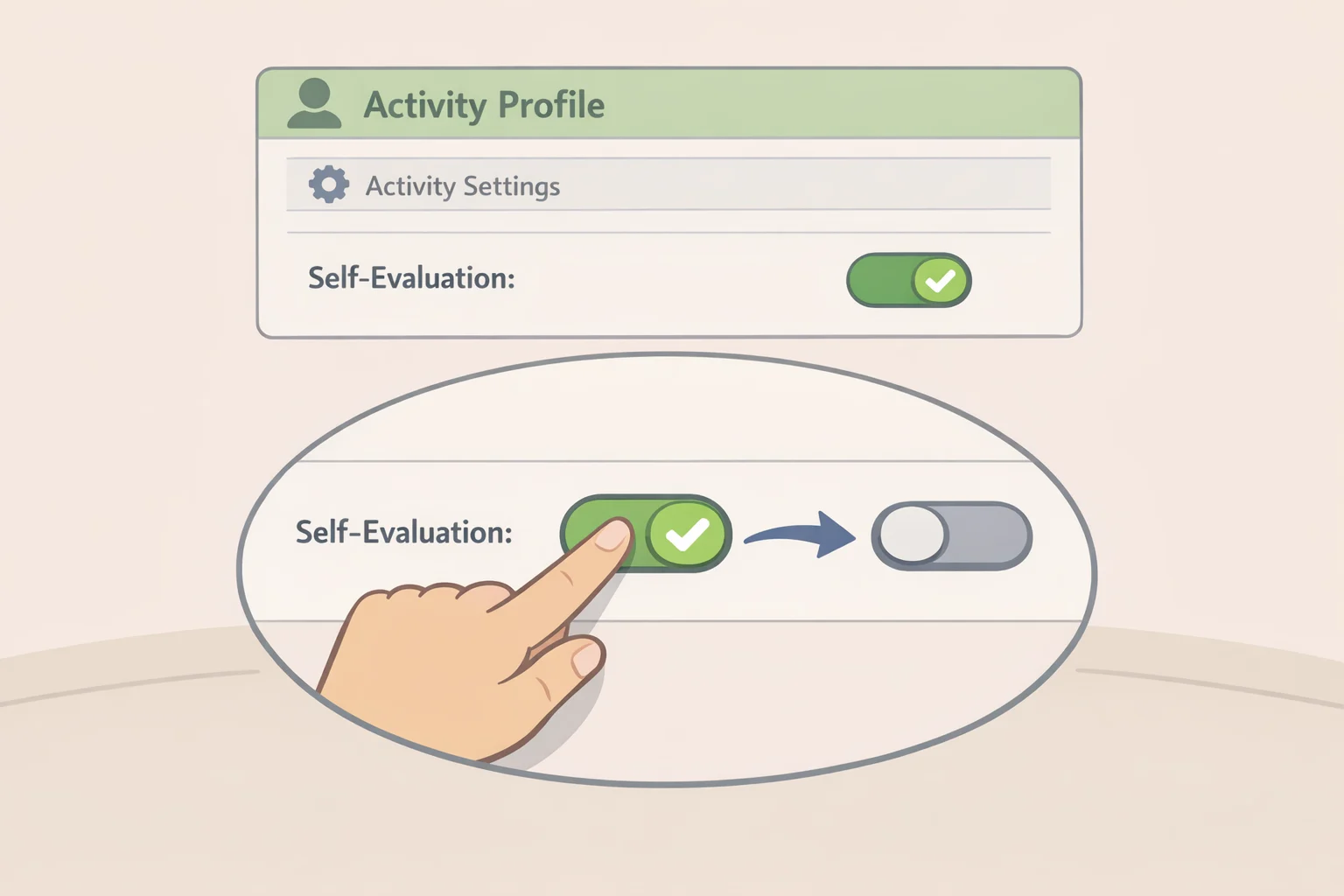
After stopping an activity, the Forerunner 165 presents self-evaluation prompts asking how you felt before completing the save. A Garmin community forum thread from 2025 documents the complaint directly the post describes the prompts as "irritating" and asks whether they can be disabled. A community reply confirmed the behavior can be turned off via a Self-Evaluation setting in the activity profile (Garmin Forums).
Worth knowing: stopped activities aren't at risk while you navigate the save flow. Any activity that isn't manually saved is stored automatically after 30 minutes, so dismissing the prompts doesn't lose data (Garmin Owner's Manual). And if saved activities have been failing to appear in Garmin Connect at all, that's a separate problem addressed by the June update (Notebookcheck).
Steps:
- From the watch face, hold UP to open the settings menu.
- Go to Activities & Apps and select the activity profile to adjust (e.g., Run).
- Open Activity Settings and locate Self-Evaluation toggle it off.
- Repeat for any other profiles where the prompts appear.
Self-Evaluation is per profile, not global. Disabling it for running leaves it active in cycling, strength, and any other profiles in use. Two minutes through the full list clears it everywhere.
What comes next
The three immediate fixes address the most common sources of bad data: GPS lock, touchscreen misfires, and indoor pacing drift. The alerts and self-evaluation settings remove the friction that makes the post-run experience feel clunky. With those dialed in, the watch's more ambitious features are worth exploring.
Entering a race into the Garmin Connect calendar unlocks adaptive training plans that adjust after each run based on performance and recovery. Garmin Coach plans for 5K, 10K, and half-marathon are also available separately, built by expert coaches (Garmin press release). PacePro provides grade-adjusted pacing guidance based on course elevation once you have a target race loaded (Garmin press release). These are worth setting up once the basics are solid.
One feature that can't be rushed: HRV status requires three weeks of consistent sleep data before the watch can calculate a seven-day average (Garmin Owner's Manual). No status in the first week doesn't mean something is wrong. Wear the watch to sleep consistently and the feature arrives on its own schedule.