Travel cybersecurity tips: stop apps from leaking your location
The location data sold by commercial data brokers doesn't come from hackers. It comes from the weather app you checked before packing and the flight tracker you opened at the gate ordinary utilities quietly passing GPS coordinates into advertising pipelines while you decide whether to pack an umbrella.
The scale of this is concrete. Earlier this year, netzpolitik.org obtained a single broker dataset containing 47 million mobile advertising IDs and 380 million location data points drawn from roughly 40,000 apps across 137 countries. For a subset of those apps, the coordinates were precise enough to identify where a person lives. In a separate 2024 investigation, netzpolitik.org reported that journalists identified specific individuals in a brokered location dataset using nothing more sophisticated than a phone directory and social media profiles. The same broker offered a near-real-time global feed of smartphone movements for around $14,000 per month. A commercial product, openly sold.
Travel amplifies this exposure. New apps installed for a single trip, location services left running across unfamiliar networks, real-time posts announcing an empty home, shared computers that may be logging every keystroke each one generates a spike in data your devices wouldn't normally produce. These travel cybersecurity tips cover what to do before you leave, while you're away, and after you get back, organized by where the effort pays off most.
Before you leave: the highest-use window
Video of the Day
Changes made before departure protect you for the entire trip. This is where a small amount of attention delivers the most return.
Why the permission audit matters
The apps named in the 2025 netzpolitik.org investigation include a flight-tracking app with over 50 million downloads, a weather app with over 100 million downloads, and popular messaging apps exactly the category of utilities travelers install for a trip and forget to remove. That location data flows into broker databases through Real-Time Bidding (RTB), the automated ad auction that runs in the background whenever you open an app.
Users technically consent via app privacy policies, but as netzpolitik.org reported in 2024, data protection experts note that disclosures covering transfers to hundreds of third parties are typically buried too deep for consent to be meaningfully informed. The German Federal Ministry of Consumer Protection put it plainly: once data enters advertising networks, users lose control and misuse becomes nearly impossible to prevent. That's what makes the permission audit feel necessary rather than optional.
Step 1: Audit and restrict location permissions
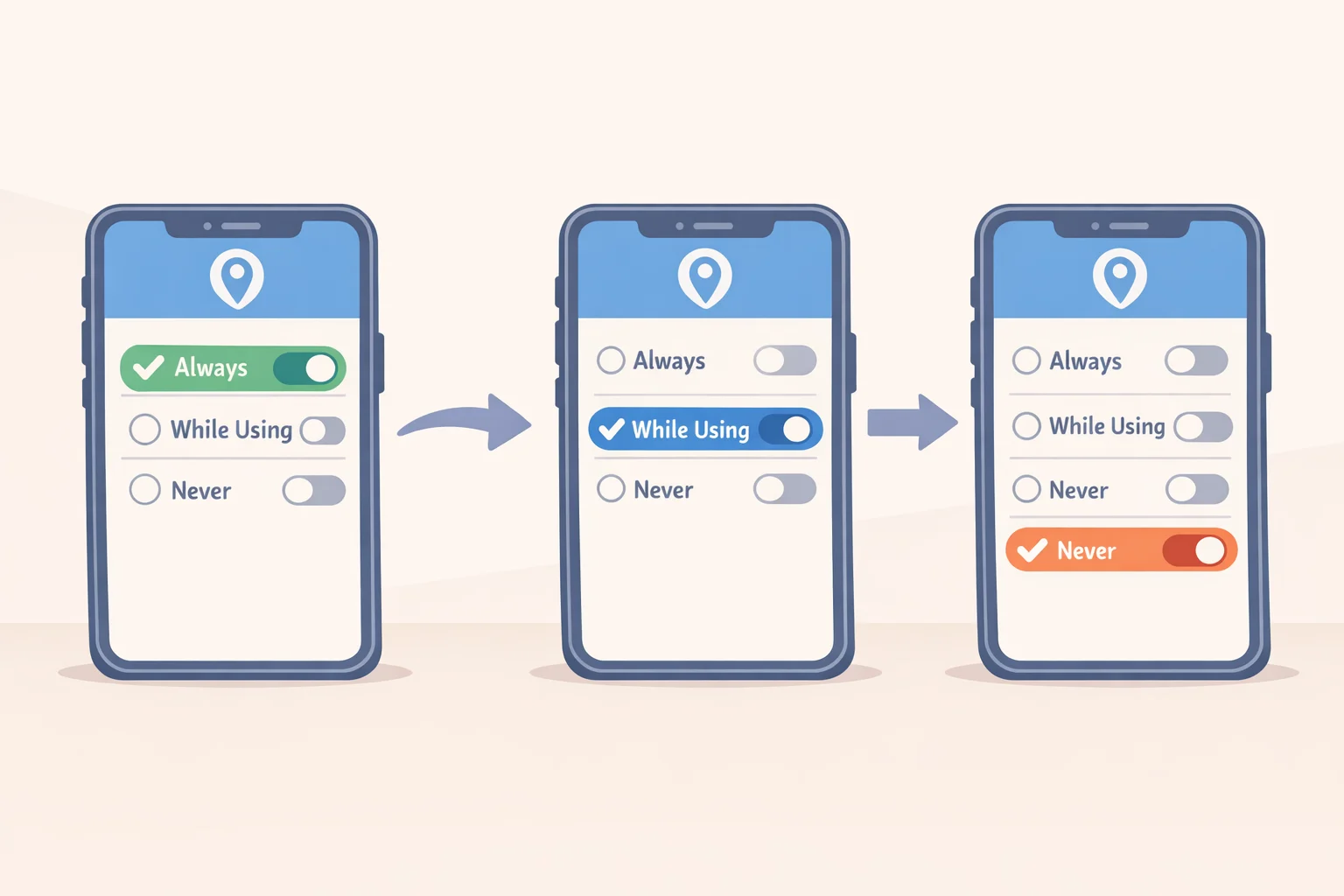
Open your phone's location settings. On iOS: Settings > Privacy & Security > Location Services. On Android: Settings > Location > App permissions. For every app that doesn't require continuous location to function, switch access from "Always" to "While Using" or "Never." The National Cybersecurity Alliance confirmed earlier this year that many apps request persistent location access they don't actually need.
Use this framework to work through your app list:
- Delete after the trip: Transit apps, city guides, event apps, airline apps downloaded for one flight. Per the NCA, fewer apps means fewer places your data resides. Note what you install now so you remember to remove it when you return.
- Set to "While Using": Maps, ride-share, weather. These need location to function, but not when you're not actively using them.
- Remove location access entirely: Games, shopping, news, social media. Most don't need to know where you are to work.
Turn off location services when you're not actively navigating, per the NCA. The habit is simple: close the map app, location off.
Step 2: Lock down your devices
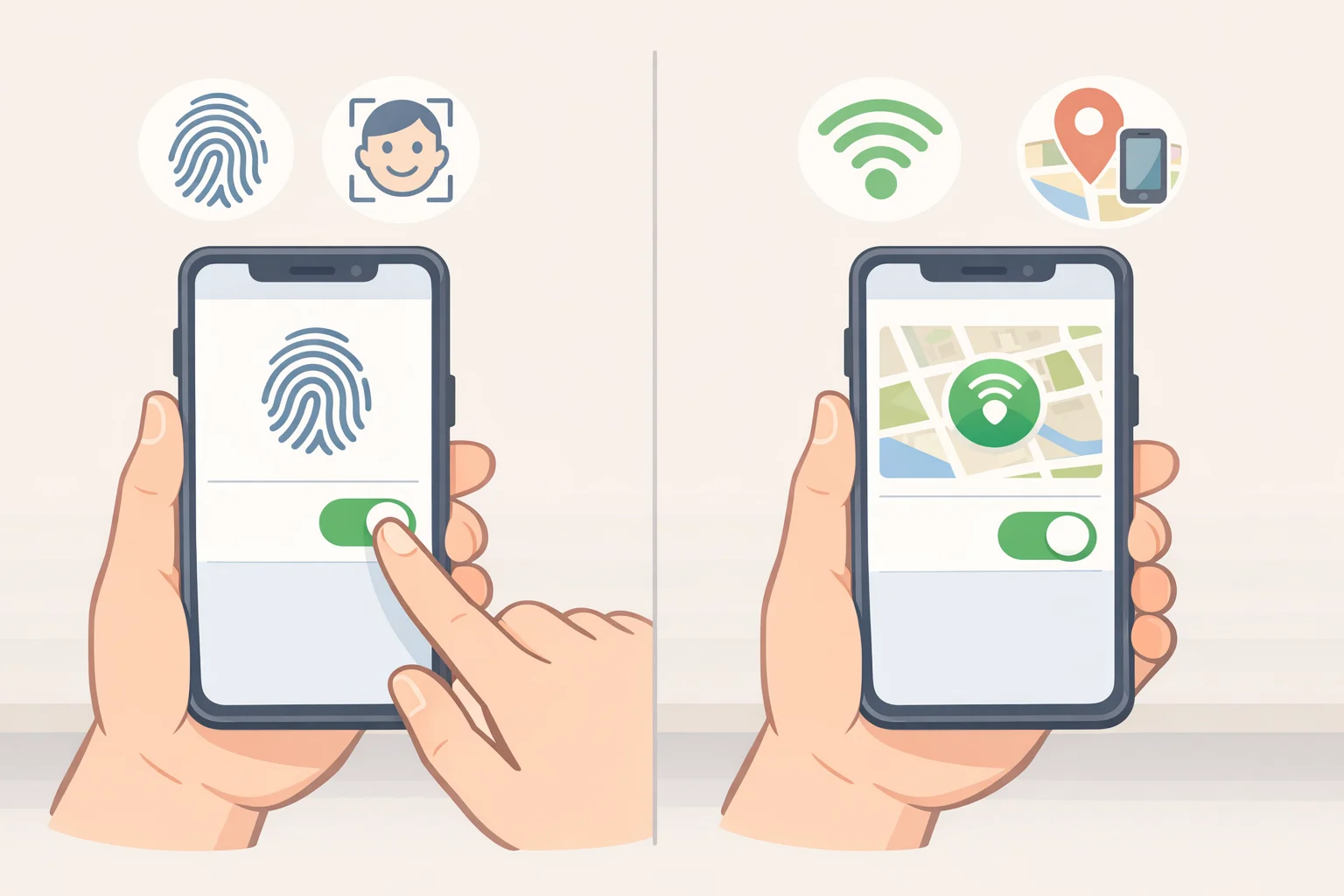
Set a strong PIN and enable biometric authentication fingerprint or face unlock on every device you're bringing. The NCA is direct about this: if a device is lost or stolen, that lock is the first line of defense.
Enable Apple's Find My or Google's Find My Device before you leave. Both allow you to locate, lock, or remotely erase a missing device, according to the NCA and NCDIT. Enable it now, not after something goes wrong.
Run OS and app updates. The NCA notes that updates frequently patch vulnerabilities attackers are actively exploiting gaps that become harder to manage when you're connecting to unfamiliar networks. Enable automatic updates so you're not relying on memory mid-trip.
Back up photos, contacts, and documents to the cloud or an external drive. If a device needs to be remotely wiped, you won't lose everything with it. Bring fewer devices too: the FCC advises leaving behind anything you won't actually use, since fewer devices means fewer attack surfaces to manage.
Three things, if you only do three: restrict location permissions for non-essential apps, enable a strong lock with biometric authentication, and turn on Find My or Find My Device. Everything else in this guide builds on those.
Video of the Day
Online safety while traveling: networks, computers, and physical security
Public Wi-Fi: the calibrated view
Public Wi-Fi has a worse reputation than it deserves. The NCA notes that most sites now use HTTPS encryption, and a VPN isn't required nor is it a substitute for other security measures. That said, the guidance converges on one clear line: don't use public wireless for banking, shopping, or work accounts. The FCC and NCDIT both advise against it, and NCDIT adds that your phone's mobile data connection is generally the more secure option for anything sensitive. If something feels off about a network, the NCA suggests falling back to a mobile hotspot.
Disable auto-join for Wi-Fi and Bluetooth before you leave the house. The NCA, FCC, and LA County DPSS all flag this: without it, your device can silently connect to any network sharing a name with one you've used before. The setting is in your Wi-Fi preferences and takes ten seconds to change.
Before joining a hotel or airport network, confirm the exact network name and login procedure with staff, per NCDIT. Rogue networks with plausible names are a real tactic. The FCC offers a quick check: try entering the wrong password deliberately. If you connect anyway, the network requires no authentication a clear warning sign.
One more physical risk worth flagging: public USB charging stations. LA County DPSS warns that plugging into public charging ports can expose your device to malware or data theft. Bring your own power bank and charge it from a standard outlet.
Public computers: a different category of risk
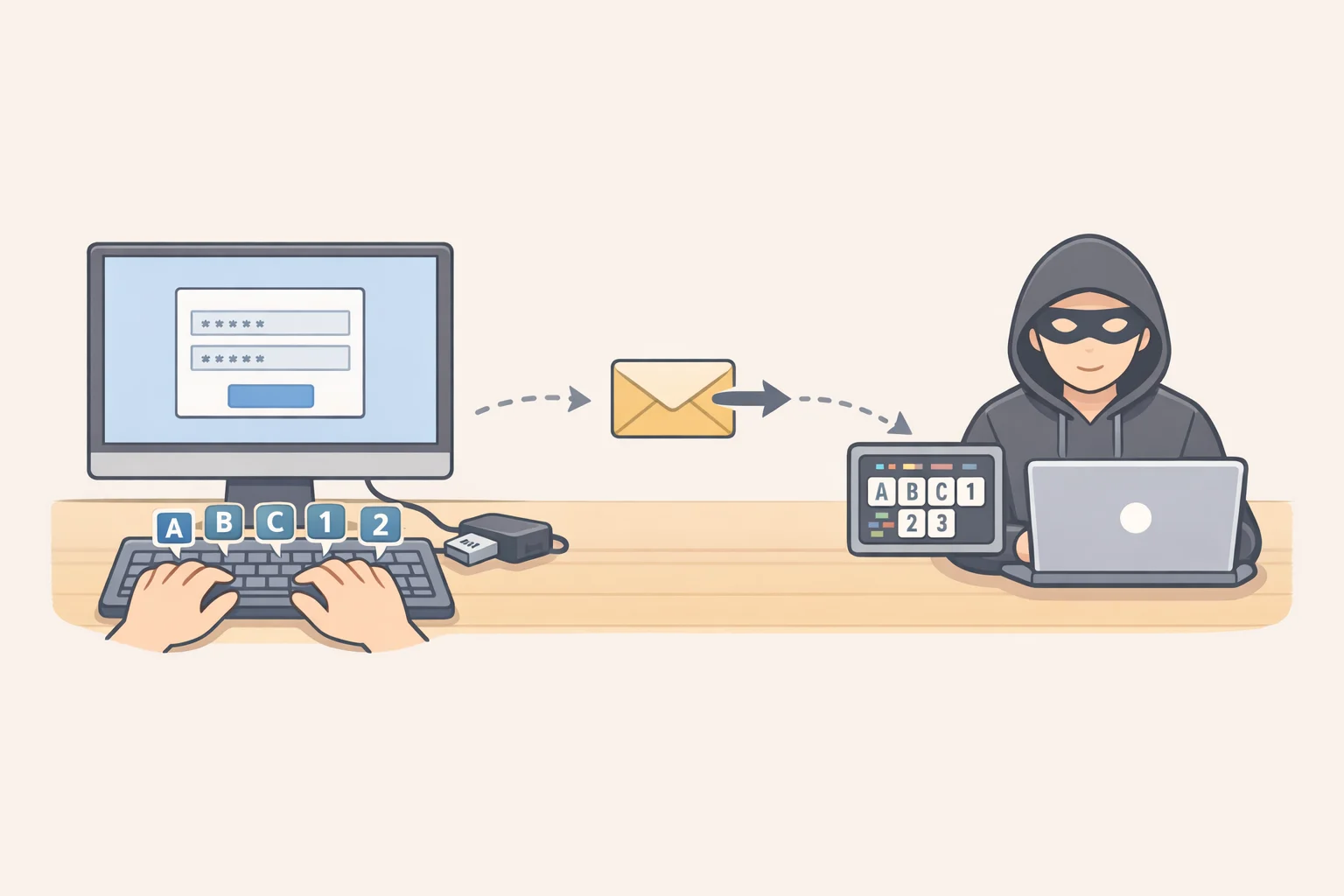
Hotel lobby terminals and internet café computers are more dangerous than public Wi-Fi in one specific way: they may be running keylogger software. NCDIT explains that this malware captures every keystroke and forwards it to criminals one login on a compromised machine is enough. The NCA and LA County DPSS both recommend avoiding personal account logins on shared computers entirely.
If there's no alternative: use private browsing mode, clear browser history before you leave, and log out explicitly. As the NCA notes, closing a browser tab is not the same as logging out.
Physical device security
Keep devices on your person when possible. Store them in a hotel safe if you leave them behind. The NCA puts it plainly: a brief distraction in a public place is enough time for a device to disappear. One with a strong lock and Find My enabled is recoverable. One without either isn't.
What you share publicly: social media and travel documents
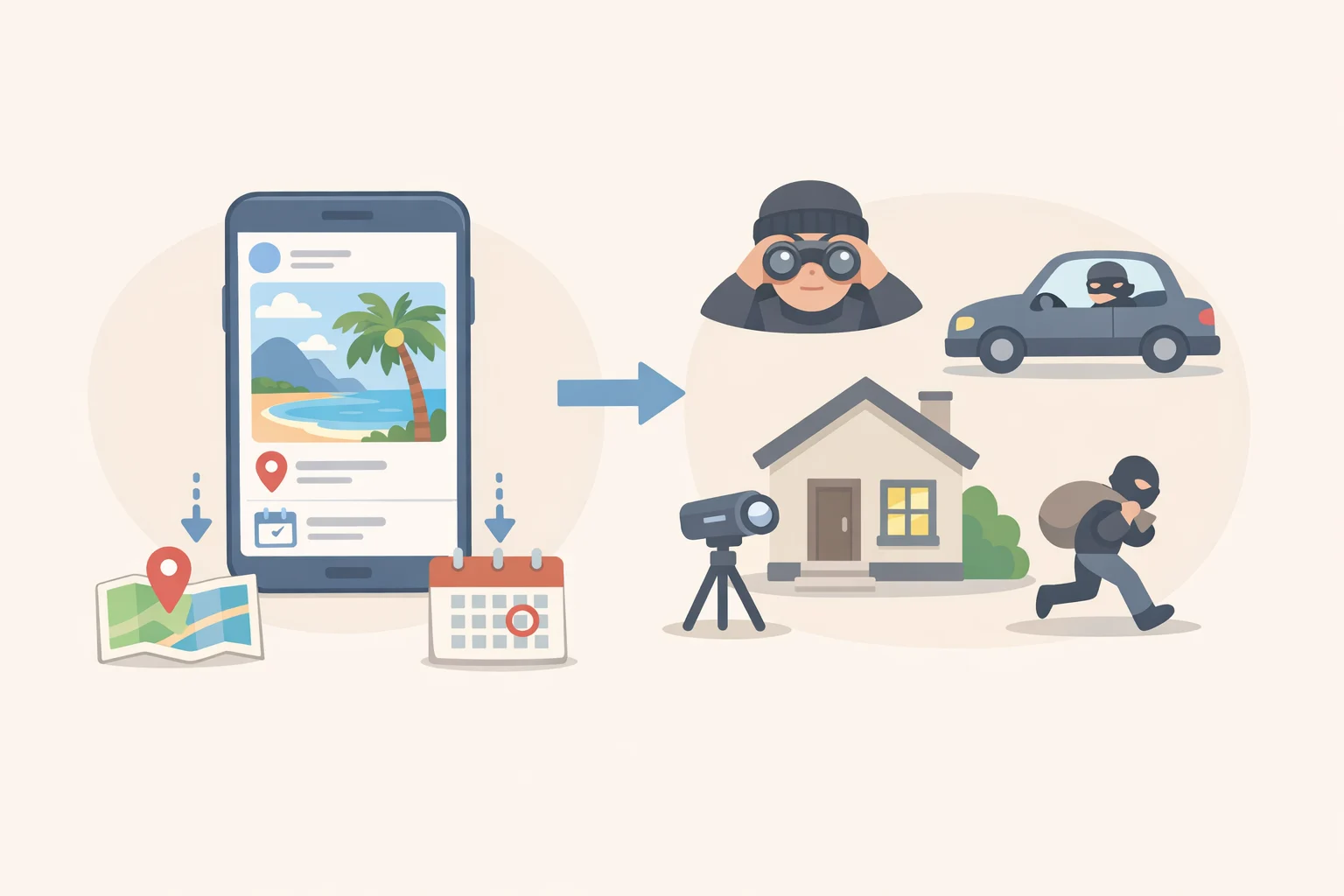
Real-time vacation posts tell anyone who can see them that your home is currently unoccupied. LA County DPSS states it directly: the wrong person seeing that post has the information they need. The NCA recommends waiting until you're home to post travel photos, and tightening audience settings so posts reach people you actually know rather than your full follower list.
Never post boarding passes or ticket information on social media. LA County DPSS is explicit: ticket information posted publicly can be exploited. Treat travel documents the same way you'd treat financial paperwork something you wouldn't photograph and share with strangers.
One related setting worth checking before departure: whether your camera app is embedding GPS coordinates in photo metadata. If location tagging is on, a photo posted without any caption can still broadcast where and when it was taken. Turn it off in your camera settings. This costs nothing and removes a data point you almost certainly don't intend to share.
After you return: what most people skip
Delete every app you installed specifically for the trip transit apps, airline apps, city guides, event apps. The NCA makes the logic straightforward: every app you keep is another place your data lives, including location history it may have been collecting throughout the trip.
Review your bank, email, and social media accounts for anything unusual in the weeks following your return. The NCA recommends watching for unfamiliar logins, unexpected password reset emails, and charges you don't recognize anomalies that may only surface days after exposure.
If you traveled internationally, the FCC advises updating device security software and changing passwords on return. Devices that connected to foreign networks operated under conditions you couldn't fully vet.
The structural problem isn't resolved by any of these steps, and it's worth being honest about that. In the 2025 netzpolitik.org investigation, Bavarian data protection commissioner Michael Will said there would be consequences for the companies involved. In the 2024 investigation, German MP Konstantin von Notz called the situation "unacceptable," per netzpolitik.org. Regulatory timelines are long. Until the legal framework catches up, the settings on your own devices are the most reliable control available.
What these steps actually accomplish
The biggest travel privacy risks aren't sophisticated attacks or airport hackers. They're 47 million advertising IDs collected through apps used on a normal trip, per netzpolitik.org. Real-time posts that signal an empty home, per the NCA. Shared computers that may be silently recording credentials, per NCDIT.
The risks are quiet and ordinary. Start with the pre-departure checklist location permissions, device locks, Find My enabled because those three changes protect you before you ever leave the house. Everything else is maintenance.