Amazfit Cheetah 2 Ultra Tips and Tricks After Summer Updates
Amazfit pushed two software updates to the Cheetah 2 Ultra within two weeks this summer, on June 23 and July 6, 2026, and most of what changed sits behind menus owners have no reason to open unless someone points them there (Amazfit). These Amazfit Cheetah 2 Ultra tips and tricks walk through the five settings worth configuring now that both updates have landed, covering what changed, where to find it, and who actually needs it.
The watch launched in May 2026 as the endurance-focused sibling to the Cheetah 2 Pro, built around a 1.5-inch AMOLED display, 64GB of storage, and a claimed 33 hours of battery life in Trail Running mode (Watches Reviewed). The two updates that followed this summer focused on maps, pacing, and health-data sharing, layered on top of that same hardware (Amazfit).
This guide covers five settings worth configuring on the current software, some unlocked by the June and July updates, others sitting in Amazfit's support documentation the whole time but easy to miss. They're arranged in the order most owners will actually use them: route prep before a run, pacing and training-load metrics during one, then recovery review afterward. Update the watch first. Some of what follows only shows up after installing the latest firmware, so check Device > Firmware Update in the Zepp app before assuming a menu path is missing.
Amazfit Cheetah 2 Ultra map management: prepare a route before you lose signal
Video of the Day
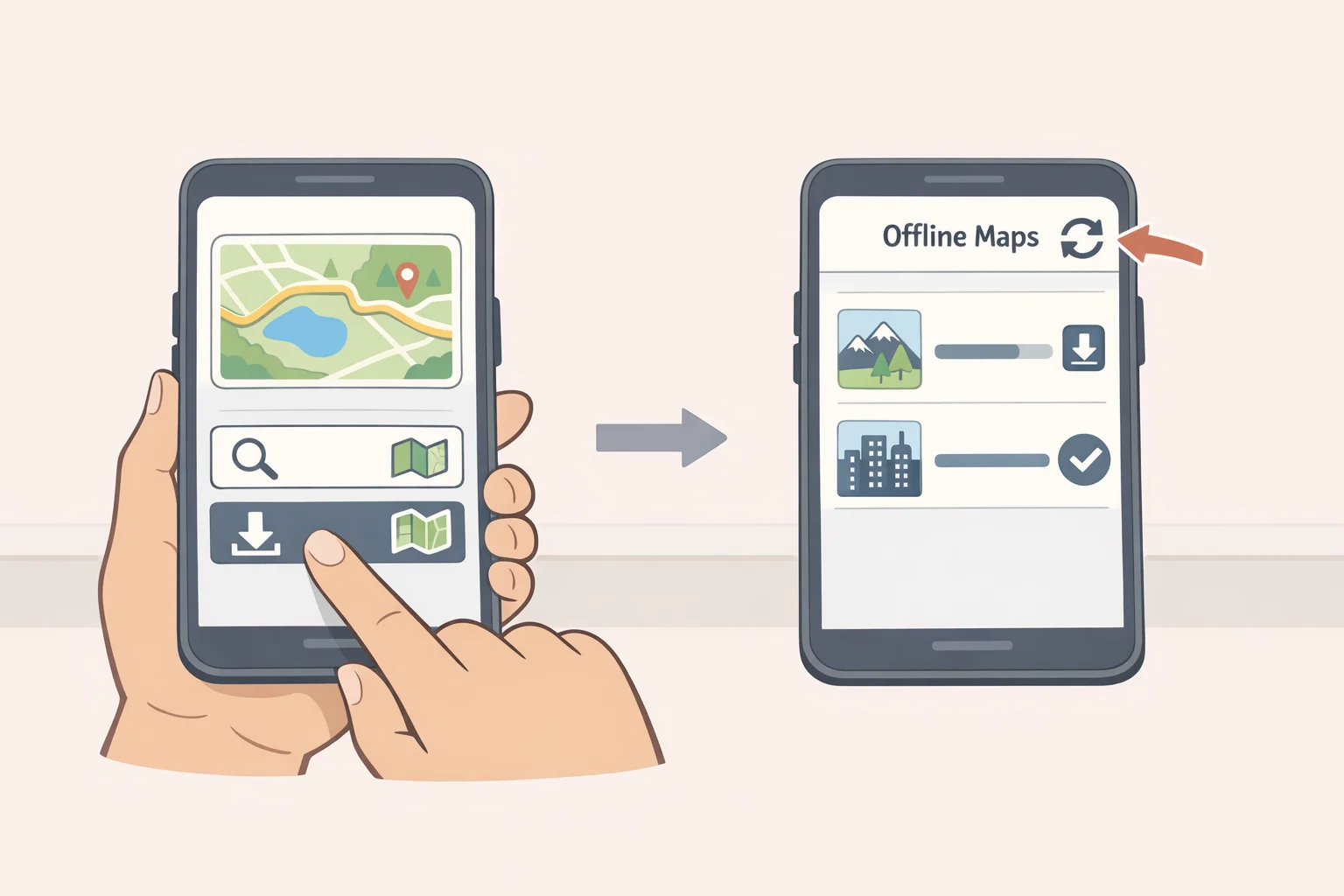
Trail runners, racers traveling somewhere unfamiliar, and anyone running where cell coverage drops out get the most from this one. Road runners sticking to a familiar, well-covered loop can skip most of it.
Start in the Zepp app under Device > Map Management, then tap the icon in the upper-right corner. That screen now lets you delete maps, resume interrupted downloads, and update maps already on the watch, all from one place (Amazfit). The same update lets map downloads continue while the watch is charging, even at low battery, so a stalled download no longer has to wait for a full charge first (Amazfit).
On the watch itself, the Ultra now stores up to 100 routes and offers three ways to plan offline: Save Route Only, Save Route and Navigate, or Start Navigation Only. Build a route without heading out immediately, or launch navigation the moment you're ready (Amazfit). Before starting, the workout prep screen also shows a preview image of the selected route, a fast way to confirm it's the right one before committing to it a mile past the trailhead (Amazfit).
The June update also widened map scale options to 2 km, 750 m, 200 m, and 75 m views, useful for zooming into technical singletrack without losing the surrounding terrain (Amazfit).
If a route won't display at all, check the file type first. Amazfit's documentation specifies the loaded route needs to be a GPX file. If that's not the problem, a factory reset through Settings > System, followed by re-pairing in the Zepp app, is Amazfit's suggested fix for broader map display issues, not a routine step for a merely slow download (Amazfit support).
Video of the Day
Set Amazfit Cheetah 2 Ultra Grade Adjusted Pace for hilly and mixed terrain
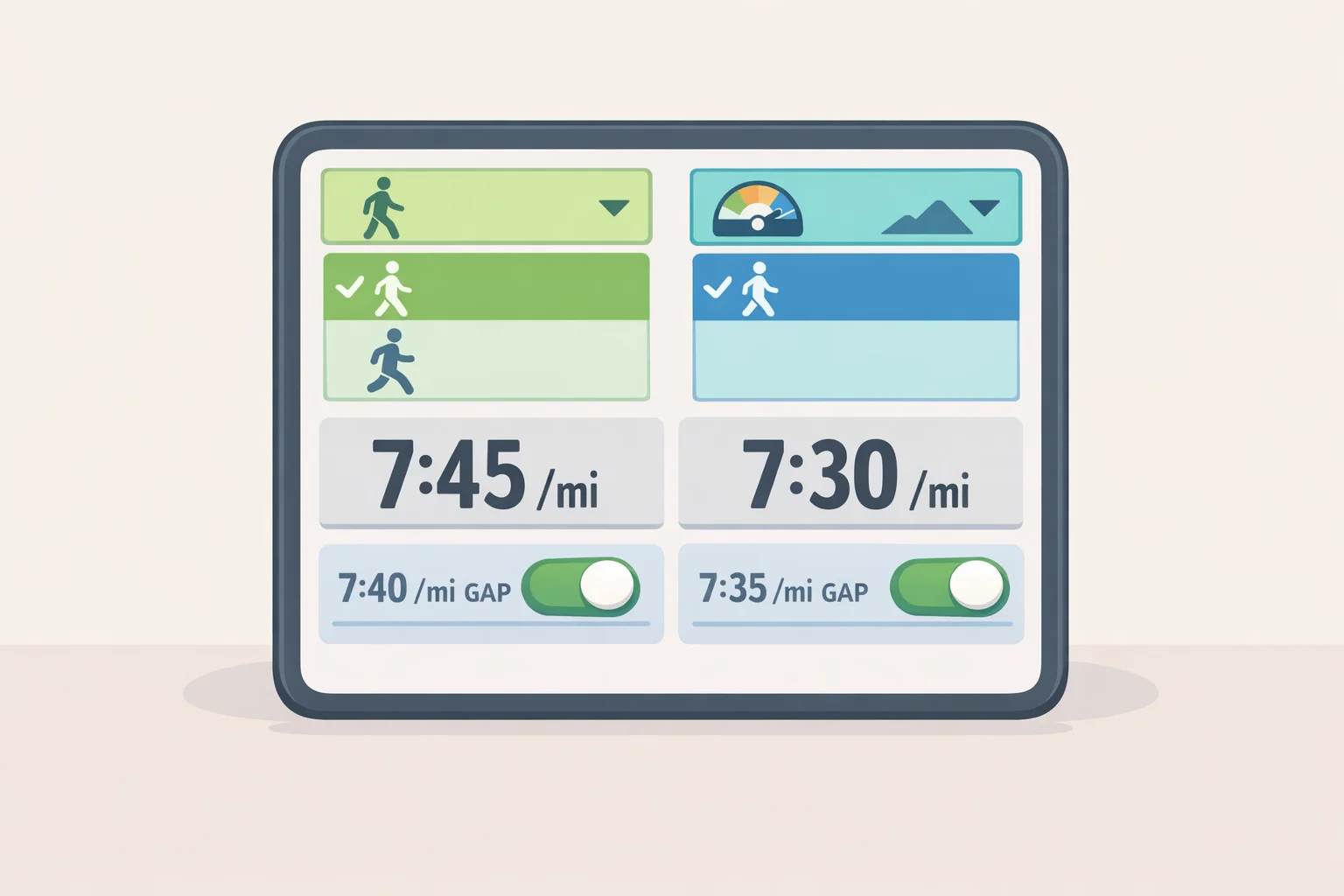
Runners on hilly or mixed-terrain routes get real value here. On flat, consistent courses, raw pace already tells the full story, so this one is skippable.
In Outdoor Running or Trail Running mode, go to Settings > Workout Settings > Data Page > Pace Class, and add Current Lap GAP and/or Last Lap GAP (Amazfit). Amazfit says Grade Adjusted Pace accounts for changes in gradient, giving more useful pacing context on hills than raw speed alone (Amazfit).
The two fields aren't identical. Current Lap GAP shows terrain-adjusted pace for the segment being run right now, which helps in holding a steady effort on a climb. Last Lap GAP shows what was actually held once a segment ends, which suits reviewing splits between aid stations. Amazfit's release notes don't spell out this distinction; it's a practical reading of what each field is built to do, not a documented use case.
Separately, the July update optimized the altitude algorithm, which Amazfit says reduces abnormal fluctuations in accumulated ascent and descent (Amazfit). That should make elevation data more consistent to review after runs with frequent grade changes, and it pairs naturally with GAP since both numbers draw on the same terrain data.
A workable three-field layout: Current Pace, Current Lap GAP, and Accumulated Ascent. One shows raw speed, one shows terrain-adjusted pace, one shows the climbing done so far. That combination is an editorial suggestion, not something pulled from Amazfit's documentation.
Add HybridCharge to your Amazfit Cheetah 2 Ultra workout data fields
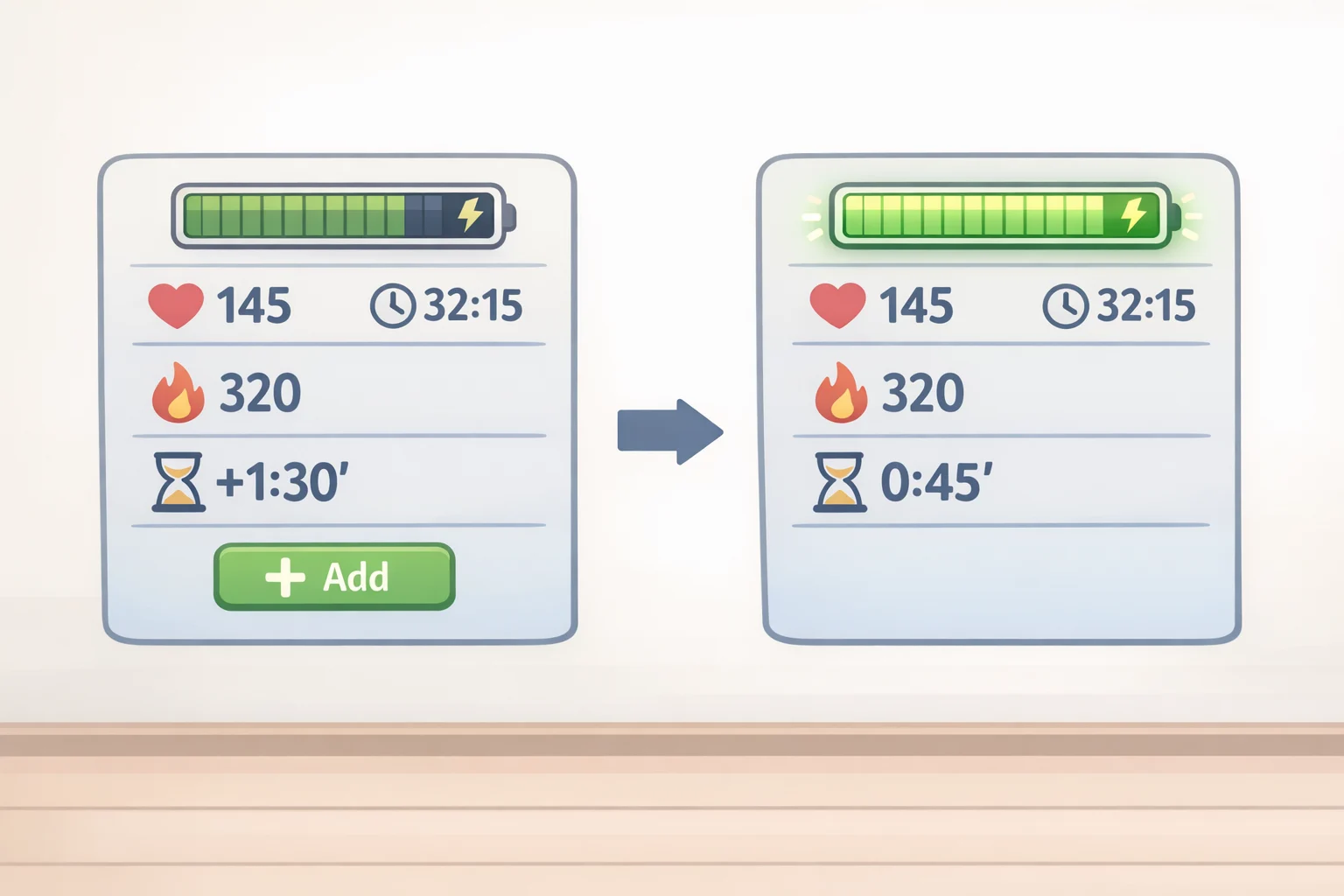
Anyone training multiple days a week benefits most from tracking this mid-session. Occasional, low-intensity exercisers will get less out of it.
Add HybridCharge as a workout data field through Workout > Settings > Workout Settings > Data Page > Other Class > HybridCharge, so it sits on screen next to pace and heart rate during a session (Amazfit). HybridCharge™ Energy Intelligence combines BioCharge™, LifeLoad™, and Training Load into one signal meant to reflect training capacity across exercise, recovery, and daily stress (Amazfit).
Recovery Time got its own refinement: it now displays a recommended rest window before the next high-, medium-, or low-intensity session (Amazfit). Amazfit's support documentation separately notes that the watch calculates a rolling seven-day exercise load and measures recovery heart rate automatically within three minutes of a workout ending (Amazfit support). The company doesn't specify exactly how those numbers feed into the Recovery Time figure, so it's worth treating them as related inputs rather than one documented formula.
Use a low HybridCharge reading, or a Recovery Time nudge toward lower intensity, as a prompt to reconsider a hard session rather than a reason to cancel one outright. Cross-check it against sleep and how the legs actually feel that morning. Amazfit's own documentation frames the recovery recommendations as a way to recover better and plan workouts sensibly, aimed at avoiding exercise injuries; it doesn't call the metric a clinical score, and the watch is explicitly not a medical device (Amazfit support).
Set up Morning Updates and a sleep plan for daily recovery review
This setting matters most for anyone whose training and rest days pull their schedule in different directions. A fixed daily routine gets less benefit from customizing it.
Turn on Morning Updates so the watch sends a short report each morning as soon as you wake, a quick checkpoint without opening the app (Amazfit support). Then build a sleep plan with a different bedtime and wake time for each day of the week, so a hard training day and a rest day can carry separate targets (Amazfit support).
Two quirks are worth knowing before trusting the numbers. Sleep under 20 minutes isn't recorded at all, and any sleep more than 60 minutes apart from the main sleep period gets logged separately as a nap (Amazfit support). That explains gaps or odd splits that occasionally show up in a night's data.
A Recovery Time nudge means little without a schedule to act on. Pairing bedtime targets with a morning summary turns the previous day's workout data into an actual decision each morning, rather than a number left sitting unchecked on the watch.
Customize the Control Center for the data you actually check
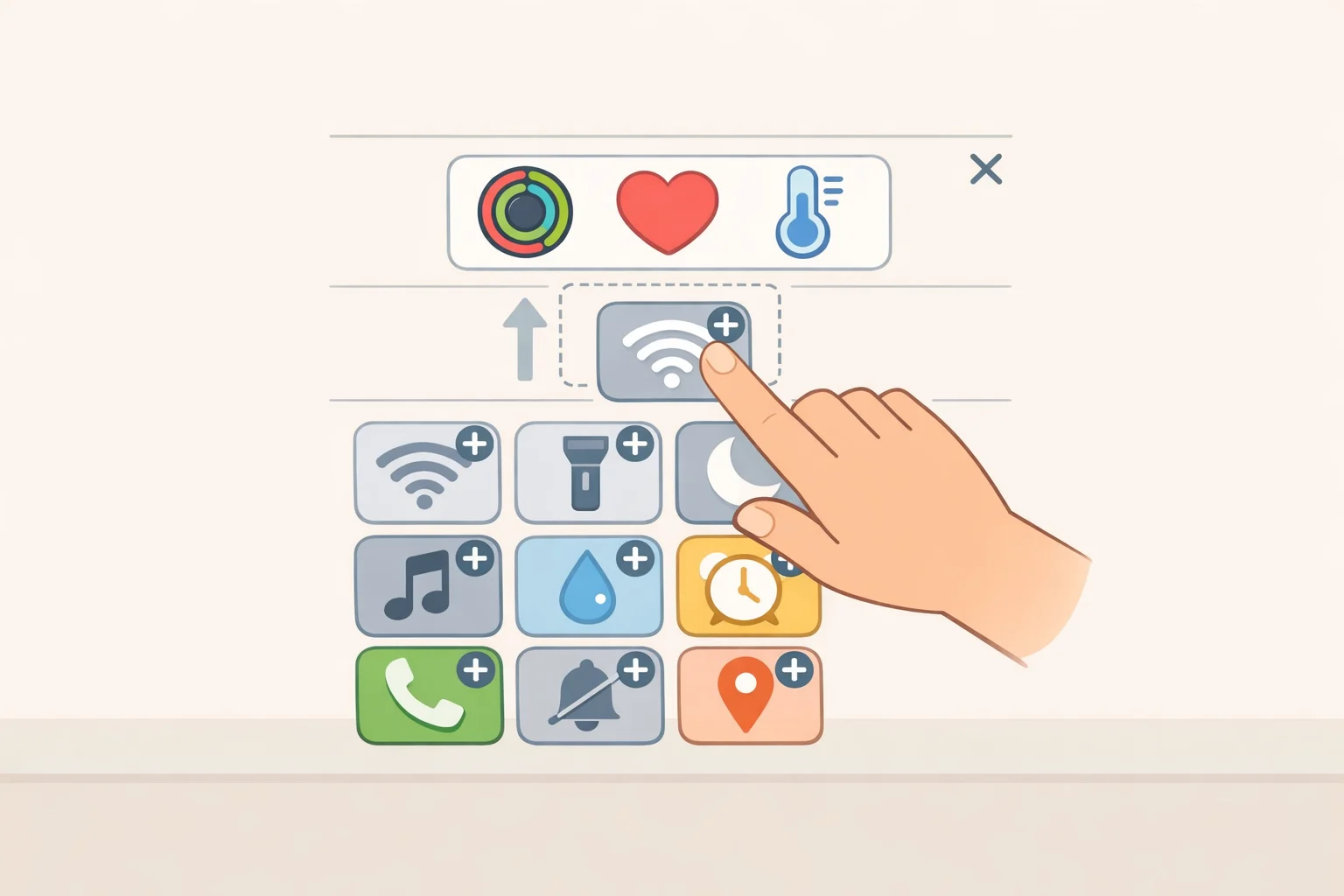
Every owner gets something out of this, especially anyone who wants a quick readiness check without digging through app menus.
Tap the top of the Control Center and select Edit to personalize the layout. Up to 24 controls can be arranged, including cards for recent heart-rate data, the next alarm, or upcoming calendar events (Amazfit support). It won't surface HybridCharge or Recovery Time directly, but it's the fastest way to keep the metrics Amazfit does support there front and center throughout the day.
The June update also changed how status indicators behave: they now appear briefly on the watch face, then settle at the bottom of the Control Center, cutting clutter while keeping the information a swipe away (Amazfit).
One more feature worth knowing about, even though it isn't a fixed setup path: the July update enables syncing compatible HRV data from Zepp to Apple Health, useful for iPhone owners who want a longer-term record outside Amazfit's own app (Amazfit). Amazfit's release notes don't identify exactly where the toggle lives, so check the current Zepp app settings or its support documentation rather than hunting for a menu labeled "HRV sync."
Where to go from here
These five settings, offline route prep, a terrain-aware data screen, HybridCharge and Recovery Time as training-load checks, a Morning Updates and sleep-plan routine, and a Control Center built around what's actually useful, cover most of what changed since the Ultra launched in May 2026, plus a few things that were there all along and easy to overlook.
Keep the limits of the recovery metrics in view. Amazfit's own documentation is careful to say the recovery recommendations are meant to help with recovery and workout planning, not to function as a clinical measurement, and the watch is explicitly not a medical device (Amazfit support). A low reading is one input for a decision, not the decision itself.
Several of these settings depend on firmware and Zepp app version, so check Device > Firmware Update before concluding a menu path doesn't exist. The June update also brought HYROX-specific tools, including a structured workout library and Virtual Pace simulations, for owners training toward that particular race (Amazfit). Update the watch, set up the two or three settings that actually apply to your training, and test them on an ordinary run before trusting them on race day.