How to Turn an Old iPad Into an Apple Home Control Panel
An iPad mounted near the front door, showing lights, locks, and scenes ready to tap, beats fishing a phone out of a pocket every time someone wants to dim the living room. This guide builds exactly that: a wall-fixed screen running an organized Apple Home Favorites view. It is not a security-camera grid, and it is not a standalone smart-home brain that keeps working if Apple's own infrastructure has a bad day.
This setup only works as a wall-mounted Apple Home touchscreen if three things hold up: the iPad is still inside its security-update window, every accessory in the house is actually compatible with Apple Home, either natively or through a proper bridge, and the household has a current Home hub online for anything that needs to work away from home or on a schedule. Confirm that last point on Apple's Home hub support page before sinking time into the rest of this project. Step 6 breaks out exactly what does and doesn't need that hub.
This is an Apple Home tutorial, specifically for accessories that are HomeKit-compatible or Matter-certified. Anything running Zigbee, Z-Wave, or another protocol with no bridge into that world gets a short detour toward Home Assistant in Step 3, not a second full tutorial.
The path from here: check whether the iPad itself can handle permanent duty, design the dashboard before touching a setting, confirm Apple Home actually covers every accessory in the house, mount and power the thing like a fixture, lock it down with Guided Access, then build a maintenance habit around what genuinely depends on the hub.
Step 1: Check whether this iPad is fit for permanent duty
Video of the Day
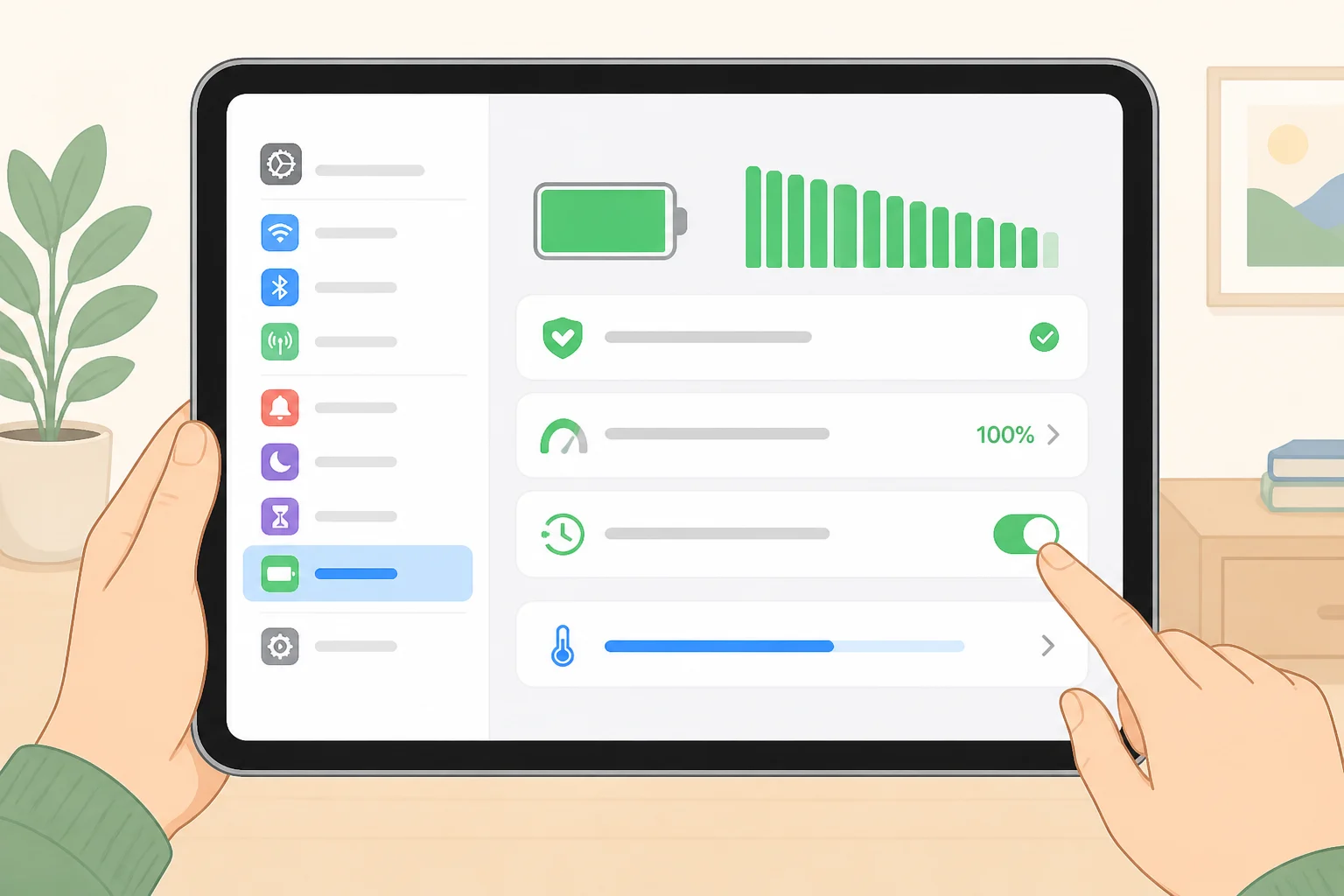
Open Settings > General > About and Settings > General > Software Update to see which iPadOS version the device currently qualifies for. Check that model against the current supported-device list on Apple's iPadOS update page instead of assuming it still qualifies because it did a year ago. If the model isn't on that list anymore, it's not getting security patches, and that matters more for a permanently mounted panel than whether it can run the newest features.
Check battery condition under Settings > Battery > Battery Health & Charging, and treat that menu as "if available." The exact options differ by model and iPadOS version, per Apple's battery documentation. If the menu isn't there, judge by behavior instead: unexpected shutdowns, noticeable heat while charging, or unusually fast charge drain.
Swelling or case separation is a different category from general wear. Treat it as a stop-use sign, not a maintenance note: don't press on it, don't keep charging it, and get it assessed or recycled rather than putting it back into daily use. That iPad shouldn't go anywhere near a wall mount.
An older iPad still inside its security-update window, with no swelling and no alarming heat or shutdown pattern, is a reasonable candidate for this project. One that's aged out of updates, or shows physical signs of battery trouble, isn't worth mounting permanently near an occupied space. There's a lower-effort role for it at the end of this guide.
Video of the Day
Step 2: Design the dashboard before you touch a single setting
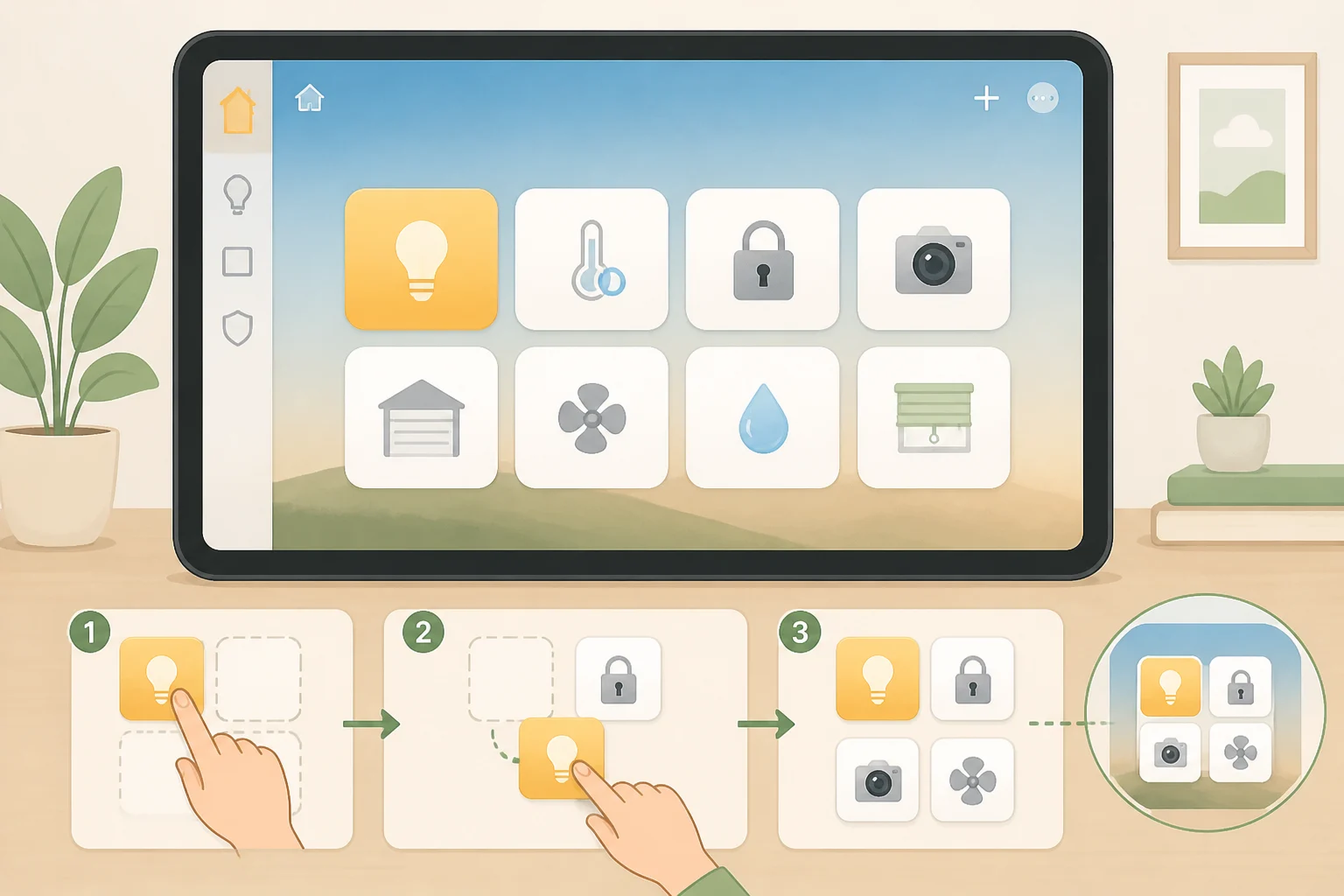
Open the Home app and decide what belongs on the first screen before thinking about mounting hardware or lockdown settings. Arrange Favorites the way you want them to appear, using Apple's guide to organizing Home as a reference, then check exactly where they land on the Home tab on the actual iPadOS version running on this iPad. Screenshots in any guide can lag behind the installed software, so confirm the layout on the device itself.
Decide whether cameras belong here at all by testing first, not guessing. Tap a camera tile in the Home app on this specific iPad and watch what actually happens, whether it opens a live view immediately, shows a static thumbnail until tapped again, or does something else entirely. Camera behavior can vary by camera model, Home architecture, and iPadOS version, so judge this screen by what it actually does rather than by how a dedicated security panel's camera grid works.
Decide now, not after mounting, whether the location will be guest-accessible. That answer matters more than it might seem: Guided Access locks down where someone can navigate on the iPad, but it doesn't create a separate, limited smart-home account underneath it. Whoever can tap through the locked session can potentially trigger whatever the signed-in Apple Home account is allowed to control, not just the tiles meant for casual use.
Open the Home app's account settings and confirm exactly what that signed-in account can touch. If the mount location is visible to guests, delivery people, or anyone outside the household, keep cameras, locks, garage doors, and alarm systems off the Favorites screen entirely, or set up a separate Home member account with reduced access before putting one of those tiles within reach. Apple Home may prompt for confirmation before certain actions, like unlocking a door, but whether that happens depends on the specific accessory and software version. Test the exact locks and garage-door accessories in the house directly in the app rather than assuming a confirmation prompt will catch a stray tap.
Step 3: Confirm Apple Home actually covers the accessories
Apple Home works directly with accessories that are HomeKit-compatible or Matter-certified. Matter accessories can join through Apple Home directly or through a compatible hub or border router, but what that actually requires depends on the accessory: some connect over Wi-Fi, others need a Thread network already running in the home. Check each device's own documentation and current listing before buying or relying on it, rather than assuming every Matter product sets up the same way.
If everything in the house clears one of those two bars, there's nothing further to sort out here. Proceed with Apple Home as the sole interface for the rest of this guide.
When Apple Home can't see an accessory: devices running Zigbee, Z-Wave, or another protocol with no Matter or HomeKit bridge have no direct path into Apple Home. Some Zigbee and Z-Wave hubs offer their own vendor bridges into Apple Home, so check what the existing hardware already supports before buying anything new. If nothing bridges it, the alternative is Home Assistant, a separate server with its own setup, updates, and account security, not a feature built into Apple Home. That's a different project and isn't covered here.
Decide before mounting anything: switching which app runs the dashboard later means testing the Guided Access session against that new app from scratch, since restriction settings are configured per app, not carried over automatically.
Step 4: Mount and power the iPad like a fixture
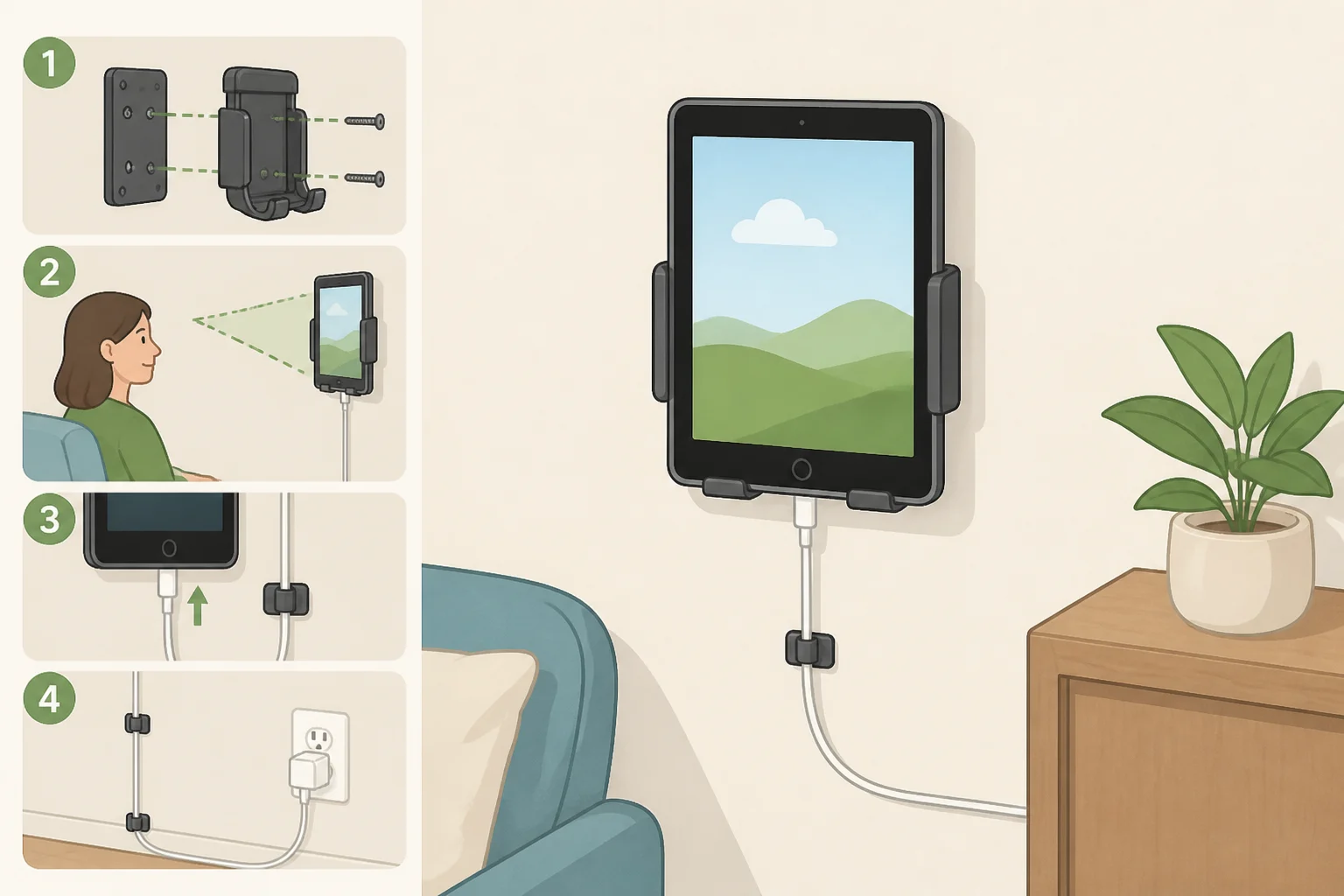
Base orientation on the dashboard built in Step 2, not on habit. Test the actual Favorites layout in both landscape and portrait before drilling a single mounting hole, and check visibility at the exact spot: a display running at reduced brightness can wash out badly under direct sunlight or glare, so view it at the mounting height, at the time of day it'll see the most light, before committing to a bracket.
Mount to a wall material the bracket is actually rated for, following the mount manufacturer's weight and installation instructions rather than general wall-anchor habits. Position it so the charging connector stays reachable for troubleshooting, and route the cable so it can't be pulled loose or pinched at the port.
A mounted iPad sits plugged in and near full charge most of the day. Use an Apple power adapter and cable, or a third-party equivalent that matches this iPad's connector and power requirements, and avoid enclosed nooks or spots near vents and direct heat. Check the back of the device periodically for warmth, swelling, or case separation; if any of those show up after mounting, pull the iPad from service instead of assuming it's cosmetic. Some iPads include a feature that limits how long the battery sits at full charge, but whether it's present and how it behaves varies by model and iPadOS version, so check Apple's battery documentation for this specific model rather than assuming it's active by default.
Lower max brightness under Settings > Display & Brightness as a reasonable precaution against heat buildup on a screen that stays lit most of the day. It's not a guaranteed fix, and it has to be balanced against readability: if the screen is hard to read at a brightness low enough to feel safe, the mounting spot probably needs to change instead.
Step 5: Lock the screen down with Guided Access
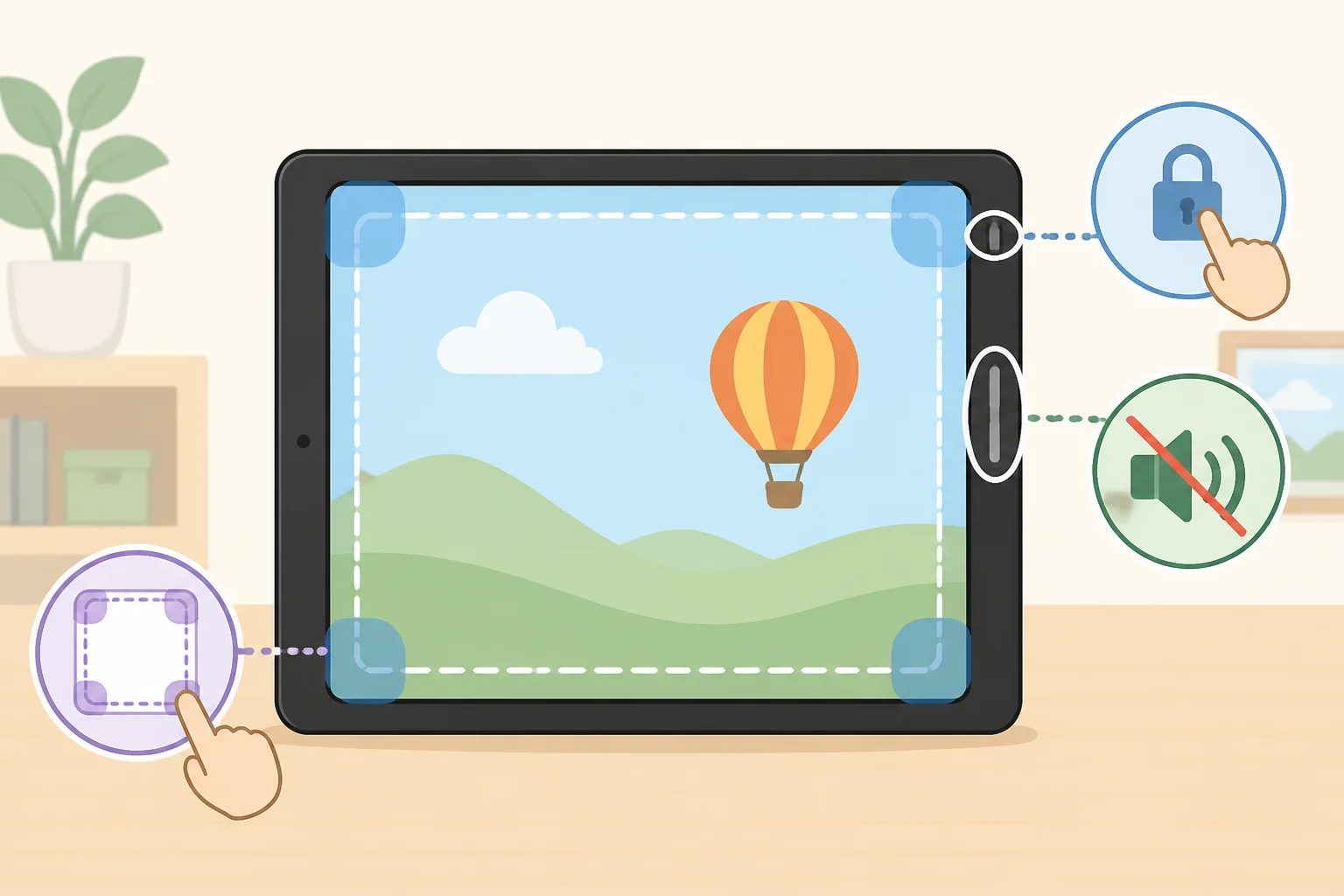
Turn on Guided Access under Settings > Accessibility > Guided Access, start a session inside the Home app, and disable unused touch regions along with the Side Button and Volume Buttons in the session's Options menu. Apple's own Guided Access guide covers the setup path but doesn't spell out what happens to these restrictions after a restart, crash, or software update, since that behavior can vary by iPadOS version. Test it on this device rather than assume it holds.
Restart the iPad, then check whether Guided Access is still active once it comes back on. If it isn't, that's not a minor quirk, it means this setup needs someone to manually re-enter the session after any restart, planned or not, and that should factor into where the iPad gets mounted and how often it's realistic to check on it.
Before trusting the setup unattended, run through a few more checks on the exact iPad and iPadOS version in use, and record what actually happens rather than expecting a specific result: swipe in from all four edges and note whether Control Center or the App Switcher appears, try invoking Siri and see whether it responds or stays inert, and check what a long press on the power button does. If any of those opens a path out of the Home app, tighten the relevant restriction in Guided Access Options, or treat it as a known gap in the lockdown rather than something to fix later.
As covered in Step 2, Guided Access controls navigation, not account permissions. If the exposure question from that step isn't settled, settle it before finishing this one, not after.
Set Auto-Lock to Never if that option is available on the device, then confirm it stays off once the iPad is in its final mounted position and charging, not just on a desk during setup. Guided Access doesn't necessarily stop notification banners from appearing over the dashboard, and a preview on a public-facing screen can expose messages or calendar details to anyone standing in front of it. Build a custom Focus mode to suppress those banners, per Apple's Focus documentation, and confirm no preview text appears during an active session. Focus only manages notifications, though; it has no effect on which Home accessories the signed-in account can control, so it's not a substitute for the decisions made in Step 2.
Write the separate Guided Access passcode down somewhere other than the iPad itself. It's required to exit the session, and on most setups it's distinct from the device passcode or Face ID, so confirm which one this iPad actually asks for before relying on memory alone.
Step 6: Build a maintenance routine around the hub dependency
Not every Apple Home feature depends on a Home hub the same way, and treating them as one bucket leads to false confidence. Check each of these against Apple's Home hub support page and against the actual accessories in the house, since exact behavior can vary by accessory type, bridge, and how Apple Home is currently set up:
- Tapping a tile while standing in the house. This often works over the local network without a hub, but that depends on the accessory and its connection type, so test it rather than assume it.
- Checking accessory status in the Home app while at home. Same local-network caveat.
- Siri requests made directly on the mounted iPad. Test this on the actual device; don't assume it behaves the same as a local tap.
- Controlling accessories, or asking Siri, from outside the house. This is where Apple's hub page matters most. Confirm a qualifying hub is set up and currently online.
- Scheduled or triggered automations. Check the hub page for current requirements; this is one of the features most likely to need a hub running continuously.
- Accessory-specific bridges, like a Zigbee or Z-Wave hub feeding into Apple Home. What happens if that bridge goes offline depends on the bridge manufacturer, not on Apple's hub requirements, so check that product's documentation separately.
Decide the update trade-off on purpose rather than by default. Disabling automatic updates under Settings > General > Software Update gives someone direct control over exactly when an update installs, which can help avoid one landing mid-session on an unattended device. It also shifts responsibility for security patches onto whoever remembers to check manually, so set a specific schedule for that check rather than leaving it open-ended. Keeping automatic updates on avoids that risk but means an update could arrive while the iPad is unattended, so test what actually happens to the Guided Access session on this iPad before settling on either approach.
Disconnect Wi-Fi briefly and check two separate things: whether the Home app reconnects and shows current accessory status again once Wi-Fi returns, and whether the Guided Access session itself stayed locked to the app through the outage. The iPad can stay locked to the Home app even while every accessory connection drops, so a frozen Home tab isn't proof the lockdown failed, and a responsive lockdown isn't proof the smart-home side recovered too. Confirm both before trusting the panel unattended.
Should this iPad actually go on the wall?
Sort it into one of three outcomes based on the checks above.
Mount it if the iPad passed Step 1's software and battery checks, every accessory on the dashboard cleared Step 3's compatibility check, the Guided Access tests from Step 5 came back clean, the account and accessory exposure decision from Step 2 is settled, and Step 6 confirmed a hub is online for anything that needs to work remotely or on a schedule.
Use it on a shelf or charging dock instead if the software and battery checks passed but the Guided Access lockdown still has an open gap, or the mount location is guest-accessible and the account question from Step 2 isn't settled yet. A supervised, non-mounted shortcut delivers most of the convenience without the exposure.
Don't use this iPad for the role at all if it's aged out of security updates, or the battery shows swelling, case separation, unusual heat, or unexpected shutdowns. None of the mounting, Guided Access, or Focus settings in this guide fix a battery problem; they just hide it behind a nicer screen.
Even a clean pass leaves real limits in place: hub-dependent automations may behave differently if that hub goes offline, and recovery from a restart or forced update hasn't been shown to be automatic, only tested on the specific device in this guide. Don't mount anything permanently until those hands-on tests, not just the setup steps, have actually been run on the iPad going on the wall.