Why do AirPods chirp? A step-by-step troubleshooting guide
A chirp from AirPods can come from three different places: the earbuds, the charging case, or the iPhone routing a sound through them. Figuring out which one is actually making noise comes before any setting change does, since the wrong fix just wastes a Bluetooth re-pair on a problem that was never in the earbuds to begin with.
AirPods also aren't one product with a single sound profile. Apple sells AirPods 4 in a standard version and an Active Noise Cancellation version that behaves differently when switching listening modes, according to Apple's AirPods comparison page. Case design varies the same way: only some models, including the AirPods Pro (2nd generation) case and the AirPods 4 ANC case, come with a built-in speaker, per Apple's AirPods Pro support guide.
What follows is a table to match a sound to its likely source, followed by the steps to confirm it: which settings Apple actually documents, the standard fixes worth trying before assuming hardware failure, and the point where a sound stops being a settings problem and becomes a safety issue.
Quick reference: match your sound to its source
Video of the Day
A documented control means Apple explicitly describes a setting that changes or triggers the sound. "Not documented" means Apple never addresses whether the sound can be adjusted, not that it's confirmed to be stuck on.
| What you hear or when it happens | Likely source | Applies to | Control available? | Where to check | Next step |
|---|---|---|---|---|---|
| Chime when cycling Noise Cancellation, Transparency, and Off | Earbuds (ANC hardware) | AirPods Pro (2nd generation); AirPods 4 (ANC) | Not documented | Accessibility > AirPods (unconfirmed) | Step 4 |
| No ANC chime at all | Hardware difference | AirPods 4 (standard, non-ANC) | Not applicable | Nothing to check | Step 1 |
| Tone during Play Sound or Precision Finding | Case speaker | AirPods Pro (2nd generation) case; AirPods 4 (ANC) case | Yes, a Find My action | Find My app > device > Play Sound | Step 2 |
| No documented case speaker | Case hardware | AirPods (standard) case; AirPods 4 (standard) case | Not documented | None documented | Step 2 |
| Alert when AirPods are left behind | iPhone, via Find My | Any model enrolled in Find My | Yes, indirect | Find My app > Devices > Notify When Left Behind | Step 5 |
| Siri confirmation or notification tone | iPhone (active audio output) | Any model acting as current output | Indirect, iPhone-side | iPhone notification and Siri settings | Step 5 |
| Spoken or notification-based low battery warning | iPhone | Any model with battery reporting | No standalone tone documented | Batteries widget, or ask Siri | Step 5 |
| Audio pausing on removal | Ear or head detection | AirPods, AirPods 4, AirPods Pro (ear detection); AirPods Max (head detection) | Indirect, affects pausing only | Bluetooth settings > Automatic Ear Detection | Step 4 |
| Case LED changes color or flashes | Status light, not sound | All cases | Not applicable | Visual only | n/a |
| Repeated or unexplained chirping, no clear trigger | Unknown | Any model | Unconfirmed | Check for heat, swelling, liquid, or a charging fault | Step 7 |
If a row matches cleanly, jump straight to that step. If nothing matches, start at Step 1.
Video of the Day
Step 1: Confirm your exact model and the moment the sound happens
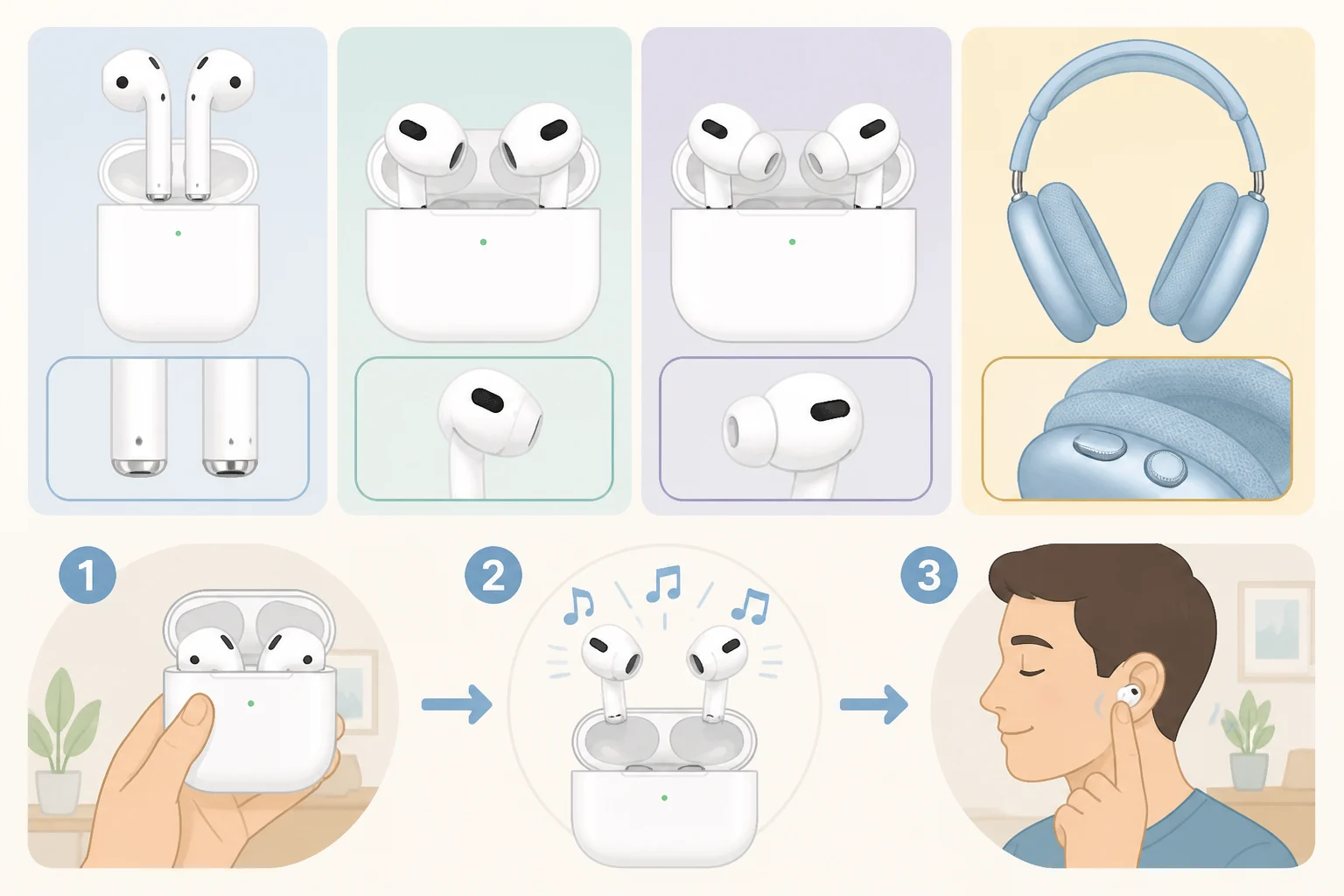
Check which version you actually own using Apple's model identification guide. AirPods 4 splits into ANC and non-ANC versions with different sound behavior, and AirPods Pro handles wearing detection differently than AirPods Max.
Once the model's confirmed, pin down the exact trigger: case lid opening or closing, a bud going in or out of an ear (or off the head, for Max), a switch between noise-control modes, a notification landing, or a dropped connection. Each one points to a different step ahead, and knowing your model first rules out explanations that don't apply to your hardware at all.
Step 2: Check your case's speaker settings first
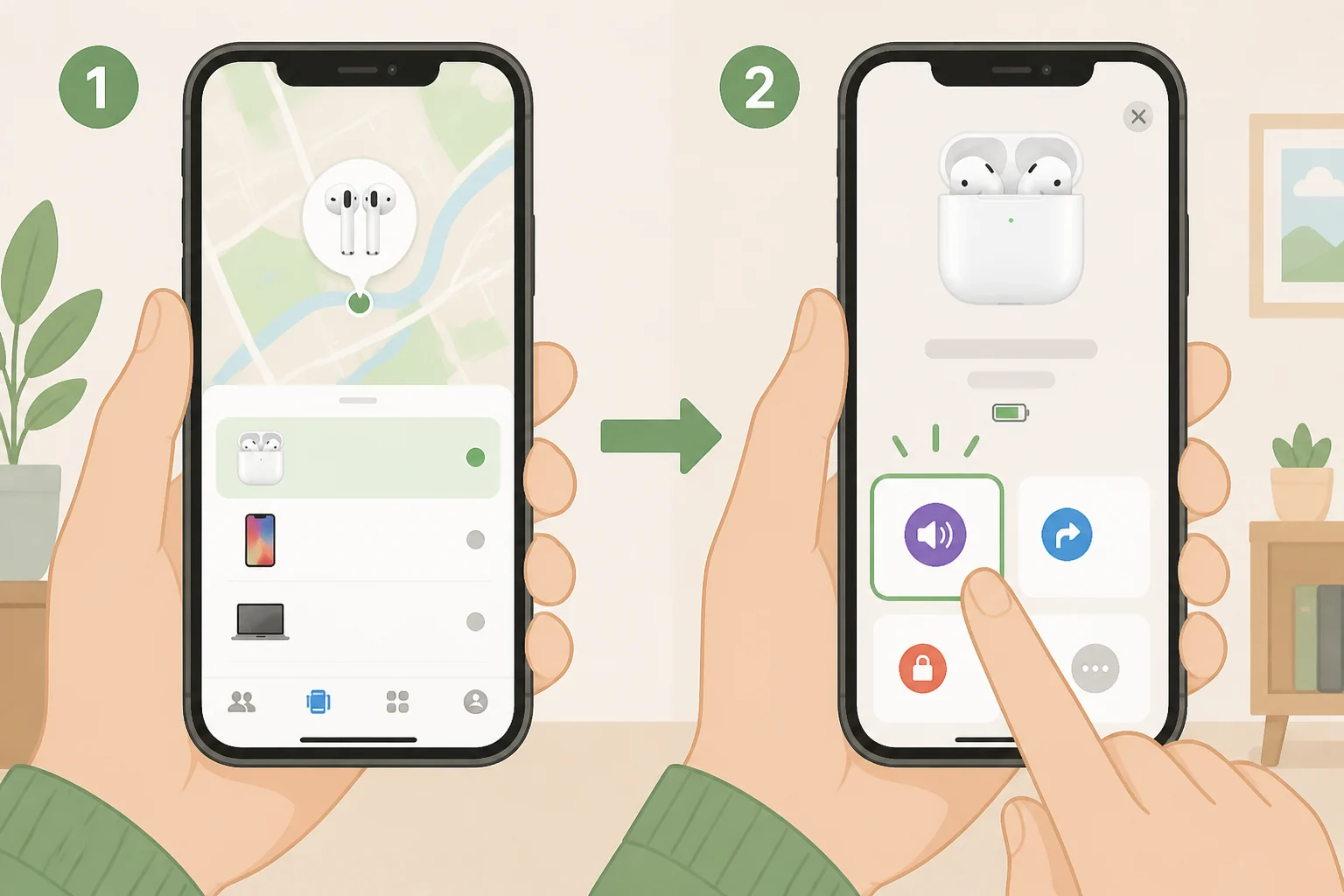
Not every AirPods case can make noise on its own. The AirPods Pro (2nd generation) case and the AirPods 4 ANC case include a built-in speaker, used mainly for Find My's Play Sound and Precision Finding features, according to Apple's Find My AirPods support page. Apple's documentation doesn't mention a speaker for the AirPods (standard) case or the AirPods 4 (standard) case. That's a gap in what's published, not proof those cases stay silent.
If your case is one of the two models with a documented speaker, the only control Apple describes sits inside the Find My app: open it, select your AirPods, and tap Play Sound. That's an action, not a toggle you leave on or off, and nothing in Apple's documentation describes a separate way to mute the speaker itself. If your case isn't one of those two models, there's nothing to check here; move to Step 3.
Case status also shows up visually, through an LED that displays amber, green, or a flashing pattern, according to Apple's charging support page. If what you're noticing is a light rather than a tone, there's no audio setting involved.
Step 3: Confirm whether the case is actually the source
Running Play Sound from Step 2 is the clearest test available. If the tone matches what plays when you trigger it on purpose, the case speaker is the source, and Find My is where you'll manage it going forward. If your case isn't one of the two models Apple documents as having a speaker, this test confirms nothing either way, since there's no speaker to test in the first place; the earbuds or the iPhone are more likely candidates.
Beyond that, try isolating the moment directly. Cycle through Noise Control modes a few times on an ANC-capable model, pull an earbud out mid-playback, close the case lid, or mute notifications and watch which action reproduces the sound. Apple doesn't publish a troubleshooting sequence for this, so a sound that repeats consistently after the same trigger is more useful information than one instance you can't recreate.
Step 4: Match mode-switch and wearing sounds to your hardware
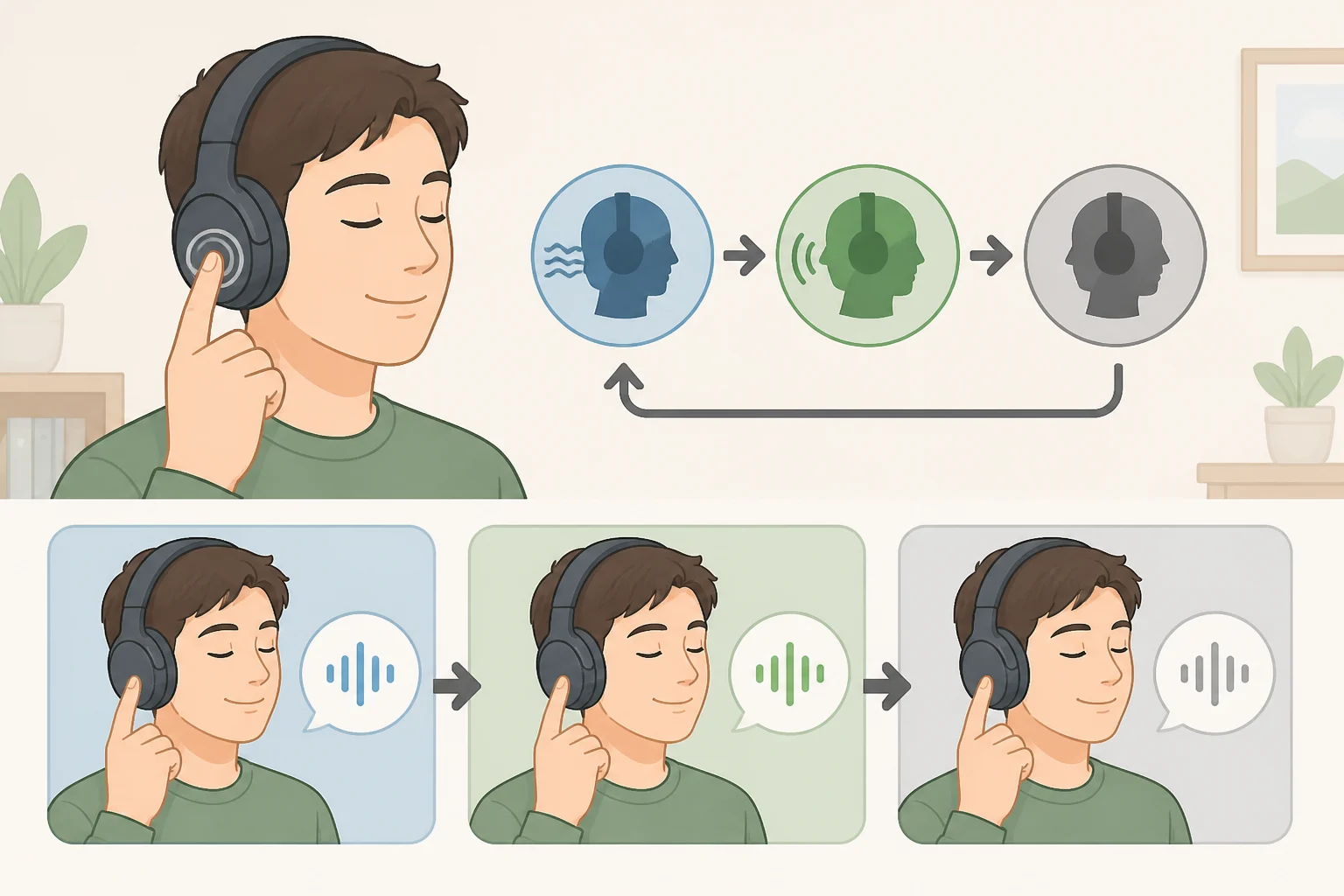
AirPods Pro (2nd generation) and AirPods 4 (ANC) play a chime when cycling between Noise Cancellation, Transparency, and Off, according to Apple's noise control support page. AirPods 4 (standard) isn't listed on Apple's comparison page as having ANC hardware, so this chime doesn't apply to that version.
Whether the chime can be lowered or turned off isn't something Apple spells out. The general AirPods user guide mentions an Accessibility > AirPods menu, but it doesn't confirm a dedicated toggle for this specific chime, and Apple has reworded accessibility menus across iOS releases. Check that menu on your current iOS version expecting to find out what's there, not a guaranteed off switch.
Wearing detection differs by model too. AirPods Max rely on automatic head detection, not in-ear sensors, to pause and resume audio, according to Apple's AirPods Max guide. AirPods, AirPods 4, and AirPods Pro use ear-detection sensors instead, controlled through the Automatic Ear Detection toggle in Bluetooth device settings, per Apple's ear detection support page. That toggle changes whether audio pauses automatically. Apple documents it as a pausing feature, not a chime control, so it won't silence a sound tied to mode switching.
Step 5: Separate iPhone sounds from AirPods sounds
Separation alerts, the sound that plays when AirPods are left behind, get configured per device in the Find My app under the Devices tab, not in Bluetooth settings, according to Apple's Find My AirPods support page.
Siri confirmations and app notification tones play through AirPods only because they're the active audio output at the time, not because the earbuds generated the sound themselves, per Apple's Siri and AirPods documentation. Muting notifications or checking Siri feedback settings on the iPhone handles these directly; there's no AirPods-side setting involved.
Low-battery warnings work the same way. They arrive as a spoken announcement or an iPhone notification, according to Apple's AirPods battery guide, and Apple doesn't describe a separate tone apart from that announcement. Check the exact percentage through the Batteries widget or by asking Siri rather than trying to identify a battery warning by ear alone.
Step 6: Run the standard fixes before assuming anything's broken
Update first. AirPods firmware installs automatically, but only while the earbuds are charging and sitting within Bluetooth range of a paired iPhone. Apple doesn't draw a direct line between firmware version and chirping, but ruling out an outdated build takes a minute and removes one variable from the list. Check your current version before assuming it's already current.
If the sound seems connection-related, repeating tones, dropped audio, or both, forget the device in Bluetooth settings and re-pair it instead of chasing individual toggles. Apple's pairing guide walks through the steps, though it doesn't promise the process resolves a specific sound; it's still worth trying before anything more drastic.
Save a full reset for last, only after updating and re-pairing have both failed. A reset clears all paired-device data, so treat it as a later-stage step, not a first response.
Step 7: Know when a sound becomes a safety issue, not a setting
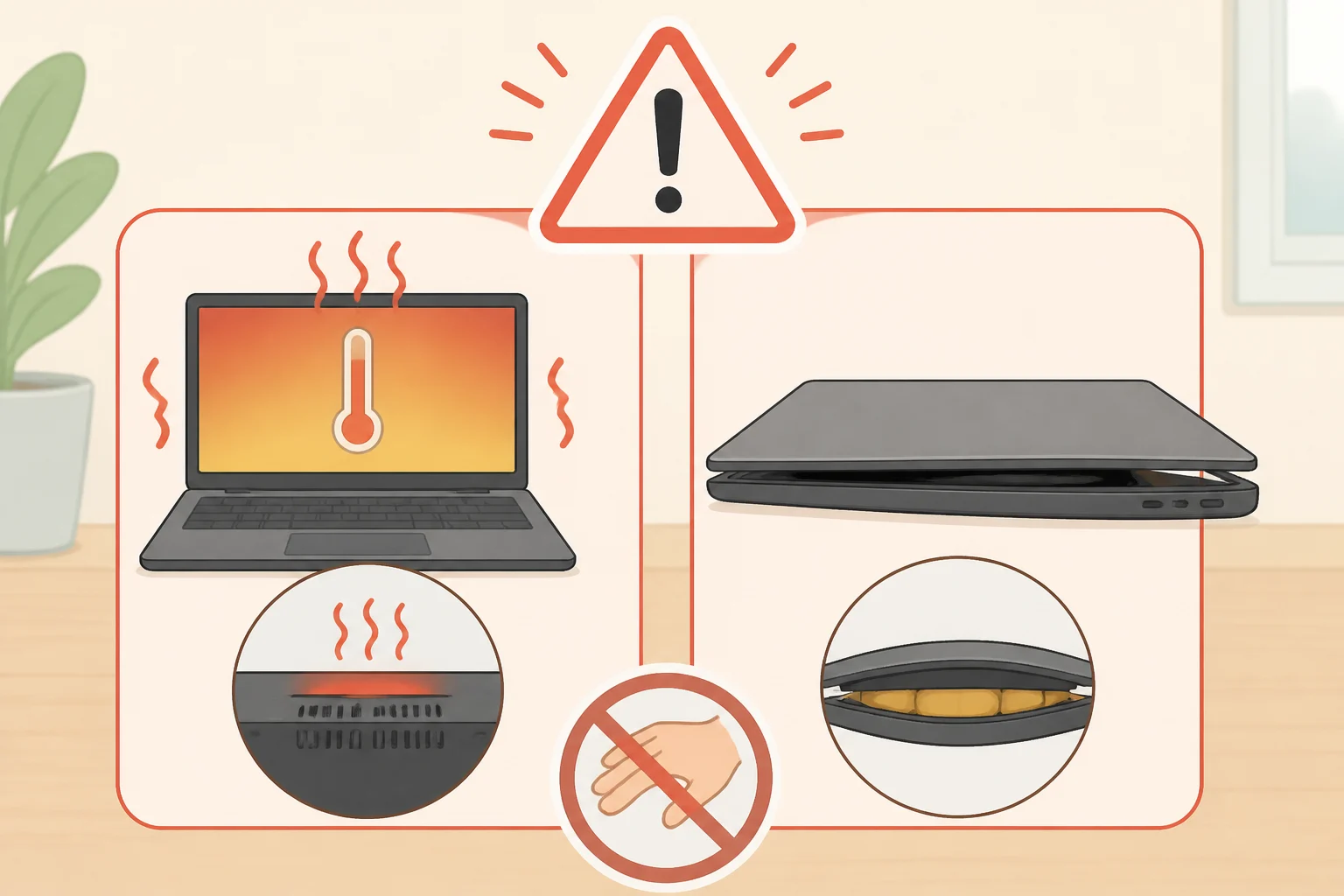
Stop using and stop charging any AirPods or case that feels unusually hot, looks swollen, or has been exposed to liquid, according to Apple's battery and safety guidance. Treat those signs as warnings on their own, not confirmation they explain whatever chirp you've been tracking.
Don't deliberately try to reproduce a suspected hardware sound if the case or earbuds are hot, swollen, wet, or refusing to charge. Stop use and contact Apple Support, or visit a store, rather than testing it yourself.
What to do now
Start with Step 2 if your case is one of the two models Apple documents as having a speaker. That's the one sound here with a clear, confirmed control, through Find My's Play Sound action. Everything else in this guide is about correctly identifying where a sound is coming from, since most of it isn't adjustable through a setting Apple has published.
If a sound keeps showing up with no identifiable trigger after working through Steps 1 through 6, or it comes with heat, swelling, liquid exposure, or a case that won't charge, stop testing it yourself and contact Apple Support instead.