Best YouTube Settings to Change: 12 Defaults Worth Fixing
If you want YouTube to stop steering your next click, don't start with "Not Interested." Start with Autoplay, watch history, and notifications. These are the best YouTube settings to change if you want a cleaner feed, fewer unsolicited interruptions, and video playback that works the way you actually want it to.
Prerequisites: These settings apply to the YouTube mobile app (Android and iOS) and the desktop website, as of mid-2026. Menu paths reflect current app layout. Incognito mode and the Shorts Feed limit are mobile-only; desktop alternatives are noted where relevant.
The wrong buttons
Video of the Day
Most people trying to fix their YouTube feed reach for the same controls: "Not Interested," "Don't Recommend Channel," the occasional dislike. These feel like meaningful feedback.
According to a large-scale academic audit, they mostly aren't. Researchers analyzed more than 567 million recommendations collected from over 22,700 participants across six months using a custom browser extension. The extension tested four of YouTube's native feedback signals against a control group that sent no signal at all. The conclusion: even the most definitive of these controls failed to prevent more than half of similar recommendations from reappearing, per research published earlier this year. The researchers describe a substantial gap between what users expect those buttons to do and what the platform actually does with them.
The controls most likely to change your day-to-day YouTube experience aren't the reaction buttons on videos. They're buried in account and app settings: the defaults governing what gets recorded, what plays next, how often the app pulls your attention, and how video actually looks on screen.
If you only change three things, make them Autoplay, watch history, and notifications. Everything else builds on or extends those three.
Video of the Day
Best YouTube privacy settings to change first
These settings address the core mechanism behind recommendation drift: the data YouTube collects and uses to decide what to show you next. Unlike the feedback buttons tested in the audit, these changes work by altering the inputs, what YouTube knows, rather than signaling displeasure about the outputs.
Settings 1-2: Pause future history and clear what's already there
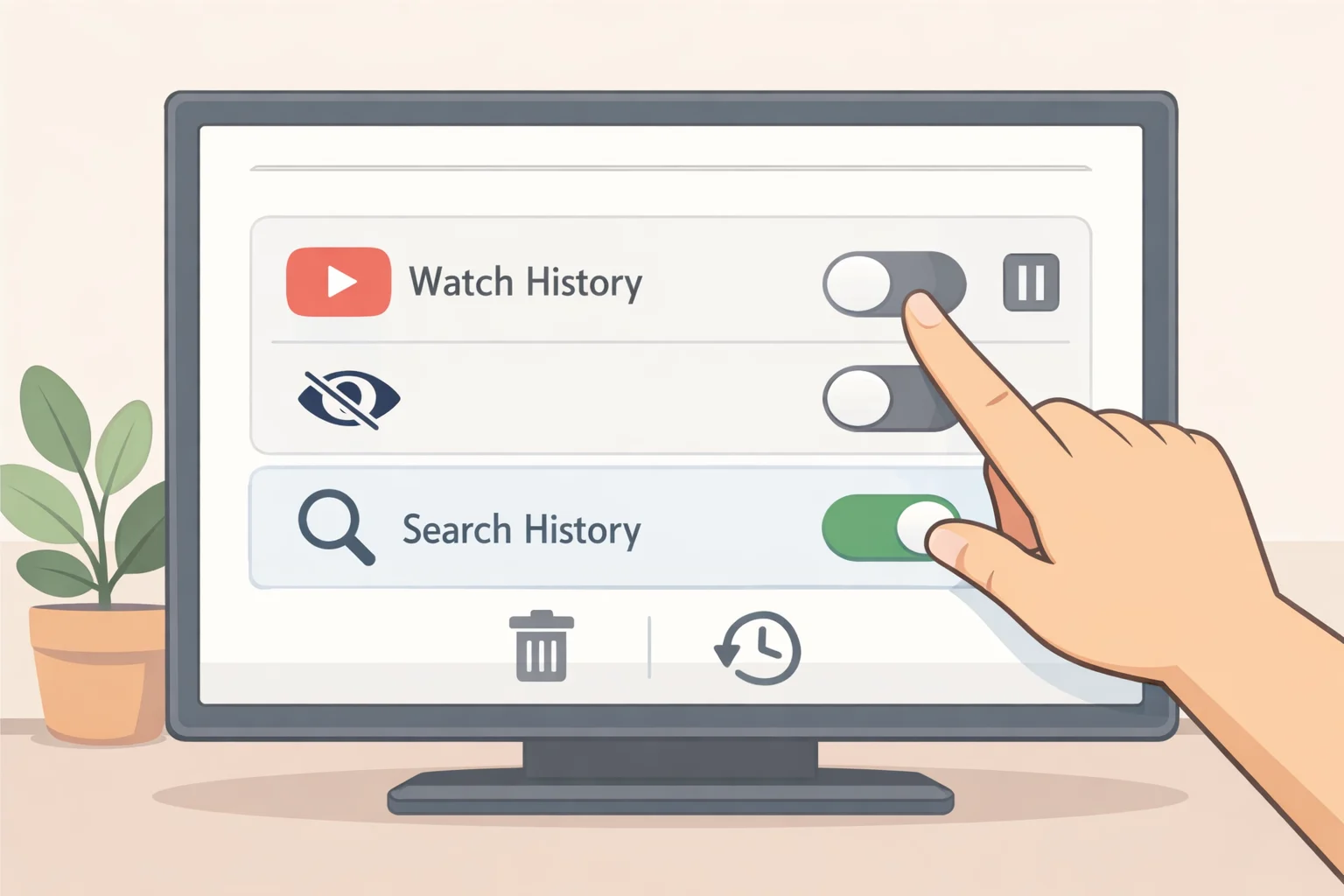
YouTube records every video you watch and every search you run, and unless you intervene, that history is stored indefinitely, as PrivacyOn explains. These are two distinct steps with different effects, and both matter.
Step 1: Pause future recording. Pausing watch history stops new viewing and search activity from being logged, which cuts off YouTube's ability to use that behavior for future recommendations, per PrivacyOn.
- Go to myactivity.google.com/activitycontrols, find YouTube History, and select Turn off
- Mobile shortcut: profile picture → Manage all history
Step 2: Reset what's already accumulated. Pausing history doesn't touch existing data. Clearing your watch history resets your recommendation profile from the current state; deleting everything typically leaves the homepage briefly blank while YouTube waits for fresh signals to build from, Android Police reported earlier this year.
- Go to myactivity.google.com → YouTube History → Manage activity → Delete → choose All time for a full reset, or a custom date range to remove a specific period, per PrivacyOn
⚠️ Decision guidance: Pausing history completely gives you the cleanest break from algorithmic steering, but recommendations become noticeably less personalized. If you want YouTube to still learn from recent behavior without years of accumulated data influencing the feed, set auto-delete to 3 months instead, same page, under "Saving activity," per PrivacyOn. If you want occasional browsing that leaves no trace, use Incognito (Setting 3) for those sessions rather than pausing history account-wide.
Setting 3: Use Incognito for one-off browsing
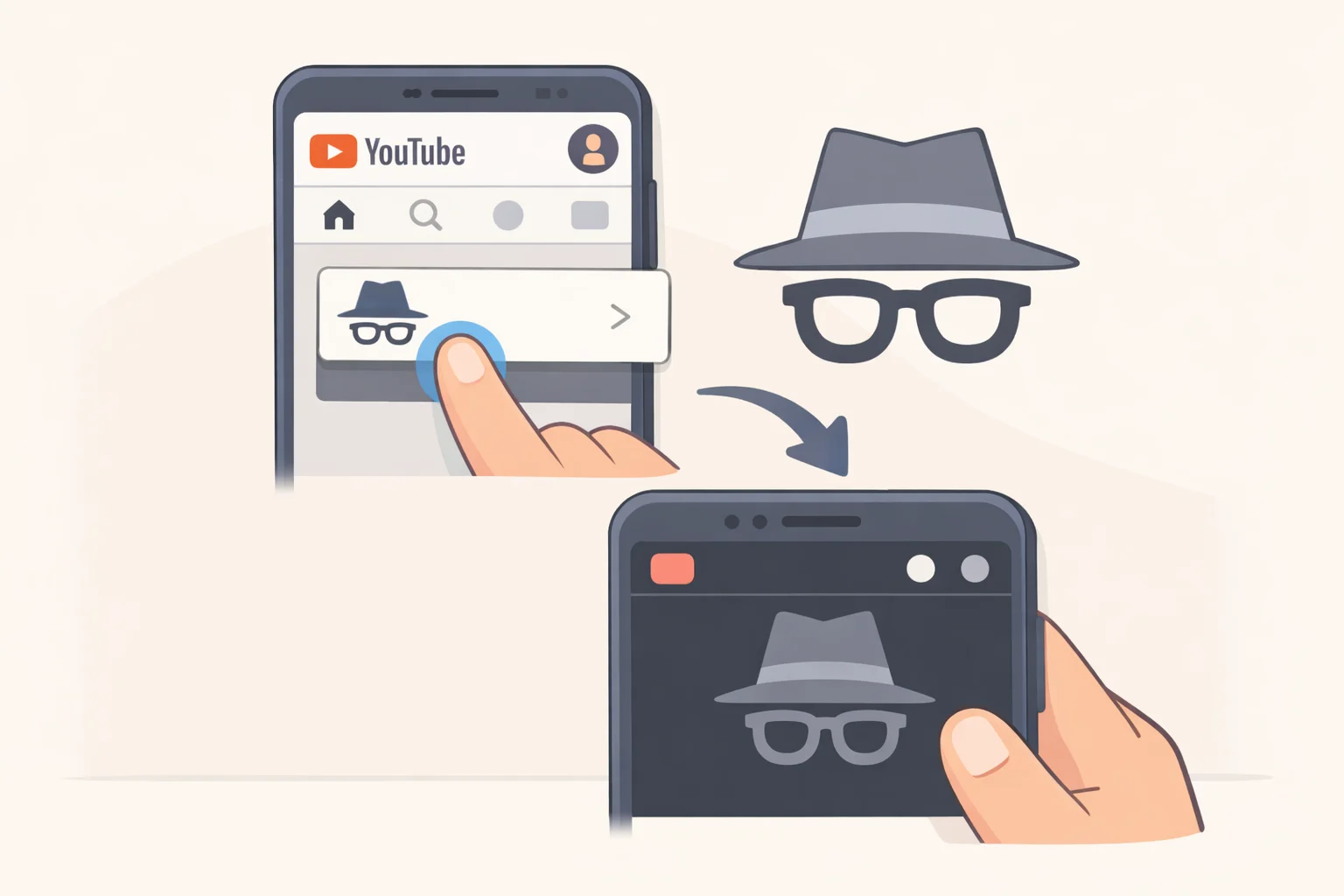
YouTube's mobile app includes an Incognito mode that watches videos without saving anything to your watch or search history, meaning those views don't shape future recommendations, per PrivacyOn. It's the right tool when you're watching something outside your usual interests, a rabbit hole you don't want reflected in your feed for the next month.
- Mobile: tap your profile picture → Turn on Incognito
- Desktop: no equivalent, sign out of your Google account or use a private browser window before visiting YouTube, per PrivacyOn
⚠️ Limit to know: Disabling history and using Incognito reduces what YouTube records to your account, but Google still collects some anonymous metrics regardless of these settings, as DEV Community notes. These are reductions, not a complete opt-out.
Setting 4: Turn off Autoplay
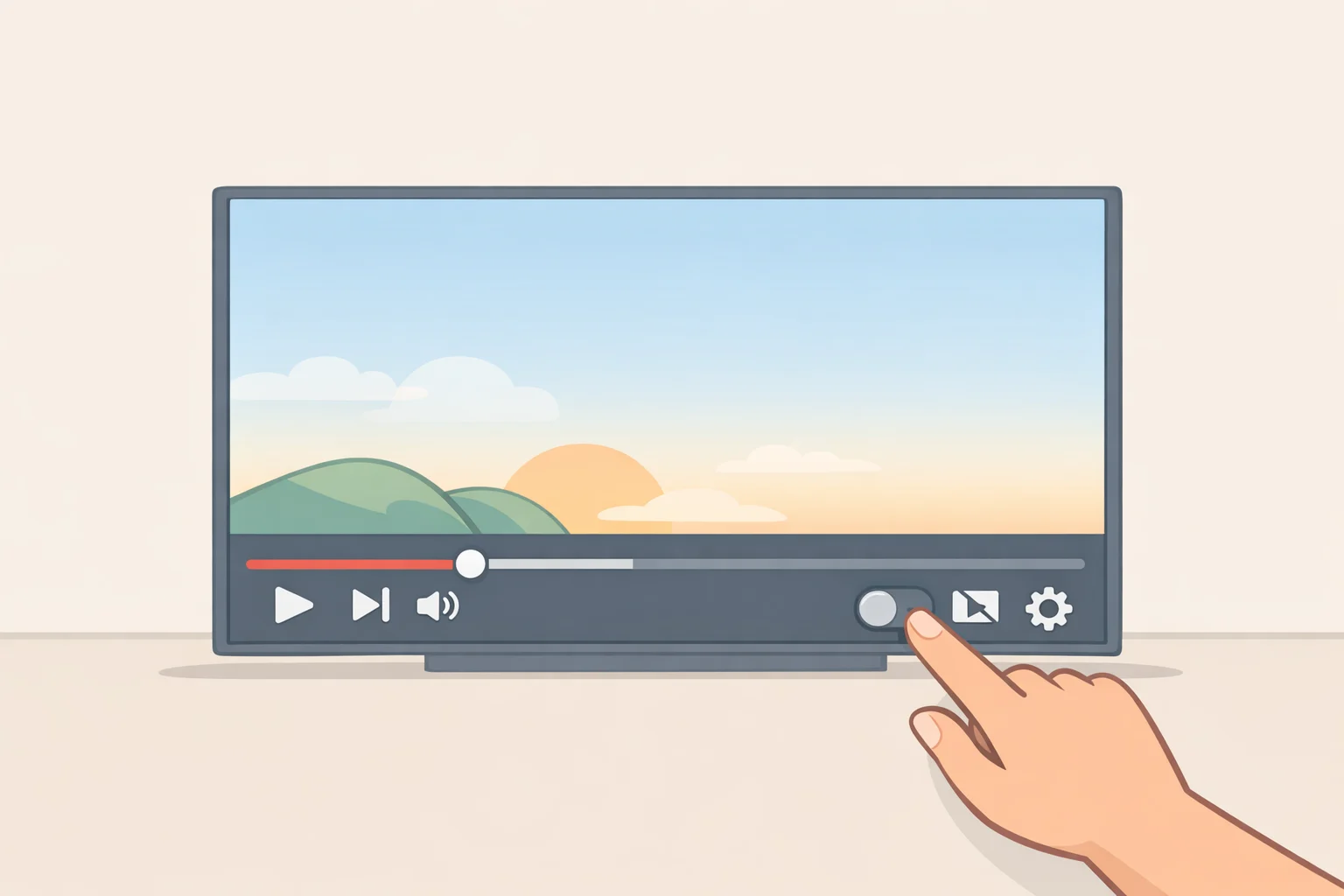
Autoplay is on by default for every adult account; only users under 18 have it disabled out of the box, per Android Police. With it running, YouTube selects the next video the moment one ends, pulling your viewing in whatever direction the algorithm prefers rather than the direction you chose. Turning it off makes every next video a deliberate decision. The change sticks across sessions once you set it, per Android Police.
- Mobile (in-player): while a video plays, find the Autoplay toggle in the upper-right corner of the player and switch it off
- Mobile (settings path): profile picture → settings gear → Playback → toggle Autoplay next video off
- Desktop: the Autoplay toggle appears at the bottom of the video player
Setting 5: Disable autoplay previews in feeds
Separate from Autoplay, the app runs silent video previews as you scroll through the Home and Search feeds. Turning these off stops background data use. BeeTV notes that these previews still count as activity, though that claim isn't confirmed by more authoritative sources. At minimum, disabling them reduces the volume of algorithmically curated content crossing your field of view while you're still deciding what to watch.
- Settings → General → Playback in feeds → set to Off, or Wi-Fi only if you want to keep them on faster connections, per Android Police
Reduce the app's pull on your attention
These settings don't directly change what YouTube recommends, but they do limit the mechanisms the app uses to bring you back in or keep you scrolling longer than you intended. Think of this section as friction that works in your favor.
Setting 6: Cut notification categories down to what you actually want
YouTube sends alerts by default for uploads, replies, livestreams, product updates, recommended videos, and shared content, most of which you didn't ask for, as BeeTV documented. Recommended video notifications are a direct line from the algorithm to your lock screen; turning off that category cuts one of the most intrusive notification types, per Android Police.
- Profile picture → Settings → Notifications
- Turn off Recommended videos, Product updates, and Shared content
- Keep Subscriptions if you want alerts for new uploads from channels you follow, per Android Police
Setting 7: Enable scheduled digest
For whatever notifications you keep, a scheduled digest batches them into a single daily delivery at a time you choose, rather than pinging you throughout the day, per BeeTV. Same information, far less interruption.
- Found in the same Notifications settings menu → select Scheduled digest → set your preferred delivery time
Setting 8: Set a Shorts feed limit
The Shorts feed has no natural endpoint. YouTube's Shorts Feed limit pauses it after a daily cap you set; when you hit the limit, a prompt appears and the feed stops for the rest of the day, Android Police reported. Adult accounts can dismiss the prompt, this is a nudge, not a lock, but the interruption is often enough to break the loop.
- Profile picture → Time management → Shorts Feed limit → select your daily cap
Setting 9: Turn on Take a break reminders
Break reminders pause playback after a set interval, 30, 45, or 60 minutes of active viewing. The timer counts only while a video is playing, so pausing doesn't burn it down. Like the Shorts limit, it's a prompt rather than a hard stop, but prompts that require a deliberate response tend to change behavior more than passive ones, per Android Police.
- Profile picture → Settings → General → Time watched → Take a break reminder → set your interval
Setting 10: Configure the sleep timer for late-night viewing (mobile)
The sleep timer stops playback automatically after a set period; options run from 10 minutes to the end of the current video, per BeeTV. It serves a specific use case: falling asleep with the app running. For that case, it's the only setting that actually stops what's happening on screen.
- During playback: tap the gear icon → Sleep timer → select your duration
YouTube settings for a better viewing experience
The settings in the first two sections change what YouTube learns and how hard it tries to recapture your attention. These last two address something simpler: how videos actually look and feel. Both are genuinely underused defaults worth adjusting once.
Setting 11: Set a default video quality
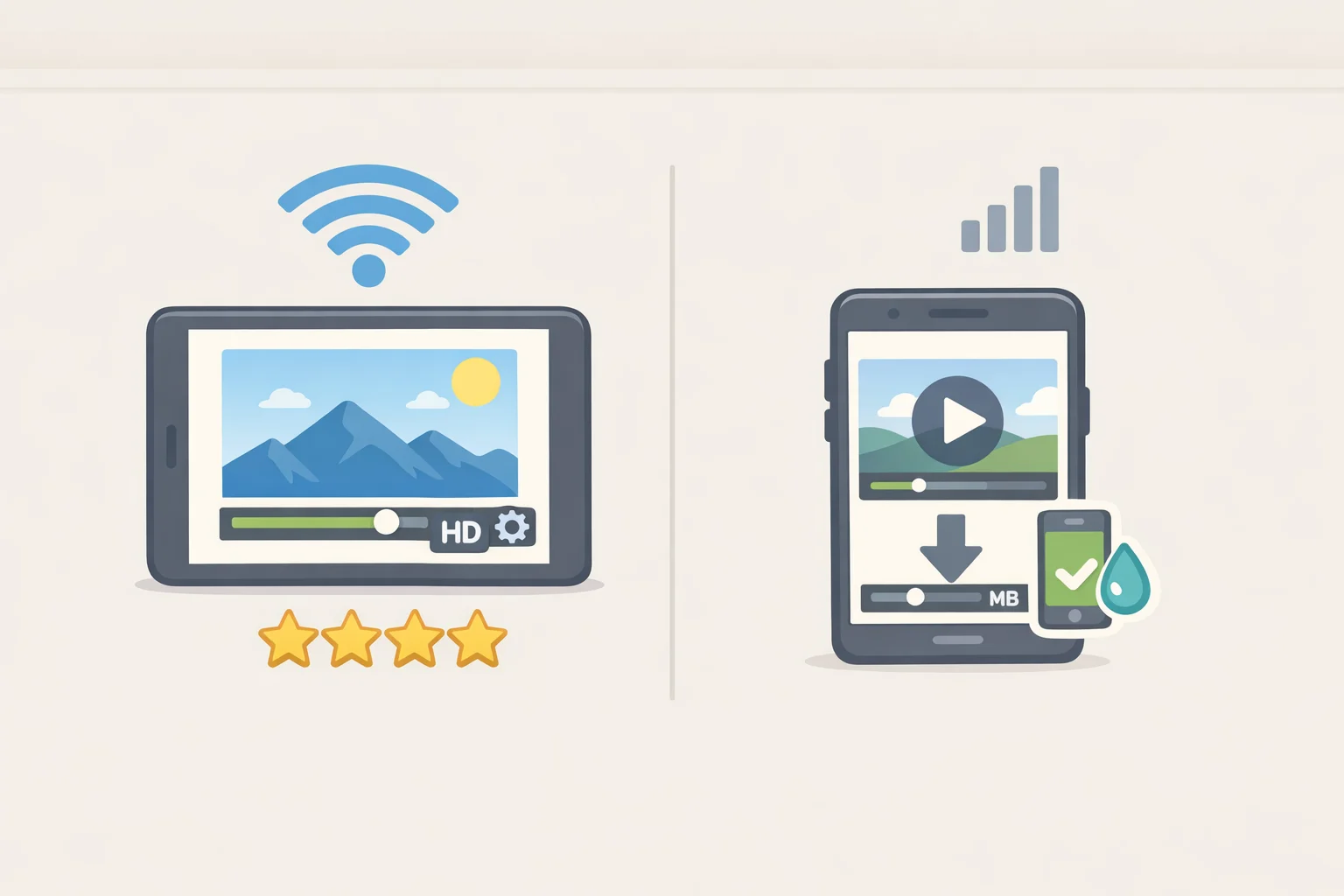
YouTube's Auto quality typically starts videos around 480p to conserve bandwidth, which looks noticeably soft on a modern phone screen, per BeeTV. The app lets you set separate defaults for Wi-Fi and mobile data. Choosing "Higher picture quality" on Wi-Fi generally starts videos at 720p; "Data saver" on mobile networks reduces resolution and speeds up loading on slower connections, per BeeTV. Set it once and you won't need to adjust it per video.
- Mobile: profile picture → Settings → Video quality preferences → set Wi-Fi to Higher picture quality, mobile to your preference, per Android Police
- Desktop: profile picture → Settings → Playback and performance → set preferred resolution
While you're in Playback settings: the default double-tap seek jump is 10 seconds. Change it to anywhere from 5 to 60 seconds in Settings → Playback to match how you actually navigate through videos, per BeeTV.
Setting 12: Switch to dark theme (and turn on captions)
Dark theme replaces YouTube's white UI with a dark background, reducing screen glare in dim rooms without affecting video brightness, per Android Police. It's the lightest change on this list but a persistent quality-of-life improvement for anyone who watches in the evenings.
- Profile picture → Settings → General → Appearance → select Dark theme or Use device theme to follow your phone's system setting, per BeeTV
Worth enabling in the same sitting: captions. They're not just an accessibility feature, they're useful in noisy environments, at higher playback speeds, and for content with dense technical vocabulary. Tap the CC icon during any video. They persist for the rest of that session and can be set to auto-translate for content in other languages, per Android Police.
What you've actually changed
None of these is dramatic alone. Together, they shift the balance between what YouTube decides and what you decide.
The research that opens this guide found that the buttons YouTube shows you most prominently, Not Interested and Don't Recommend Channel, couldn't prevent similar recommendations from returning more than half the time, even when used consistently across 567 million recommendations, per the ACM audit published earlier this year. The settings covered here work differently because they change the inputs: what gets recorded, what plays automatically, how often the app interrupts you. That's a more reliable lever than tapping feedback buttons and hoping the algorithm listens.
The privacy improvements are real but bounded. Pausing history stops future activity from being logged to your account. Google still collects some anonymous metrics regardless of what you turn off, as DEV Community notes, so these settings reduce the data profile YouTube builds on you, they don't erase it.
Everything here is reversible. If pausing history makes the feed feel too generic, switch to 3-month auto-delete instead. If Data saver on mobile looks fine, keep it. The three changes most worth making first: turn off Autoplay, pause or limit watch history, and strip notifications down to Subscriptions only. The rest can follow at whatever pace makes sense.