How to Remove Bloatware from Samsung Galaxy Phones
Unbox a new Samsung Galaxy phone today and there's a good chance the app drawer already has entries you never installed and may never open. Engadget reported today that this problem still shows up on Galaxy phones in 2026, even though Samsung provides built-in options to uninstall, disable, or hide some of them. Samsung Galaxy bloatware removal isn't one button; it's three separate actions, and each does something different to your storage, your notifications, and your app drawer.
This guide covers how to remove bloatware from Samsung Galaxy phones using those tools, in the order that actually gets results: uninstall when it's offered, disable when it isn't, and hide only when neither option is available. The clutter isn't new. Samsung's 16GB Galaxy S4 reportedly left buyers with only about 9.5GB usable back in 2013, largely due to bundled software (Engadget, today).
What's actually on your phone depends on where you bought it. The app list varies by Galaxy model, region, and carrier, so two people buying the "same" phone can unbox noticeably different app drawers (Engadget, today). Menu wording for the steps below can shift depending on your device and One UI version too, so check your own phone before assuming every label here will match exactly.
Which Samsung preinstalled apps can you remove or disable?
Video of the Day
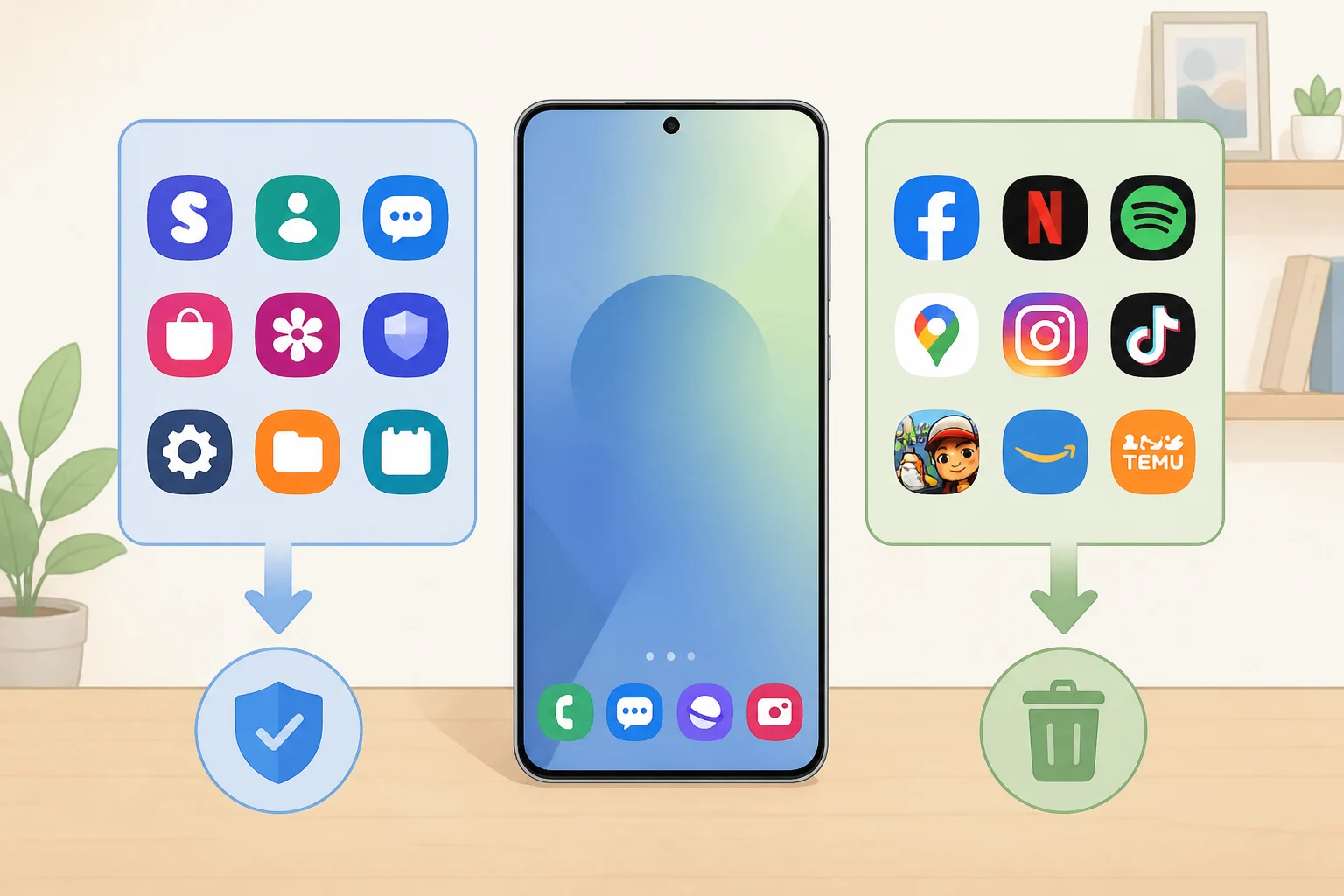
Preinstalled extras generally split into two groups. Samsung's own optional apps include Samsung Shop, Samsung TV Plus, and Samsung Global Goals, while third-party apps such as Facebook, Instagram, LinkedIn, OneDrive, and Spotify may be preinstalled depending on where you buy the phone (Engadget, today).
Samsung is still adding to that list. In July 2026, the company signed an agreement to preload Amazon Music on certain Galaxy phones and tablets, though it hasn't specified which models are included (Engadget, today). Eligible new subscribers also get a three-month free trial of Amazon Music Unlimited, which automatically renews at the paid rate if you forget to cancel it (Engadget, today).
Pick your targets carefully before touching anything. A reasonable starting point is an app you recognize by name and haven't opened since setup, but a familiar name isn't a safety guarantee; some apps quietly support other Samsung features behind the scenes. Check its info page under Settings > Apps first, and if you don't recognize an app or aren't sure what it does, leave it alone until you've looked it up.
Video of the Day
How to remove Samsung preinstalled apps by uninstalling
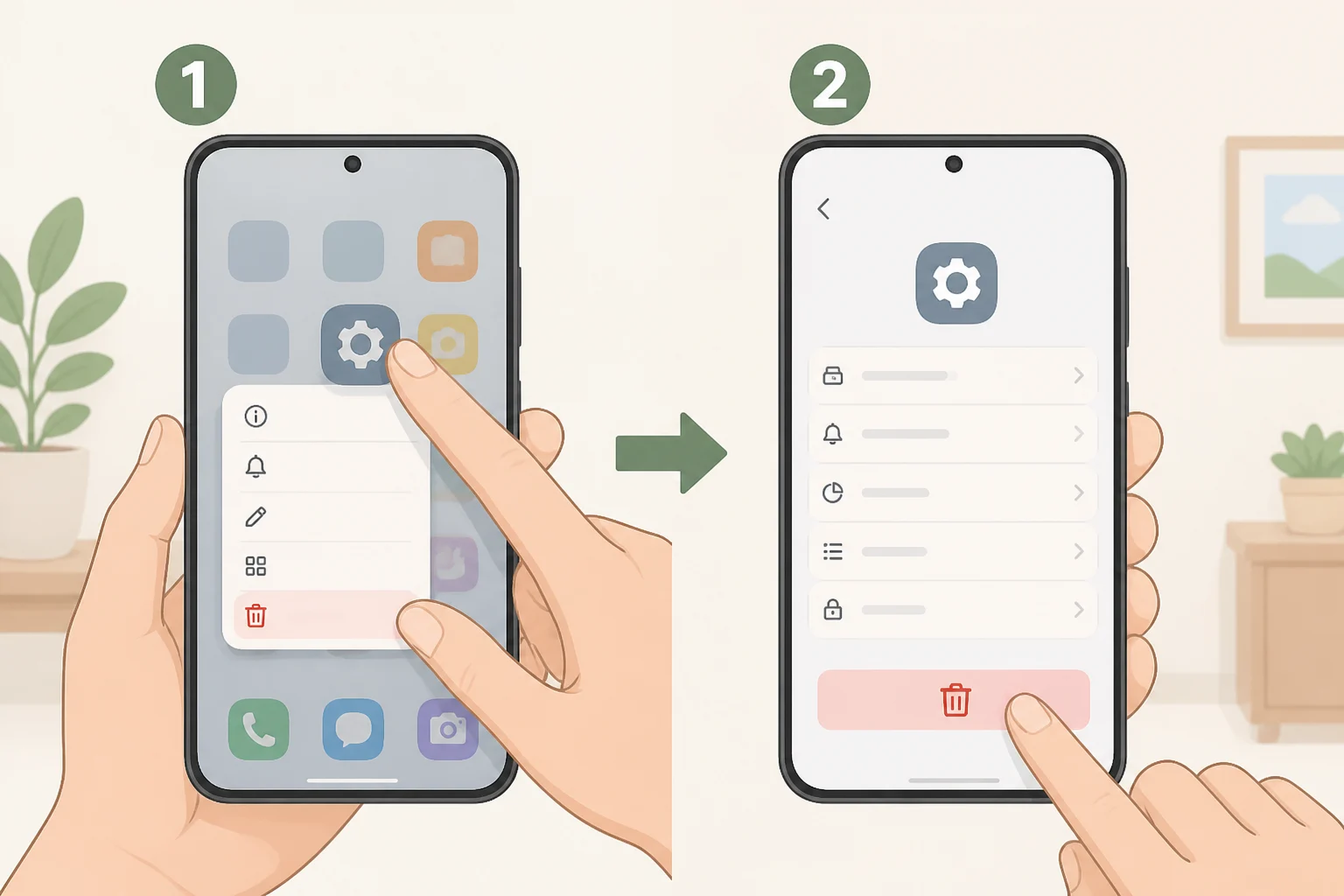
Of the built-in options covered here, uninstalling is the one that removes the app and can recover its app storage. Try it first on anything you don't use.
- Swipe up on the home screen to open the full app list.
- Press and hold the app you want to remove.
- Tap Uninstall if that option appears, and confirm.
The same can be done from Settings > Apps > [app name] > Uninstall (Engadget, today). Samsung confirms that some preinstalled apps can be deleted this way outright, while others, including Phone, Messages, Contacts, Gallery, and My Files, cannot, because they're required for basic device functions (Samsung UK support, updated earlier this year).
If you remove something by mistake, or decide later you need it after all, it can typically be reinstalled from the Galaxy Store or the Google Play Store (Android Police). If "Uninstall" never shows up for a given app, move on to disabling it instead.
How to disable unwanted apps on Samsung Galaxy phones when uninstalling isn't available
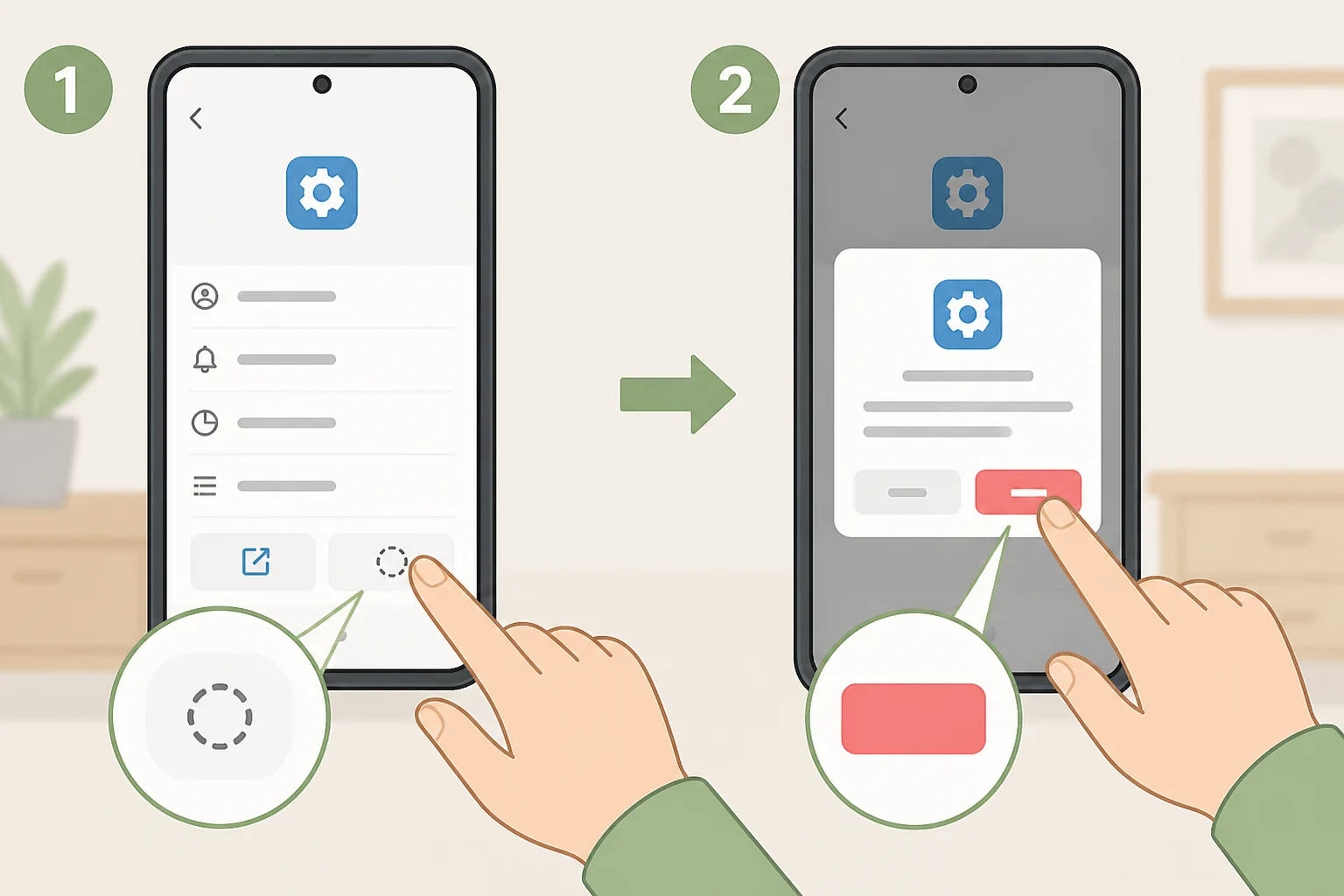
Some apps won't offer an uninstall option at all. Disabling is the fallback.
- Go to Settings > Apps and select the app.
- Look for Disable on the app's info page.
- Read the confirmation prompt carefully before tapping Disable.
- Confirm.
Before disabling an app you don't recognize, check its permissions and storage use on that same info page first. There's no guarantee a vague-sounding app isn't tied to something else on the phone, and a quick look costs nothing.
Disabling stops the app from running and removes its icon from the home screen and app drawer, but it does not remove the app's installed files from the phone (Engadget, today). That means it won't reclaim storage the way a full uninstall does. A disabled app can be turned back on anytime by returning to the same settings page and tapping Enable (Engadget, today; Samsung UK support, updated earlier this year).
Not every app gives you this option, either. Samsung's own support documentation notes the disable feature is available only for some preinstalled apps, and Android Police confirms that apps essential to device operation show a grayed-out Disable button instead (Samsung UK support, updated earlier this year; Android Police).
When to hide apps instead, and which apps to leave alone
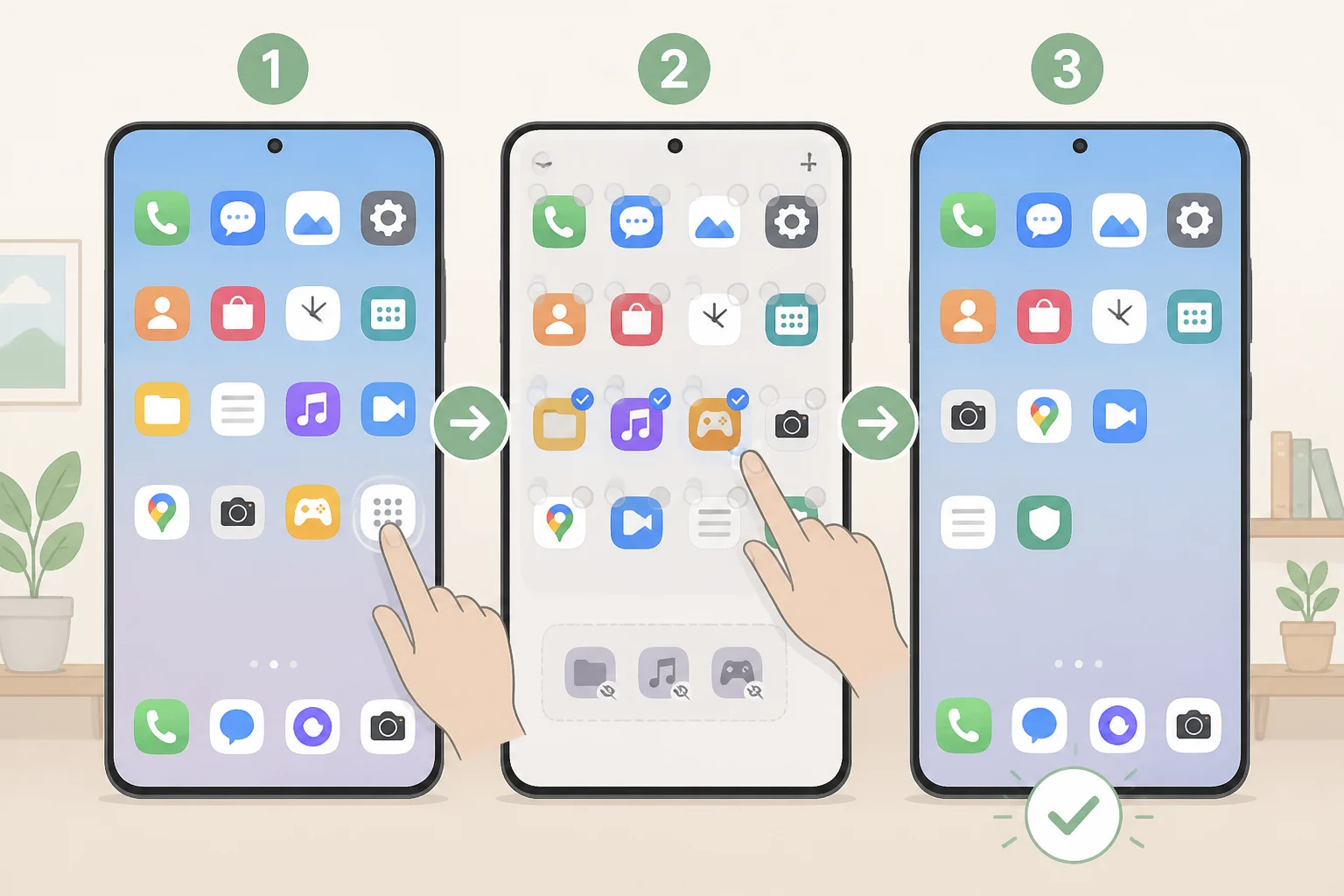
If an app can't be uninstalled or disabled, hiding is what's left, and it only affects what you see.
- Touch and hold an empty spot on the home screen.
- Tap Settings.
- Choose Hide apps (or Hide apps on Home and Apps screens).
- Select the apps you want out of sight and tap Done.
The app remains installed, retains its permissions, and may still send notifications (Engadget, today). Hiding an app and turning off its notifications won't free up storage or revoke anything it has access to (Engadget, today). To bring a hidden app back, return to the same Hide apps menu and deselect it (Samsung UK support, updated earlier this year).
To stop a hidden app from pinging you, go to Settings > Notifications > App notifications, select the app, and turn off Allow notifications (Engadget, today).
Leave unfamiliar system services alone rather than disabling or hiding them, since tampering with the wrong one can affect core phone functions (Engadget, today; Android Police). Core apps like Phone, Messages, Contacts, Gallery, and My Files generally cannot be deleted, and Samsung may not offer a Disable option for them, though they can still be hidden if you want them out of sight (Samsung UK support, updated earlier this year).
Uninstall vs. disable vs. hide at a glance
| Action | What happens | Storage recovered | How to undo it |
|---|---|---|---|
| Uninstall | Removes the app entirely | Yes | Reinstall from Galaxy Store or Play Store |
| Disable | Stops the app, removes its icon, keeps files on the phone | No | Tap Enable in the same menu |
| Hide | Removes the icon only, app keeps running | No | Return to Hide apps menu and deselect |
Why ADB removal isn't where you should start
Technically advanced users sometimes reach for Android Debug Bridge (ADB) commands to strip out stubborn system apps without rooting the phone (Android Police). That method works differently from a normal uninstall, and it's worth knowing the difference before trying it.
Running adb shell pm uninstall -k --user 0 doesn't truly remove a system app from the device. It removes the app only for the current user, and the package can be restored later with a separate install-existing command (OutrageousStorm debloat list, earlier this year). That's a meaningfully different result than deleting an app through Samsung's own settings.
This list, maintained by community contributors rather than Samsung, identifies several packages whose removal can cause severe problems, including a boot loop or loss of core functions. It names com.android.systemui, com.android.settings, com.android.providers.settings, com.google.android.gms, com.android.phone, and com.android.nfc specifically (OutrageousStorm debloat list, earlier this year). That warning applies to those identified packages rather than every system app, but it's exactly the kind of mistake that's easy to make while working from an unfamiliar or outdated package list. Unless you're prepared to verify your exact model and software version against a current list first, Samsung's own menus are the safer place to do this work.
Removing apps also won't touch promotional content baked into Samsung's own services. Weather, Galaxy Store, and the Samsung Free panel can show promotional content independent of what's installed on the phone, according to a vendor-published guide on blocking Samsung ads (AdLock, last month). That's a separate issue from app removal and outside the scope of this guide.
What to do now
Go to Settings > Apps and start with anything you recognize and never use. Uninstall it if the option appears, disable it if uninstalling isn't offered, and hide it only if neither works. Leave core apps and unfamiliar system services alone.
If your phone came with an Amazon Music trial, confirm its renewal date and cancel it through the account or store where you activated it if you don't want the paid subscription to start automatically.