How to Change Ray-Ban Meta Privacy Settings: 5 Controls to Check
Reddit users reported earlier this month that some Ray-Ban Meta glasses recorded audio without anyone saying the "Hey, Meta" wake phrase, with the recordings and transcripts turning up in their conversation history. Meta said in a statement reported by Ars Technica that the issue "has been resolved," though the company still hasn't said what caused it or how many devices were affected (Ars Technica). Ars Technica also noted that only a few reports surfaced online, and that Android Authority couldn't reproduce the behavior before Meta announced a fix, so there's no evidence this was happening across every pair of glasses. Still, it's a fair prompt to actually check your Ray-Ban Meta privacy settings instead of assuming the defaults do what you think.
No toggle guarantees the glasses will never capture something unexpected again. What the controls below do is reduce some of the routes by which data reaches Meta, limit what may be used to improve its AI products, and let you see and delete what's already stored. Capturing media, sending it to Meta's servers, and retaining voice or chat history run through separate controls, so switching one off doesn't switch the others off (EFF reported earlier this year).
This guide walks through five settings in the Meta AI app, plus a separate deletion step, covering uploads, optional data sharing, AI requests, and stored voice history in that order. The app is required to set up the glasses, and EFF notes that although you can technically use the glasses without it, most people will likely still rely on it since there's no easy way to get footage off the glasses otherwise (EFF).
How to change Ray-Ban Meta privacy settings in the Meta AI app
Video of the Day
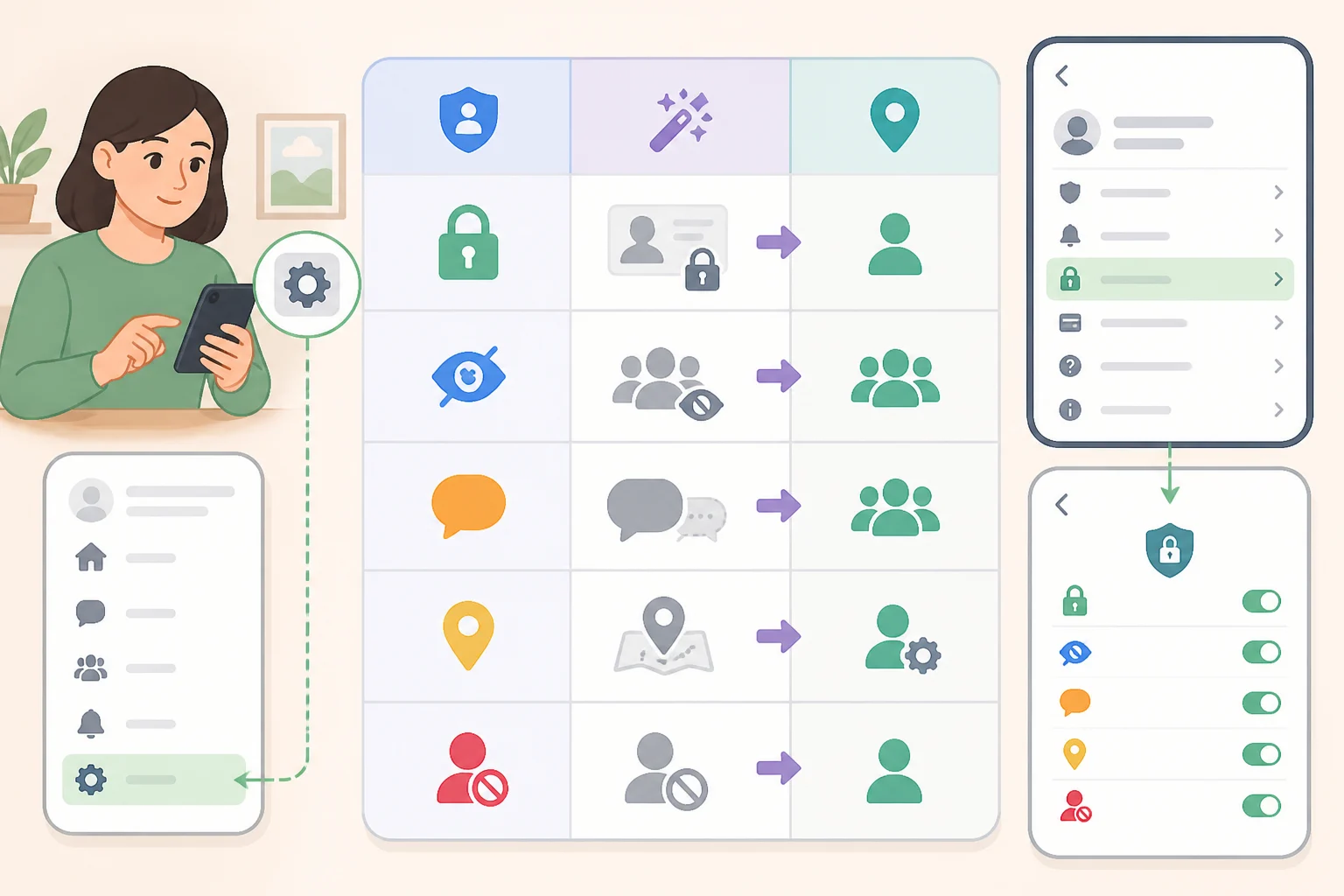
Most of these controls live in the Meta AI app, under your glasses' device page and Privacy settings (EFF reported earlier this year). The table below shows what each one actually stops, since several sound like they overlap when they don't.
| # | Setting | What it stops | Where to look |
|---|---|---|---|
| 1 | Cloud Media | Photos/videos sent to Meta's cloud for processing or temporary storage | Glasses device page, Privacy |
| 2 | Sharing Additional Data | General product-improvement data sharing, not camera media | Same Privacy menu, separate toggle |
| 3 | "Hey Meta" / camera-triggered AI | New voice- and camera-triggered AI requests | Assistant settings; label may vary |
| 4 | Transcript storage | Default storage of text transcripts going forward | Privacy or voice settings |
| 5 | Audio recording storage | Storage of the audio itself; disabled automatically if transcript storage is turned off | Same menu as transcript storage |
Deleting voice logs, transcripts, and AI chat history Meta already holds is a separate cleanup step covered at the end of this guide. Turning off these five settings only affects what gets collected going forward.
Menu names and availability can shift by app version, glasses generation, and region. If you don't see an exact label below, check Meta's current help documentation rather than assume a differently named toggle covers the same thing.
Turn off Cloud Media
Cloud Media governs whether photos and videos captured by the glasses get sent to Meta's cloud for processing and temporary storage. Turning it off in the Privacy menu stops routine uploads through that path.
That's not the full picture, though. Meta's wearables policy, as quoted by Ars Technica, says media reaches its cloud when cloud processing is on, when Meta AI is used on the glasses, or when content is uploaded to Facebook or Instagram, not for every photo by default (Ars Technica reported earlier this year). So disabling Cloud Media doesn't stop uploads triggered by asking Meta AI about something you're looking at, doesn't touch livestreaming, and doesn't affect anything you choose to upload to Facebook or Instagram. Media is also still imported automatically to the Meta AI app on your phone regardless of this toggle, and from there it may back up to iCloud Photos or Google Photos depending on your phone's own settings, which is worth checking separately if camera-roll exposure concerns you (EFF).
- Open the Meta AI app and select your glasses.
- Look for Cloud Media under Privacy settings.
- Turn it off.
It reduces one documented cloud-processing route, just not the only one that matters.
Turn off Sharing Additional Data
A second, separate toggle in the same Privacy menu limits optional data Meta uses to improve its products generally. It's not a substitute for the step above. BestInXR reports that Meta's help documentation states plainly: "your choice to share Additional Data does not include the photos and videos captured by your glasses," meaning this toggle does nothing to the camera data covered in Step 1 (BestInXR reported last month). The same documentation says Meta uses Additional Data, "subject to the choice you make," to "improve and develop Meta Products," so leaving it on may mean usage data keeps feeding product development even with Cloud Media off.
- Stay in the same Privacy menu.
- Find Sharing Additional Data.
- Turn it off, in addition to Cloud Media, not instead of it.
Turn off "Hey Meta" and camera-triggered AI
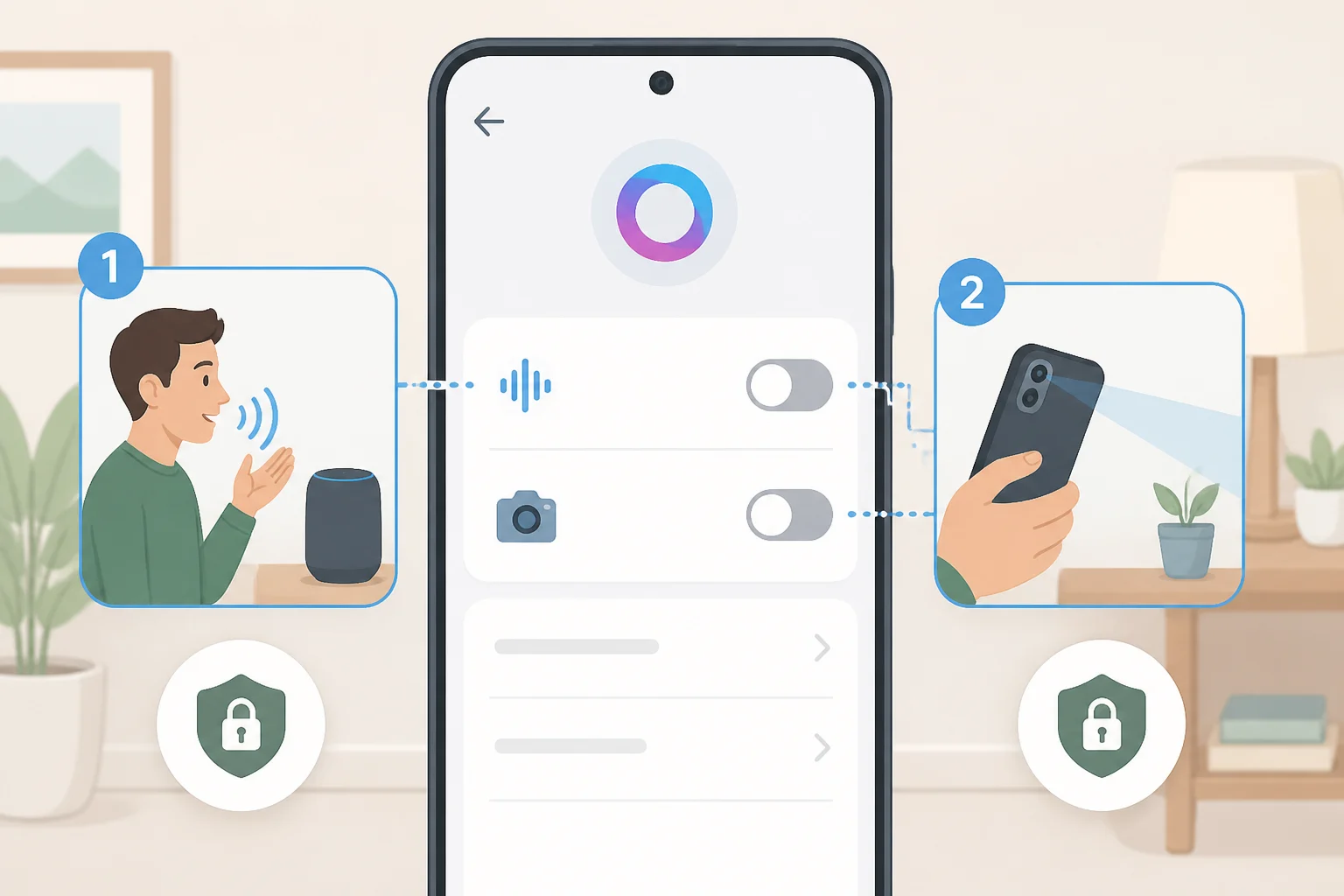
Asking Meta AI about something in view sends a photo to Meta's cloud for processing, and the prompt, the image, and the response all land in your app's chat history, according to BestInXR's reporting on Meta's help documentation for the feature (BestInXR reported last month). Treat that as a separate cloud-processing path from Cloud Media. Turning off Cloud Media shouldn't be assumed to disable these AI-triggered uploads too.
Meta reportedly made "Meta AI with camera" on by default following an August change, unless a user had separately disabled "Hey Meta" voice support, according to a company email sent at the time (Ars Technica reported earlier this year). That reporting predates recent app updates, so confirm the current state in your own settings instead of assuming it still applies.
Turning this off cuts voice-triggered camera AI requests, but that trade-off removes the hands-free AI feature many people rely on. It won't touch manual camera-button captures or the Cloud Media path, which stay separate and unaffected regardless.
- Open the Meta AI app's assistant settings.
- Look for a toggle tied to "Hey Meta" or camera-triggered AI; the exact label may vary by app version.
- Turn it off if present and if hands-free AI isn't essential to how you use the glasses.
Check your Ray-Ban Meta voice recording settings
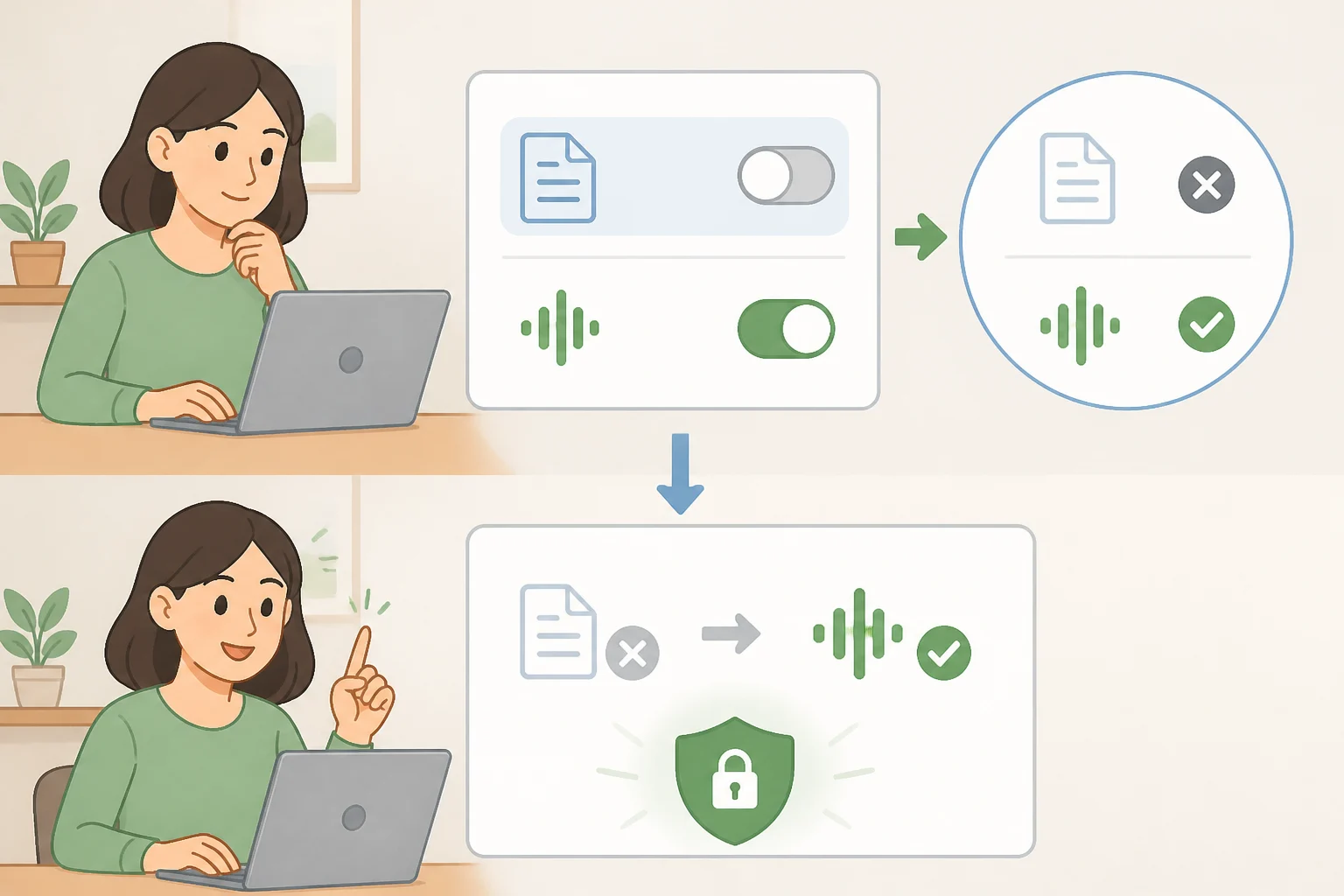
The first three steps limit what happens going forward for the paths they cover. None of them erase data Meta may already hold, and none of them touch two more controls further down the Privacy menu: transcript storage and audio recording storage.
Meta's documentation describes these as linked but one-directional. Text transcripts "are stored by default to help improve Meta's products," and that default can be changed in Settings at any time; audio recordings are a separate, opt-in setting, and turning transcript storage off disables the audio toggle along with it, though the reverse isn't stated (BestInXR reported last month). EFF describes it somewhat differently, reporting that recorded audio from Meta AI conversations is saved by default unless a user manually deletes it after each interaction (EFF reported earlier this year). The two descriptions don't line up cleanly, possibly reflecting different policy versions or labeling over time, so check the exact wording and toggle state shown in your own account rather than assume either description matches your device.
Meta's stated policy allows voice data retention up to one year, with accidental "false wake" activations deleted within 90 days of detection, figures that come from the company and haven't been independently verified (BestInXR). When storage is on, Meta says it uses machine learning and "trained reviewers," described as vetted vendors and select employees, to process voice data, altering the pitch of recordings before human review, in cases where review happens (BestInXR; Ars Technica). That doesn't mean every stored recording gets a human listener, just that the process allows for it. With storage switched off, Meta's stated policy says recordings and transcripts are deleted immediately after processing and aren't seen by reviewers or used to improve products, though that's the company's own account of its practice, not something tested independently.
There's a related setting worth watching for rather than counting on. BestInXR, citing Engadget, reports that Meta has begun rolling out a toggle called "store visual data from AI experiences" in some accounts, alongside a help-center page describing human review of that data, but its default state and how widely it's rolled out aren't confirmed (BestInXR reported last month).
- Open Privacy or voice settings in the Meta AI app and look for a transcript or voice-data storage control.
- Turn off transcript storage if you want future conversations to stop being retained by default. Meta's stated policy indicates this should also disable audio recording storage.
- Check whether a visual-data-storage toggle has appeared on your account, and disable it if so.
Delete your Ray-Ban Meta voice recordings and AI chat history
Turning off the settings above stops new data from being retained. It does nothing about what's already sitting in your account, which is why deletion is its own step rather than an afterthought.
Meta's wearables policy states that users "can access and delete recordings and related transcripts in the Meta AI App" (Ars Technica reported earlier this year). After this month's wake-phrase bug, Meta told affected users something similar: "People can manage, review, and delete voice logs of their interactions with Meta AI via settings at any time" (Ars Technica). That's a concrete reason to go check your Meta AI voice log settings now, even if you don't remember triggering the assistant by accident.
The exact path for clearing AI chat or image history, separate from voice recordings, isn't confirmed by Meta's published documentation, so treat that as something to look for rather than a guaranteed menu location.
- Open the Meta AI app and look for voice history or recordings under your account or privacy settings.
- Delete recordings and transcripts shown there.
- Separately check for an AI chat or image history section and clear it if one exists; confirm its exact location in-app, since it isn't spelled out in Meta's published policy.
- Repeat periodically. New entries accumulate even after you've changed the settings above.
Video of the Day
What these settings can't fix
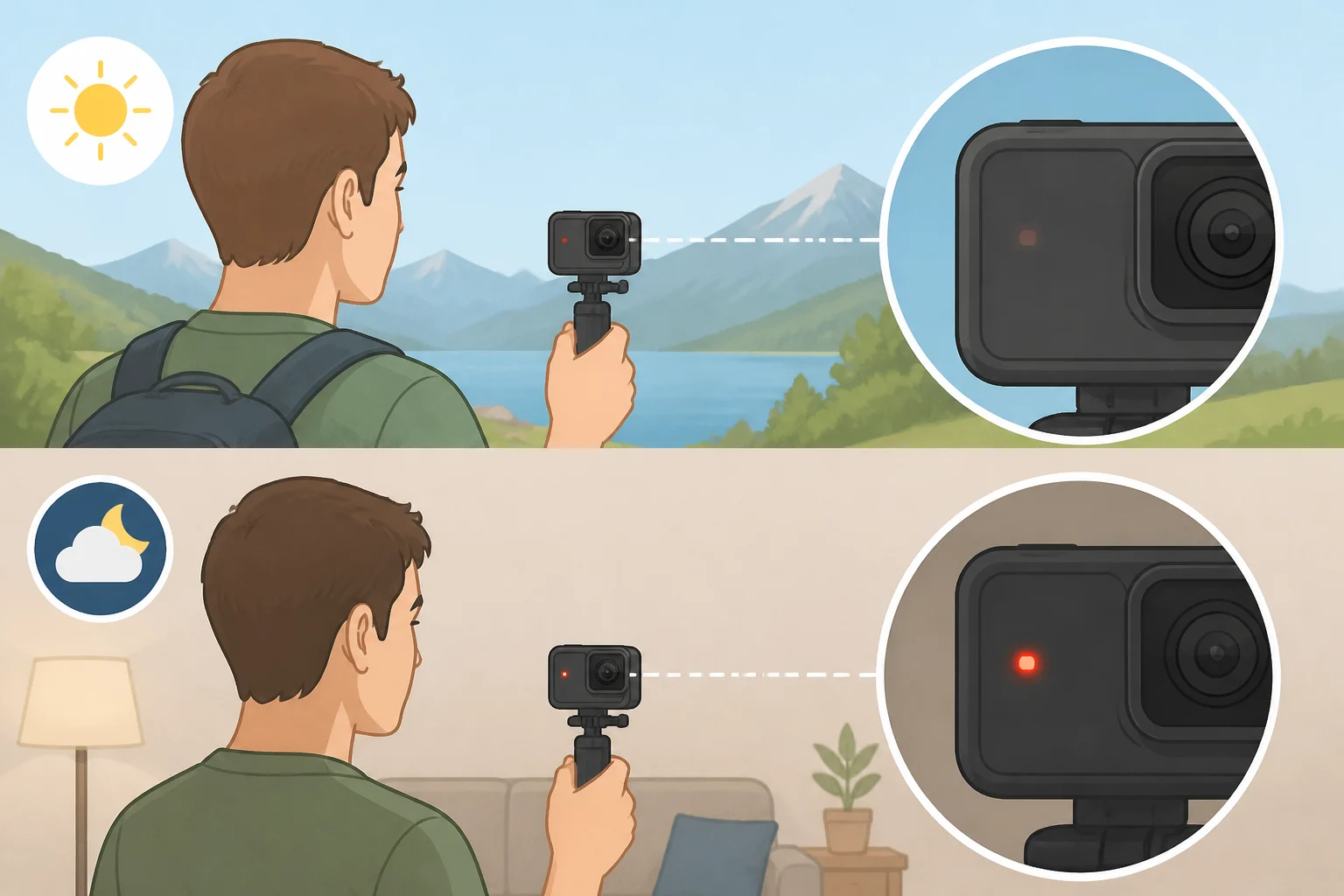
None of the controls above touch the recording indicator light, and regulators have already flagged that as a real gap. Germany's Hamburg data protection authority, after tearing down the glasses, found the LED "is not easily visible in many environments, particularly outdoors and in direct sunlight" (TechRadar reported last month). On first-generation glasses, the same report found the light glows "very dimly" when a wearer asks Meta AI about something nearby; on second-generation glasses, it found the light doesn't glow at all during that same interaction. Meta did fix a separate exploit that let wearers start recording, then cover the light to hide it mid-capture, but that patch doesn't make the light itself any easier for bystanders to notice in the first place.
European privacy guidance cited by TechRadar recommends actively getting consent from people being recorded rather than assuming a light anyone could miss provides it. These app settings do not change the physical recording indicator, and nothing in the Meta AI app substitutes for actually telling the person in front of you.
What to do now
The right setup depends on how you actually use the glasses.
Reduce cloud and retention exposure as much as possible: disable Cloud Media, Sharing Additional Data, "Hey Meta" and camera-triggered AI, transcript storage, and audio recording storage, then delete whatever voice recordings and transcripts already exist on your account. This doesn't make the glasses fully offline or block every upload path; manual camera captures, livestreams, and anything you post to Facebook or Instagram still reach Meta's servers regardless of these settings.
Keep using Meta AI: leave camera AI on if the hands-free prompts matter to you, but turn off transcript and audio retention so new voice recordings and transcripts stop being kept under Meta's stated policy, check for a visual-data-storage toggle and disable it if present, and get into the habit of auditing your voice history every so often rather than assuming it's empty.
Either way, treat reviewing and clearing voice logs as an ongoing habit, not a one-time cleanup, since Meta still hasn't said what caused this month's wake-phrase bug or how many devices it affected. And don't treat the capture light as sufficient notice to people around you. Ask before recording in private or sensitive settings, and check local consent laws, since they vary and don't depend on what your own settings say.