Lightroom vs Lightroom Classic: A Workflow Guide for Photographers
Adobe has two apps called Lightroom. They share the same name, the same subscription, the same RAW engine, and most of the same editing tools. The difference that matters isn't image quality or price it's a foundational assumption about where your photos live and who manages them. Get that right and everything else follows.
Lightroom is built around a cloud-managed library you can reach from any device. Lightroom Classic is built around a local file system you control completely. These aren't competing products so much as two tools built for different workflow assumptions. Adobe includes both in the same subscription because they're designed for different photographers, not because one is replacing the other.
Adobe launched the cloud-first Lightroom in 2017 alongside the original desktop software, then renamed the original "Lightroom Classic" a rebranding that has confused photographers ever since, as PCMag noted this week. Both apps use the same Adobe RAW conversion engine, so baseline processing is identical; the differences are entirely organizational and workflow-based.
The choice comes down to four questions. Where do you want your originals to live? How large is your library, and how fast is it growing? Do you need to edit across multiple devices? And do you rely on any desktop-only pro features tethered capture, third-party plug-ins, IPTC metadata, print soft-proofing? The rest of this article works through each one.
The one difference that drives everything else: where your photos live
Video of the Day
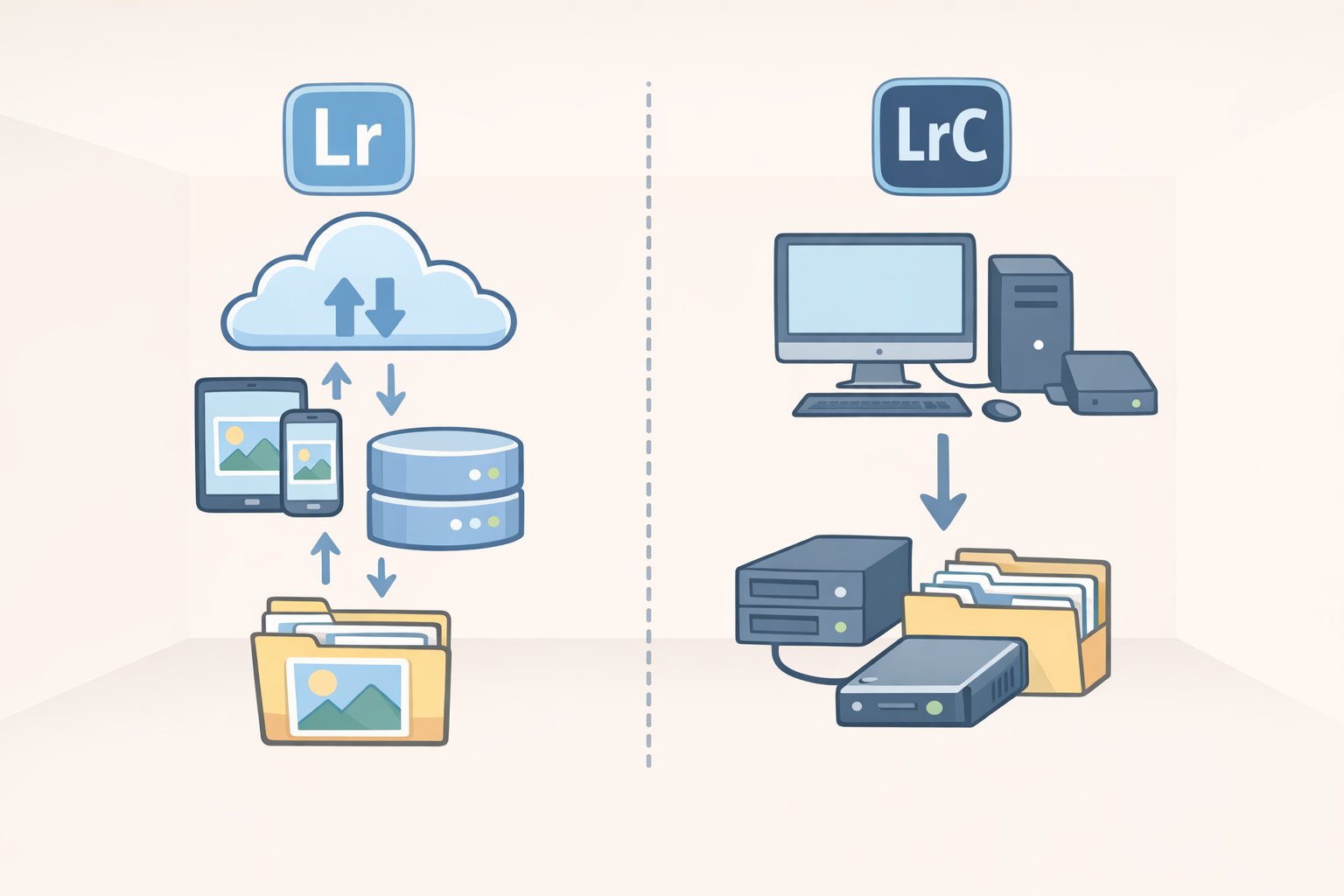
Lightroom treats Adobe's cloud as the authoritative home for your library. The library is managed by Adobe, not the user, as Olly Headey noted last November. Lightroom Classic treats your local hard drive as home; cloud sync is opt-in and secondary, per Adobe's own feature comparison, updated earlier this year.
That single architectural difference explains why the apps look and behave so differently, and why their feature sets have diverged in the ways they have.
Lightroom is cloud-first, though it has moved considerably toward flexibility. It now supports importing to a local hard drive, browsing local folder structures through a Folders view, and keeping a full local copy of originals alongside cloud storage. But unless you use a local library, your hard-disk folder hierarchy won't appear in the main left panel the app's default orientation is still the cloud, as PCMag and Life after Photoshop both note. Classic is the opposite: local-first by design, with cloud sync as something you configure deliberately.
Before going further, four questions worth answering honestly:
- Do you want photos accessible on every device automatically, or do you prefer managing your own folder structure and backups?
- How large is your current library, and how fast is it growing? One concrete reference point: 16,000 RAW files takes up around 650GB, per Olly Headey.
- Do you regularly edit on mobile or tablet, or does your workflow stay on a single desktop machine?
- Do you need tethered shooting, third-party plug-ins, full IPTC metadata fields, or dedicated print output tools?
Video of the Day
What's the difference between Lightroom and Lightroom Classic in day-to-day use?

Organization
Lightroom organizes photos into Albums with a simplified two-panel interface organization on the left, editing on the right. Lightroom Classic uses a module-based structure with distinct modes for Library, Develop, Map, Book, Print, Slideshow, and Web. More powerful, more complex, as PCMag describes.
Classic supports multiple separate catalogs, which is useful for keeping personal and client work entirely isolated. Lightroom does not. Classic also supports color labels, full EXIF and IPTC metadata editing, GPS tagging, and a Map mode for geographic browsing organizational layers that Lightroom largely omits, per PCMag and Adobe's feature comparison.
Classic can sync photos to mobile and provide web access, but only by manually designating specific Collections to sync not as an automatic whole-library experience. Technically capable, just not built for it, PCMag notes.
Search
Lightroom offers AI-powered text search that analyzes image contents without any manual tagging when photos are uploaded to the cloud, you can search "golden hour" or "dog on beach" and it finds matches. Classic's search is limited to filenames, technical metadata like camera and lens data, and manually applied attributes such as ratings and color codes, per PCMag.
AI-powered Recommended Presets, which suggest looks based on what's in the image, are available in Lightroom only, per Adobe's feature comparison. Both apps share Generative Remove, AI Denoise, and Assisted Culling though Assisted Culling is still in Early Access and actively being refined, per PCMag. Generative Remove became generally available across the entire Lightroom ecosystem in late 2024, the Adobe Blog confirmed at the time.
Cross-device access
Lightroom syncs your full library automatically across desktop, mobile, and web with no extra configuration. The mobile apps include a built-in camera that feeds captures directly into the same cloud library, unifying phone and camera content in one place, per Life after Photoshop. Lightroom also now supports sending images to any external editor of your choice previously limited to Photoshop and works with Frame.io's Camera to Lightroom connection for wireless camera imports across devices, according to Life after Photoshop and the Adobe Blog.
Pro desktop features: what Classic has that Lightroom still doesn't
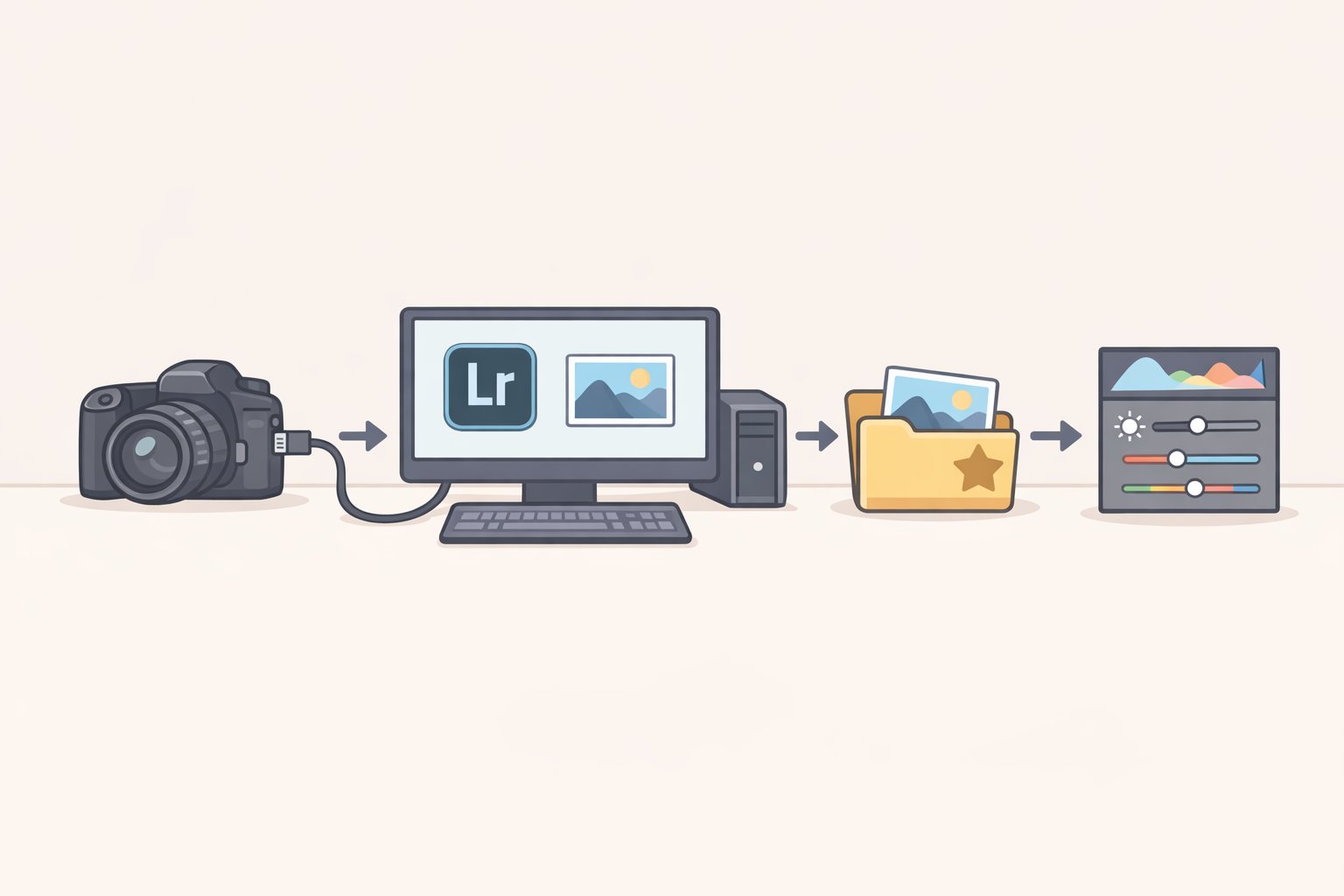
For certain users, Lightroom Classic isn't a preference it's the only option. Studio photographers, editorial shooters, and print-heavy workflows will recognize exactly which features those are.
Tethered shooting. Classic supports direct tethered capture, connecting your camera to the software so photos route in as you shoot and you can control the camera from the desktop. Lightroom has no equivalent. Classic's tether support covers Canon, Nikon, and Sony cameras, and has been extended to Leica and Fujifilm in recent updates, per Adobe's What's New page, last updated in April 2026.
IPTC metadata. Classic supports adding full IPTC fields creator credits, copyright notices, usage rights. Lightroom supports copyright metadata at import but not the broader IPTC field set, per Adobe's feature comparison. For editorial, news, and stock photography, this is non-negotiable.
Third-party plug-ins. Classic supports plug-ins for editing and output specialized denoise tools, direct integrations with SmugMug, Flickr, and commercial printers. Lightroom has a fixed set of native share destinations and can't be extended through the broader plug-in ecosystem, as PCMag and Adobe's feature comparison confirm.
Print, Book, and Web modules. Classic includes a Print module with soft-proofing a preview of how colors will render on a specific printer's output profile along with a Book module for designing photo book layouts and a Web module for generating custom HTML galleries. None of these have equivalents in Lightroom, per PCMag and Adobe's feature comparison.
Classic is not a product in decline. Adobe's What's New page documents that the April 2026 update added background AI processing (so batch AI tasks no longer lock the interface), a new Dust Removal tool, Firefly integration for mood boards and prompt-based editing, film-inspired presets, and the Leica tether support mentioned above. Adobe is actively investing in both products.
Storage, cost, and the migration problem

What you're actually paying for
Both apps are subscription-only and bundled together in the Lightroom plan. Pricing is $9.99/month on an annual upfront plan, $11.99/month on an annual plan billed monthly, or $17.99/month with no annual commitment, per PCMag. All tiers include 1TB of cloud storage and 250 monthly generative AI credits.
For Classic users, storage cost is largely a hardware question drives purchased once, backup costs following commodity pricing. For Lightroom users, the 1TB included tier is the baseline, and it's worth understanding where that ceiling sits.
One concrete data point from Olly Headey: 16,000 RAW files taking up 650GB. Storage pressure compounds from there if you use Lightroom's AI Enhance feature, which generates a separate larger DNG file per processed image, or route photos through external editors as 16-bit TIFFs files that can reach 100MB or more, as Life after Photoshop flags.
Upgrading beyond 1TB escalates quickly. Based on UK pricing Olly Headey reported last November, 2TB costs roughly as much as a second base subscription per month; 5TB and 10TB tiers are substantially steeper. Classic users face no equivalent pressure their storage costs scale with commodity drive pricing, not a cloud tier structure.
Migration friction: read this before committing
Switching between apps is possible but imperfect. Moving from Lightroom to Classic can flatten nested Album structures into single-level Collections; some metadata and organizational hierarchy may not transfer cleanly. Moving from Classic to Lightroom is more involved Adobe documents the process step by step, but both directions carry real friction, as Olly Headey notes.
One portability point worth flagging: Lightroom stores edit data (XMP) inside Adobe's catalog, not in sidecar files alongside your originals. Moving to a different platform entirely Capture One, for example requires a full export or a dedicated migration tool, not just copying files, per Olly Headey.
Four things to check before you choose
- Check your current library size. Does it fit under 1TB today? Estimate annual growth.
- List any must-have features: tethered capture, plug-ins, full IPTC fields, print soft-proofing, multiple catalogs.
- Decide who handles backup: you (Classic plus external storage), or Adobe (Lightroom plus cloud tier).
- Count how many devices you edit on. One desktop: Classic is fine. iPhone, iPad, and desktop: Lightroom earns its cloud overhead.
Which Lightroom should you use?
Beginner or casual enthusiast: Lightroom. The simpler two-panel interface, built-in tutorials filterable by skill level and topic, and Community section for learning from other photographers' edits make it far less intimidating. Classic's module structure assumes users who already know what they're doing, and its in-app learning resources are limited by comparison, per PCMag and Olly Headey.
Mobile-first or multi-device creator: Lightroom. If you shoot on iPhone or iPad and want everything in one synchronized library including AI tools like Quick Actions and Recommended Presets on mobile Lightroom's architecture is built for exactly that. Classic's mobile sync requires manual configuration per Collection and doesn't scale to a whole-library experience, per PCMag and the Adobe Blog.
Studio or commercial photographer: Lightroom Classic. Tethered capture, third-party plug-ins, full print control with soft-proofing, and IPTC metadata support are standard requirements for studio and commercial workflows and they all live exclusively in Classic, per PCMag and Adobe's feature comparison.
Archive-heavy enthusiast or working photojournalist: Lightroom Classic. If your library already exceeds 1TB, you have years of structured folder organization, or you need full IPTC control for editorial or stock work, Classic plus self-managed storage is both more capable and more cost-efficient. Lightroom's cloud tier pricing doesn't reward large archives, per Olly Headey and Adobe's feature comparison.
Genuinely unsure: If your library is small and you edit on more than one device, start with Lightroom it's the lower-friction entry point, and since both apps come with any plan, you can install Classic and test it without committing to a migration. If your archive is already large or carefully organized around a folder structure you care about, start with Classic. Defaulting to Lightroom with a library that will quickly outgrow 1TB, or one built around folder logic that doesn't translate, tends to create more work later rather than less.
Where each app is heading
The editing quality is a draw. Same RAW engine, same core tools, overlapping AI features. The decision is purely about storage model: cloud-managed and everywhere, or file-managed and desktop-deep, as PCMag frames it.
The gap between these two apps is narrowing on both sides Classic gaining AI depth and Firefly integration, Lightroom gaining local folder flexibility and organizational capability. But their underlying assumptions are still different enough that the choice matters, and the storage math is worth doing before you commit. A library that fits inside 1TB today may not in two or three years, particularly if AI enhancement workflows are generating additional files alongside your originals, per Olly Headey.
The most expensive migration is the one you didn't plan for.
Adobe maintains a current side-by-side feature comparison at helpx.adobe.com, updated as features change the most reliable reference for checking whether a specific capability exists in one or both apps.